目次
- 目次
- 検証環境
- パス
- Util
- Highlight / Highlightif
- Dif
- Snapshot
- HorizontalRun / VerticalRun
- Pivot
- Merge
- Image
- RawHtml
- WithStyle
- HtmlHead
- InvokeScript
- DisplayWebPage
- ToCsvString
- WriteCsv
- SyntaxColorText
- ReadLine
- AutoScrollResults
- SaveString/LoadString, SaveBytes/LoadBytes
- SetPassword/GetPassword
- Break
- Progress
- ToExpando
- OnDemand
- Cache
- AzureCloud
- Cmd
- Run / Compile
- OpenILSpy
- LINQPad同梱のSamplesの参照箇所
- Dump
- Hyperlinq
- Chart
- DumpContainer
- Interaction
- XUnitSupport
- 参考
検証環境
- LINQPad 7
パス
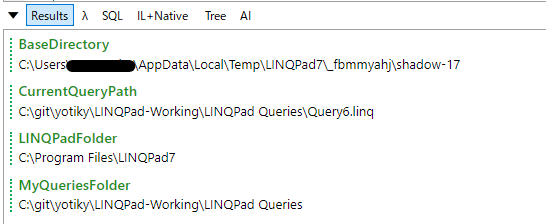
// 現在のQueryのパス(ファイルが保存されていなければnull)
Util.CurrentQueryPath.Dump("CurrentQueryPath");

// LINQPad7.exe のフォルダパス
Util.LINQPadFolder.Dump("LINQPadFolder");

// My Queries のフォルダパス
Util.MyQueriesFolder.Dump("MyQueriesFolder");

// LINQPadの一時出力フォルダ
AppContext.BaseDirectory.Dump("BaseDirectory");
Util
Highlight / Highlightif
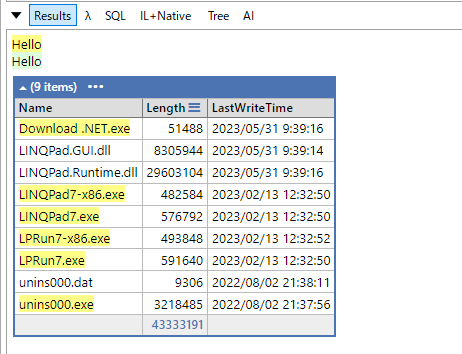
Util.Highlight ("Hello").Dump();
Util.Highlight ("Hello", "#dfd").Dump();

var files =
    from file in new DirectoryInfo (Util.LINQPadFolder).GetFiles()
    select new
    {
        Name = Util.HighlightIf (file.Extension == ".exe", file.Name),
        file.Length,
        file.LastWriteTime
    };

files.Dump();
Dif
string text1 = "The quick brown fox jumps over the lazy dog.";
string text2 = "The quick brown fox jumps right over the lazy dog";

Util.Dif (text1, text2).Dump();

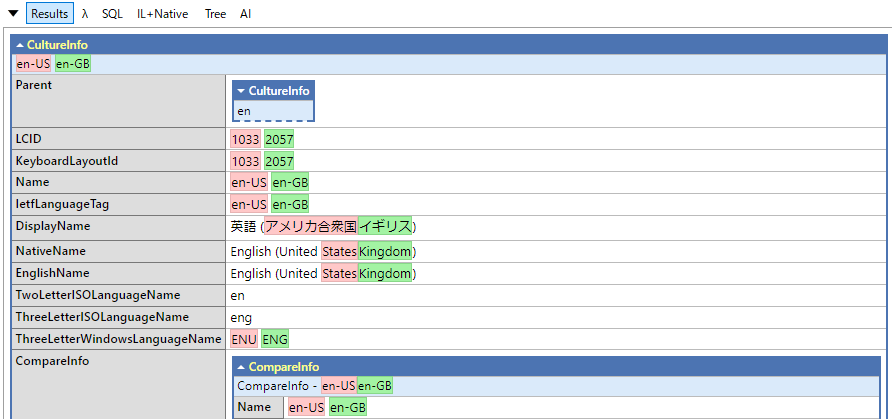
オブジェクトを比較した場合。
Snapshot
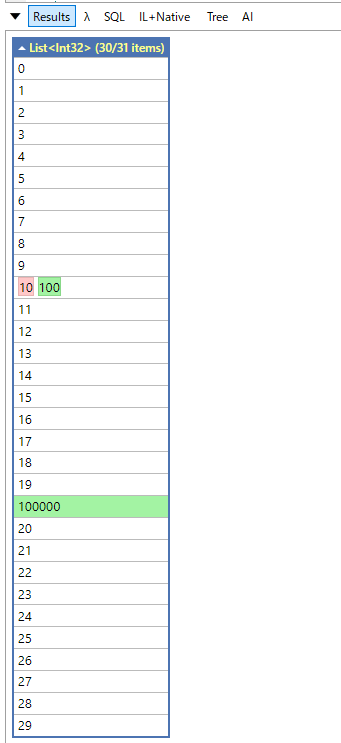
オブジェクトの状態をスナップショットとして取得できる。
var numbers = Enumerable.Range (0, 30).ToList();
var snapshot = Util.Snapshot (numbers);

numbers[10] *=10;
numbers.Insert (20, 100000);

Util.Dif (snapshot, numbers).Dump();
HorizontalRun / VerticalRun
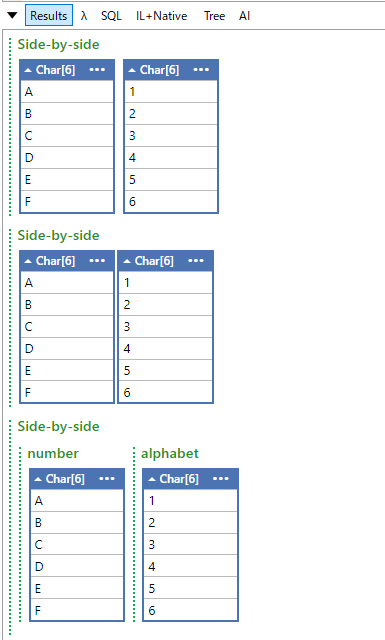
withCaps は要素間のスペースをあけるかどうか。カンマ区切り文字列を渡すとヘッダーにしてくれる。
Util.HorizontalRun(true, "ABCDEF".ToCharArray(), "123456".ToCharArray()).Dump("Side-by-side");
Util.HorizontalRun(false, "ABCDEF".ToCharArray(), "123456".ToCharArray()).Dump("Side-by-side");
Util.HorizontalRun("number,alphabet", "ABCDEF".ToCharArray(), "123456".ToCharArray()).Dump("Side-by-side");
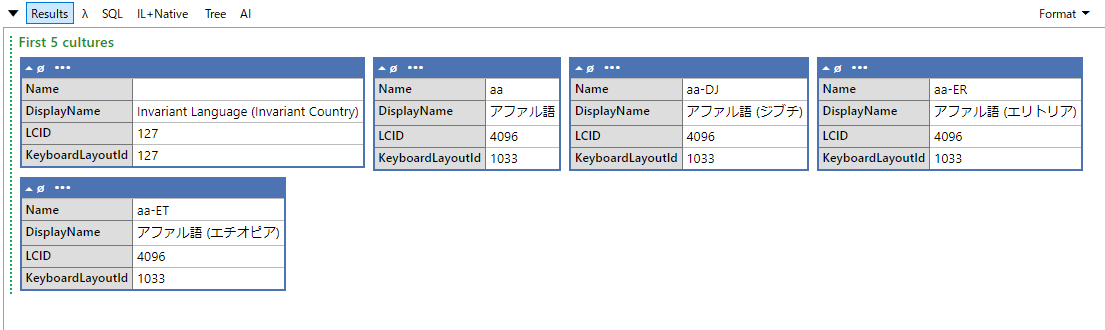
var cultures =
    from c in CultureInfo.GetCultures(CultureTypes.AllCultures).Take(5)
    select new { c.Name, c.DisplayName, c.LCID, c.KeyboardLayoutId };

Util.HorizontalRun(true, cultures).Dump("First 5 cultures");
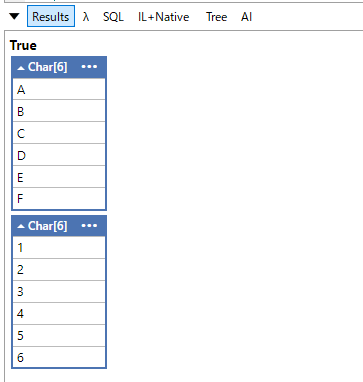
VerticalRun は引数の値を縦に表示する。個別にDumpするの一緒だけどタイトル付きでひとまとめにできる。
Util.VerticalRun(true, "ABCDEF".ToCharArray(), "123456".ToCharArray()).Dump();
Pivot
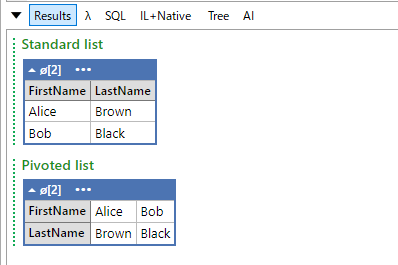
Dumpの展開方向が縦から横に。
var people = new[]
{
    new { FirstName = "Alice", LastName = "Brown" },
    new { FirstName = "Bob", LastName = "Black" },
};

people.Dump("Standard list");
Util.Pivot(people).Dump("Pivoted list");
Merge
var o1 = new { A = 1, B = 2 };
var o2 = new { C = 3, D = 4 };

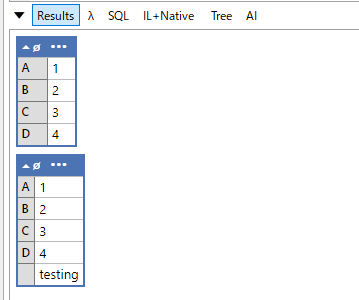
Util.Merge (o1, o2).Dump();
Util.Merge (o1, o2, "testing").Dump();
Image
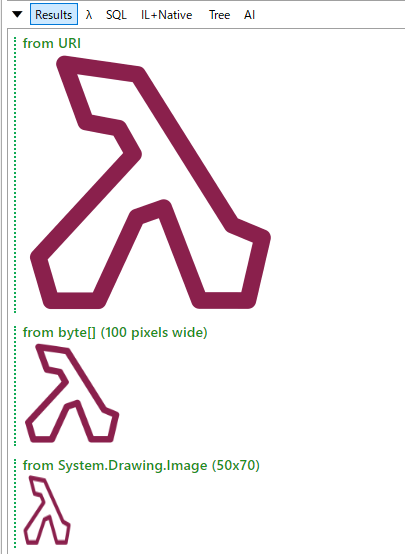
Util.Image ("http://www.linqpad.net/images/LINQPad.png").Dump ("from URI");

byte[] imageBlob = new WebClient().DownloadData ("http://www.linqpad.net/images/LINQPad.png");
Util.Image (imageBlob, Util.ScaleMode.ResizeTo (100)).Dump ("from byte[] (100 pixels wide)");

new System.Drawing.Bitmap (new MemoryStream (imageBlob)).Dump (Util.ScaleMode.ResizeTo (50, 70), "from System.Drawing.Image (50x70)");
RawHtml
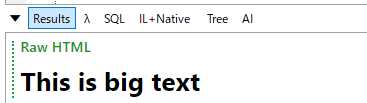
Util.RawHtml ("<h1>This is big text</h1>").Dump ("Raw HTML");
WithStyle
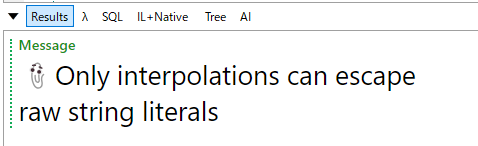
CSSでスタイルを適用できる。
const string clip = "\ud83d\udcce";
string nl = Environment.NewLine;

string message = $"""{clip}Only interpolations can escape{nl}raw string literals""";

Util.WithStyle (message, "font-size:20pt").Dump ("Message");
HtmlHead
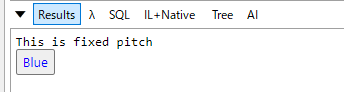
ドキュメントレベルでもスタイルを適用できる。
Util.HtmlHead.AddStyles ("body, p, pre { font-family: Consolas }");
"This is fixed pitch".Dump();

Util.HtmlHead.AddStyles ("button { color:blue }");
var btn = new LINQPad.Controls.Button ("Blue").Dump();
InvokeScript
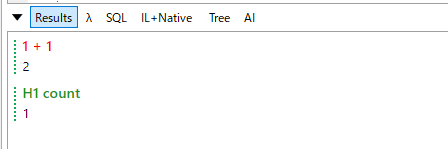
JavaScript を直接実行できる。
Util.InvokeScript (true, "eval", "1+1").Dump ("1 + 1");

Util.InvokeScript (true, "eval", @"
    var headings = document.getElementsByTagName ('h1');

    for (let h of headings)
        h.style.color = 'red';

    headings.length;  // return the number of headings to the caller").Dump ("H1 count");

// HtmlHead からも
Util.HtmlHead.AddScript ("function foo(x) { alert(x) }");
DisplayWebPage
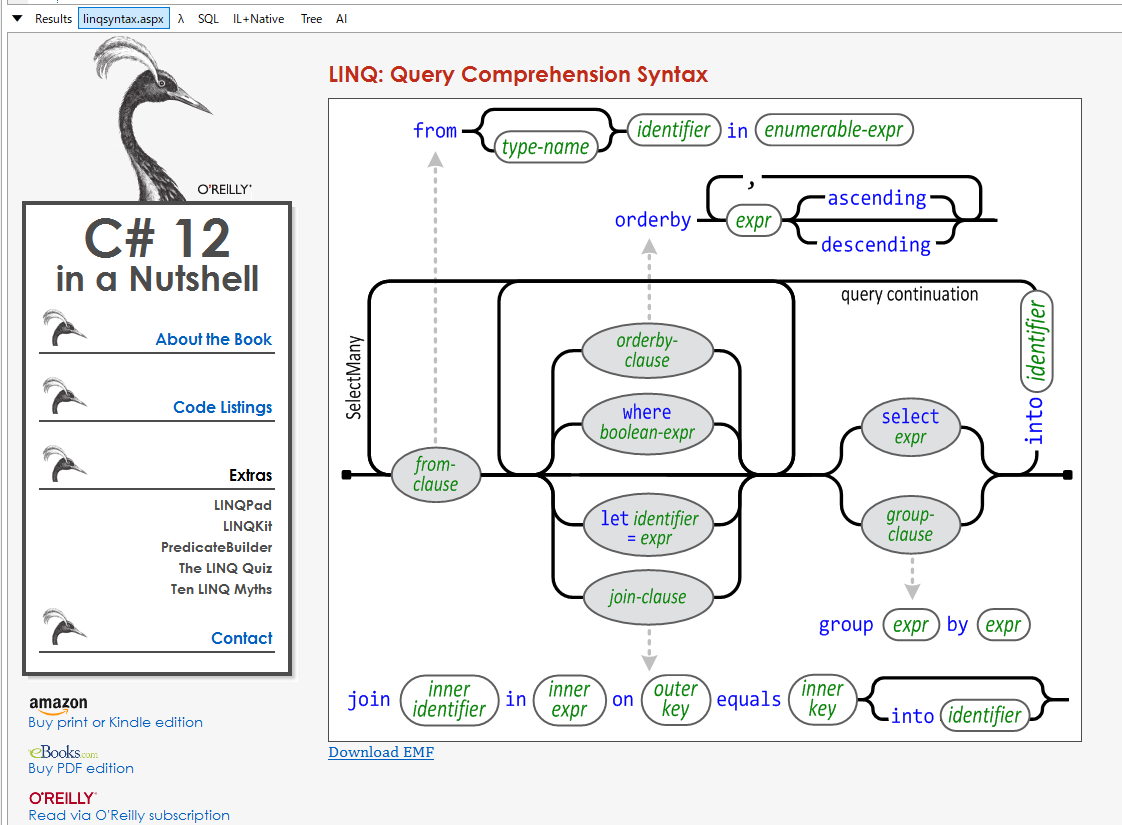
Util.DisplayWebPage ("http://www.albahari.com/nutshell/linqsyntax.aspx");
ToCsvString
var customers = new[]
{
    new { Name = "Jane", City = "Washington", LastUpdated = DateTime.Now },
    new { Name = "Dave", City = "New York", LastUpdated = DateTime.Now },
};

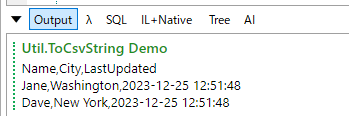
Util.ToCsvString (customers).Dump ("Util.ToCsvString Demo");
WriteCsv
var customers = new[]
{
    new { Name = "Jane", City = "Washington", LastUpdated = DateTime.Now },
    new { Name = "Dave", City = "New York", LastUpdated = DateTime.Now },
};
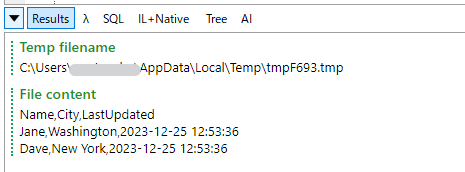
string tempFileName = Path.GetTempFileName().Dump ("Temp filename");
Util.WriteCsv (customers, tempFileName);

File.ReadAllText (tempFileName).Dump ("File content");
SyntaxColorText
string json   = @"{ ""Name"":""Alice"", ""Age"": 32}";
string csharp = "class Program\r\n{\r\npublic string Message = \"Hello\";\r\n}";
string sql    = "select * from customers\r\nGO";

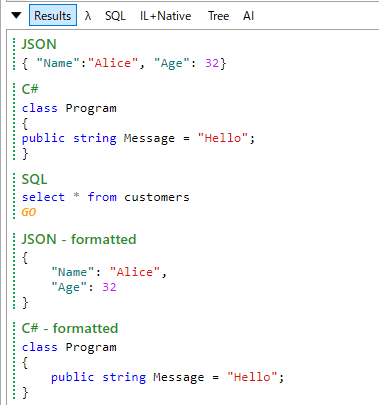
Util.SyntaxColorText (json,   SyntaxLanguageStyle.Json)  .Dump ("JSON");
Util.SyntaxColorText (csharp, SyntaxLanguageStyle.CSharp).Dump ("C#");
Util.SyntaxColorText (sql,    SyntaxLanguageStyle.SQL)   .Dump ("SQL");

Util.SyntaxColorText (json,   SyntaxLanguageStyle.Json,   autoFormat:true).Dump ("JSON - formatted");
Util.SyntaxColorText (csharp, SyntaxLanguageStyle.CSharp, autoFormat:true).Dump ("C# - formatted");
対応しているスタイル。
public enum SyntaxLanguageStyle
{
    None,
    CSharp,
    VB,
    FSharp,
    SQL,
    ESQL,
    CSS,
    HTML,
    JavaScript,
    PowerShell,
    Python,
    XAML,
    XML,
    Json
}
ReadLine
// Console でも入力できる
Console.ReadLine().Dump();

// 型指定やデフォルト表示する値が指定できる
Util.ReadLine<int> ("Enter the magic number", 42).Dump();

// サジェストもできる
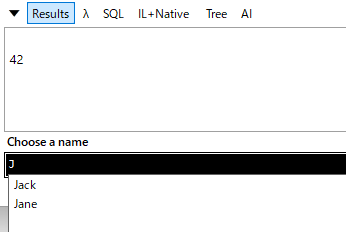
Util.ReadLine ("Choose a name", "Joe", new[] { "Jane", "Jack", "Mary", "David" }).Dump();
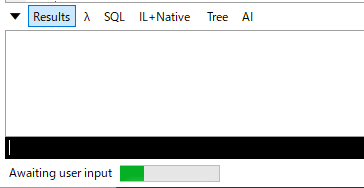
サジェストされる。
AutoScrollResults
出力結果の最後尾にあわせて自動でスクロールしてくれる。
Util.AutoScrollResults = true;
SaveString/LoadString, SaveBytes/LoadBytes
キーバリューでディスクにデータを保存しておける。アプリの終了やQueryをまたいで利用可能。
保存先は%APPDATA%で暗号化はされない。
Util.SaveString ("LINQPad.DemoString", "Foo");
Util.LoadString ("LINQPad.DemoString").Dump();

Util.SaveBytes ("LINQPad.DemoBytes", new byte[] { 1, 2, 3 });
Util.LoadBytes ("LINQPad.DemoBytes").Dump();

SetPassword/GetPassword
SetPassword を使うと暗号化された文字列を保存できる。
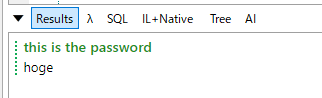
Util.SetPassword("My Azure Blob Storage Account", "hoge");
string password = Util.GetPassword("My Azure Blob Storage Account");
password.Dump("this is the password");
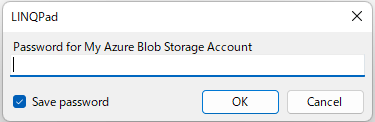
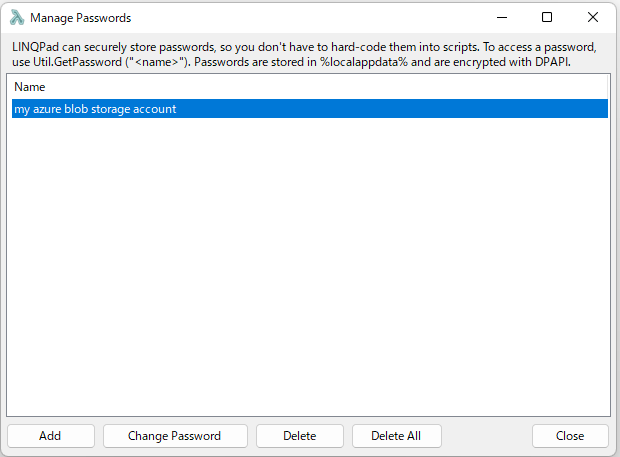
存在しないキーをGetPasswordした場合は、ダイアログで入力を求められる。
パスワードは、%localappdata%\LINQPad\Passwordsに保存される。

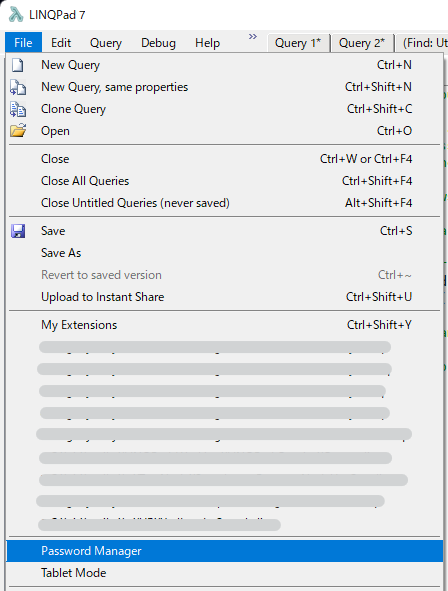
パスワードの管理は、File>Password Manager から呼び出せる。
Break
実行の一時停止(ブレークポイント)ができる。
var query =
    from word in "the quick brown fox jumps over the lazy dog".Split()
    select new { word, capitalized = Capitalize (word) };

query.Dump();

string Capitalize (string word)
{
    if (string.IsNullOrEmpty (word)) return word;

    if (word == "brown") Util.Break();

    return char.ToUpper (word[0]) + word.Substring (1);
}

Progress
for (int i = 0; i < 100; i++)
{
    Util.Progress = i;
    Thread.Sleep (30);
}

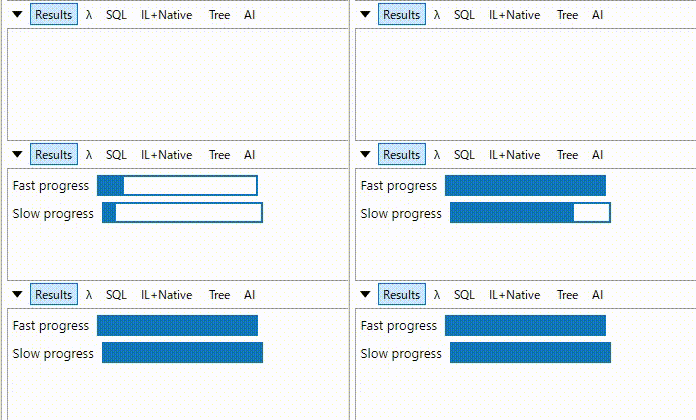
var fast = new Util.ProgressBar ("Fast progress").Dump();
var slow = new Util.ProgressBar ("Slow progress").Dump();

for (int i = 0; i <= 100; i++)
{
    slow.Percent = i;
    fast.Percent = i * 2;
    Thread.Sleep (30);
}
ToExpando
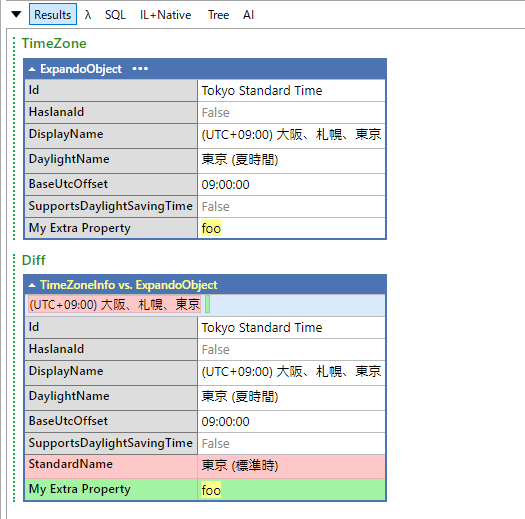
ExpandoObject に変換してくれる。オブジェクトの構造を動的にいじれる。
var timeZone = Util.ToExpando (TimeZoneInfo.Local);
timeZone.Remove ("StandardName", out _);
timeZone.TryAdd ("My Extra Property", Util.Highlight ("foo"));
timeZone.Dump ("TimeZone");
Util.Dif(TimeZoneInfo.Local, timeZone).Dump("Diff");
OnDemand
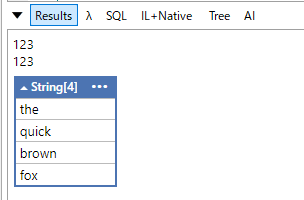
ハイパーリンクを出力して、クリックすると展開されるようになる。LazyやIEnumerable<T>などコストがかかるものを遅延評価できる。
new Lazy<int> (() => 123).Dump();
Util.OnDemand ("Click me", () => 123).Dump();
"the quick brown fox".Split().OnDemand().Dump();
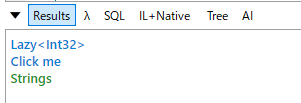
展開後。
Cache
呼び出し結果の値をキャッシュしてくれる。Queryの実行をまたいで保持される。
var expensiveValue = Util.Cache (ExpensiveValue, "someKey");
expensiveValue.Dump();

Util.Cache (ExpensiveValue, "someKey").Dump();

int ExpensiveValue()
{
    Thread.Sleep(5000);
    return 123;
}
初回実行時1行目は5秒待機するが、4行目や次回以降実行する際は即終了する。キャッシュをクリアするにはメニューからKill Process (Ctrl + Shift + F5)。
AzureCloud
Azure および OAuth エンドポイントに対する認証のための機能もある。
LINQPad Tutorial & Reference\All about Dump\Cool things you can Dump参照。
Cmd
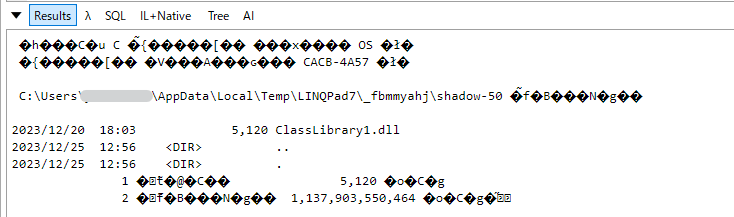
Util.Cmd (@"dir", "/od");
Run / Compile
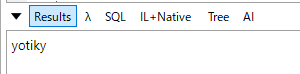
別の.linqを呼び出す。
string tempQueryPath = Path.Combine (AppContext.BaseDirectory, "test.linq");
File.WriteAllText (tempQueryPath, "Environment.MachineName.ToUpper()");
Util.Run (tempQueryPath, QueryResultFormat.Text).AsString().Dump();
同じQueryを複数回実行する場合は、Compileを使うと高速化できる。
OpenILSpy
Util.OpenILSpy (typeof (Person));

public record Person
{
    public string FirstName { get; init; }
    public string LastName { get; init; }
}

LINQPad同梱のSamplesの参照箇所
Util等はWebでドキュメントがまとまっていないため、Samplesに一通りの使い方が同梱されている。 結構量が多いため順に見ていくには労力を要する。検索ができるので目的の機能が分かっていれば検索すると良い。参考に掲載したリンク先を見るのもおすすめ。
- Hightlight/HightlightIf
- LINQPad Tutorial & Reference\All about Dump\More tricks
- Dif
- LINQPad Tutorial & Reference\All about Dump\More tricks
- Snapshot
- LINQPad Tutorial & Reference\All about Dump\More tricks
- HorizontalRun/VerticalRun
- LINQPad Tutorial & Reference\All about Dump\More tricks
- Pivot
- LINQPad Tutorial & Reference\All about Dump\More tricks
- Merge
- LINQPad Tutorial & Reference\All about Dump\More tricks
- Image
- LINQPad Tutorial & Reference\All about Dump\Cool things you can Dump
- RawHtml
- LINQPad Tutorial & Reference\All about Dump\Cool things you can Dump
- WithStyle
- HtmlHead
- LINQPad Tutorial & Reference\LINQPad Controls
- DisplayWebPage
- C# in a Nutshell (sampler)\Before You Start
- InvokeScript
- LINQPad Tutorial & Reference\LINQPad Controls
- ToCsvString
- LINQPad Tutorial & Reference\Database Querying Features
- WriteCsv
- LINQPad Tutorial & Reference\Database Querying Features
- SyntaxColorText
- LINQPad Tutorial & Reference\All about Dump\Cool things you can Dump
- ReadLine
- LINQPad Tutorial & Reference\Runtime Services
- AutoScrollResults
- LINQPad Tutorial & Reference\Benchmarking Your Code
- SaveString/LoadString
- LINQPad Tutorial & Reference\Runtime Services
- SetPassword/GetPassword
- LINQPad Tutorial & Reference\Runtime Services
- Break
- LINQPad Tutorial & Reference\Using the Integrated Debugger
- Progress
- LINQPad Tutorial & Reference\All about Dump\Dumping things that move
- ToExpando
- LINQPad Tutorial & Reference\All about Dump\Cool things you can Dump
- OnDemand
- LINQPad Tutorial & Reference\All about Dump\Cool things you can Dump
- Cache
- LINQPad Tutorial & Reference\Runtime Services
- AzureCloud
- LINQPad Tutorial & Reference\All about Dump\Cool things you can Dump
- Cmd
- LINQPad Tutorial & Reference\Scripting and Automation Features
- Run/Compile
- LINQPad Tutorial & Reference\Scripting and Automation Features
- OpenILSpy
Dump
XML
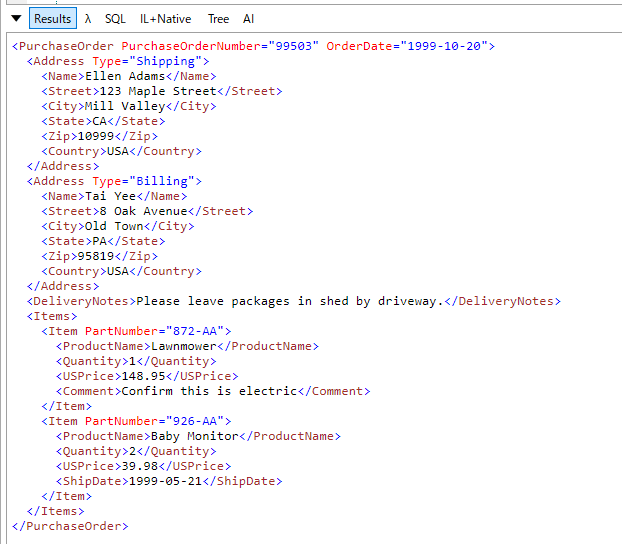
XMLはDumpするだけで整形される。
var path = Path.Combine(Util.MyQueriesFolder, @"XML\SampleXML\PurchaseOrder.xml");
var xml = XElement.Load(path);
xml.Dump();
Rx
Observable.Interval (TimeSpan.FromMilliseconds (500)).Take(10).Dump();
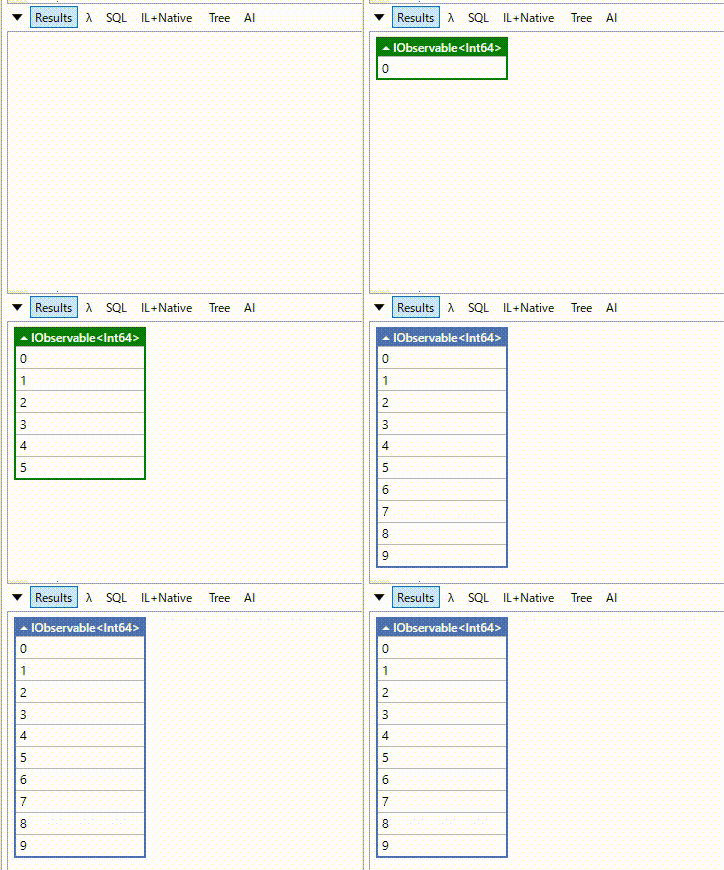
Observable.Interval (TimeSpan.FromSeconds (0.2)).DumpLatest();
Observable.Interval (TimeSpan.FromSeconds (0.3)).DumpLatest();
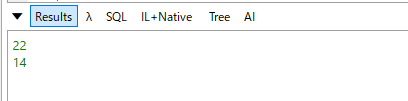
LINQPad Tutorial & Reference\All about Dump\Reactive Extensions参照。
Hyperlinq
new Hyperlinq("www.google.co.jp", "click").Dump();
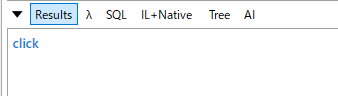
別の使い方として、Queryを動的に生成してすることができる。
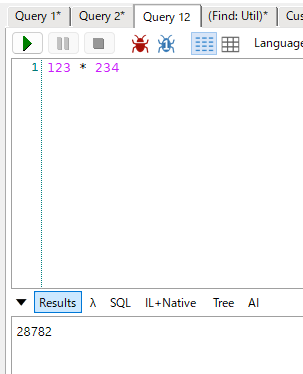
new Hyperlinq (QueryLanguage.Expression, "123 * 234").Dump();
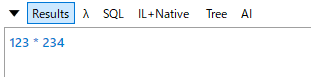
クリックすると新しいQueryのタブが開いて実行される。
Chart
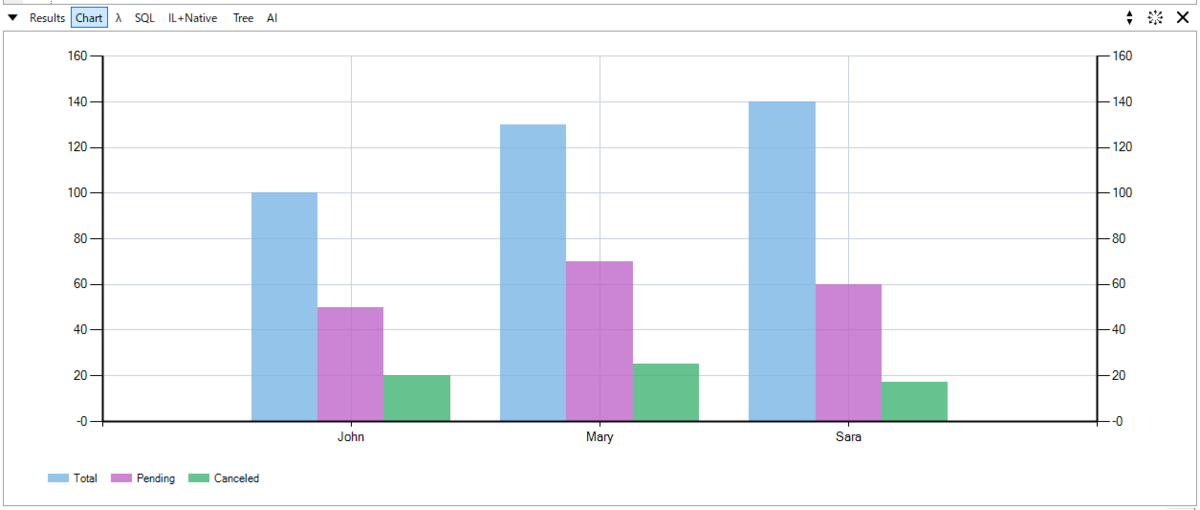
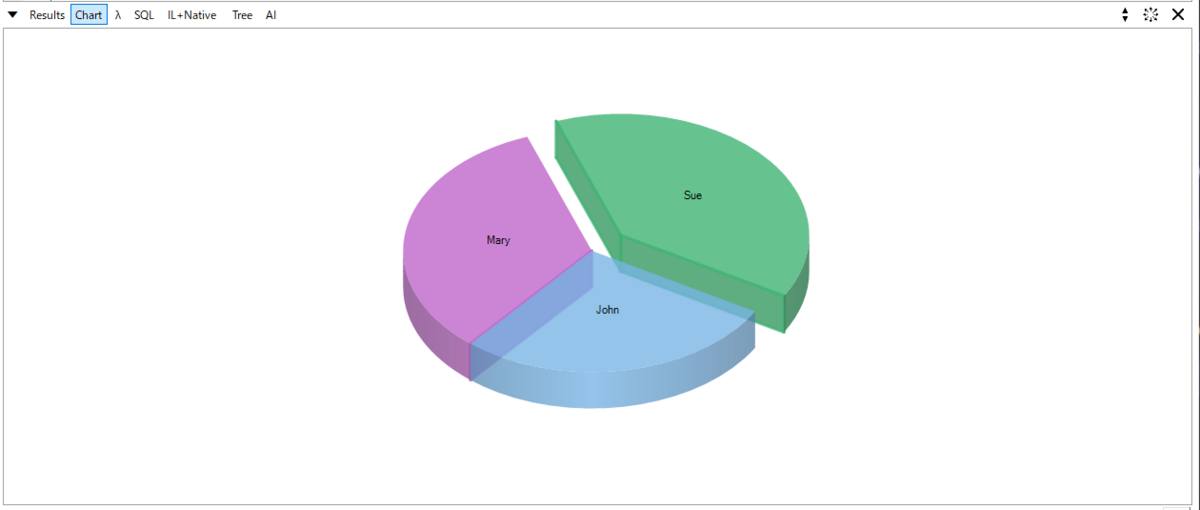
LINQPad Tutorial & Reference\Charting with Chart()参照。
DumpContainer
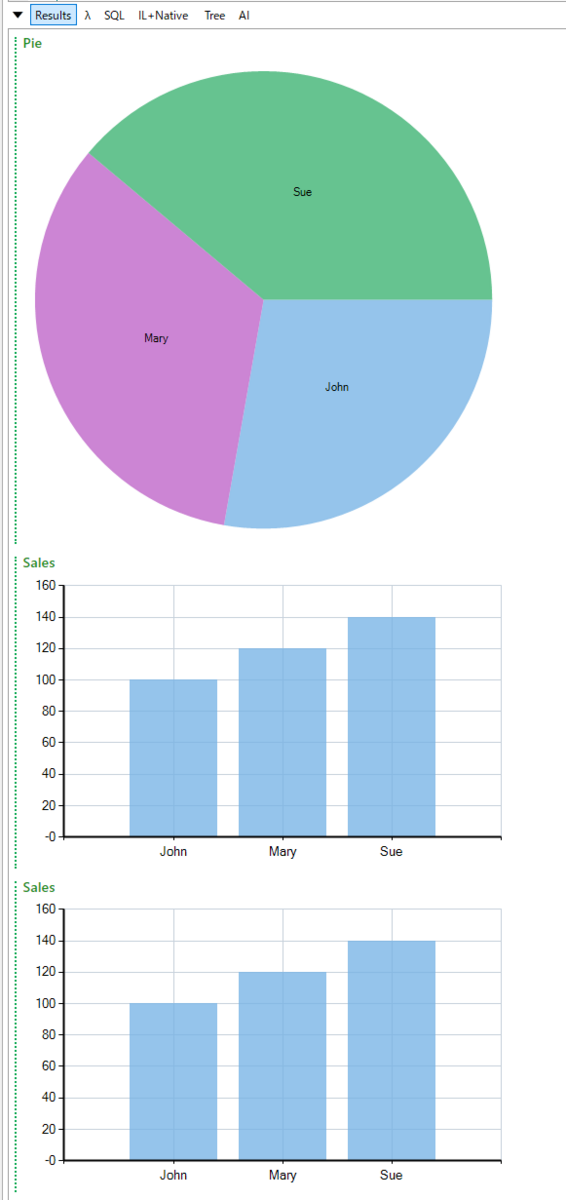
DumpしたDumpContainerのContentを更新すると、新たに出力せずに出力された値自体が更新される。
var dc = new DumpContainer().Dump();

while(true)
{
    dc.Content = DateTime.Now.ToString("HH:mm:ss.fff");
    await Task.Delay(500);
}
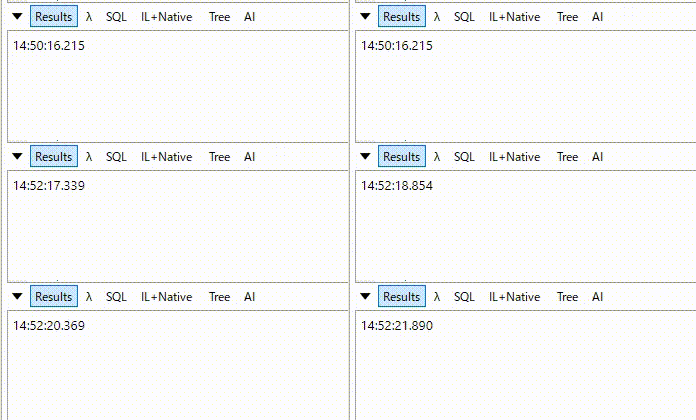
LINQPad Tutorial & Reference\LINQPad Controls参照。
Interaction
LINQPadはデフォルトで、Microsoft.VisualBasic.dllが使えるようになっている。
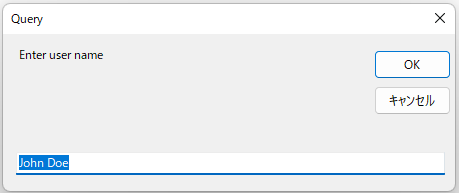
InputBox
string inputValue = "John Doe";
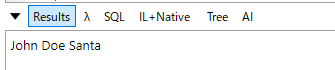
Microsoft.VisualBasic.Interaction.InputBox("Enter user name", "Query", inputValue).Dump();
MessageBox
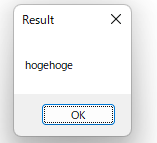
Microsoft.VisualBasic.Interaction.MsgBox("hogehoge", Microsoft.VisualBasic.MsgBoxStyle.OkOnly, "Result");
XUnitSupport
v6以降は、xUnit が組み込まれているのでメニューからセットアップできる。
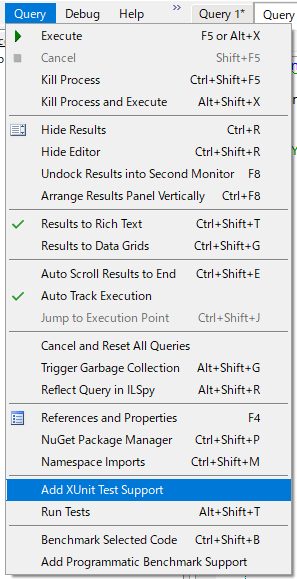
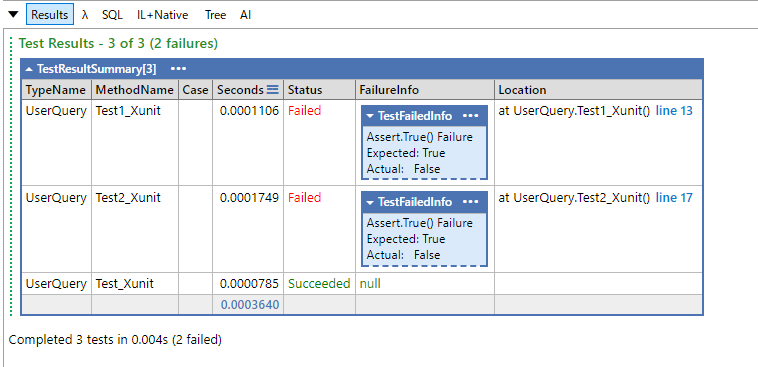
テストを実行するには、RunTests()を呼ぶか、メニューもしくはAlt + Shift + Tで実行する。regionは他のQueryから見えなくしているだけなので、region外であってもテスト対象。
#load "xunit"

void Main()
{
    RunTests();  // Call RunTests() or press Alt+Shift+T to initiate testing.
}

#region private::Tests

[Fact] void Test_Xunit() => Assert.True(1 + 1 == 2);
[Fact] void Test1_Xunit() => Assert.True(1 + 1 != 2);

#endregion

[Fact] void Test2_Xunit() => Assert.True(1 + 1 > 2);