NextAuth.jsでログイン画面をカスタマイズしてみたので記事にする
PR
実装
NextAuth.jsを使うと以下のような感じで簡単にログインを実装できる。
export const authOptions: NextAuthOptions = {
  providers: [
    DiscordProvider({
      clientId: env.DISCORD_CLIENT_ID,
      clientSecret: env.DISCORD_CLIENT_SECRET,
    }),
    AppleProvider({
      clientId: env.APPLE_ID,
      clientSecret: env.APPLE_SECRET,
    }),
    GoogleProvider({
      clientId: env.GOOGLE_CLIENT_ID,
      clientSecret: env.GOOGLE_CLIENT_SECRET,
    }),
  ],
ログインのプロバイダーは以下を参考に設定
以下でsignInを参照すればログイン可能
import { signIn } from "next-auth/react";

<button onClick={() => signIn("credentials", {callbackUrl: "/",})}>
  ログイン
</button>
デフォルトで以下の画像のように表示される
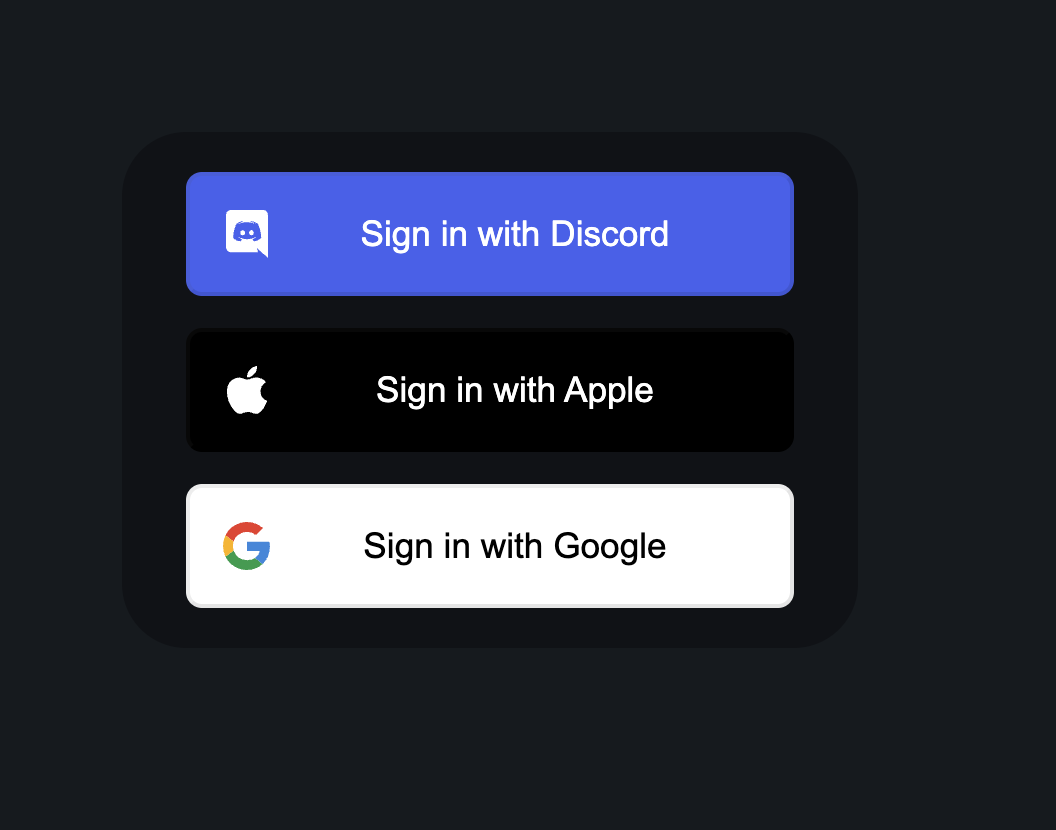
これだけでも十分使用できるが、サービスのロゴや規約のリンクを表示させたい場合はカスタマイズが必要
その場合は以下を参考に実装可能
実際にコード化してみると以下の通り
以下で表示するcomponentのpathを指定
export const authOptions: NextAuthOptions = {
  pages: {
    signIn: "/auth/signin",  // ← 追加
    error: "/auth/signin",    // ← 追加
  },
以下で実際のUIを作成
import type {
  GetServerSidePropsContext,
  InferGetServerSidePropsType,
} from "next";
import { getProviders, signIn } from "next-auth/react";
import { getServerSession } from "next-auth/next";
import { authOptions } from "~/server/auth";
import { useRouter } from "next/router";
import SignInError from "~/features/auth/components/SignInError";

const authStyle: Record<string, { className: string; color: string }> = {
  Discord: {
    className: "bg-blue-600 text-white border border-blue-500",
    color: "blue",
  },
  GitHub: {
    className: "bg-gray-700 text-white border border-gray-700 ",
    color: "gray",
  },
  Google: {
    className: "bg-white text-black border border-black",
    color: "gray",
  },
  Apple: {
    className: "bg-black text-white border border-black",
    color: "gray",
  },
};

export default function SignIn({
  providers,
}: InferGetServerSidePropsType<typeof getServerSideProps>) {
  const { error } = useRouter().query;

  return (
    <div>
      <div className="signin-bg fixed top-0 h-screen w-screen" />
      <div className="flex items-center justify-center">
        <div className="container z-10 flex h-screen flex-col items-center justify-center">
          <div className=" rounded-xl border bg-white px-20 py-4">
            <div>
              <div className="pb-10 pt-5 text-center">
                <div className="signin-mini-logo-title">
                  年間スケジュール、まとめるなら
                </div>
                <div className="signin-logo-title text-xl font-bold">
                  OOMAKA
                </div>
              </div>
              {error && (
                <div className="pb-6">
                  <SignInError error={String(error)}></SignInError>
                </div>
              )}
              <div className="flex flex-col items-center pb-10">
                {Object.values(providers ?? {}).map((provider) => {
                  const item = authStyle[String(provider?.name)];

                  return (
                    <div key={provider.name}>
                      <button
                        className={`my-3 w-72 rounded-lg px-4 py-2 font-bold ${String(
                          item?.className
                        )}`}
                        onClick={() => void signIn(provider.id)}
                      >
                        {provider.name} でログイン
                      </button>
                    </div>
                  );
                })}
              </div>
              <div className="pb-5 text-center text-sm text-gray-500">
                利用規約およびプライバシーポリシーに同意の上、
                <br />
                ログインへお進みください。
              </div>
            </div>
          </div>
        </div>
      </div>
    </div>
  );
}

export async function getServerSideProps(context: GetServerSidePropsContext) {
  const session = await getServerSession(context.req, context.res, authOptions);
  if (session) {
    return { redirect: { destination: "/" } };
  }

  const providers = await getProviders();

  return {
    props: { providers: providers ?? [] },
  };
}
props.providersに設定したプロバイダーの設定が入っているので、この情報を使用してログイン画面を作成して最終的に以下のような表示になった
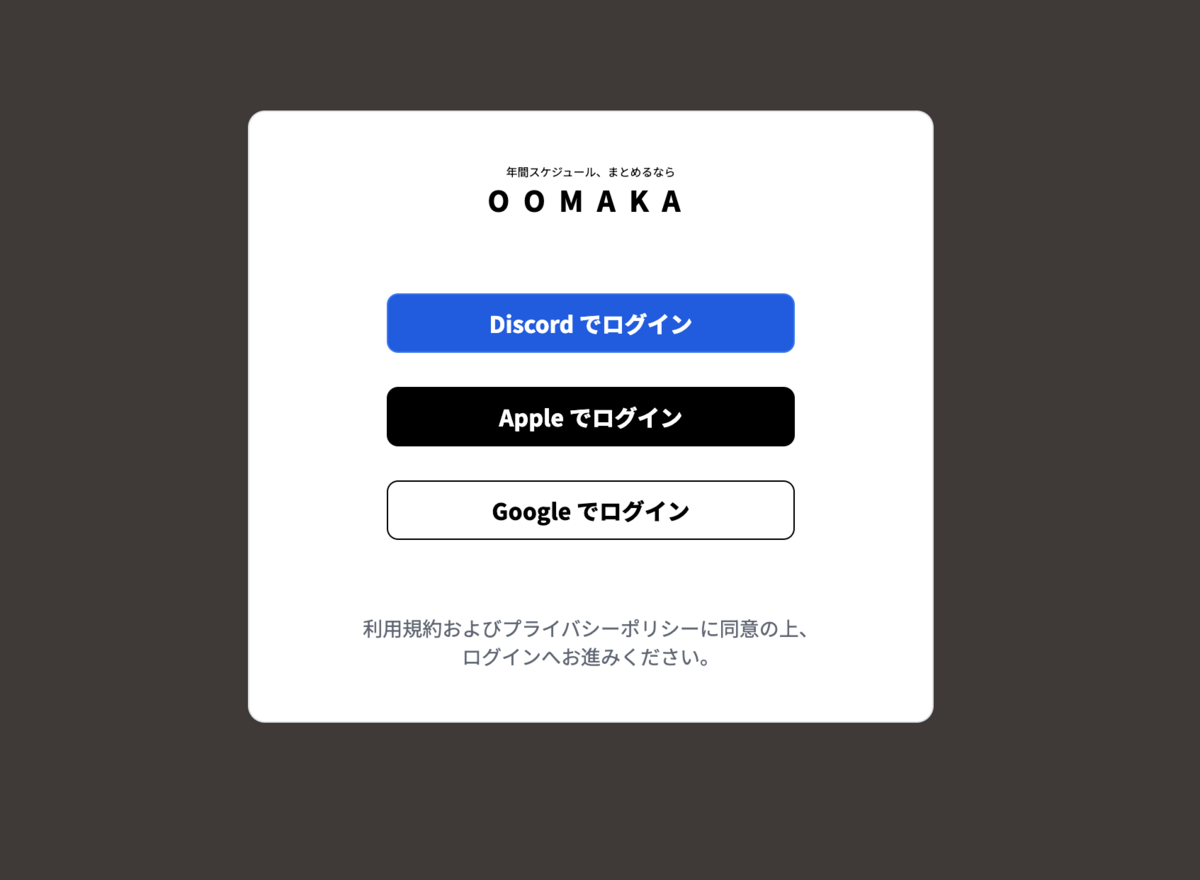
これでNextAuth.jsでログイン画面をカスタマイズ完了。それっぽく出来たので満足
