- はじめに
- 基本:AbsoluteFill でレイヤーを重ねる
- テロップのスタイリングパターン
- Sequence でテロップの表示タイミングを制御する
- テロップにアニメーションをつける
- タイプライター効果
- データ駆動のテロップ配列
- まとめ
📚 Remotion シリーズ 全8回の記事一覧
- 第1回: 全体像をまとめる
Composition / AbsoluteFill / Sequence で動画の骨組みを作る - 第2回: Hooks を理解する
useCurrentFrame / useVideoConfig でフレーム番号と設定を取得する - 第3回: アニメーションを作る
interpolate / spring でフレーム番号を CSS の値に変換する - 第4回: 素材を使う
画像・動画・音楽素材を組み込む - ▶ 第5回: テロップを入れる(この記事)
テキストオーバーレイの作り方 - 第6回: シーンを構成する
Series / TransitionSeries でシーン切り替えとトランジション - 第7回: GitHub Actions で自動レンダリング
CI/CD で動画レンダリングを自動化する - 第8回: 応用テクニック(準備中)
GIF・静止画書き出し / FFmpeg カスタマイズ / Lambda / 3D
はじめに
前回までで、Remotion の以下機能についてまとめてきました。
Composition/AbsoluteFill/Sequenceで動画の骨組みを作る(第1回)useCurrentFrame/useVideoConfigでフレーム番号と設定を取得する(第2回)interpolate/springでフレーム番号を CSS の値に変換する(第3回)- 画像・動画・音楽素材を使う方法 (第4回)
今回のテーマは テロップ(テキストオーバーレイ)を使う実装方法 ですが、新しい API や概念は出てきません。これまでの記事で扱った AbsoluteFill、Sequence、interpolate、spring を組み合わせるだけでテロップが作れます。
この記事では、それらを使ったテロップのパターンをいくつか紹介していきます。
基本:AbsoluteFill でレイヤーを重ねる
最もシンプルなテロップ
import { AbsoluteFill } from "remotion";

export const SceneWithCaption: React.FC = () => {
  return (
    <AbsoluteFill>
      {/* レイヤー1: 背景 */}
      <AbsoluteFill style={{ backgroundColor: "#1a1a2e" }} />

      {/* レイヤー2: テロップ */}
      <AbsoluteFill
        style={{
          justifyContent: "flex-end",
          alignItems: "center",
          paddingBottom: 80,
        }}
      >
        <div
          style={{
            color: "white",
            fontSize: 48,
            fontFamily: "sans-serif",
            backgroundColor: "rgba(0, 0, 0, 0.6)",
            padding: "12px 24px",
            borderRadius: 8,
          }}
        >
          ここにテロップのテキストが入ります
        </div>
      </AbsoluteFill>
    </AbsoluteFill>
  );
};
ポイントは <AbsoluteFill> を 複数重ねて 使っていることです。すべてが同じ位置(キャンバス全体)に配置されるので、後から書いたものが上に重なります。Photoshop のレイヤーと同じ発想ですね。
テロップの位置を変える
<AbsoluteFill> に flexbox のプロパティを指定するだけで、テロップの位置を自由に制御できます。
// 画面下部・中央揃え(一般的なテロップ位置)
<AbsoluteFill style={{ justifyContent: "flex-end", alignItems: "center", paddingBottom: 80 }}>

// 画面上部・中央揃え
<AbsoluteFill style={{ justifyContent: "flex-start", alignItems: "center", paddingTop: 60 }}>

// 画面中央
<AbsoluteFill style={{ justifyContent: "center", alignItems: "center" }}>
AbsoluteFill は内部的には position: absolute + display: flex + flexDirection: column の div なので、flexbox のプロパティがそのまま使えます。flexDirection: column なので、justifyContent が縦方向、alignItems が横方向を制御します。
この辺は、普通のCSS書くのと変わらない ので、慣れている方は特に問題にならないでしょう!
テロップのスタイリングパターン
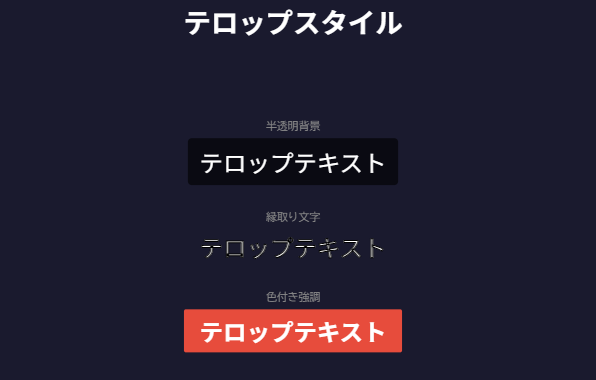
実際の動画でよく見るテロップのスタイルをいくつか紹介しますね。
半透明背景つき
<div style={{
  color: "white",
  fontSize: 48,
  backgroundColor: "rgba(0, 0, 0, 0.6)",
  padding: "12px 24px",
  borderRadius: 8,
}}>
  テロップテキスト
</div>
縁取り文字
<div style={{
  color: "white",
  fontSize: 48,
  WebkitTextStroke: "2px black",
}}>
  テロップテキスト
</div>
バラエティ番組風の縁取りですね。WebkitTextStroke は文字の輪郭に線を引く CSS プロパティです。
色付き強調テロップ
<div style={{
  color: "white",
  fontSize: 48,
  backgroundColor: "#e74c3c",
  padding: "8px 32px",
  borderRadius: 4,
  fontWeight: "bold",
}}>
  重要ポイント
</div>
赤背景のテロップです。
Sequence でテロップの表示タイミングを制御する
テロップは普通、動画全体に表示するのではなく、特定の区間だけ 表示しますよね。<Sequence> がまさにそのために使えます。
Sequence については、以下記事も参照してください。
基本的な使い方
import { AbsoluteFill, Sequence } from "remotion";

export const VideoWithCaptions: React.FC = () => {
  return (
    <AbsoluteFill>
      {/* 背景映像(常に表示) */}
      <AbsoluteFill style={{ backgroundColor: "#1a1a2e" }} />

      {/* テロップ1:0〜60フレーム(0〜2秒) */}
      <Sequence from={0} durationInFrames={60}>
        <Caption text="最初のテロップ" />
      </Sequence>

      {/* テロップ2:90〜150フレーム(3〜5秒) */}
      <Sequence from={90} durationInFrames={60}>
        <Caption text="次のテロップ" />
      </Sequence>

      {/* テロップ3:180〜240フレーム(6〜8秒) */}
      <Sequence from={180} durationInFrames={60}>
        <Caption text="最後のテロップ" />
      </Sequence>
    </AbsoluteFill>
  );
};
Sequence の中はローカル時間
React で動画を作れる Remotion を触ってみたので全体像をまとめる【Remotion 第1回】 で説明した重要な性質がここでも活きます。
<Sequence> の中で useCurrentFrame() を呼ぶと、Sequence の開始を0としたローカルフレーム が返ります。
つまり Caption コンポーネントは「自分が表示されてから何フレーム目か」だけを知ればよく、動画全体の中での登場タイミングを意識する必要がありません。
これのおかげで、一度テロップパターンをコンポーネント化しておけば、再利用可能 になります。 「10フレームかけてフェードインする」というロジックを1回書けば、どの Sequence に置いても同じように動きます!
テロップにアニメーションをつける
正直学ぶことはもう終わりなのですが、参考程度にテロップでよく使うアニメーション例をまとめておきます…!
こちらの動画では 4秒あたり(Phase 2)から、フェードイン → フェードイン+フェードアウト → スケールイン の順に表示されます。それぞれのコードを見ていきましょう。
フェードイン
最もシンプルなアニメーションです。interpolate で opacity を 0→1 に変化させます。
import { AbsoluteFill, interpolate, useCurrentFrame } from "remotion";

export const FadeInCaption: React.FC<{ text: string }> = ({ text }) => {
  const frame = useCurrentFrame();
  const opacity = interpolate(frame, [0, 15], [0, 1], {
    extrapolateRight: "clamp",
  });

  return (
    <AbsoluteFill
      style={{ justifyContent: "flex-end", alignItems: "center", paddingBottom: 80 }}
    >
      <div style={{ opacity, color: "white", fontSize: 48 }}>
        {text}
      </div>
    </AbsoluteFill>
  );
};
フェードイン + フェードアウト
テロップの表示区間の最初と最後にフェードをかけます。
import { AbsoluteFill, interpolate, useCurrentFrame, useVideoConfig } from "remotion";

export const Caption: React.FC<{ text: string }> = ({ text }) => {
  const frame = useCurrentFrame();
  const { durationInFrames } = useVideoConfig();

  // 最初の10フレームでフェードイン
  const fadeIn = interpolate(frame, [0, 10], [0, 1], {
    extrapolateRight: "clamp",
  });

  // 最後の10フレームでフェードアウト
  const fadeOut = interpolate(
    frame,
    [durationInFrames - 10, durationInFrames],
    [1, 0],
    { extrapolateLeft: "clamp" },
  );

  // 2つのうち小さい方を取る
  const opacity = Math.min(fadeIn, fadeOut);

  return (
    <AbsoluteFill
      style={{ justifyContent: "flex-end", alignItems: "center", paddingBottom: 80 }}
    >
      <div
        style={{
          opacity,
          color: "white",
          fontSize: 48,
          fontFamily: "sans-serif",
          backgroundColor: "rgba(0, 0, 0, 0.6)",
          padding: "12px 24px",
          borderRadius: 8,
        }}
      >
        {text}
      </div>
    </AbsoluteFill>
  );
};
以下、2つポイントをまとめます。
useVideoConfig で Sequence の長さを取得する
useVideoConfig().durationInFrames は、親の Sequence の durationInFrames を返します。つまり、このコンポーネントを <Sequence durationInFrames={55}> で囲めば durationInFrames は 55 になり、<Sequence durationInFrames={120}> で囲めば 120 になります。
これにより、フェードアウトの開始タイミングを「最後の10フレーム」とハードコードせずに、どの長さの Sequence に配置しても自動的に調整される 汎用的なコンポーネントが作れます。
Math.min で fadeIn と fadeOut を合成する
もう1つ面白いのが Math.min(fadeIn, fadeOut) という書き方です。
- フェードイン中(frame=0〜10): fadeIn は 0→1に変化、fadeOut は 1で固定
- →
Math.min(0.5, 1) = 0.5→ fadeIn に従う
- →
- 中間(frame=10〜50): fadeIn は 1、fadeOut は 1にそれぞれ固定
- →
Math.min(1, 1) = 1→ 完全に不透明
- →
- フェードアウト中(frame=50〜60): fadeIn は 1に固定、fadeOut は 1→0に変化
- →
Math.min(1, 0.5) = 0.5→ fadeOut に従う
- →
スケールイン(ポップアップ)
テロップがポンッと出現する演出です。
const progress = spring({ frame, fps, config: { damping: 100, mass: 0.5 } });

<div style={{
  transform: `scale(${progress})`,
  opacity: progress,
  ...
}}>
spring の config パラメータでアニメーションの動き方を調整できます。
| パラメータ | 効果 | 値を大きくすると |
|---|---|---|
damping |
振動の抑制 | 揺れずにスッと止まる |
mass |
重さ | ゆっくり動き始める |
上の例では damping: 100 で揺れがほぼない設定です。damping: 10 にすると、出現時にブルッと震えるような動きになります。mass: 0.5 は軽めの設定で、素早くポップアップします。
spring は 0→1 の値を返すので、scale(0) → scale(1) と opacity: 0 → opacity: 1 を同時にかけることで、フワッと拡大しながら出現する 演出になります。
タイプライター効果
文字が1文字ずつ表示されていくアニメーションです。interpolate や spring を使わず、フレーム番号から直接表示文字数を計算する シンプルなアプローチです。
import { useCurrentFrame } from "remotion";

export const TypewriterCaption: React.FC<{ text: string }> = ({ text }) => {
  const frame = useCurrentFrame();

  // 2フレームに1文字ずつ表示
  const charsToShow = Math.floor(frame / 2);
  const displayText = text.slice(0, charsToShow);

  return (
    <div
      style={{
        color: "white",
        fontSize: 48,
        fontFamily: "monospace",
        position: "absolute",
        bottom: 80,
        width: "100%",
        textAlign: "center",
      }}
    >
      {displayText}
      {/* カーソルの点滅 */}
      <span style={{ opacity: frame % 10 < 5 ? 1 : 0 }}>|</span>
    </div>
  );
};
ポイントは Math.floor(frame / 2) の部分です。/ 2 の値を変えると表示速度が変わります。
frame / 1→ 毎フレーム1文字(30fps なら1秒で30文字、かなり速い)frame / 2→ 2フレームに1文字(30fps なら1秒で15文字)frame / 3→ 3フレームに1文字(ゆっくりめ)
カーソルの点滅は frame % 10 < 5 で 10フレーム周期 のオンオフを作っています。10 を変えると点滅速度が変わります。
データ駆動のテロップ配列
テロップの内容とタイミングを配列で定義して、ループで生成するパターンです。テロップが多い動画で便利ですね。
// テロップのデータを配列で定義
const captions = [
  { text: "Remotionとは何か", from: 0, duration: 60 },
  { text: "Reactで動画を作る仕組み", from: 90, duration: 60 },
  { text: "フレーム番号がすべての基本", from: 180, duration: 75 },
  { text: "interpolateとspringで動きをつける", from: 270, duration: 60 },
  { text: "ご視聴ありがとうございました", from: 360, duration: 90 },
];

export const VideoWithManyCaptions: React.FC = () => {
  return (
    <AbsoluteFill>
      <AbsoluteFill style={{ backgroundColor: "#1a1a2e" }} />

      {captions.map((cap, i) => (
        <Sequence key={i} from={cap.from} durationInFrames={cap.duration}>
          <Caption text={cap.text} />
        </Sequence>
      ))}
    </AbsoluteFill>
  );
};
テロップのデータを コンポーネントのコードから分離 できるのがポイント。JSON ファイルから読み込んだり、props として外から渡したりもできますね。
props で渡すパターン
schema 引数にテロップ情報を定義しておくと、GUI上で色々いじることもできます。

// schema で型定義
const captionSchema = z.object({
  captions: z.array(z.object({
    text: z.string(),
    from: z.number(),
    duration: z.number(),
  })),
});

// Composition の defaultProps で指定
<Composition
  id="CaptionedVideo"
  component={VideoWithManyCaptions}
  schema={captionSchema}
  defaultProps={{
    captions: [
      { text: "最初のテロップ", from: 0, duration: 60 },
      // ...
    ],
  }}
  // ...
/>
こうすると Remotion Studio の GUI からテロップのテキストやタイミングを編集できるようになります。schema については、第一回の記事 も参照してください。
まとめ
ここまで見てきて分かったのは、テロップも Remotion の基本パターンの繰り返し ということです。
特別な API は使わず、CSS + Sequence + interpolate の組み合わせだけでこれだけのパターンが作れます。
サンプルアニメーションとソースコード
これを組み合わせると、以下みたいな動画は簡単に作ることができます。
コンポーネント部分だけですが、ソースコードも Gist で一応置いておきます
https://gist.github.com/chan-ume/b75ea8bcd1999494eea4996635a34477
次は、複数のシーンを組み合わせてトランジションをかけ、1本の動画にまとめる方法を見ていきます。
