RaspberryPiでセンサーデータをクラウド上のIoTサービスにアップロードするプロジェクトはよくあります。ただ、開発やテストの段階では、実際のセンサーを用意せずに、クラウド側との通信の動作確認をしたいことも多いと思います。
そこで、今回はセンサーを追加せずにRaspberryPi本体のCPU温度をセンサーの代わりに使用し、IoTシステムのテストに使えるモックデータする準備部分を書いていきます。
このエントリでは、PythonとNode.jsの両方でRaspberryPiのCPU温度を簡単に取得する方法について記述しています。このデータを使用することで、外部センサーの必要なくIoTプロトタイピングやシステムテストに活用できるのではないかと思います。
今回想定しているIoT開発の開発のパス
- モックデータ作成 ← 今回の内容
- クラウド連携 ← 読者の次の学習課題
- 外部センサーとの連携
今回はファーストステップとして、手軽に使えるセンサーを使って、モックを作ってみようと思います。
環境要件
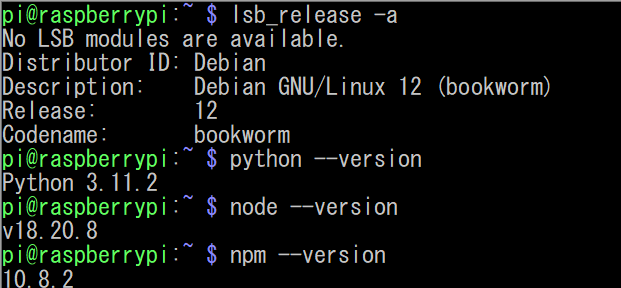
以下の環境で動作確認を行っています。
$ lsb_release -a
No LSB modules are available.
Distributor ID: Debian
Description:    Debian GNU/Linux 12 (bookworm)
Release:        12
Codename:       bookworm
 $ python --version
Python 3.11.2

# Node.jsインストール方法は後述しています
$ node --version
v18.20.8
$ npm --version
10.8.2
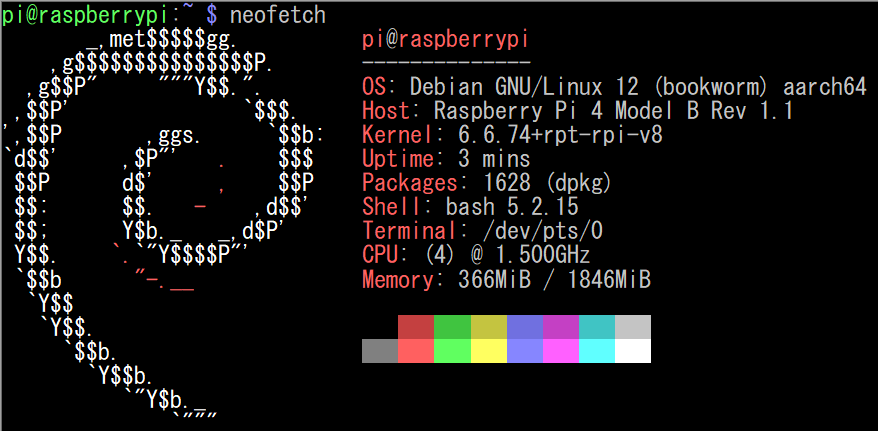
$ neofetch
       _,met$$$$$gg.          pi@raspberrypi
    ,g$$$$$$$$$$$$$$$P.       --------------
  ,g$$P"     """Y$$.".        OS: Debian GNU/Linux 12 (bookworm) aarch64
 ,$$P'              `$$$.     Host: Raspberry Pi 4 Model B Rev 1.1
',$$P       ,ggs.     `$$b:   Kernel: 6.6.74+rpt-rpi-v8
`d$$'     ,$P"'   .    $$$    Uptime: 3 mins
 $$P      d$'     ,    $$P    Packages: 1628 (dpkg)
 $$:      $$.   -    ,d$$'    Shell: bash 5.2.15
 $$;      Y$b._   _,d$P'      Terminal: /dev/pts/0
 Y$$.    `.`"Y$$$$P"'         CPU: (4) @ 1.500GHz
 `$$b      "-.__              Memory: 366MiB / 1846MiB
  `Y$$
   `Y$$.
     `$$b.
       `Y$$b.
          `"Y$b._
              `"""
1.Python版での実装
必要なライブラリのインストール
CPU温度を取得するために、gpiozero ライブラリを使います。このライブラリはRaspberryPi専用のPythonライブラリで、GPIO操作や各種センサーへのアクセスが簡単にできます。
RaspberryPi上でターミナルを開いて、以下のようにインストールします。
$ sudo apt update
$ sudo apt install python3-gpiozero
# 以下でも大丈夫です。ただし、プログラム実行時にライブラリの依存関係のためWarningのメッセージが表示されます。
$ pip3 install gpiozero
参考リンク
CPU温度取得コード
CPU温度取得コードは以下のようになります。
from gpiozero import CPUTemperature
import time

def get_cpu_temperature() -> float:
    """
    Raspberry PiのCPU温度を取得する。

    Returns:
        float: CPU温度(摂氏)
    """
    cpu = CPUTemperature()
    return cpu.temperature

def main() -> None:
    """
    メイン処理:CPU温度を取得して表示する。
    """
    temperature = get_cpu_temperature()
    print(f"Current CPU temperature: {temperature:.2f}°C")

if __name__ == "__main__":
    main()

継続的なCPU温度監視コード
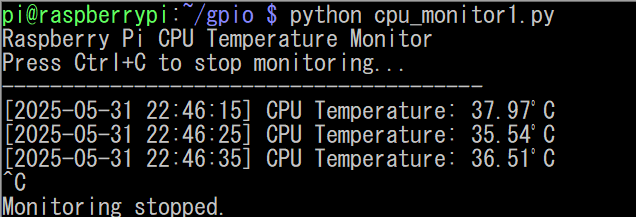
実際の使い方では、継続的に温度を監視するケースも多いです。 以下は定期的(10秒毎)に取得するコードとなります。
from gpiozero import CPUTemperature
import time
from datetime import datetime
from typing import Optional

def get_cpu_temperature() -> float:
    """
    Raspberry PiのCPU温度を取得する。

    Returns:
        float: CPU温度(℃)
    """
    cpu = CPUTemperature()
    return cpu.temperature

def check_temperature_warning(temperature: float, threshold: float = 70.0) -> bool:
    """
    CPU温度が危険レベルかどうかを判定する。

    Args:
        temperature (float): 現在のCPU温度
        threshold (float, optional): 危険レベルの閾値. Defaults to 70.0.

    Returns:
        bool: 危険レベルの場合True、そうでなければFalse
    """
    return temperature > threshold

def monitor_cpu_temperature(interval: int = 10, warning_threshold: float = 70.0) -> None:
    """
    CPU温度を継続的に監視する。

    Args:
        interval (int, optional): 監視間隔(秒). Defaults to 10.
        warning_threshold (float, optional): 警告を出す温度の閾値. Defaults to 70.0.
    """
    print("Raspberry Pi CPU Temperature Monitor")
    print("Press Ctrl+C to stop monitoring...")
    print("-" * 40)

    try:
        while True:
            # CPU温度の取得
            temperature = get_cpu_temperature()

            # 現在時刻の取得
            current_time = datetime.now().strftime("%Y-%m-%d %H:%M:%S")

            # 温度情報の表示
            print(f"[{current_time}] CPU Temperature: {temperature:.2f}°C")

            # 高温警告
            if check_temperature_warning(temperature, warning_threshold):
                print("WARNING:高温警告")

            # 指定間隔で監視
            time.sleep(interval)

    except KeyboardInterrupt:
        print("\nMonitoring stopped.")

if __name__ == "__main__":
    monitor_cpu_temperature()
JSON形式でのデータ出力
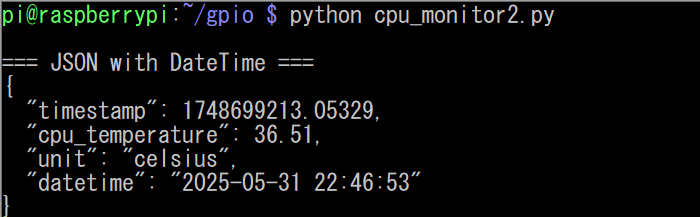
IoTプロジェクトやデータ分析では、JSON形式でデータを扱うことが多いです。 以下では先程のデータをJSON形式で出力しています。
from gpiozero import CPUTemperature
import time
import json
from datetime import datetime
from typing import Dict, Union, Any

def get_cpu_temperature() -> float:
    """
    Raspberry PiのCPU温度を取得する。

    Returns:
        float: CPU温度(℃)
    """
    cpu = CPUTemperature()
    return cpu.temperature


def create_temperature_data(temperature: float, include_datetime: bool = False) -> Dict[str, Union[float, str, int]]:
    """
    温度データをJSON形式用の辞書として作成する。

    Args:
        temperature (float): CPU温度
        include_datetime (bool, optional): 人間が読める日時形式を含めるかどうか. Defaults to False.

    Returns:
        Dict[str, Union[float, str, int]]: 温度データの辞書
    """
    data = {
        "timestamp": time.time(),
        "cpu_temperature": round(temperature, 2),
        "unit": "celsius"
    }

    if include_datetime:
        data["datetime"] = datetime.now().strftime("%Y-%m-%d %H:%M:%S")

    return data

def get_cpu_temperature_json(pretty_print: bool = True, include_datetime: bool = False) -> Dict[str, Any]:
    """
    CPU温度をJSON形式で取得・出力する。

    Args:
        pretty_print (bool, optional): 整形されたJSONで出力するかどうか. Defaults to True.
        include_datetime (bool, optional): 人間が読める日時形式を含めるかどうか. Defaults to False.

    Returns:
        Dict[str, Any]: 温度データの辞書
    """
    # 温度データの取得
    temperature = get_cpu_temperature()

    # JSONデータの作成
    temperature_data = create_temperature_data(temperature, include_datetime)

    # JSON形式で出力
    if pretty_print:
        json_output = json.dumps(temperature_data, indent=2)
    else:
        json_output = json.dumps(temperature_data)

    print(json_output)

    return temperature_data

def main() -> None:
    """
    メイン処理:CPU温度をJSON形式で取得・表示する。
    """
    print("\n=== JSON Output ===")
    get_cpu_temperature_json(include_datetime=True)

if __name__ == "__main__":
    main()
Python版の処理について
CPUTemperatureクラスの主な機能
gpiozeroのCPUTemperatureクラスには、こんな便利な機能もあります。
.temperature… 現在のCPU温度を摂氏で取得.is_active… 温度センサーがアクティブかどうかを確認- 閾値設定 … 特定の温度に達した時のコールバック機能
※閾値によるコールバックは以下のように行います。
cpu = CPUTemperature(threshold=70)
cpu.when_activated = lambda: print("温度が70℃を超えました!")
2. Node.js版での実装
Node.jsのインストール
Node.jsがインストールされていない場合は、以下のコマンドでインストールします。
# 例えば、Node.js 18.x をインストール
$ curl -fsSL https://deb.nodesource.com/setup_18.x | sudo -E bash -
$ sudo apt-get install -y nodejs
Node.jsのバージョンを確認
$ node --version
$ npm --version
Node.js版では、Pythonと違いgpiozeroのような専用ライブラリがないため、Linux内のシステムファイルを直接読み取る方法を使います。
【補足】Node.jsでのGPIO制御について:
Node.jsのGPIO制御用のライブラリには以下のようなものが存在しています
- onoff - 最も人気の軽量GPIOライブラリ
- rpi-gpio - 高レベルAPIを提供するライブラリ
- johnny-five - ロボティクス向けの総合ライブラリ
- pigpio - 低レベルアクセス可能な高機能ライブラリ
# 例:onoffライブラリのインストール
$ npm install onoff
RaspberryPiのCPU温度は特別なケースとなっています。
GPIOライブラリは主に外部GPIOピン(デジタル入出力、PWM、I2C、SPIなど)の制御するものですが、今回のCPU温度のような内蔵センサーは、システムファイルを読み込む必要があります。
- 外部センサー(温湿度センサー、距離センサーなど) → GPIOライブラリが便利
- 内蔵センサー(CPU温度、メモリ使用量など) → システムファイルを直接読み取り
Linuxシステムでの温度情報の仕組み
Raspberry PiはLinuxベースのOSであるRaspberryPi OSを使用しています。Linuxでは、一般的にハードウェア情報をファイルシステムに格納しています。その中でCPU温度は/sys/class/thermal/thermal_zone0/tempファイルに格納されています。このファイルにはCPUの温度が「ミリ度」(1000分の1度)で格納されているため、格納されている値を1000で割ることで℃(摂氏)に変換できます。
ファイルに格納されているので、以下のように確認することができます。
$ cat /sys/class/thermal/thermal_zone0/temp
45672
今回の例では、この値(45672)を1000で割ることで、45.672°Cを得ることができます。
CPU温度取得は、外部センサーを使わずにモックデータを作るという目的なので、システムファイルを直接読む方法が最もシンプルかもしれません。(さっきまでのPythonの解説はなんだったんだと思いますが、まあモックなので…😢)
基本的なCPU温度取得コード
Node.js版のコードとしては以下のようになります。
const fs = require('fs').promises;

/**
 * Raspberry PiのCPU温度を取得する
 * @returns {Promise<number>} CPU温度(℃)
 */
async function getCpuTemperature() {
    try {
        // Raspberry PiのCPU温度ファイルを読み取り
        const tempRaw = await fs.readFile('/sys/class/thermal/thermal_zone0/temp', 'utf8');
        // ミリ度から℃に変換
        const temperature = parseInt(tempRaw.trim()) / 1000;
        return temperature;
    } catch (error) {
        console.error('Error reading CPU temperature:', error);
        throw error;
    }
}

/**
 * メイン処理:CPU温度を取得して表示する
 */
async function main() {
    try {
        const temperature = await getCpuTemperature();
        console.log(`Current CPU temperature: ${temperature.toFixed(2)}°C`);
    } catch (error) {
        console.error('Failed to get CPU temperature:', error);
    }
}

// モジュールが直接実行された場合のみmain関数を実行
if (require.main === module) {
    main();
}

module.exports = { getCpuTemperature };

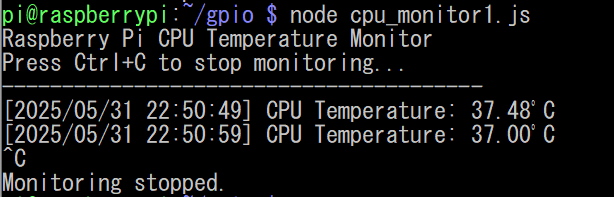
継続的な温度監視コード
Node.js版の継続的な温度監視コードです
const fs = require('fs').promises;

/**
 * Raspberry PiのCPU温度を取得する
 * @returns {Promise<number>} CPU温度(摂氏)
 */
async function getCpuTemperature() {
  try {
    const tempRaw = await fs.readFile('/sys/class/thermal/thermal_zone0/temp', 'utf8');
    return parseInt(tempRaw.trim(), 10) / 1000;
  } catch (error) {
    console.error('Error reading CPU temperature:', error);
    throw error;
  }
}

/**
 * CPU温度が危険レベルかどうかを判定する
 * @param {number} temperature 現在のCPU温度
 * @param {number} threshold 危険レベルの閾値(デフォルト: 70.0)
 * @returns {boolean} 危険レベルの場合true、そうでなければfalse
 */
function checkTemperatureWarning(temperature, threshold = 70.0) {
  return temperature > threshold;
}

/**
 * 継続的にCPU温度を監視する
 * @param {number} intervalMs 監視間隔(ミリ秒、デフォルト: 10秒)
 * @param {number} warningThreshold 警告を出す温度の閾値(デフォルト: 70.0)
 */
function monitorCpuTemperature(intervalMs = 10000, warningThreshold = 70.0) {
  console.log('Raspberry Pi CPU Temperature Monitor');
  console.log('Press Ctrl+C to stop monitoring...');
  console.log('-'.repeat(40));

  // インターバルで定期実行
  const timer = setInterval(async () => {
    try {
      const temperature = await getCpuTemperature();
      const now = new Date().toLocaleString('ja-JP', {
        year: 'numeric', month: '2-digit', day: '2-digit',
        hour: '2-digit', minute: '2-digit', second: '2-digit',
      });
      console.log(`[${now}] CPU Temperature: ${temperature.toFixed(2)}°C`);

      if (checkTemperatureWarning(temperature, warningThreshold)) {
        console.log('WARNING: 高温警告!');
      }
    } catch (err) {
      console.error('Error during monitoring:', err);
      clearInterval(timer);
    }
  }, intervalMs);

  // Ctrl+C(SIGINT)で終了処理
  process.on('SIGINT', () => {
    clearInterval(timer);
    console.log('\nMonitoring stopped.');
    process.exit(0);
  });
}

// モジュールが直接実行された場合のみモニター開始
if (require.main === module) {
  monitorCpuTemperature();
}

module.exports = { getCpuTemperature, checkTemperatureWarning, monitorCpuTemperature };
JSON形式でのデータ出力
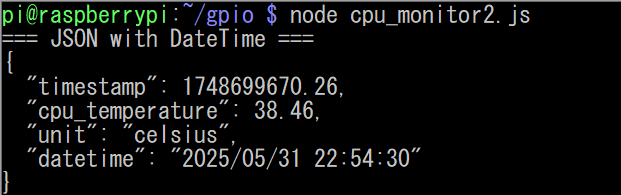
Node.js版でも同様にJSON形式でデータを出力できます:
const fs = require('fs').promises;

/**
 * Raspberry PiのCPU温度を取得する
 * @returns {Promise<number>} CPU温度(摂氏)
 */
async function getCpuTemperature() {
    try {
        const tempRaw = await fs.readFile('/sys/class/thermal/thermal_zone0/temp', 'utf8');
        return parseInt(tempRaw.trim()) / 1000;
    } catch (error) {
        console.error('Error reading CPU temperature:', error);
        throw error;
    }
}

/**
 * 温度データをJSON形式用のオブジェクトとして作成する
 * @param {number} temperature CPU温度
 * @param {boolean} includeDatetime 人間が読める日時形式を含めるかどうか
 * @returns {Object} 温度データのオブジェクト
 */
function createTemperatureData(temperature, includeDatetime = false) {
    const data = {
        timestamp: Date.now() / 1000, // Unix timestamp(秒)
        cpu_temperature: Math.round(temperature * 100) / 100, // 小数点以下2桁
        unit: "celsius"
    };

    if (includeDatetime) {
        data.datetime = new Date().toLocaleString('ja-JP', {
            year: 'numeric',
            month: '2-digit',
            day: '2-digit',
            hour: '2-digit',
            minute: '2-digit',
            second: '2-digit'
        });
    }

    return data;
}

/**
 * CPU温度をJSON形式で取得・出力する
 * @param {boolean} prettyPrint 整形されたJSONで出力するかどうか
 * @param {boolean} includeDatetime 人間が読める日時形式を含めるかどうか
 * @returns {Promise<Object>} 温度データのオブジェクト
 */
async function getCpuTemperatureJson(prettyPrint = true, includeDatetime = false) {
    try {
        // 温度データの取得
        const temperature = await getCpuTemperature();

        // JSONデータの作成
        const temperatureData = createTemperatureData(temperature, includeDatetime);

        // JSON形式で出力
        const jsonOutput = prettyPrint
            ? JSON.stringify(temperatureData, null, 2)
            : JSON.stringify(temperatureData);

        console.log(jsonOutput);

        return temperatureData;
    } catch (error) {
        console.error('Error getting CPU temperature JSON:', error);
        throw error;
    }
}

/**
 * メイン処理:CPU温度をJSON形式で取得・表示する
 */
async function main() {
    try {
        console.log("\n=== JSON with DateTime ===");
        await getCpuTemperatureJson(true, true);
    } catch (error) {
        console.error('Error in main:', error);
    }
}

// モジュールが直接実行された場合のみmain関数を実行
if (require.main === module) {
    main();
}

module.exports = { getCpuTemperature, createTemperatureData, getCpuTemperatureJson };
Node.js版の処理について
Node.js版はCPU温度を以下のように処理を行っています。
- システムファイル読み取り ...
/sys/class/thermal/thermal_zone0/tempファイルを直接読み取り - データフォーマット ... ファイルの値は「ミリ度」なので1000で割って℃(摂氏)に変換
- エラーハンドリング ... ファイル読み取りエラーや権限エラーに対応
- 非同期処理 ...
async/awaitを使って効率的にファイルI/Oを処理 - 標準ライブラリのみ ... 外部依存関係なしで動作
おわりに
今回の話は、外部センサーを用意しなくても、IoTシステムのプロトタイピングやテストができるので、容易にIoTの実験を始められます。本格的にセンサーを買う前に、このCPU温度データを使って通信の仕組みやデータ処理の流れを試しておきましょう😊
サンプルのコードをベースにして、AWS IoT CoreやAzure IoT Hubにデータを送ってみたり、ログを残したり、異常値でアラートを出したり、ブラウザでグラフ表示したりと、色々な機能を追加して遊べそうです🥰
