はじめに
少し前にPaddleOCR-VLの記事を書いたばかりです。
早くもバージョン1.5が公開されました。
PaddleOCR-VL-1.5は、OCR(光学文字認識)に加えて、表認識、数式認識、チャート認識、Spotting(テキスト位置検出)、印章認識など、複数のタスクに対応したマルチモーダルモデルです。
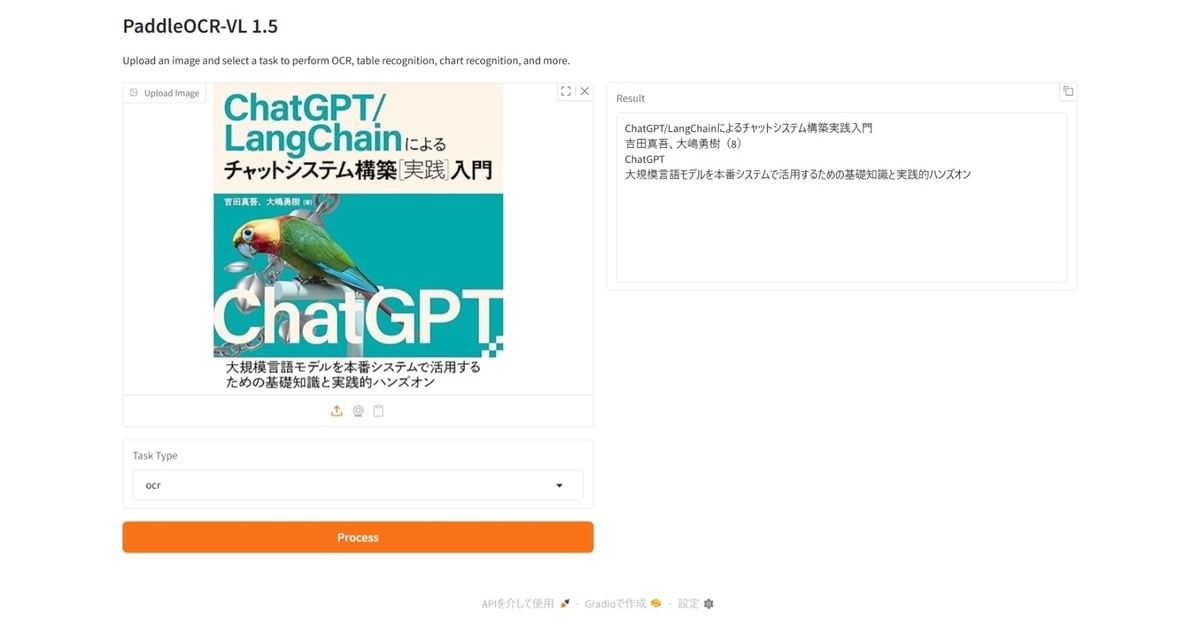
今回もGradioでWebUIを作成し、各タスクを試してみました。
PC環境
Windows 11
Python環境構築
uvを使っています。pyproject.tomlを載せておくので uv sync のみで環境構築可能です。
[project]
name = "paddle"
version = "0.1.0"
description = "Add your description here"
readme = "README.md"
requires-python = ">=3.13"
dependencies = [
    "accelerate==1.12.0",
    "einops==0.8.1",
    "gradio==6.5.1",
    "hf-xet==1.2.0",
    "torch==2.9.1+cu126",
    "transformers==5.1.0",
]

[[tool.uv.index]]
name = "torch-cuda"
url = "https://download.pytorch.org/whl/cu126"
explicit = true

[tool.uv.sources]
torch = [{ index = "torch-cuda" }]
実行画像
Pythonスクリプト
以下のコードでGradioのWebUIが起動します。
from PIL import Image
import torch
from transformers import AutoProcessor, AutoModelForImageTextToText
import gradio as gr

# ---- Settings ----
model_path = "PaddlePaddle/PaddleOCR-VL-1.5"
DEVICE = "cuda" if torch.cuda.is_available() else "cpu"
PROMPTS = {
    "ocr": "OCR:",
    "table": "Table Recognition:",
    "formula": "Formula Recognition:",
    "chart": "Chart Recognition:",
    "spotting": "Spotting:",
    "seal": "Seal Recognition:",
}
# ------------------

# ---- Model Initialization ----
print(f"Loading model on {DEVICE}...")
model = AutoModelForImageTextToText.from_pretrained(model_path, torch_dtype=torch.bfloat16).to(DEVICE).eval()
processor = AutoProcessor.from_pretrained(model_path)
print("Model loaded successfully!")
# ---------------------------

def process_image(image, task):
    """
    Process an image with the specified task.

    Args:
        image: PIL Image or numpy array
        task: Task type (ocr, table, chart, formula, spotting, seal)

    Returns:
        str: Recognition result
    """
    if image is None:
        return "Please upload an image."

    # Convert to PIL Image if needed
    if not isinstance(image, Image.Image):
        image = Image.fromarray(image)

    # ---- Image Preprocessing For Spotting ----
    image = image.convert("RGB")
    orig_w, orig_h = image.size
    spotting_upscale_threshold = 1500

    if task == "spotting" and orig_w < spotting_upscale_threshold and orig_h < spotting_upscale_threshold:
        process_w, process_h = orig_w * 2, orig_h * 2
        try:
            resample_filter = Image.Resampling.LANCZOS
        except AttributeError:
            resample_filter = Image.LANCZOS
        image = image.resize((process_w, process_h), resample_filter)

    # Set max_pixels: use 1605632 for spotting, otherwise use default ~1M pixels
    max_pixels = 2048 * 28 * 28 if task == "spotting" else 1280 * 28 * 28
    # ---------------------------

    # -------- Inference --------
    messages = [
        {
            "role": "user",
            "content": [
                {"type": "image", "image": image},
                {"type": "text", "text": PROMPTS[task]},
            ]
        }
    ]
    inputs = processor.apply_chat_template(
        messages,
        add_generation_prompt=True,
        tokenize=True,
        return_dict=True,
        return_tensors="pt"
    ).to(model.device)

    outputs = model.generate(**inputs, max_new_tokens=512)
    result = processor.decode(outputs[0][inputs["input_ids"].shape[-1]:-1])
    return result
    # ---------------------------

# -------- Gradio Interface --------
with gr.Blocks(title="PaddleOCR-VL") as demo:
    gr.Markdown("# PaddleOCR-VL 1.5")
    gr.Markdown("Upload an image and select a task to perform OCR, table recognition, chart recognition, and more.")

    with gr.Row():
        with gr.Column():
            image_input = gr.Image(type="pil", label="Upload Image")
            task_dropdown = gr.Dropdown(
                choices=["ocr", "table", "chart", "formula", "spotting", "seal"],
                value="ocr",
                label="Task Type"
            )
            submit_btn = gr.Button("Process", variant="primary")

        with gr.Column():
            output_text = gr.Textbox(
                label="Result",
                lines=10,
                buttons=["copy"]
            )

    submit_btn.click(
        fn=process_image,
        inputs=[image_input, task_dropdown],
        outputs=output_text
    )

if __name__ == "__main__":
    demo.launch()
# ---------------------------
使い方
- スクリプトを実行します:
uv run main.py
ブラウザで
http://localhost:7860にアクセスします。画像をアップロードし、実行したいタスクをドロップダウンから選択します。
"Process"ボタンをクリックすると結果が表示されます。
まとめ
PaddleOCR-VL-1.5は、OCRだけでなく、表認識、数式認識、チャート認識など、多様なタスクに対応しているため、文書処理の様々な場面で活用できそうです。
特にSpottingタスクは小さい画像を自動的にアップスケールする処理が含まれており、実用的な配慮がされています。
モデルサイズも2GBと比較的小さく、少ないVRAMでも動作可能です。

