はじめに
以下のようなフォルダ構成だったと仮定します。D:.
└─gradio
└─env
├─py312
├─py313
├─py312-torch251
└─py312-torch260作業フォルダ(今回は「gradio」)に「env」フォルダを作成しその中に複数の仮想環境をvenvで作成しています。
「**\Scripts\activate」を入力するのが煩わしいのでリストから選択できるようにしました。
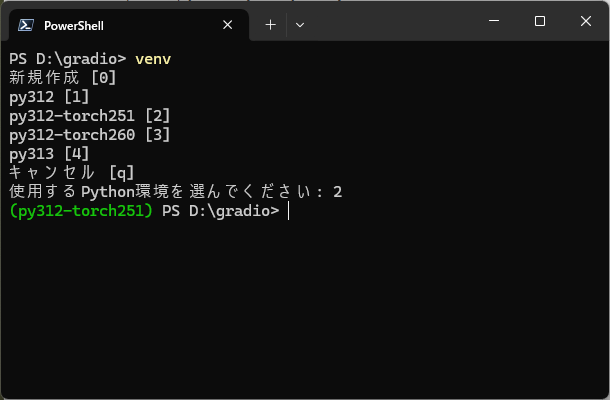
選択した仮想環境が自動的にアクティベイトされます。
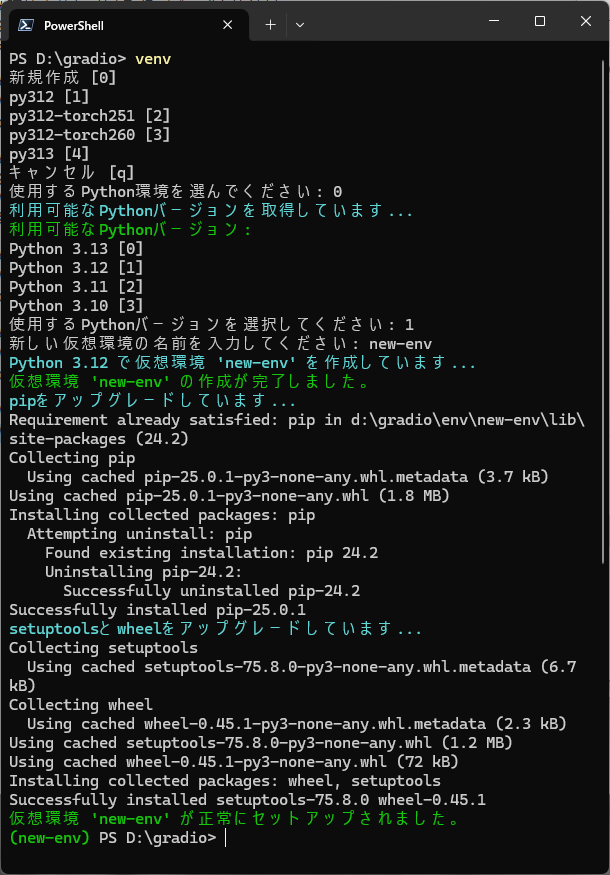
仮想環境の新規作成にも対応しています。
コード
PowerShellで関数を定義しました。function venv { $envPath = ".\env" # envフォルダの存在チェック if (-not (Test-Path -Path $envPath)) { Write-Host "Warning: 'env' フォルダが見つかりません。新しいフォルダを作成します。" -ForegroundColor Yellow New-Item -Path $envPath -ItemType Directory | Out-Null } # envフォルダ内のサブフォルダを取得し、配列に格納 $subFolders = @(Get-ChildItem -Path $envPath -Directory) # 選択肢を表示 Write-Output "新規作成 [0]" # サブフォルダが存在する場合は表示 $offset = 1 # 「新規作成」オプションがあるためオフセットを1にする if ($subFolders.Count -gt 0) { $subFolders | ForEach-Object { Write-Output "$($_.Name -replace '\n','') [$($offset + [array]::IndexOf($subFolders, $_))]" } } else { Write-Host "現在、'env' フォルダ内に仮想環境はありません。" -ForegroundColor Yellow } Write-Output "キャンセル [q]" # ユーザーの入力を取得 $userInput = Read-Host "使用するPython環境を選んでください" # キャンセルの処理 if ($userInput -eq "q") { Write-Output "処理をキャンセルしました" return } # 新規作成の処理 if ($userInput -eq "0") { # 利用可能なPythonバージョンを取得 try { Write-Host "利用可能なPythonバージョンを取得しています..." -ForegroundColor Cyan # py -0コマンドの出力を取得 $pyOutput = & py -0 2>&1 # インストールされたPythonがない場合 if ($pyOutput -is [System.Management.Automation.ErrorRecord] -or $pyOutput -match "no installed Python") { Write-Error "Error: インストールされたPythonが見つかりません。Pythonをインストールしてください。" return } # 出力から利用可能なバージョンを抽出 $pythonVersions = @() foreach ($line in $pyOutput) { if ($line -match "-V:(\d+\.\d+)") { $version = $matches[1] $pythonVersions += $version } } if ($pythonVersions.Count -eq 0) { Write-Error "Error: Pythonバージョンの取得に失敗しました。" return } # バージョン一覧を表示 Write-Host "利用可能なPythonバージョン:" -ForegroundColor Green for ($i = 0; $i -lt $pythonVersions.Count; $i++) { Write-Output "Python $($pythonVersions[$i]) [$i]" } # Pythonバージョンの選択 $versionInput = Read-Host "使用するPythonバージョンを選択してください" if (-not ($versionInput -match '^\d+$') -or [int]$versionInput -lt 0 -or [int]$versionInput -ge $pythonVersions.Count) { Write-Error "Error: 無効な選択です。0から$($pythonVersions.Count - 1)の間の数字を入力してください。" return } $selectedVersion = $pythonVersions[[int]$versionInput] # 環境名の入力 $newEnvName = Read-Host "新しい仮想環境の名前を入力してください" if ([string]::IsNullOrWhiteSpace($newEnvName)) { Write-Error "Error: 環境名が指定されていません。処理を中止します。" return } $newEnvPath = Join-Path -Path $envPath -ChildPath $newEnvName # 同名の環境が既に存在するかチェック if (Test-Path -Path $newEnvPath) { Write-Error "Error: '$newEnvName' という名前の仮想環境は既に存在します。別の名前を指定してください。" return } # 選択したPythonバージョンで新しい仮想環境を作成 Write-Host "Python $selectedVersion で仮想環境 '$newEnvName' を作成しています..." -ForegroundColor Cyan try { # 指定したバージョンでPythonを実行 & py -$selectedVersion -m venv (Join-Path -Path $envPath -ChildPath $newEnvName) # 成功した場合 if ($LASTEXITCODE -eq 0) { Write-Host "仮想環境 '$newEnvName' の作成が完了しました。" -ForegroundColor Green # 作成した環境をアクティベート $activatePath = Join-Path -Path $envPath -ChildPath $newEnvName | Join-Path -ChildPath "Scripts" | Join-Path -ChildPath "activate" & $activatePath # pipのアップグレード Write-Host "pipをアップグレードしています..." -ForegroundColor Cyan python -m pip install --upgrade pip # パッケージのインストール Write-Host "setuptoolsとwheelをアップグレードしています..." -ForegroundColor Cyan pip install -U setuptools wheel Write-Host "仮想環境 '$newEnvName' が正常にセットアップされました。" -ForegroundColor Green } else { Write-Error "Error: 仮想環境のセットアップ中にエラーが発生しました。終了コード: $LASTEXITCODE" } } catch { Write-Error "Error: 仮想環境の作成に失敗しました。" Write-Error $_.Exception.Message } } catch { Write-Error "Error: Pythonバージョンの取得に失敗しました。py.exeが正しくインストールされていることを確認してください。" Write-Error $_.Exception.Message } return } # 既存環境選択の処理 if (-not ($userInput -match '^\d+$') -or [int]$userInput -lt $offset -or [int]$userInput -ge ($subFolders.Count + $offset)) { Write-Error "Error: 無効な選択です。0から$($subFolders.Count + $offset - 1)の間の数字、またはqを入力してください。" return } # 入力番号から選択されたオプションを取得 (オフセットを適用) $selectedOption = $subFolders[[int]$userInput - $offset] # 選択されたオプションのフルパスを構築 $activatePath = Join-Path -Path $envPath -ChildPath $selectedOption.Name | Join-Path -ChildPath "Scripts" | Join-Path -ChildPath "activate" # activate スクリプトを実行 if (Test-Path -Path $activatePath) { & $activatePath } else { Write-Error "Error: アクティベーションスクリプトが見つかりません: $activatePath" } }
上記を$profileに記入すれば使えます。
VS codeがあれば以下でファイルが開けます。
code $profile

