
この記事は虎の穴ラボ Advent Calendar 2021の15日目の記事です。
14日目:磯江さんの「Deno環境のTypeScriptでRubyプログラミング問題を解く」の記事はこちら。
16日目はM.Mさんのデザインフォントの記事を予定しています。
みなさんこんにちは。虎の穴ラボのNSSです。
先日「Next.js + TypeScript + AWS Amplify でアプリケーション開発」という記事を出したところ、
おかげさまでたくさんの方に読んでいただけました。
ありがとうございます。
AWS Amplify関連のニュースとして、
先日AWS re:Invent 2021にて「AWS Amplify Studio」が発表されました。
早速新機能を使ってみたのでご紹介します。
AWS Amplify Studio について
Amplifyでは、バックエンドの管理をGUIで行う「Amplify Admin UI」という機能が提供されていました。
その「Amplify Admin UI」の機能に加え、新たにユーザーインターフェースの管理機能が実装されました。
「Amplify Admin UI」を含めたこれらの機能が統合されたものが「AWS Amplify Studio」です。
人気デザインツール「Figma」と連携し、「Figma」で作成したデザインからReactのコンポーネントを自動生成することができるようになりました。
現在はパブリックプレビュー版です。
React アプリケーションを作成
Amplify CLIをインストールします。
すでにインストール済みであってもAmplify CLIの更新のために実行する必要があります。
$ npm install -g @aws-amplify/cli
Amplify CLIの初期設定を実施します。 RegionやIAMユーザーの設定をします。 過去に実施済みであれば不要です。
$ amplify configure
Reactアプリケーションを作成します。
--template typescriptオプションを設定するとTypeScriptでアプリケーションを作成できます。
$ npx create-react-app studio-react-sample --template typescript
$ cd studio-react-sample
$ amplify init
$ npm install aws-amplify @aws-amplify/ui-react
index.tsxに以下の3行を追加します。
import Amplify from "aws-amplify";
import awsExports from "./aws-exports";

Amplify.configure(awsExports);
Amplifyの初期設定はこちらの記事も参考にしてください。
以下のコマンドを実行するとWebのAWSコンソールにアプリケーションが追加されます。
$ amplify push
Amplify Studio の設定
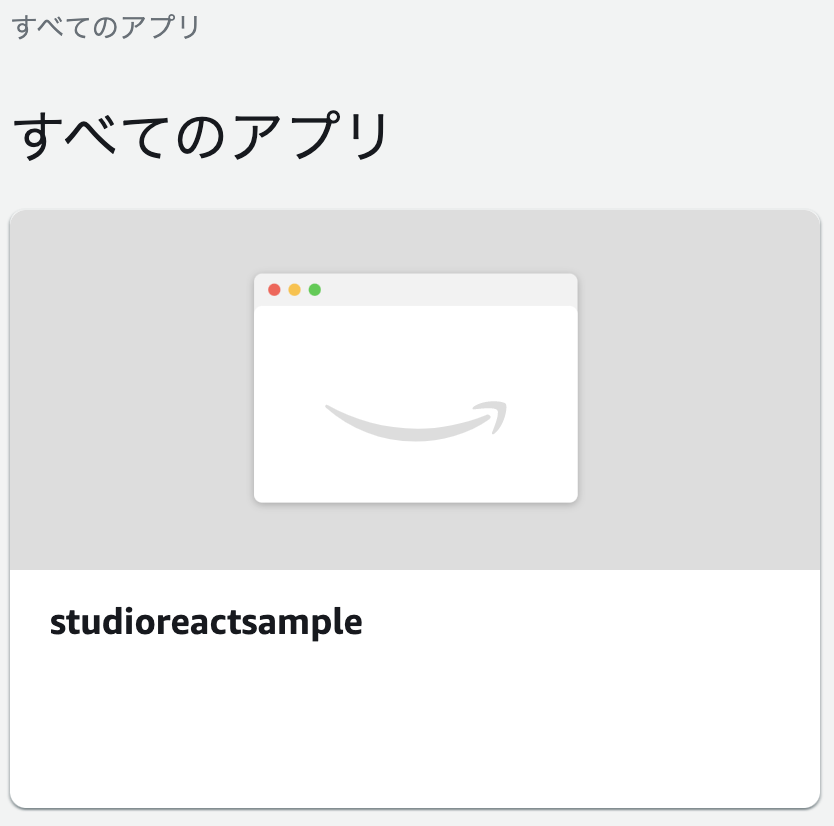
AWSコンソールで追加されたアプリを選択します。
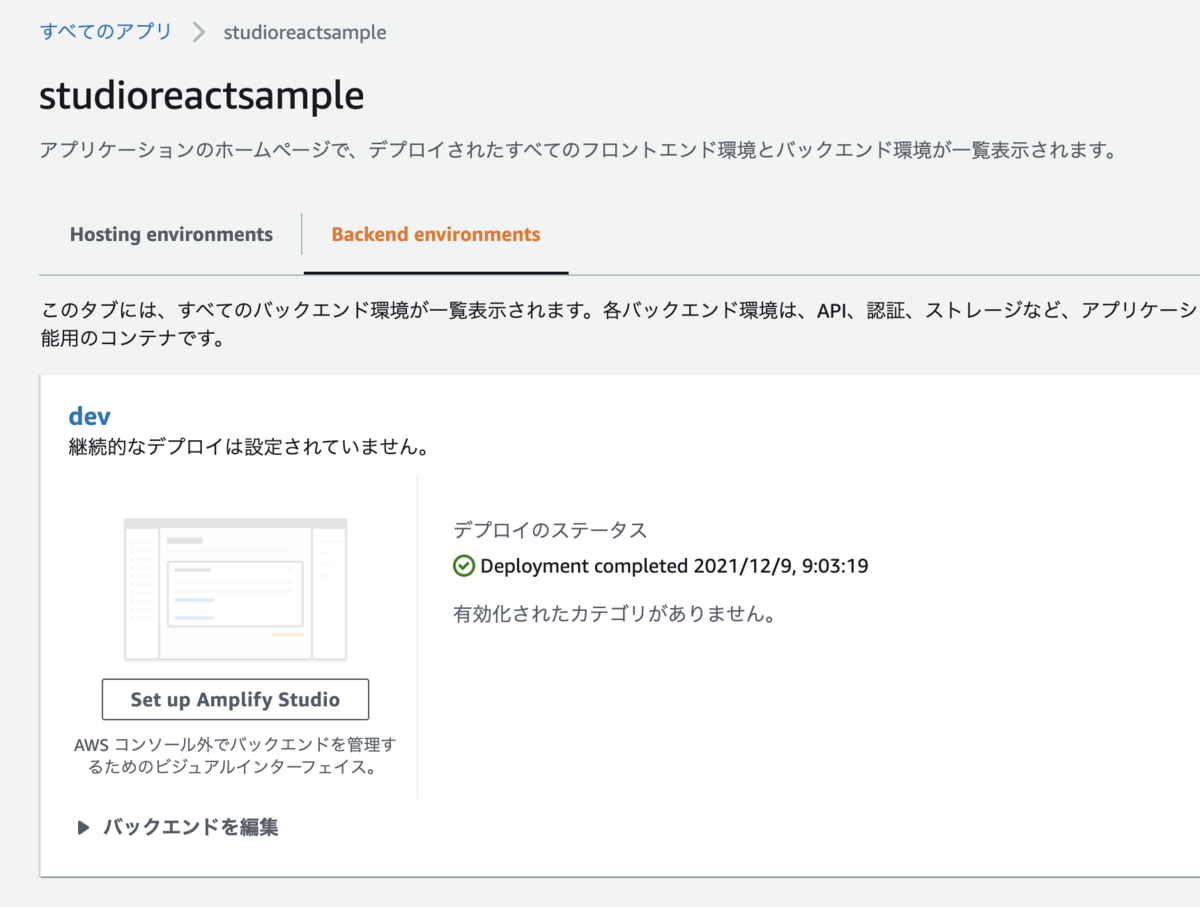
「Set up Amplify Studio」を押します。
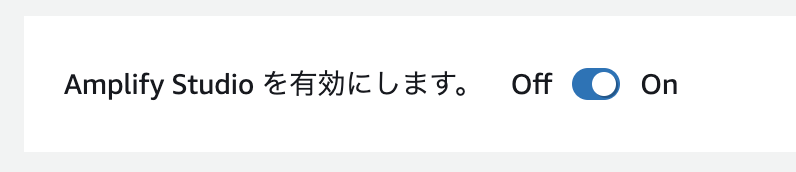
Amplify Studio をオンにします。
管理ユーザーを招待します。

招待メールのURLをクリックして管理画面にログインできることを確認します。
Figma でデザインを作成
Figmaのアカウントを作成します。
Figmaにログインしたら「New design file」を選択します。

ページをデザインします。

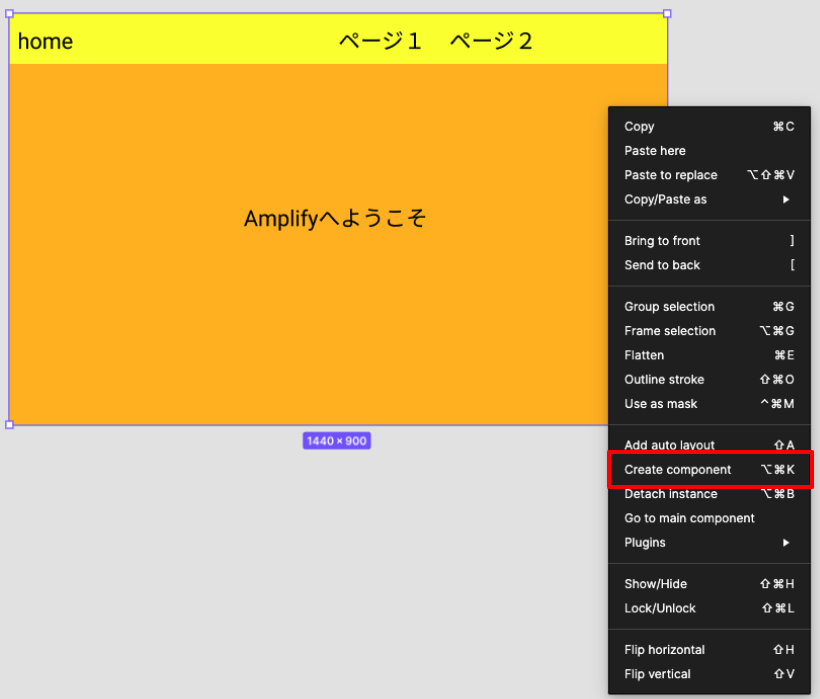
作成したデザインをコンポーネントとして作成します。
デザインを右クリックして「Create Component」を選択します。
これを実行しないとAmplifyに取り込めないので注意が必要です。
FigmaとAmplifyを連携
シェアボタンをクリックします。
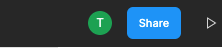
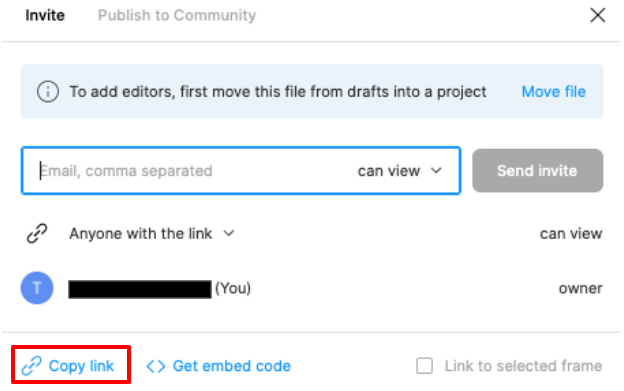
「Copy link」をクリックしてURLをコピーします
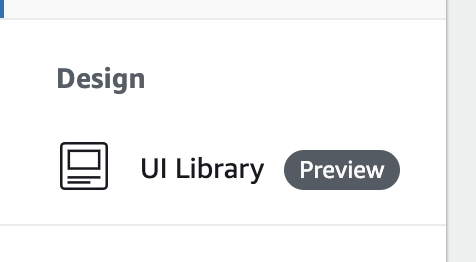
Design > UI Libraryを選択します
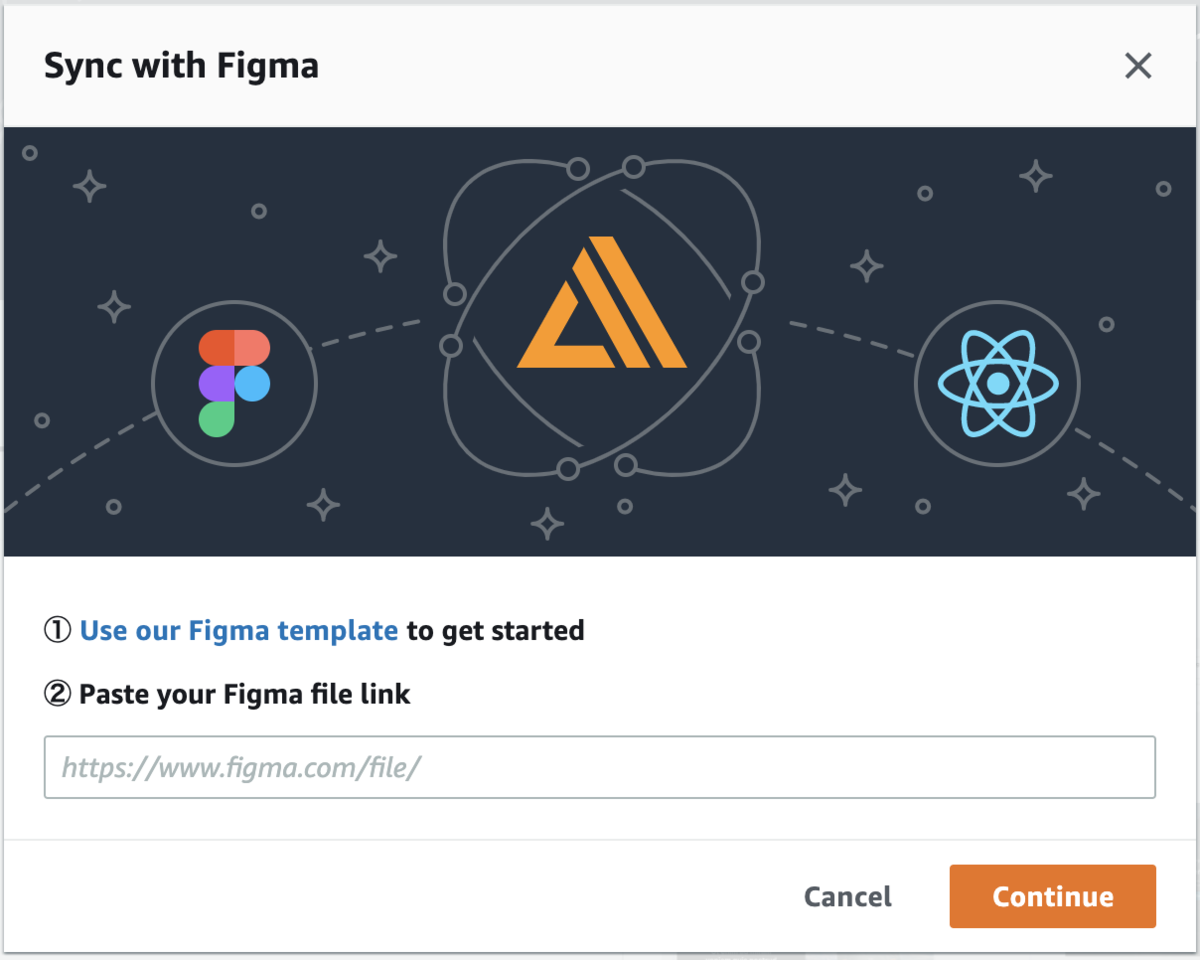
Get startをクリックしてコピーしたURLを貼り付けます
取り込むコンポーネントを選択するか「Accept all」で全てのコンポーネントを取り込みます。
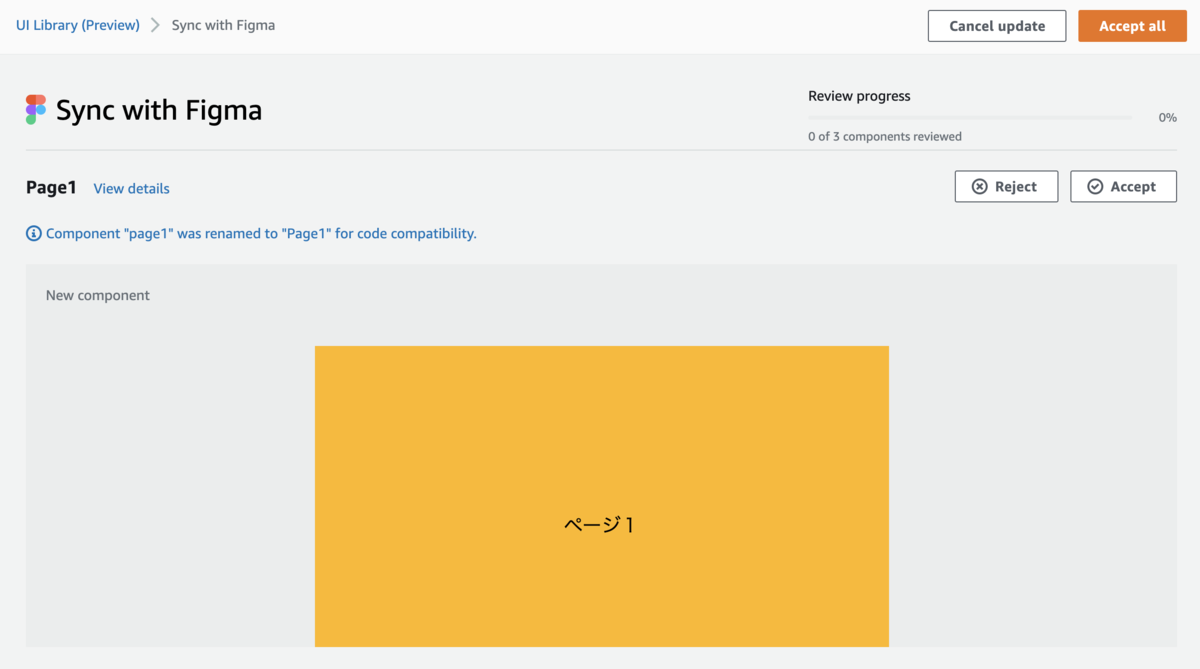

amplify pull を実行してコンポーネントのコードが自動生成されているのを確認します。

自動生成されたソースを確認します。
TypeScriptをテンプレートに設定していてもjsxが生成されます。
ここは後のアップデートに期待したいです。
またこのファイルは変更を加えないようにというコメントが記載されており、
amplify pull を実行すると変更が上書きされてしまうようです
Home.jsx
/***************************************************************************
 * The contents of this file were generated with Amplify Studio.           *
 * Please refrain from making any modifications to this file.              *
 * Any changes to this file will be overwritten when running amplify pull. *
 **************************************************************************/

/* eslint-disable */
import React from "react";
import { getOverrideProps } from "@aws-amplify/ui-react/internal";
import { Text, View } from "@aws-amplify/ui-react";
export default function Home(props) {
  const { overrides: overridesProp, ...rest } = props;
  const overrides = { ...overridesProp };
  return (
    <View
      width="1440px"
      padding="0px 0px 0px 0px"
      backgroundColor="rgba(255,183.5999920964241,0,1)"
      overflow="hidden"
      position="relative"
      height="900px"
      {...rest}
      {...getOverrideProps(overrides, "View")}
    >
      <Text
        padding="0px 0px 0px 0px"
        color="rgba(0,0,0,1)"
        textAlign="left"
        display="flex"
        justifyContent="flex-start"
        fontFamily="Roboto"
        top="421px"
        left="513px"
        width="414px"
        fontSize="48px"
        lineHeight="56.25px"
        position="absolute"
        fontWeight="400"
        direction="column"
        height="58px"
        children="Amplifyへようこそ"
        {...getOverrideProps(overrides, "View.Text[0]")}
      ></Text>
      <View
        padding="0px 0px 0px 0px"
        backgroundColor="rgba(249.900004863739,255,0,1)"
        overflow="hidden"
        top="0px"
        left="0px"
        width="1440px"
        position="absolute"
        height="110px"
        {...getOverrideProps(overrides, "View.View[0]")}
      >
        <Text
          padding="0px 0px 0px 0px"
          color="rgba(0,0,0,1)"
          textAlign="left"
          display="flex"
          justifyContent="flex-start"
          fontFamily="Roboto"
          top="33px"
          left="18px"
          fontSize="48px"
          lineHeight="56.25px"
          position="absolute"
          fontWeight="400"
          direction="column"
          children="home"
          {...getOverrideProps(overrides, "View.View[0].Text[0]")}
        ></Text>
        <Text
          padding="0px 0px 0px 0px"
          color="rgba(0,0,0,1)"
          textAlign="left"
          display="flex"
          justifyContent="flex-start"
          fontFamily="Roboto"
          top="33px"
          left="720px"
          fontSize="48px"
          lineHeight="56.25px"
          position="absolute"
          fontWeight="400"
          direction="column"
          children="ページ1"
          {...getOverrideProps(overrides, "View.View[0].Text[1]")}
        ></Text>
        <Text
          padding="0px 0px 0px 0px"
          color="rgba(0,0,0,1)"
          textAlign="left"
          display="flex"
          justifyContent="flex-start"
          fontFamily="Roboto"
          top="33px"
          left="963px"
          fontSize="48px"
          lineHeight="56.25px"
          position="absolute"
          fontWeight="400"
          direction="column"
          children="ページ2"
          {...getOverrideProps(overrides, "View.View[0].Text[2]")}
        ></Text>
      </View>
    </View>
  );
}
コンポーネントを使用してみます。
index.tsxを以下のように変更します
import { Home } from './ui-components'; // <-追加

ReactDOM.render(
  <React.StrictMode>
    <Home />
  </React.StrictMode>,
  document.getElementById('root')
);
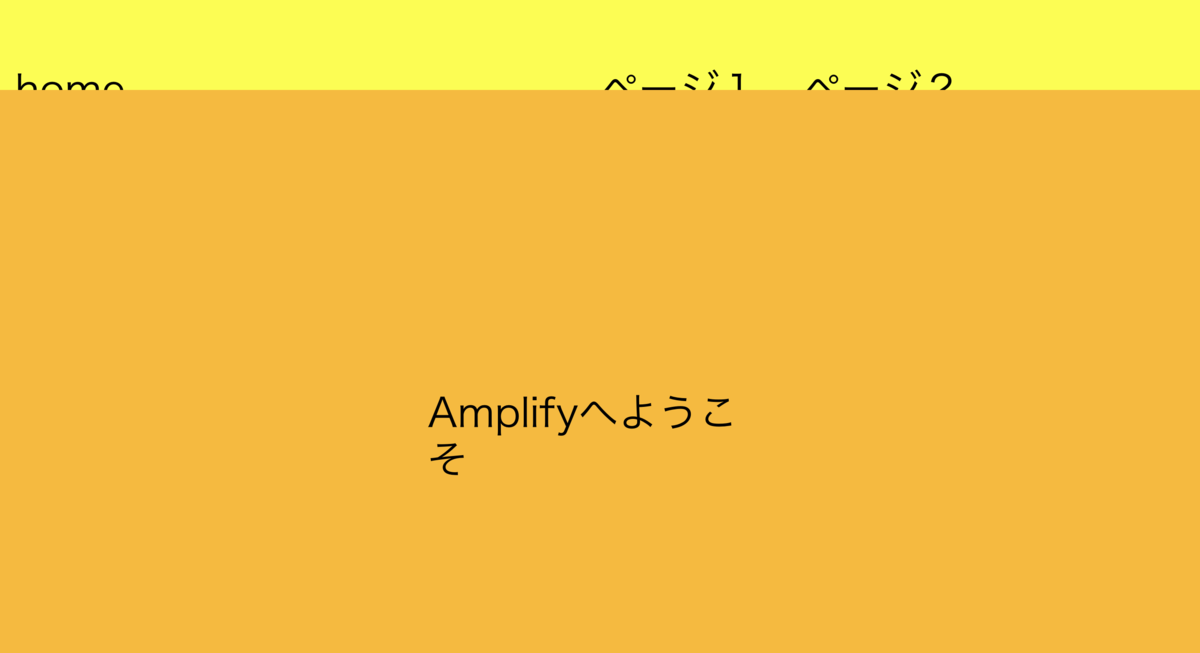
画面の表示を確認してみます。
$ yarn start
または
$ npm run dev
黄色部分の表示が被ってしまっていますが、作成したコンポーネントが表示されました。
まとめ
今回はFigmaとAmplifyを連携してUIの作成を行える「AWS Amplify Studio」をご紹介しました。 私がFigmaを全く使ったことがなかったので、表示されたものが崩れてしまいましたが、 Figmaの操作に長けているエンジニアであれば作業が捗りますし、 デザイナーのチームとFigmaでデザインを共有してそのままReactコンポーネントに変換して実装するなどの運用ができると思います。 今後もAWS Amplifyの進化を期待したいと思います。
P.S.
採用情報
■募集職種
yumenosora.co.jp
カジュアル面談も随時開催中です
■お申し込みはこちら!
news.toranoana.jp
■ToraLab.fmスタートしました!
メンバーによるPodcastを配信中!
是非スキマ時間に聞いて頂けると嬉しいです。
anchor.fm
■Twitterもフォローしてくださいね!
ツイッターでも随時情報発信をしています
twitter.com
