この記事は、Tech KAYAC Advent Calendar 2017 の21日目の記事です。
こんにちは!17新卒HTMLファイ部の入江です。
技術の無駄遣いをモットーに日々最新技術を追っています。今回は今流行りのAIスピーカーGoogle Homeを使って変身できるようにしてみました。
できたもの
まずはこちらご覧ください。
Google Home と Firebase Realtime databaseを連携して顔を変える
使った技術
- Dialogflow
- firebase
- Fusion 360
仕様
Google Homeに「変身〇〇」というと〇〇の部分をfirebaseのrealtime databaseに保存するAgentをつくる。realtime databaseをブラウザから監視し、変わった値に紐づいた画像を画面(iPad)に表示する。
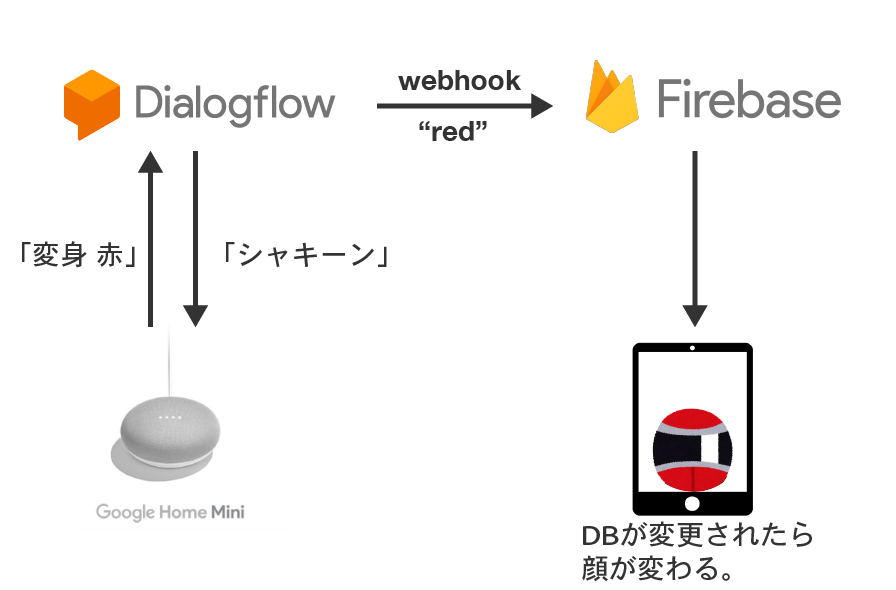
DialogflowでAgentをつくる
Entitiesの設定
まずEntityを作ります。
「変身〇〇」の〇〇の部分に当たるやつですね。

右側が特定の単語。左側が特定の単語に対しての類義語になります。
Intentsの設定
続いてintentの設定していきます。
「変身〇〇」という単語を理解できるようにしてあげます。

User saysで認識してもらいたい文言を追加します。今回は変身したいので、変換が間違っても問題ないように「変身ブルー」と「返信レッド」を追加しました。レッド、ブルーの単語を選択して、先ほど作ったEntityを設定してあげると、黄色くなります。
FulfillmentのUse webhookにチェックを入れます。
Integrationの設定
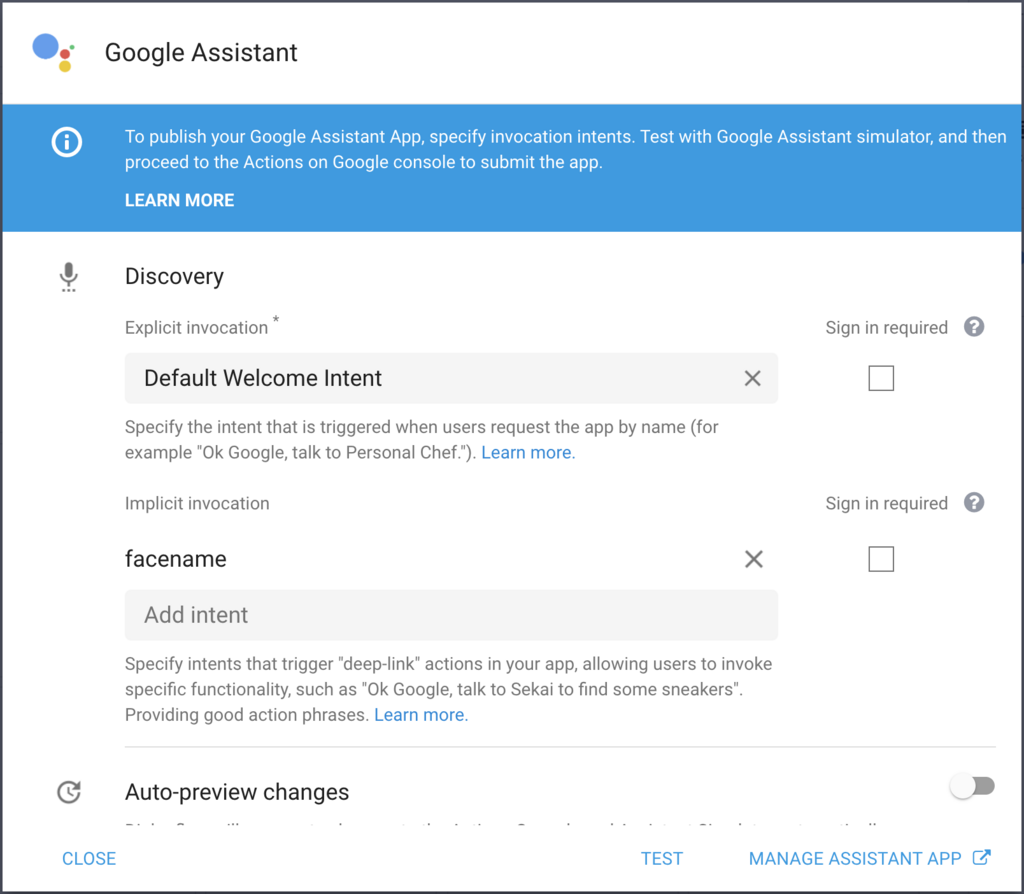
一番上のGoogle AssistantのINTEGRATION SETTNIGSをクリックすると上図のようなポップアップが出ます。最近UI変わったみたいですね。
Additional triggering intentsの欄に先ほど作ったintentを設定して、TESTを押して問題ないようだったら、MANAGE ASSISTANT APPを押します。
Fulfillmentの設定
firebase cloud funcitonの作成
firebaseのcloud functionをローカル環境で作成します。手順としては以下です。
yarn global add firebase-toolsfirebase loginfirebase int functionsSelect a default Firebase project for this directory: (Use arrow keys)と聞かれるので、Dialog flowで作成中のAgentを選択する- JavaScript と TypeScriptどっちにするかとか聞かれますが、そこはお好みで
- できたら
firebase deploy --only functionsでデプロイする
今回書いたfunctionは↓になります。内容はFullfillmentのInline Editor内に書いてあるサンプルスクリプトに、FirebaseのRealtime Databaseにデータを追加するプログラムを書き足しただけです。
const functions = require("firebase-functions");
const admin = require("firebase-admin");
const DialogflowApp = require('actions-on-google').DialogflowApp;

admin.initializeApp(functions.config().firebase);

exports.dialogflowWithRealtimeDetabase = functions.https.onRequest((request, response) => {
  if (!request.body.result) {
    console.log('Invalid Request');
    return response.status(400).end('Invalid Webhook Request (expecting v1 or v2 webhook request)');
  }

  let action = request.body.result.action;
  const parameters = request.body.result.parameters;
  const requestSource = (request.body.originalRequest) ? request.body.originalRequest.source : undefined;
  const path = "/faceName";

  // realtime databaseにデータを突っ込む
  admin.database().ref(path).set(parameters.change_name);

  const googleAssistantRequest = 'google';
  const app = new DialogflowApp({request: request, response: response});

  const actionHandlers = {
    'input.welcome': () => {
      if (requestSource === googleAssistantRequest) {
        sendGoogleResponse('Hello, Welcome to my Dialogflow agent!');
      } else {
        sendResponse('Hello, Welcome to my Dialogflow agent!');
      }
    },
    'input.unknown': () => {
      if (requestSource === googleAssistantRequest) {
        sendGoogleResponse('I\'m having trouble, can you try that again?');
      } else {
        sendResponse('I\'m having trouble, can you try that again?');
      }
    },
    'default': () => {
      if (requestSource === googleAssistantRequest) {
        let responseToUser = {
          speech: 'シャキーン',
          text: 'シャキーン'
        };
        sendGoogleResponse(responseToUser);
      } else {
        let responseToUser = {
          speech: 'シャキーン',
          text: `シャキーン`
        };
        sendResponse(responseToUser);
      }
    }
  }

  if (!actionHandlers[action]) {
    action = 'default';
  }

  actionHandlers[action]();

  function sendGoogleResponse (responseToUser) {
    if (typeof responseToUser === 'string') {
      app.ask(responseToUser);
    } else {
      let googleResponse = app.buildRichResponse().addSimpleResponse({
        speech: responseToUser.speech || responseToUser.displayText,
        displayText: responseToUser.displayText || responseToUser.speech
      });
      if (responseToUser.googleRichResponse) {
        googleResponse = responseToUser.googleRichResponse;
      }
      if (responseToUser.googleOutputContexts) {
        app.setContext(...responseToUser.googleOutputContexts);
      }
      app.ask(googleResponse);
    }
  }
  function sendResponse (responseToUser) {
    if (typeof responseToUser === 'string') {
      let responseJson = {};
      responseJson.speech = responseToUser;
      responseJson.displayText = responseToUser;
      response.json(responseJson);
    } else {
      let responseJson = {};
      responseJson.speech = responseToUser.speech || responseToUser.displayText;
      responseJson.displayText = responseToUser.displayText || responseToUser.speech;
      responseJson.data = responseToUser.data;
      responseJson.contextOut = responseToUser.outputContexts;
      response.json(responseJson);
    }
  }
});
DialogflowのFulfillmentの設定
- Webhookを
ENABLEDにします。 - URLに先ほどdeployしたcloud funcitonのURLを指定します。
フロント側でfirebase realtime databaseを監視する
単純にデータを監視するだけなんで、ちょっとの記述で実装できます。
<!DOCTYPE html>
<html>
    <head>
        <meta charset="utf-8" />
        <style>
            body {
              width: 100vw;
              height: 100vh;
              background-color: #000;
              background-repeat: no-repeat;
              background-position: center bottom;
              color: #fff;
            }
      </style>
    </head>
    <body>
        <p id="face-name">ホゲホゲ</p>

        <script src="https://www.gstatic.com/firebasejs/4.2.0/firebase.js"></script>
        <script>
            // Initialize Firebase
            var config = {
                apiKey: "<API_KEY>",
                authDomain: "<PROJECT_ID>.firebaseapp.com",
                databaseURL: "https://<DATABASE_NAME>.firebaseio.com",
                storageBucket: "<BUCKET>.appspot.com",
                messagingSenderId: "<SENDER_ID>",
            };
            firebase.initializeApp(config);

            var db = firebase.database();
            var faceType = db.ref('faceName'); //取得したいデータのパスを指定
            faceType.on('value', function(snapshot) {
                const value = snapshot.val(); //faceNameに入ってる値を取得
                document.getElementById("face-name").innerText = value;
                document.body.style.backgroundImage = 'url(img/' + value + '.png)';
            });
        </script>
    </body>
</html>
ウェアラブル化する
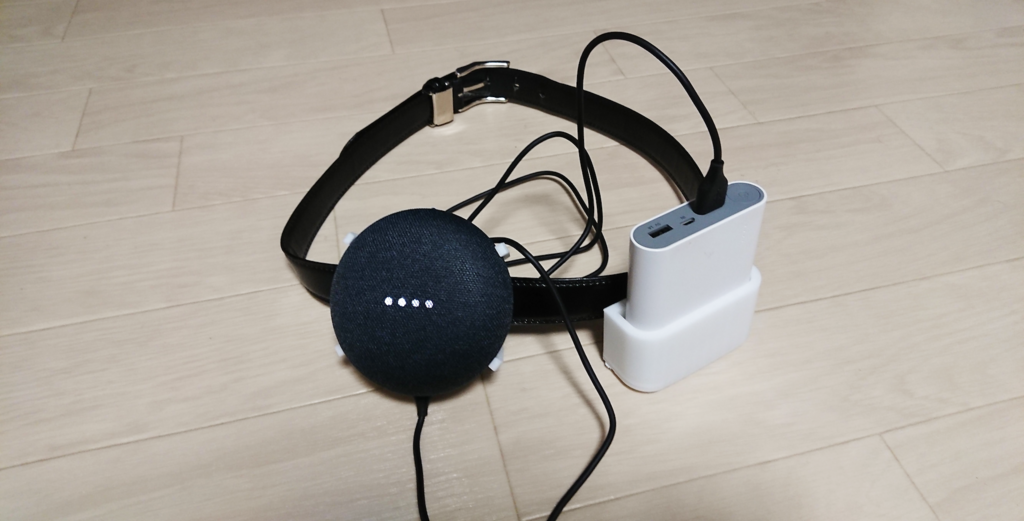
micro USBで給電してるし、戦隊モノのベルトのバックルに見えなくもないので、ウェアラブル化してみます。
ThingiverseというサイトからGoogle Home Miniのマウントをダウンロードしてきます。
今回ダウンロードしたものは↓ Google Home Mini Wall Mount by tilmansp - Thingiverse
続いて、先ほどダウンロードしたマウントに合うように、ベルトにかけれるフックをモデリングしていきます。 モデリングにはFusion 360を使いました。

このモデルを1個にまとめて3Dプリントで出力するのはうまく行かなそうなので、フックの部分とマウントの部分の2パーツに分けて出力し、出力後に合体させます。 接着剤はアクリサンデーがオススメです。http://www.acrysunday.co.jp/products/article/
合体させたマウントはこんな感じになります。

念のため、フックの部分もあげておきます。ベルトにつけたい方はご気軽にダウンロードしてください。 www.thingiverse.com
モバイルバッテリーも同様にフック付きのケースを用意して、完成したのがこちらになります。
まとめ
いかがだったでしょうか。firebaseを使うことで、Google Homeでできることが格段に広がる気がしますね。
面白法人カヤックではAIスピーカーを使って家を便利にするだけじゃ飽き足らない人を募集しています。
明日は先日の合宿で新人王を獲ったcommojun.comです。
