Microsoft Connect (); // 2015 Developer Event Set for November 18-19が現在開催されています。
この中でVisual Studio Code (VS Code) の機能強化が発表され、PowerShellのデバッグ、インテリセンスサポートが追加されました。
今回はその紹介。
Visual Studio Code
Visual Studio Codeは、Microsoftが提供しているElectronベースの軽量なエディタです。
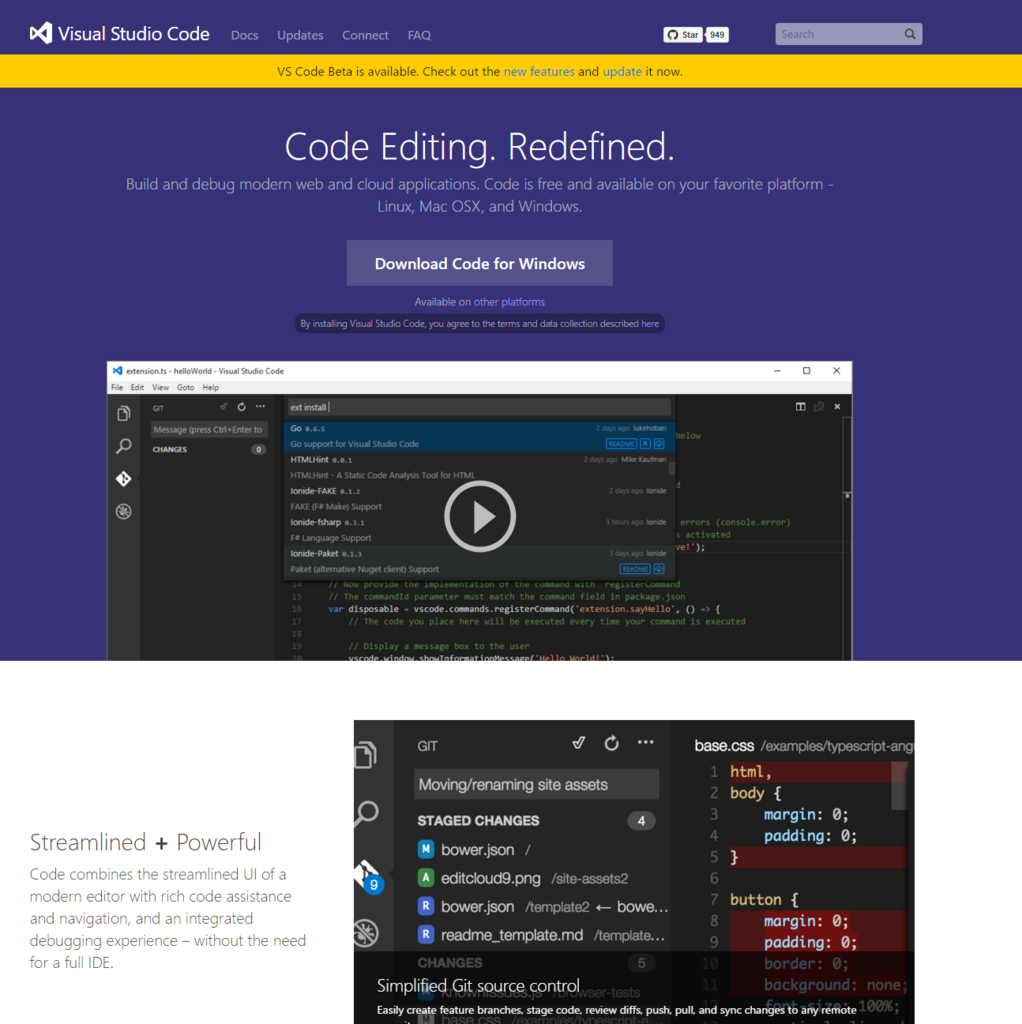
それまであった、Visual Studioと違い、エディター としてかなり軽量かつ、マルチプラットフォームなためMacで利用できてとても便利です。
Language Support
これまでもVS CodeでPowerShellは利用できました。
が、あくまでシンタックスハイライトやブランケットの対応チェック、モジュールのインポート程度で、デバッグやインテリセンスはサポートされていませんでした。
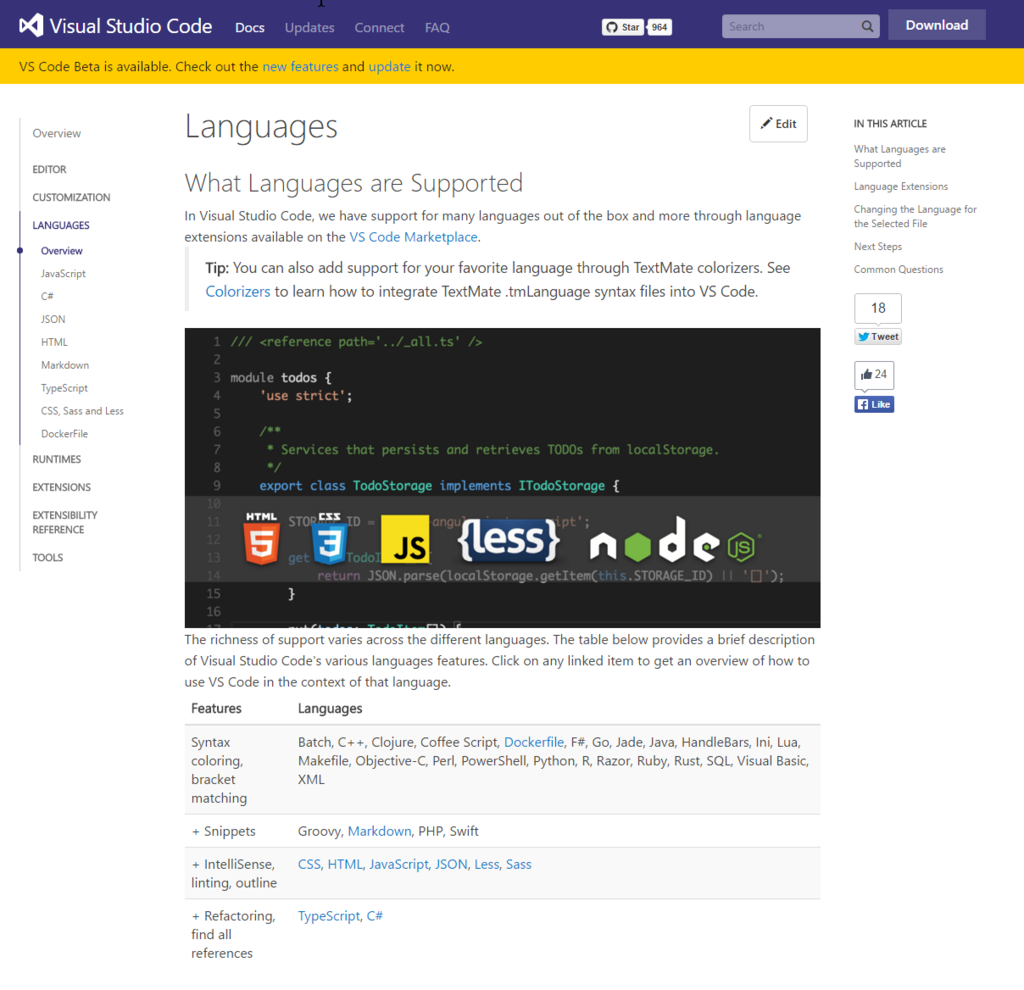
今回のPowerShell機能強化は、まさにこのインテリセンス、静的なリアルタイムコード解析、デバッグ機能の提供となります。
ようは、ISESteoidsとほぼ同等の機能がついたのです。もはやPowerShell ISE is Dead!
元々 PowerShell ISEは、Integrated Scripting Environmentであって、IDEというより高機能エディタにすぎなかったので、VS Codeでさくっと書ける部分が増えるとうれしいものがあります。
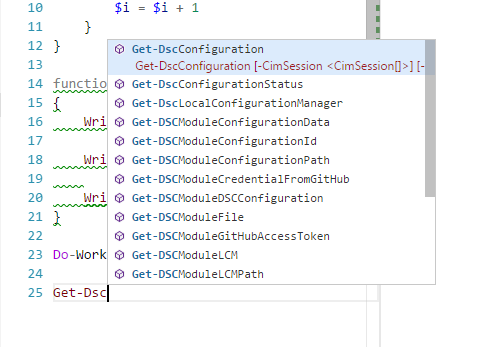
インテリセンス
PowerShell ISEやVisual Studio tools for PowerShellであったインテリセンスですね!

現在はWindows 10上で、PowerShell v5相当のインテリセンスサポートです。
定義への移動
VSやPowerShell ISE + ISE Steroidを使ってて、PowerShell ISE標準に戻れないのが、定義への移動です。これもVS Codeで利用可能になっています。

なにがうれしいって、ドットソースで取りこんだ別ファイルにも移動できることです。

シンボル表示
また、定義された関数などのシンボルも検索、移動できます。

静的コード解析
さらにPSScriptAnalyzerを利用して、コード解析も行うので定義したルールと異なる記述も明示されます。

デバッグ
もちろん、デバッグ実行もサポートされてます。ブレークポイントも貼れる。

PowerShell ISEではデバッグ中の変数の状態が見えなかったですね? PowerShell ISE + ISE Steroidではできましたが、VS Codeも可能です。

REPL
デバッグ画面の下にコマンドを入れれば、REPLもできます。

将来のサポート
さらに将来、以下をサポート予定です。
- WorkflowやDSC Configuation、クラス構文のサポート
- リモートデバッグのサポート
- より良いインタラクティブコンソールのサポート
- いくつかのシンタックスルールの早期改善
- PowerShell Galleryとの連携、統合によるモジュールのインストール
- PowerShell 3.0とv4サポート
Extension インストール方法
PowerShell Extensionは、VS Codeで以下の操作で追加可能です。
- F1キーを押して入力ペイン表示
ext installと入力すると言語サポートが表示される- PowerShellと入力して、クリックするとインストールされる
- 後はVS Codeを再起動すればok

Extensionへのリンク置いておきますね!
Visual Studio Market Place - PowerShell
Market Place
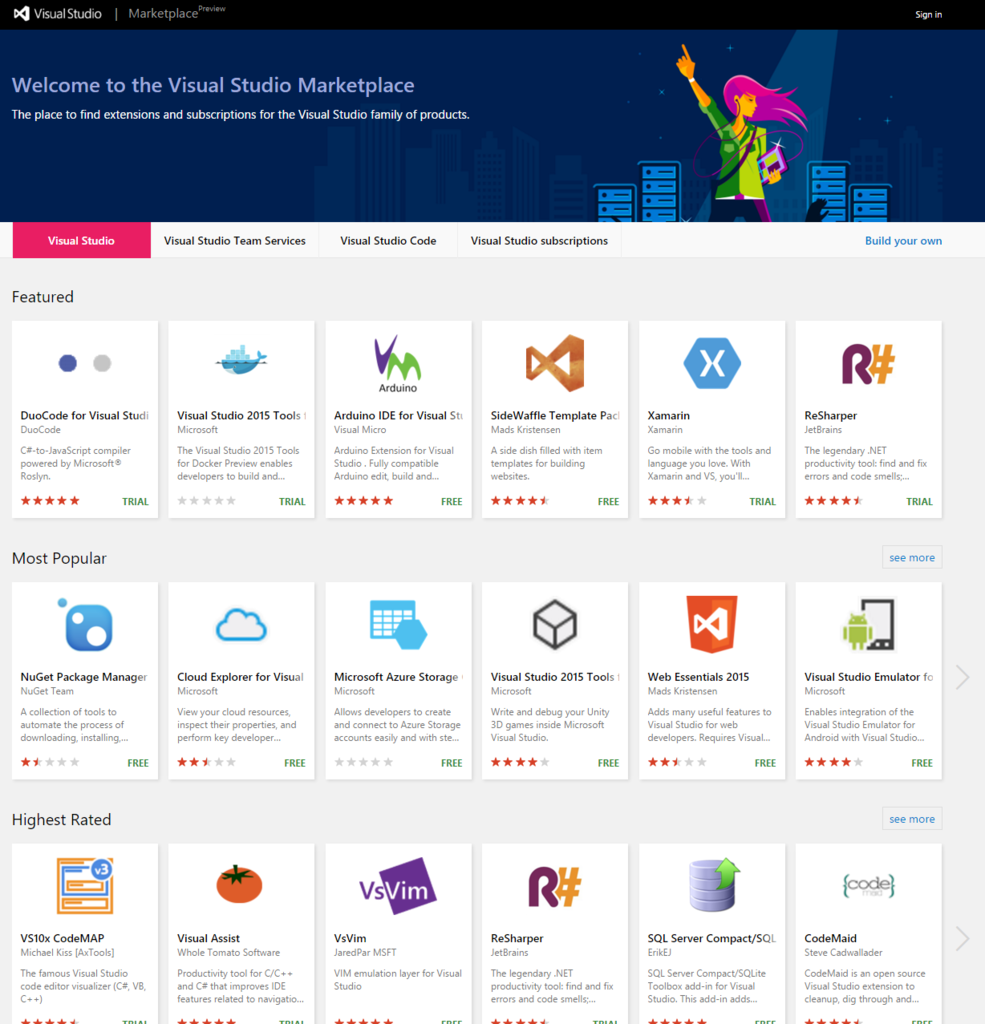
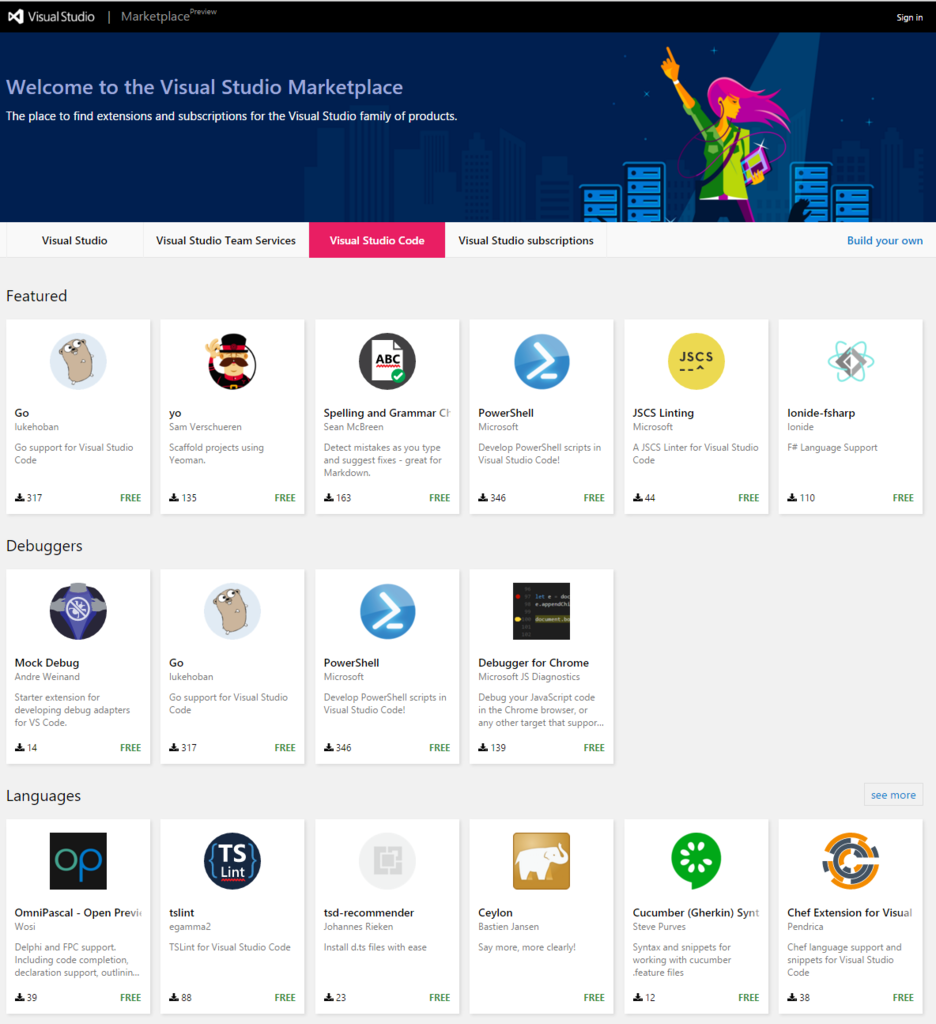
Visual Studioファミリーの拡張やサブスクリプションが置かれた、Visual Studio Market Placeがプレビューリリースされました。ここにも置かれてるのでぜひぜひー
https://marketplace.visualstudio.com/#VSCode
デバッグの launch.json
デバッグするためには、現在のフォルダ配下にlaunch.jsonの定義が必要です。
F5を押すと、lanuch.jsonがなければ、Codeが勝手に作成してくれるので、以下を入力しましょう。
{
    "version": "0.1.0",
    "configurations": [
        {
            "name": "PowerShell",
            "type": "PowerShell",
            "program": "Debug対象のファイル名.ps1"
        }
    ]
}
このサンプルは、%UserProfile%\.vscode\extensions\ms-vscode.PowerShell\examples\.vscode\launch.jsonにあるのでそれを見てもokです。
まとめ
おや?
One last thing: Fans of PowerShell ISE, stay tuned for another great announcement next month!
来月PowerShell ISEでアナウンスがあります。
現状では、PowerShell ISE is dead!! なので、ISESteroidsなどを参考に機能が強化されるかな? 今のままでもRemote Debuggingやクラスベース構文など多くの優位点はあるので、ぜひ頑張ってほしいですね!
おまけ
WPFなど、他環境からVS Code同様のPowerShellでの開発機能を提供するライブラリPowerShellEditorServicesが公開されています。
これもチェックですね。
