PowerShell 5.0がコアに含まれる、Windows Management Framework (WMF) 5.0のSeptember Previewがリリースされました。
今回は、これを紹介です。
- PowerShell の進化は止まらない
- WMF 5.0 Preview September のインストール条件
- インストール手順
- バージョン
- コマンド数
- WMF4.0 から変化、追加された機能の数々
- Generate Windows PowerShell cmdlets based on an OData endpoint
- Manage .ZIP files with new cmdlets
- DSC Authoring Improvements in Windows PowerShell ISE
- New Attribute for defining DSC meta-configuration
- Use partial configurations DSC
- Cross-computer synchronization through DSC
- Get the current DSC configuration status
- Compare, Update, and Publish DSC configurations
- Audit Windows PowerShell usage by transcription and logging
- Extract and parse structured objects out of string content
- Extend the item noun to enable Symbolic Links
- Develop with classes in Windows PowerShell
- Register a PSRepository with PowerShell Get
- Network Switch management through Windows PowerShell (improvements)
- まとめ
PowerShell の進化は止まらない
April, May, July, Septemberときており、JuneやAugustに限らず、ほぼ毎月PowerShell Teamからはリリースが続けられています。
それは、V5 Previewしかり、DSC Resource Wave Kitしかりです。
PowerShell Teamや、チームを率いるJeffery Snoverが、継続的な努力と結果を出し続けていることは本当にうれしい限りです。
| Month | Category | PowerShell Team Blog |
|---|---|---|
| 1 | DSC | Holiday Gift – Desired State Configuration (DSC) Resource Kit Wave-1 |
| 2 | DSC | Need more DSC Resources? Announcing DSC Resource Kit Wave 2 |
| 3 | DSC | DSC Resource Kit Wave 3 |
| 4 | WMF5 | Windows Management Framework 5.0 Preview |
| 5 | WMF5 | Windows Management Framework 5.0 Preview May 2014 is now available |
| 6 | DSC | DSC Resource Kit Wave 4 is Live! |
| 7 | WMF5/DSC | PowerShell DSC Resource Kit Wave 5 Arrives |
| 8 | DSC | DSC Resource Kit Wave 6 Is Here |
| 9 | WMF5 | Windows Management Framework 5.0 Preview September 2014 |
これらに触ったこともない方はぜひ触ってください。そして触って判断してください。 まだまだ物足りない点も数多くあります。しかし、PowerShellはバージョンを重ねるごとに確実に進化をしています。どうか、試してみて、使える点があるなら使ってみてください。
まぁ、実装が古いのは事実なのでなんとかしてほしいですが、PowerShell 3.0までの3年ごとのリリースではなく、 v4以降見せているどんどん改善していく姿勢を見守って一緒に進みたいです。
WMF 5.0 Preview September のインストール条件
インストールに際して、.NE FrameworkとOSとサーバー系ソフトに注意があります。
.NET Framework
.NET 4.5が必須になっています。
WMF4.0では、.NET 4.0が必須でした。ただし以下のインストール可能OSでは、ふつーに.NETを入れています。
サポートされているOS
これまでのWMF5 Previewでもそうですが、インストール可能なのは現行の最新OSのみです。
- Windows Server 2012 R2
- Windows 8.1 Pro
- Windows 8.1 Enterprise
OSは該当してもインストール不可なソフトウェア
以下のソフトウェアがインストールされている場合はインストールしないでください。
- System Center 2012 Configuration Manager (SP1の場合はインストール可能)
- Windows Small Business Server 2011 Standard
WMF 5 をインストール可能になったソフトウェア
以下のソフトウェアは、以前はインストール不可能でしたが、 September Previewから可能になっています。
- Microsoft Exchange Server 2013 Service Pack 1
- Microsoft SharePoint Server 2013 Service Pack 1
インストール手順
PowerShell と PowerShell ISE の終了
インストール前に、PowerShell.exeやPowerShel_ISE.exeは終了しておいてください。
ダウンロード
Download Centerからダウンロードできます。
Windows 8.1は、x86かx64かで、利用するインストーラが異なるので注意してください。 Windows Server 2012 R2は、x64です。
| 種別 | インストーラ名 |
|---|---|
| x64 | Windows8.1-KB2969050-x64.msu |
| x86 | Windows8.1-KB2969050-x86.msu |
GUIインストール
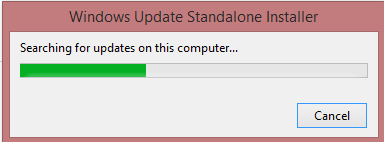
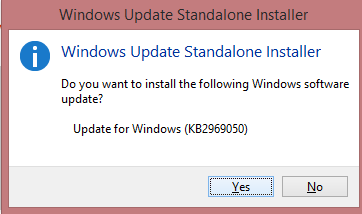
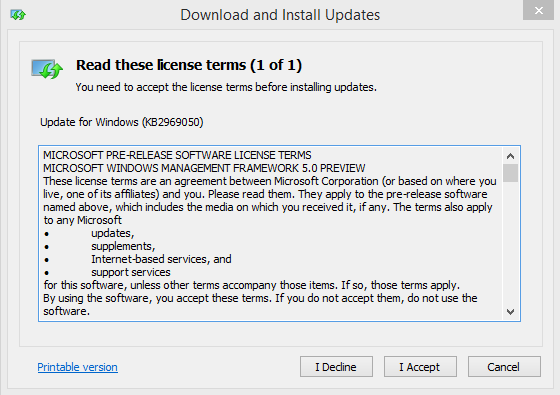
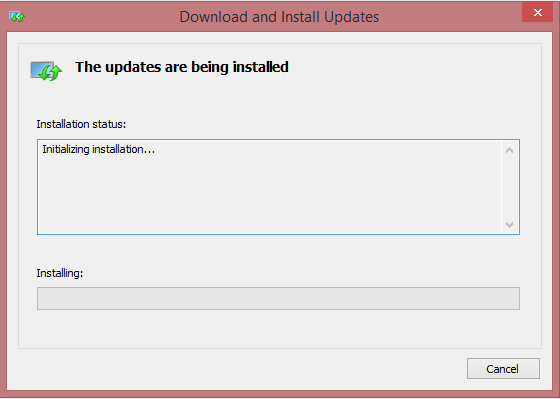
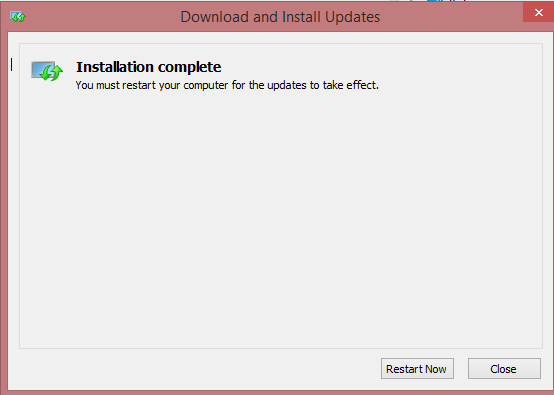
GUIを使う場合は、ダウンロードしたMSUを実行してください。
Unattended インストール (Silent Install)
一斉に自動インストールを展開する場合は、CUIでしょう。
コマンドプロンプトの場合は以下です。
x64の場合
Windows8.1-KB2969050-x64.msu /quiet
x86の場合
Windows8.1-KB2969050-x86.msu /quiet
PowerShellならこうです。
x64の場合
Start-Process -Path "Windows8.1-KB2969050-x64.msu" -ArgumentList "/quiet" -Wait
x86の場合
Start-Process -Path "Windows8.1-KB2969050-x86.msu" -ArgumentList "/quiet" -Wait
再起動
インストール後は再起動で適用されます。
アンインストール
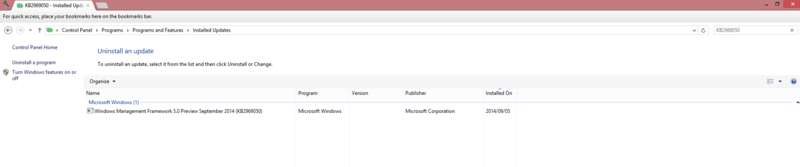
プログラムの追加と削除 > 更新のアンインストールからKB2969050をアンインストールします。
バージョン
毎度恒例、$PSVersionで確認しましょう。
$PSVersionTable
PSVersionは、 5.0.9814.0になりました。
Name                      Value
----                      -----
PSVersion                 5.0.9814.0
WSManStackVersion         3.0
SerializationVersion      1.1.0.1
CLRVersion                4.0.30319.34014
BuildVersion              6.4.9814.0
PSCompatibleVersions      {1.0, 2.0, 3.0, 4.0...}
PSRemotingProtocolVersion 2.2
コマンド数
Get-Command | measure
WMF5.0 May Previewでは、2654でした。
WMF5.0 September Previewでは、2662になりました。
WMF4.0 から変化、追加された機能の数々
たくさんあります。
- Generate Windows PowerShell cmdlets based on an OData endpoint
- Manage .ZIP files with new cmdlets
- DSC Authoring Improvements in Windows PowerShell ISE
- New Attribute for defining DSC meta-configuration
- Use partial configurations DSC
- Cross-computer synchronization through DSC
- Get the current DSC configuration status
- Compare, Update, and Publish DSC configurations
- Audit Windows PowerShell usage by transcription and logging
- Extract and parse structured objects out of string content
- Extend the item noun to enable Symbolic Links
- Develop with classes in Windows PowerShell
- Register a PSRepository with PowerShell Get
- Network Switch management through Windows PowerShell (improvements)
簡単に見ていきましょう。
Generate Windows PowerShell cmdlets based on an OData endpoint
新規に、Export-ODataEndpointProxyがExport-ODataEndpointProxyモジュールで公開されています。
help Export-ODataEndpointProxy -full
まだ利用方法がみえないですね。
NAME
    Export-ODataEndpointProxy

SYNTAX
    Export-ODataEndpointProxy [-Uri] <string> [-OutputPath] <string> [[-MetadataUri] <string>] [[-Credential] <pscreden
    tial>] [[-ResourceNameMapping] <hashtable>]  [<CommonParameters>]


PARAMETERS
    -Credential <pscredential>

        Required?                    false
        Position?                    3
        Accept pipeline input?       true (ByPropertyName)
        Parameter set name           (All)
        Aliases                      None
        Dynamic?                     false

    -MetadataUri <string>

        Required?                    false
        Position?                    2
        Accept pipeline input?       true (ByPropertyName)
        Parameter set name           (All)
        Aliases                      None
        Dynamic?                     false

    -OutputPath <string>

        Required?                    true
        Position?                    1
        Accept pipeline input?       true (ByPropertyName)
        Parameter set name           (All)
        Aliases                      None
        Dynamic?                     false

    -ResourceNameMapping <hashtable>

        Required?                    false
        Position?                    4
        Accept pipeline input?       true (ByPropertyName)
        Parameter set name           (All)
        Aliases                      None
        Dynamic?                     false

    -Uri <string>

        Required?                    true
        Position?                    0
        Accept pipeline input?       true (ByValue, ByPropertyName)
        Parameter set name           (All)
        Aliases                      None
        Dynamic?                     false

    <CommonParameters>
        This cmdlet supports the common parameters: Verbose, Debug,
        ErrorAction, ErrorVariable, WarningAction, WarningVariable,
        OutBuffer, PipelineVariable, and OutVariable. For more information, see
        about_CommonParameters (https://go.microsoft.com/fwlink/?LinkID=113216).


INPUTS
    System.String
    System.Management.Automation.PSCredential
    System.Collections.Hashtable


OUTPUTS
    System.Object

ALIASES
    None


REMARKS
    None
Manage .ZIP files with new cmdlets
これはうれしいですね。ZipをPowerShellで扱えます。
Get-Command | where source -like Microsoft.PowerShell.Archive
CommandType Name             Version Source
----------- ----             ------- ------
Function    Compress-Archive 1.0.0.0 Microsoft.PowerShell.Archive
Function    Expand-Archive   1.0.0.0 Microsoft.PowerShell.Archive
ちょっとCompress-Archiveの実装を見てみましょう。
[CmdletBinding(
DefaultParameterSetName="Path",
SupportsShouldProcess=$true,
HelpUri="http://go.microsoft.com/fwlink/?LinkID=393252")]
param
(
[parameter (
mandatory=$true,
Position=0,
ParameterSetName="Path",
ValueFromPipeline=$true,
ValueFromPipelineByPropertyName=$true)]
[ValidateNotNullOrEmpty()]
[string[]] $Path,
[parameter (
mandatory=$true,
ParameterSetName="LiteralPath",
ValueFromPipeline=$false,
ValueFromPipelineByPropertyName=$true)]
[ValidateNotNullOrEmpty()]
[Alias("PSPath")]
[string[]] $LiteralPath,
[parameter (mandatory=$true,
Position=1,
ValueFromPipeline=$false,
ValueFromPipelineByPropertyName=$false)]
[ValidateNotNullOrEmpty()]
[string] $DestinationPath,
[parameter (
mandatory=$false,
ValueFromPipeline=$false,
ValueFromPipelineByPropertyName=$false)]
[ValidateSet("Optimal","NoCompression","Fastest")]
[string]
$CompressionLevel = "Optimal",
[parameter (
mandatory=$false,
ValueFromPipeline=$false,
ValueFromPipelineByPropertyName=$false)]
[switch]
$Update = $false
)
BEGIN
{
$inputPaths = @()
}
PROCESS
{
switch($PsCmdlet.ParameterSetName)
{
"Path"
{
$inputPaths += $Path
}
"LiteralPath"
{
$inputPaths += $LiteralPath
}
}
}
END
{
# Validate Source Path depeding on Path or LiteralPath parameter set is used.
# The specified source path conatins one or more files or directories that needs
# to be compressed.
switch($PsCmdlet.ParameterSetName)
{
"Path"
{
ValidateDuplicateFileSystemPath $PsCmdlet.ParameterSetName $inputPaths
$resolvedPaths = GetResolvedPathHelper $inputPaths $false
IsValidFileSystemPath $resolvedPaths | Out-Null
}
"LiteralPath"
{
ValidateDuplicateFileSystemPath $PsCmdlet.ParameterSetName $inputPaths
$resolvedPaths = GetResolvedPathHelper $inputPaths $true
IsValidFileSystemPath $resolvedPaths | Out-Null
}
}
$sourcePath = $resolvedPaths;
$destinationParentDir = [system.IO.Path]::GetDirectoryName($DestinationPath)
$achiveFileName = [system.IO.Path]::GetFileName($DestinationPath)
$destinationParentDir = GetResolvedPathHelper $destinationParentDir $false
if($destinationParentDir.Count -gt 1)
{
$errorMessage = ($LocalizedData.InvalidArchiveFilePathError -f $DestinationPath, "DestinationPath", "DestinationPath")
ThrowTerminatingErrorHelper "InvalidArchiveFilePath" $errorMessage ([System.Management.Automation.ErrorCategory]::InvalidArgument)
}
IsValidFileSystemPath $destinationParentDir | Out-Null
$DestinationPath = Join-Path -Path $destinationParentDir -ChildPath $achiveFileName
# GetExtension API does not validate for the actual existance of the path.
$extension = [system.IO.Path]::GetExtension($DestinationPath)
# If user does not specify .Zip extension, we append it.
If($extension -eq [string]::Empty)
{
$DestinationPathWithOutExtension = $DestinationPath
$DestinationPath = $DestinationPathWithOutExtension + $zipFileExtension
$appendArchiveFileExtensionMessage = ($LocalizedData.AppendArchiveFileExtensionMessage -f $DestinationPathWithOutExtension, $DestinationPath)
Write-Verbose $appendArchiveFileExtensionMessage
}
else
{
# Invalid file extension is specified for the zip file to be created.
if($extension -ne $zipFileExtension)
{
$errorMessage = ($LocalizedData.InvalidZipFileExtensionError -f $extension, $zipFileExtension)
ThrowTerminatingErrorHelper "NotSupportedArchiveFileExtension" $errorMessage ([System.Management.Automation.ErrorCategory]::InvalidArgument)
}
}
if([System.IO.File]::Exists($DestinationPath) -and $Update -eq $false)
{
$errorMessage = ($LocalizedData.ZipFileExistError -f $DestinationPath)
ThrowTerminatingErrorHelper "ArchiveFileExists" $errorMessage ([System.Management.Automation.ErrorCategory]::InvalidArgument)
}
# CSVHelper: This is a helper function used to append comma after each path specifid by
# the $sourcePath array. The comma saperated paths are displayed in the -WhatIf message.
$sourcePathInCsvFormat = CSVHelper $sourcePath
if($pscmdlet.ShouldProcess($sourcePathInCsvFormat))
{
try
{
# StopProcessing is not avaliable in Script cmdlets. However the pipleline execution
# is terminated when ever 'CTRL + C' is entered by user to terminate the cmdlet execution.
# The finally block is executed whenever pipleline is terminated.
# $isArchiveFileProcessingComplete variable is used to track if 'CTRL + C' is entered by the
# user.
$isArchiveFileProcessingComplete = $false
$numberOfItemsArchived = CompressArchiveHelper $sourcePath $DestinationPath $CompressionLevel $Update
$isArchiveFileProcessingComplete = $true
}
finally
{
# The $isArchiveFileProcessingComplete would be set to $false if user has typed 'CTRL + C' to
# terminate the cmdlet execution or if an unhandled exception is thrown.
# $numberOfItemsArchived contains the count of number of files or directories add to the archive file.
# If the newly created archive file is empty then we delete it as its not usable.
if(($isArchiveFileProcessingComplete -eq $false) -or
($numberOfItemsArchived -eq 0))
{
$DeleteArchiveFileMessage = ($LocalizedData.DeleteArchiveFile -f $DestinationPath)
Write-Verbose $DeleteArchiveFileMessage
# delete the partial archive file created.
Remove-Item "$DestinationPath" -Force -Recurse
}
}
}
}
内部関数で隠しているので、中身が見えませんが、.NET 4.5が必須になったことですし、お願いだからSystem.IO.Compression 名前空間を使っていてほしいものです。
以前書いた記事の通り、 COMなどは不完全で不安定な処理なので。
DSC Authoring Improvements in Windows PowerShell ISE
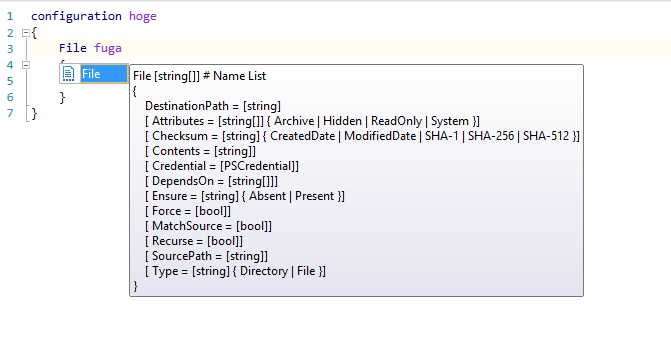
WMF 5でDSCが改善されています。Previewでもすでに改善が実感できるのでぜひぜひ。
これがどの改善かは見えませんがw
New Attribute for defining DSC meta-configuration
DSC Attributeといえば、MOFに記述されるkeyやkeyなどの属性です。
これの追加は、MOFでの表現。つまり、DSCでの操作拡大を意味するのでとても好ましいものです。
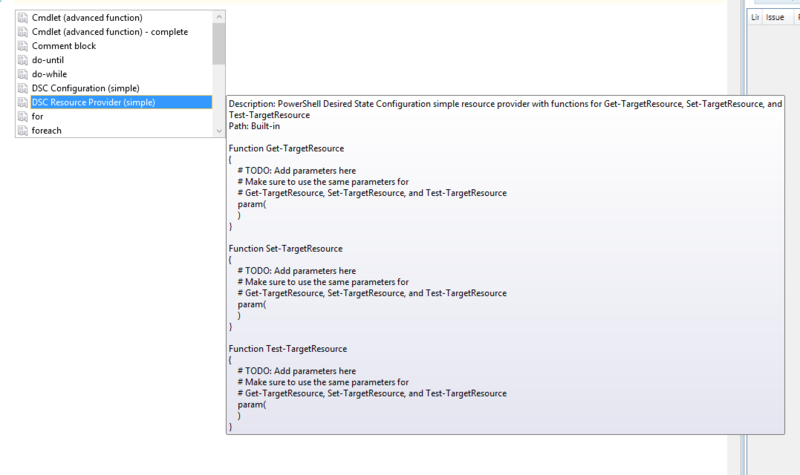
詳しくは、Resourceを書く流れを把握しておく必要があります。いずれ細かく説明するとして、参考リンクを紹介しておきましょう。
簡単にいうと、こんな感じで書きます。
ね、簡単。
Use partial configurations DSC
これも気になる言葉ですね。
Configurationを細かく記述し組み合わせることは、ネストと表現されます。
PartialがPartial Classのようにとらえられるなら、かなり好ましいものですが詳細は不明です。
Cross-computer synchronization through DSC
DSCを通した、コンピュータ間での同期です。
これも不明ですが、かなり好意的な響きを覚えます。
詳細はいずれまとめましょう。
Get the current DSC configuration status
現在、ノードがもっているConfigurationを取得するGet-DSCConfigurationはあります。
が、これはノードが保持しているConfigurationであって、例えば現在配布しているConfiguration状態ではありません。
このあたりが待ち望まれていたのできたか調べる必要があるでしょう。
みなれないCmdletはこれです。
Get-DscConfigurationStatus
CIMセッション経由で、状態を取得できるようですね。いずれ記事にしましょう。
Compare, Update, and Publish DSC configurations
これはかなりうれしいCmdletがきました。
Compare-DscConfiguration
Update-DscConfiguration
Publish-DscConfiguration
いずれも言葉通り、Configurationの比較、更新、配布(あるいは生成) でしょう。
これも記事が必要ですね。
Audit Windows PowerShell usage by transcription and logging
PowerShellには、Transcriptという、便利なログ機能があります。
ETW経由かは不明ですが、PowerShellでの操作をEvent Logに書きこむ機能がつく予定です。
SLABが昨今の流行ですが、 PowerShellがインタラクティブに実行されることから考えると、Event Logはいい手段でしょう。
NLogやLog4Net、Semanticほげもげへの標準対応も期待したいところです。
Extract and parse structured objects out of string content
文字通り、構造化されたオブジェクトを文字列コンテンツとして出力する機能です。
Out-Stringなどが、オブジェクトから文字列への変換をおこなえますが、詳細不明です。
構造化した「見た目」のまま文字列出力するですが、いろいろ不十分なので期待です。
Format-Table | Out-String -Stream
Extend the item noun to enable Symbolic Links
はい、以前自前実装したシンボリックリンクが標準で操作可能になります。
これがこうなります。
$ New-Item -Path d:\hogehoge -ItemType SymbolicLink -Value D:\hoge

    Directory: D:\


Mode                LastWriteTime         Length Name
----                -------------         ------ ----
darhsl       1601/01/01      9:00                hogehoge
すばらしいですね。といいたいですが、 LastWritetimeがこわれてますし、実態が見えませんね。
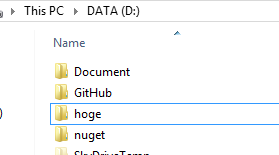
まだ使い物にならないので、作った奴をどうぞ。
Develop with classes in Windows PowerShell
待望のクラスです。
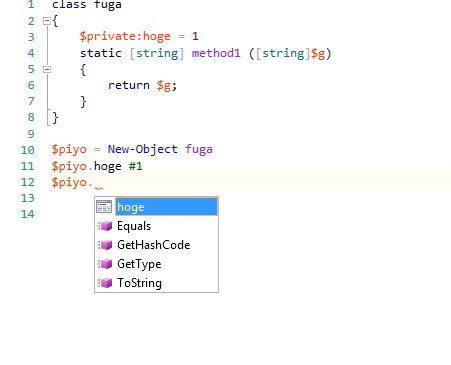
class fuga { $private:hoge = 1 static [string] method1 ([string]$g) { return $g; } } $piyo = New-Object fuga $piyo.hoge #1 $piyo
んー、いまいち挙動がつかめない。
Register a PSRepository with PowerShell Get
PowerShellGetですね。
関連するfunctionです。
CommandType Name                    Version Source
----------- ----                    ------- ------
Function    Find-Module             0.5     PowerShellGet
Function    Get-PSRepository        0.5     PowerShellGet
Function    Install-Module          0.5     PowerShellGet
Function    Publish-Module          0.5     PowerShellGet
Function    Register-PSRepository   0.5     PowerShellGet
Function    Set-PSRepository        0.5     PowerShellGet
Function    Unregister-PSRepository 0.5     PowerShellGet
Function    Update-Module           0.5     PowerShellGet
ついに、Register-PSRepositoryが追加されたのです。
PowerShell Moduleの配布場所として期待されますので、これもβリリースからの進捗があったのか確認が必要ですね。
C#でのBinary Moduleが一番やりやすいのはNuGetであることから明らかですが、PowerShellのScript Moduleでどうなるのかも楽しみです。
Network Switch management through Windows PowerShell (improvements)
これは、前々からいわれていた、DMTF (Distributed Management Task Force)のData Center Abstraction (DAL) 、CIMが組み合わさって実現しています。
具体的には、Ciscoなど規格にそったSwitchに対して、Cimセッション経由での操作が可能になります。
そう、ネットワーク機器がPowerShellから操作でき、自動化が容易になる道ができたのです。
CommandType Name                                      Version Source
----------- ----                                      ------- ------
Function    Disable-NetworkSwitchEthernetPort         1.0.0.0 NetworkSwitch
Function    Disable-NetworkSwitchFeature              1.0.0.0 NetworkSwitch
Function    Disable-NetworkSwitchVlan                 1.0.0.0 NetworkSwitch
Function    Enable-NetworkSwitchEthernetPort          1.0.0.0 NetworkSwitch
Function    Enable-NetworkSwitchFeature               1.0.0.0 NetworkSwitch
Function    Enable-NetworkSwitchVlan                  1.0.0.0 NetworkSwitch
Function    Get-NetworkSwitchEthernetPort             1.0.0.0 NetworkSwitch
Function    Get-NetworkSwitchFeature                  1.0.0.0 NetworkSwitch
Function    Get-NetworkSwitchGlobalData               1.0.0.0 NetworkSwitch
Function    Get-NetworkSwitchVlan                     1.0.0.0 NetworkSwitch
Function    New-NetworkSwitchVlan                     1.0.0.0 NetworkSwitch
Function    Remove-NetworkSwitchEthernetPortIPAddress 1.0.0.0 NetworkSwitch
Function    Remove-NetworkSwitchVlan                  1.0.0.0 NetworkSwitch
Function    Restore-NetworkSwitchConfiguration        1.0.0.0 NetworkSwitch
Function    Save-NetworkSwitchConfiguration           1.0.0.0 NetworkSwitch
Function    Set-NetworkSwitchEthernetPortIPAddress    1.0.0.0 NetworkSwitch
Function    Set-NetworkSwitchPortMode                 1.0.0.0 NetworkSwitch
Function    Set-NetworkSwitchPortProperty             1.0.0.0 NetworkSwitch
Function    Set-NetworkSwitchVlanProperty             1.0.0.0 NetworkSwitch
まとめ
いったんは簡単なまとめでした。
各更新で気になるのはありましたか? OneGetだってもちろん精力的に活動していますよ?
ぜひぜひ、手に取ってためしてください。
