Oracle Cloudでは、
- Events:何かアクションが発生した時に他のサービスを呼び出す
- Notifications:EmailやPagerDutyへ通知を飛ばす
というサービスが提供されています。
今回は、この2つのサービスを利用して、「Object Storageにファイルを置いたらメール通知される」機能を作ります。
上記の2つのサービスを連携することで、5分程の簡単な設定で作成が完了しました!
公式のドキュメントはこちら
- Events:Overview of Events
- Notifications:Notifications Overview
- Object Storage:Overview of Object Storage
Object Storageを作る
まずは、ファイルを格納するObject Storageのバケットを作成します。
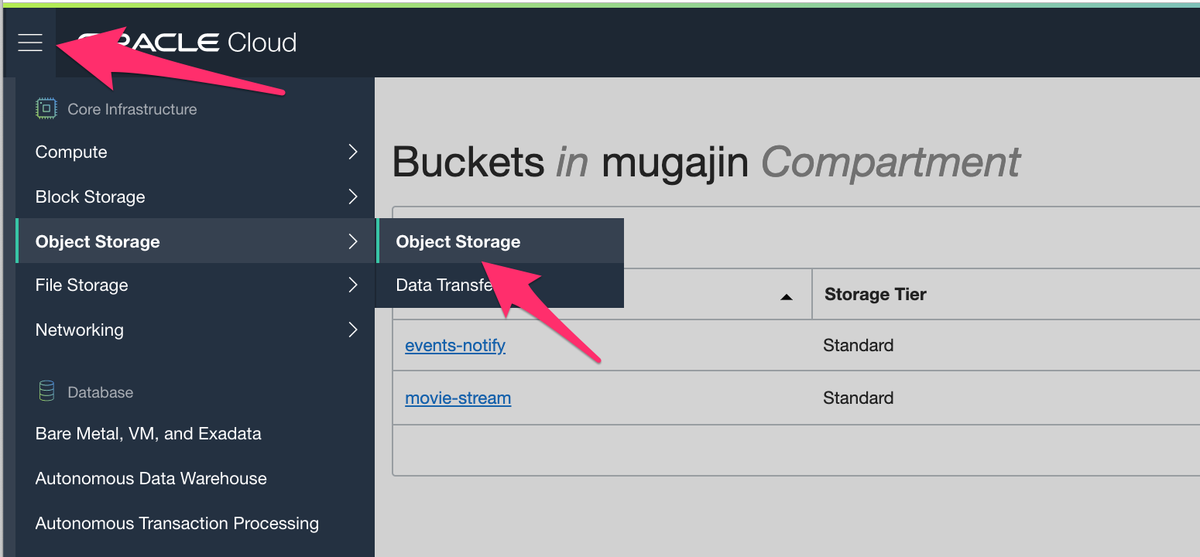
Oracle CloudのメニューからObject Storage>Object Storageを選択して、開いた画面から「Create Bucket」をクリックします。
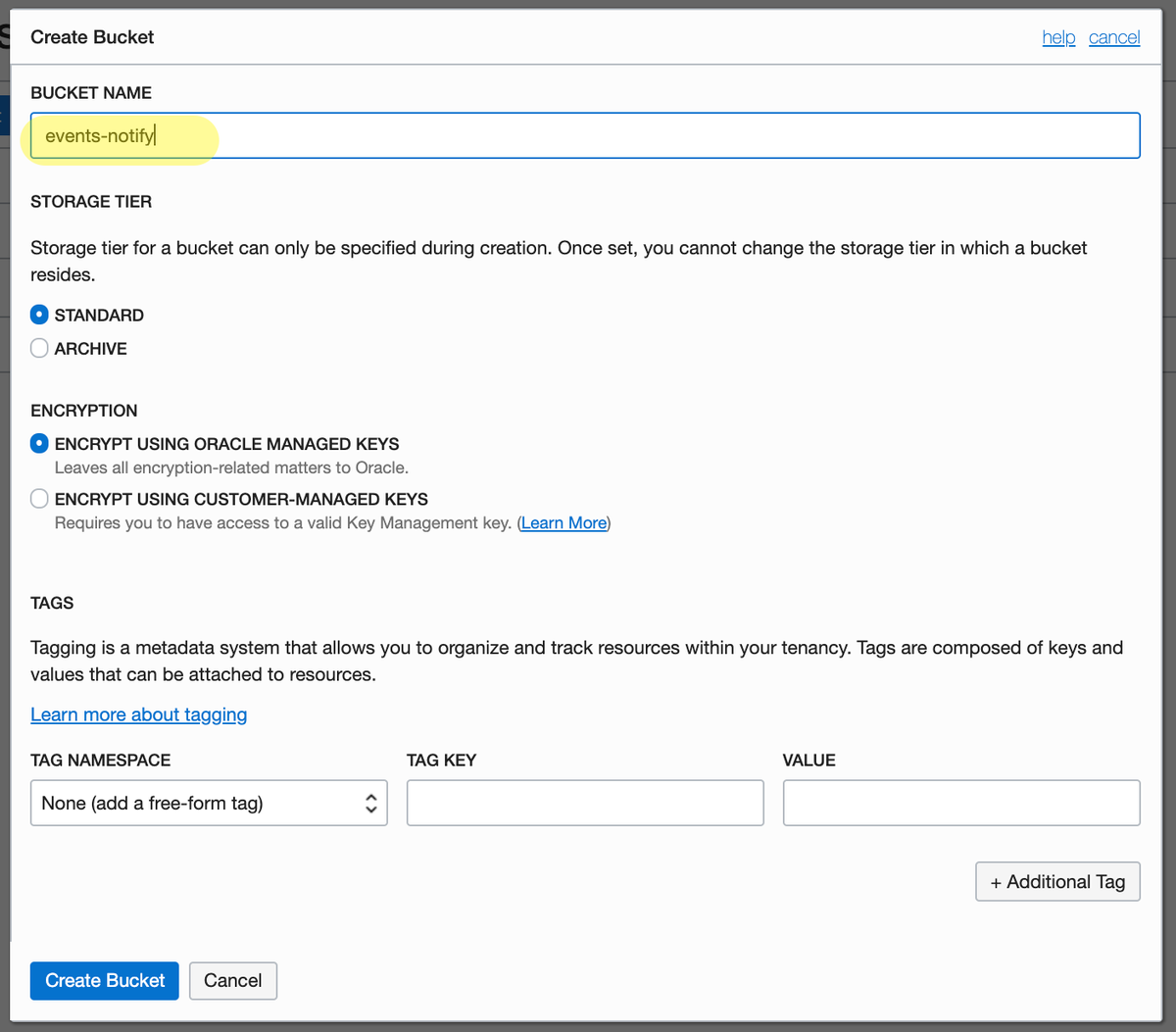
今回は「events-notify」という名前でBucketを作成しました。
Notificationsを作る+設定する
次に、通知のサービスであるNotificationsを設定します。
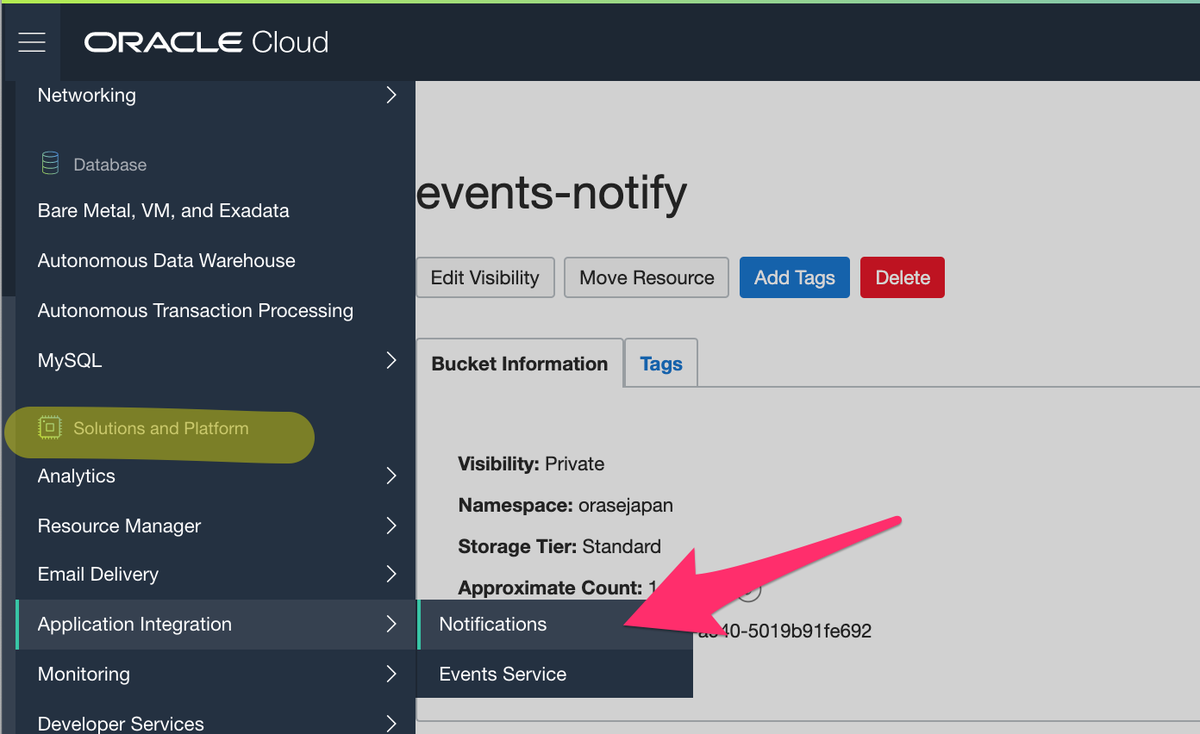
Oracle CloudのメニューからApplication Integration > Notificationsをクリックします。
Application Integrationは「Solutions and Platform」のメニューカテゴリにあります。
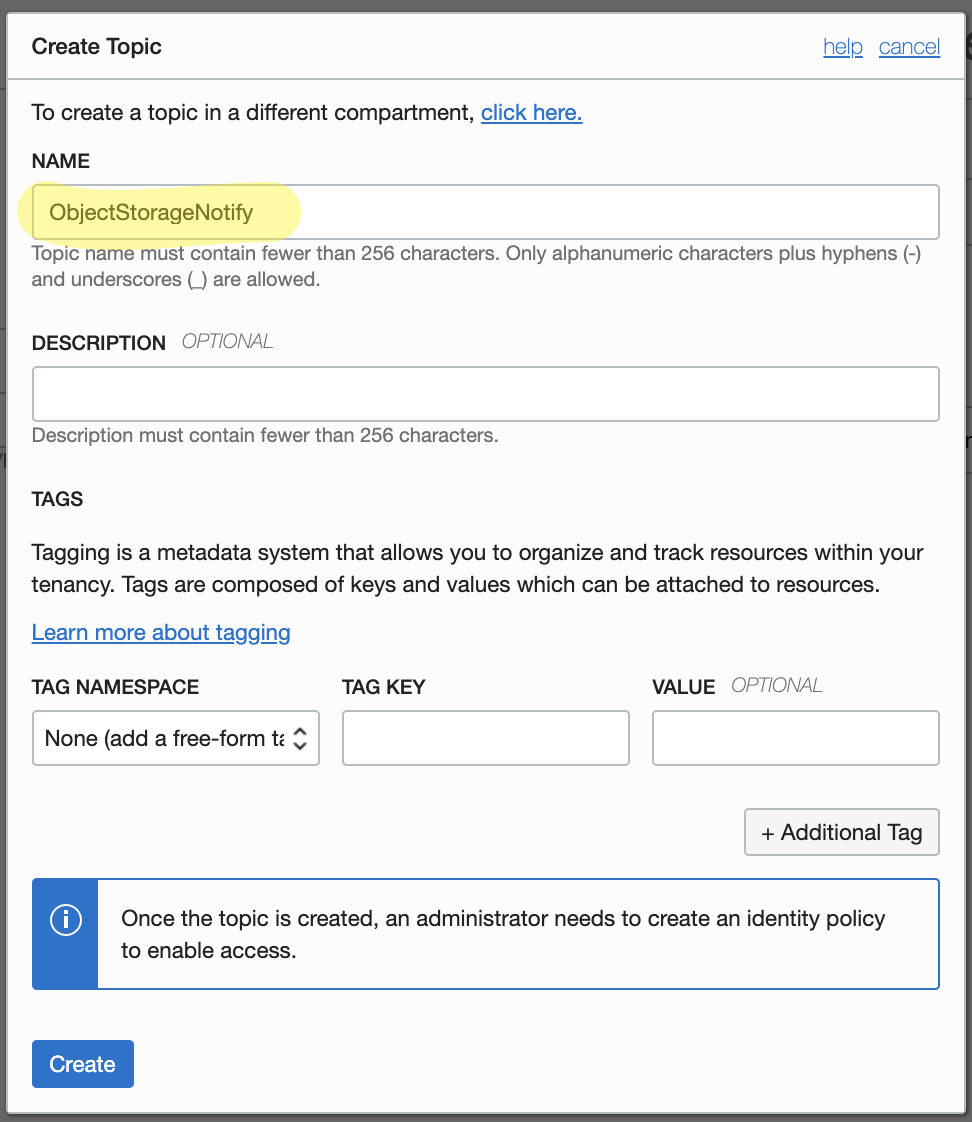
開いた画面から「Create Topic」をクリックします。
今回は「ObjectStorageNotify」という名前でトピックを作成しました。
作成した「ObjectStorageNotify」をクリックして詳細画面に遷移したら、「Create Subscription」をクリックします。
ここで、通知の飛ばし先を選択します。今回はEmailにしました。
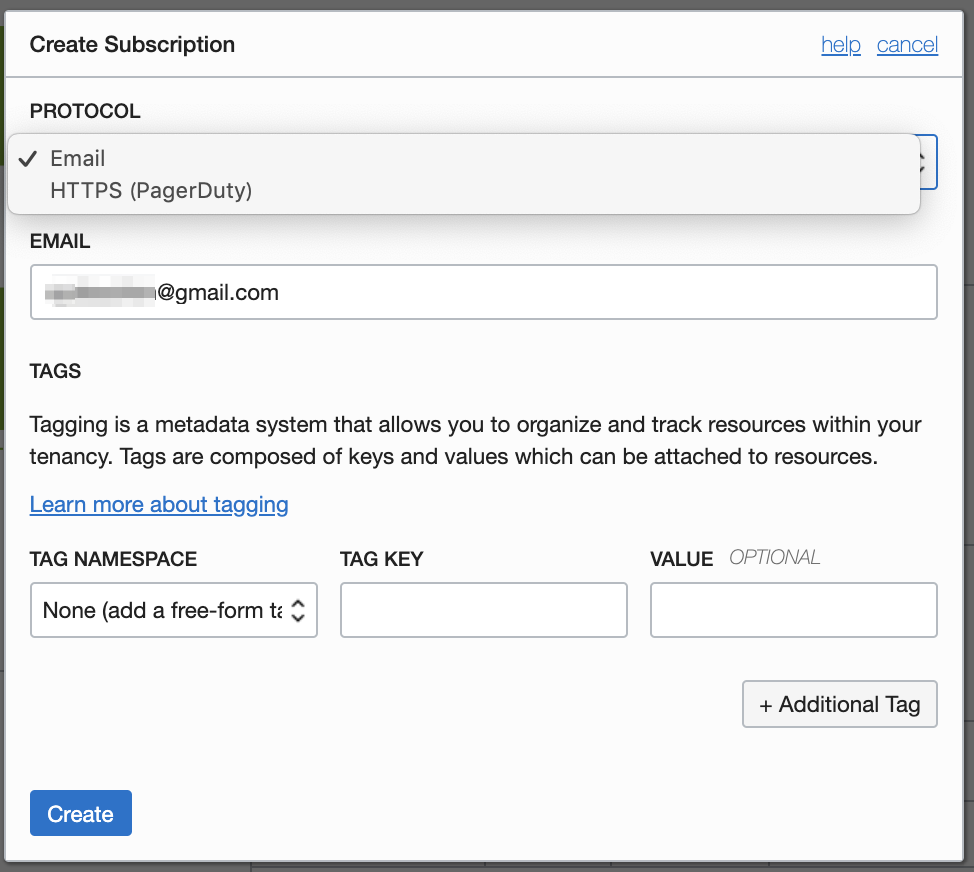
Createボタンを押して少し待つと、入力したEmailアドレスに「Oracle Cloud Infrastructure Notifications Service Subscription Confirmation」というタイトルのメールが届きました。
メールの本文に書かれたURLにアクセスすると、作成したSubscriptionがアクティブになります。
これでNotificationsの設定は完了です。
Eventsを作る+設定する
最後にアクションが発生した時(今回はObject Storageにファイルを置いた時)にイベントを発生させる(今回はメール通知を飛ばす)サービスである、Eventsを設定します。
Oracle CloudのメニューからApplication Integration > Events Serviceをクリックします。
Application Integrationは「Solutions and Platform」のメニューカテゴリにあります。
開いた画面から「Create Rule」をクリックします。

Eventsの設定をしていきます。
Event Typeには「Object Storage」を選択してください。Object Storageにアップロードされたファイルは「Object」として扱われるので、今回は「Create Object」と「 Update Object」を選択します。
Bucketの名前を設定するところがありませんが、Ruleの作成後に設定を追加します。
Actionsには先ほど作ったNotificationsのTopic名である「ObjectStorageNotify」を選択します。
「Create Rule」をクリックすると、Ruleが作成されます。
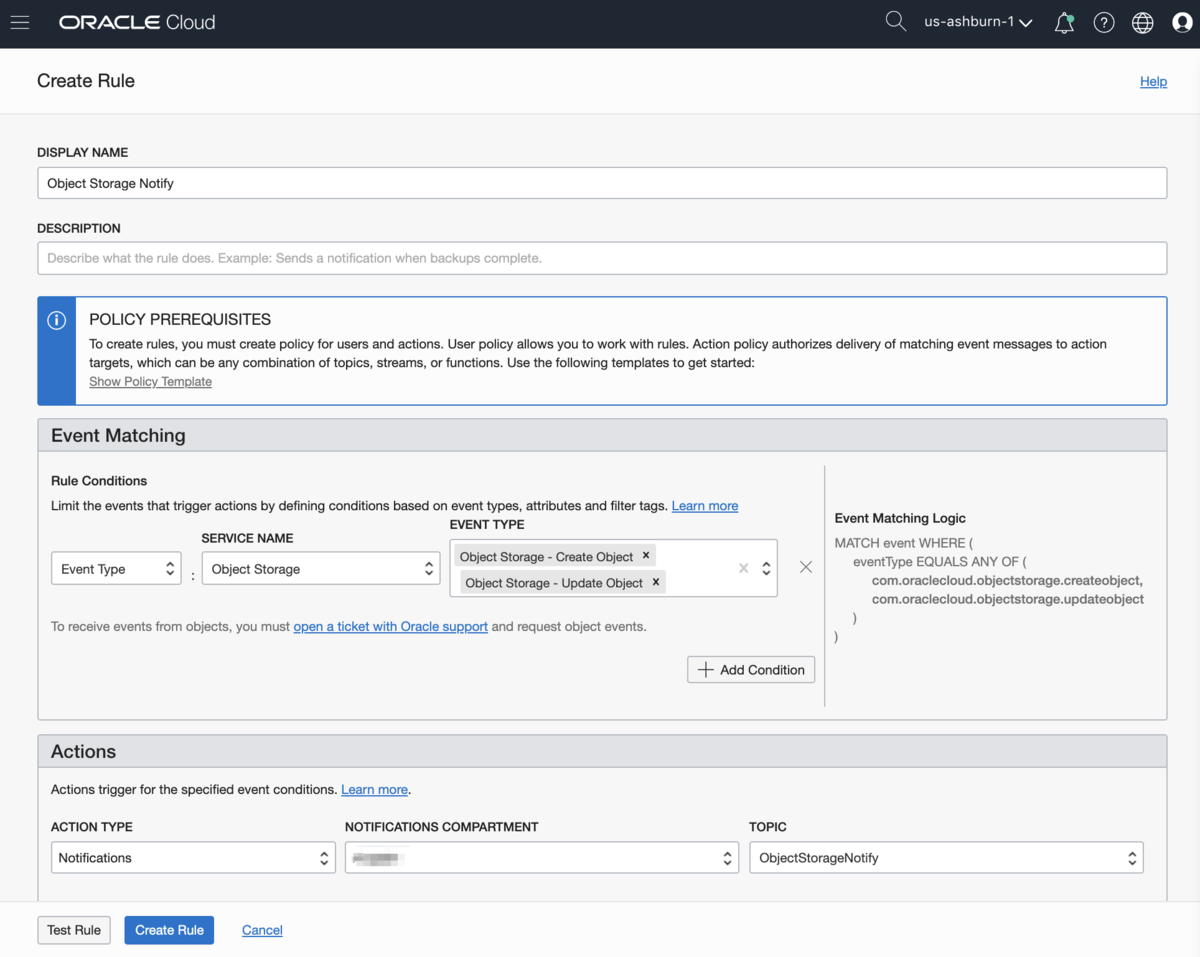
ここまでの手順で、Object Storageにファイルを置いたらメールで通知される仕組みが出来上がりました。
しかし、このままでは、コンパートメントに所属する全てのObject Storageが通知の対象になってしまいます。
そこで、「特定のObject Storageへのファイルアップロードのみ通知の対象とする」ようにします。
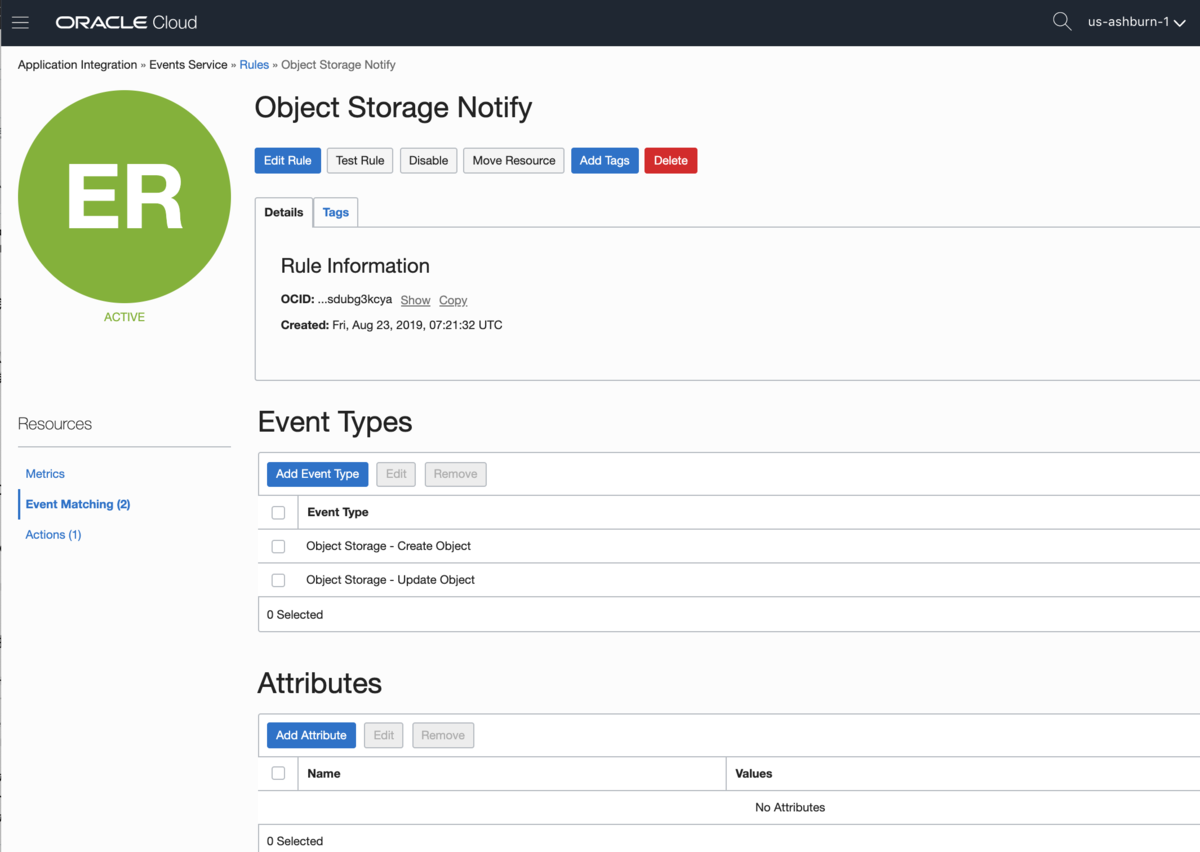
作成したEventsサービスの詳細画面に遷移します。
左下のメニューから「Event Matching」を選択し、「Add Attribute」をクリックします。
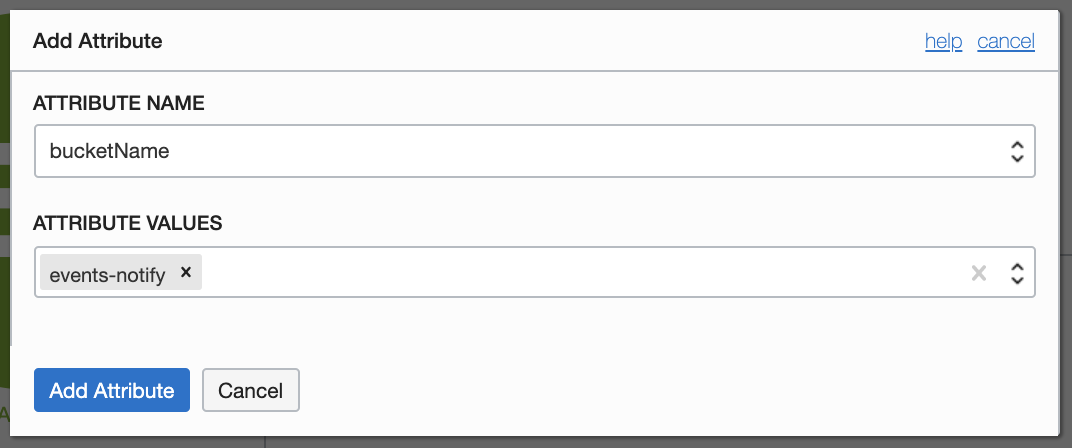
Attribute NameにはBucketIdやBucketName、データセンター(Availability Domain)など、様々なフィルターが選べます。
今回は、Attribute Nameに「bucketName」を選択し、Attribute ValuesにはObject Storageの作成時につけた「events-notify」を入力します。
これで、「events-notify」の名前ののObject Storageに対してファイルが作成・更新されたら通知が来るようになりました。
試してみる
Object StorageにDemo.csvという名前のファイルを格納したら、しばらくして以下のようなメールが届きました。
件名:OCI Event Notification :com.oraclecloud.objectstorage.createobject
{
 "cloudEventsVersion" : "0.1",
 "eventID" : "7653da-2a3a-1234-23f3-dqwertyuio123456",
 "eventType" : "com.oraclecloud.objectstorage.createobject",
 "source" : "objectstorage",
 "eventTypeVersion" : "1.0",
 "eventTime" : "2019-08-23T07:41:38Z",
 "schemaURL" : null,
 "contentType" : "application/json",
 "extensions" : {
   "compartmentId" : "ocid1.compartment.oc1..xxxxxxxxxxxxxxxxxxxxxxxxxxxxxxxxxxxxxxxxxxxxxxxxxxxx"
 },
 "data" : {
   "compartmentId" : "ocid1.compartment.oc1..xxxxxxxxxxxxxxxxxxxxxxxxxxxxxxxxxxxxxxxxxxxxxxxxxxxx",
   "compartmentName" : "xxxxx",
   "resourceName" : "Demo.csv",
   "resourceId" : "",
   "availabilityDomain" : null,
   "freeFormTags" : { },
   "definedTags" : { },
   "additionalDetails" : {
     "eTag" : "71234abc-123a-1234-567c-1234456677abcd",
     "namespace" : "sampleaccount",
     "archivalState" : "Available",
     "bucketName" : "events-notify",
     "bucketId" : "ocid1.bucket.oc1.iad.yyyyyyyyyyyyyyyyyyyyyyyyyyyyyyyyyyyyyyyyyyyyyyyyyyyyyyyyyyyyyyy"
   }
 }
}


--
You are receiving notifications as a subscriber to the topic: ObjectStorageNotify (Topic OCID: ocid1.onstopic.oc1.iad.xxxxxxxxxxxxxxxxxxxxxxxxxxxxxxxxxxxxxxxxxxxxxxxxxxxx). To stop receiving notifications from this topic, unsubscribe.

Please do not reply directly to this email. If you have any questions or comments regarding this email, contact your administrator.
- eventType:どんなイベントが発生したか
- bucketName:どのObject StorageのBucketか
- resourceName:どんなファイルが置かれたか
今回はEventsとNotificationsを直接接続しました。もし、通知内容を変更したければ、EventsとNotificationsの間にFunctionsサービスを入れて連携させるのがいいかと思います。
