Uno Platform の はろーわーるど 一連の記事の目次です
■ 今回の記事
Uno Platform のプロジェクトを作成し DataBinding で動きをつける記事を以前に書きました。
今回はデータのリスト表示と画面遷移をしてみます。
なお、コピペ量を減らすためにここから先はまた not DataBinding で書いていきます(もう少し広い知識が必要になり、一旦動かしてみるまでの遠回りになってしまうため)。皆さんが実プロダクトでコードを書くときは、Data を Binding するなどしてください。
■ リスト表示を追加
MainPage.xaml に ListView を画面に追加します。
        <ListView x:Name="listView" Height="150" Background="LightGray"
                  ItemsSource="{Binding}"/>
MainPage.xaml 全体は次のようになります。
<Page
    x:Class="UnoApp1.MainPage"
    xmlns="http://schemas.microsoft.com/winfx/2006/xaml/presentation"
    xmlns:x="http://schemas.microsoft.com/winfx/2006/xaml"
    xmlns:local="using:UnoApp1"
    xmlns:d="http://schemas.microsoft.com/expression/blend/2008"
    xmlns:mc="http://schemas.openxmlformats.org/markup-compatibility/2006"
    mc:Ignorable="d">

  <Grid Background="{ThemeResource ApplicationPageBackgroundThemeBrush}">
    <ScrollViewer>
      <StackPanel>
        <TextBox x:Name="textBox1" Text="Hello! " Margin="5" />
        <TextBox x:Name="textBox2" Text="C# World!!" Margin="5" />
        <TextBlock x:Name="textBlock1" Margin="20" FontSize="30" />
        <Button Content="最初のボタン" Click="Button1_Click"/>

        <TextBox Text="{Binding Box1, Mode=TwoWay}" Margin="5" />
        <TextBox Text="{Binding Box2, Mode=TwoWay}" Margin="5" />
        <TextBlock Text="{Binding Block1, Mode=TwoWay}" Margin="20" FontSize="30" />
        <Button Command="{Binding Click}" Content="DataBinding のボタン"/>

        <StackPanel x:Name="panel2">
          <TextBox Text="{Binding Box21, Mode=TwoWay, UpdateSourceTrigger=PropertyChanged}" Margin="5" />
          <TextBox Text="{Binding Box22, Mode=TwoWay, UpdateSourceTrigger=PropertyChanged}" Margin="5" />
          <TextBlock Text="{Binding Block21}" Margin="20" FontSize="30" />
        </StackPanel>

        <ListView x:Name="listView" Height="150" Background="LightGray"
                  ItemsSource="{Binding}"/>

        </StackPanel>

    </ScrollViewer>
  </Grid>
</Page>
MainPage.xaml.cs リストにデータを表示するコードを追加します。
追加する場所はコンストラクタ ( public MainPage() { ... ) の最後です。
listView.DataContext = new[] { "草加せんべい", "越谷かもねぎ鍋", "深谷ネギ", "十万石まんじゅう", "くらづくり最中" };
MainPage.xaml.cs 全体は次のようになります。
using Windows.UI.Xaml;
using Windows.UI.Xaml.Controls;
using UnoApp1.Shared;

namespace UnoApp1
{
    public sealed partial class MainPage : Page
    {
        public MainPage()
        {
            this.InitializeComponent();
            this.DataContext = new MainPageViewModel();
            this.panel2.DataContext = new MainPageViewModeBindingBase();
            listView.DataContext = new[] { "草加せんべい", "越谷かもねぎ鍋", "深谷ネギ", "十万石まんじゅう", "くらづくり最中" };
       }

        private void Button1_Click(object sender, RoutedEventArgs e)
        {
            textBlock1.Text = $"{textBox1.Text}{textBox2.Text}";
        }
    }
}
実行結果
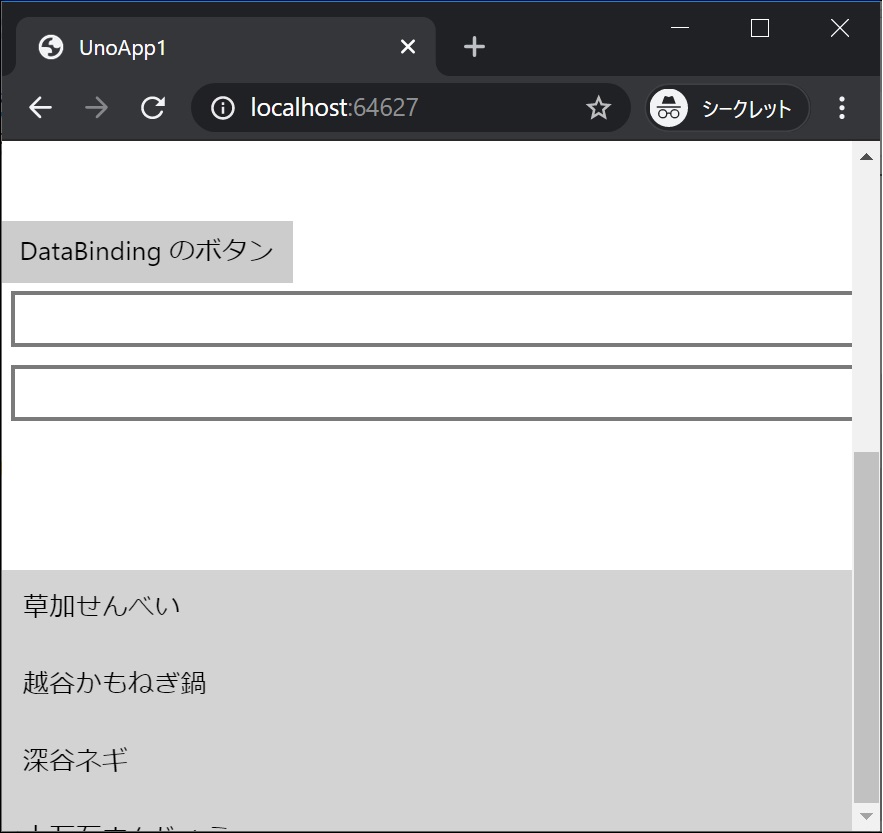
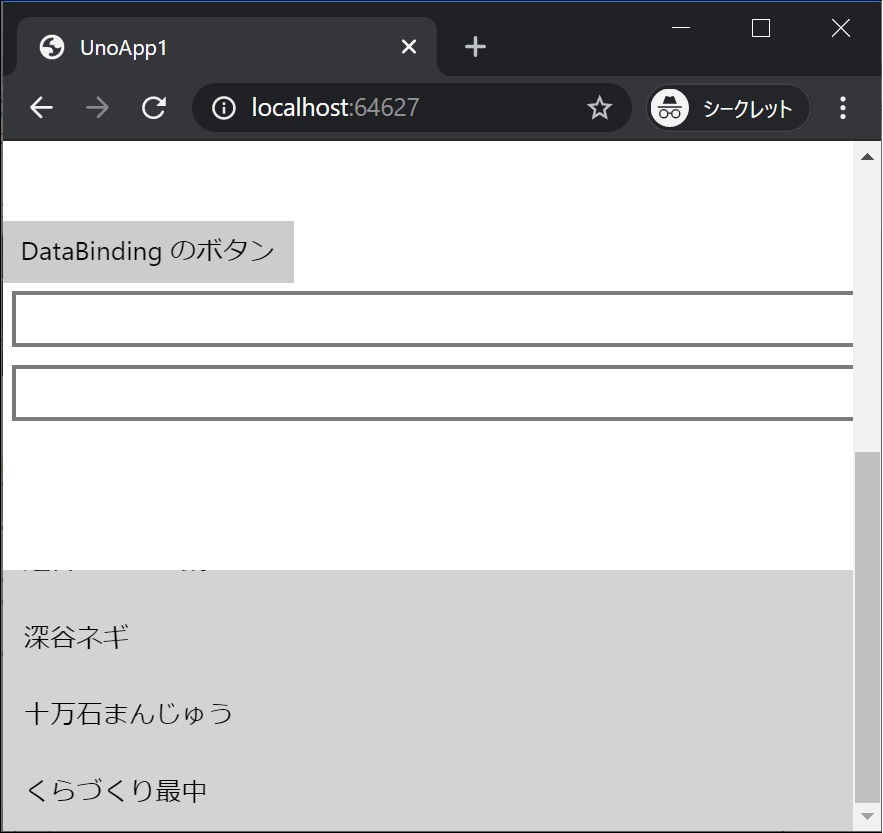
埼玉の名産が一覧表示され、スクロールもできます!
■ 一覧選択時に画面遷移する
SecondPage 画面の追加
<プロジェクト名>.Shared プロジェクトに遷移先画面を追加します。
ソリューションエクスプローラ > プロジェクト名 > 右クリック > 追加 > 新しい項目 > 空白のページ で [ 名前 ] に 「 SecondPage.xaml 」と入力、[ 追加 ] ボタンをクリックします。
SecondPage.xaml に一覧で選択された値の表示と、[ 戻る ] ボタンを追加します。
      <StackPanel>
        <TextBlock Text="あなたの選択は"/>
        <TextBlock x:Name="textBlock"/>
        <TextBlock Text="ですね"/>
        <Button Content="GoNext" Click="Button_Click_GoBack"/>
      </StackPanel>
SecondPage.xaml 全体は次のようになります。
<Page
    x:Class="UnoApp1.Shared.SecondPage"
    xmlns="http://schemas.microsoft.com/winfx/2006/xaml/presentation"
    xmlns:x="http://schemas.microsoft.com/winfx/2006/xaml"
    xmlns:local="using:UnoApp1.Shared"
    xmlns:d="http://schemas.microsoft.com/expression/blend/2008"
    xmlns:mc="http://schemas.openxmlformats.org/markup-compatibility/2006"
    mc:Ignorable="d"
    Background="{ThemeResource ApplicationPageBackgroundThemeBrush}">

    <Grid>
      <StackPanel>
        <TextBlock Text="あなたの選択は"/>
        <TextBlock x:Name="textBlock"/>
        <TextBlock Text="ですね"/>
        <Button Content="GoNext" Click="Button_Click_GoBack"/>
      </StackPanel>
    </Grid>
</Page>
SecondPage.xaml.cs に前画面で選択された値の表示と、戻る 動作を追加します。
        private void Button_Click_GoBack(object sender, RoutedEventArgs e)
        {
            this.Frame.GoBack();
        }

        protected override void OnNavigatedTo(NavigationEventArgs e)
        {
            textBlock.Text = e.Parameter as string;

            base.OnNavigatedTo(e);
        }
SecondPage.xaml.cs 全体は次のようになります。
using Windows.UI.Xaml;
using Windows.UI.Xaml.Controls;
using Windows.UI.Xaml.Navigation;

namespace UnoApp1.Shared
{
    public sealed partial class SecondPage : Page
    {
        public SecondPage()
        {
            this.InitializeComponent();
        }

        private void Button_Click_GoBack(object sender, RoutedEventArgs e)
        {
            this.Frame.GoBack();
        }

        protected override void OnNavigatedTo(NavigationEventArgs e)
        {
            textBlock.Text = e.Parameter as string;

            base.OnNavigatedTo(e);
        }
    }
}
最初の画面に一覧選択時の画面遷移を追加
MainPage.xaml に ListView で要素選択時の処理を行えるイベントハンドラの設定を追加します。
SelectionChanged="listView_SelectionChanged"
イベントハンドラの設定を追加した ListView は次の様になります。
        <ListView x:Name="listView" Height="150" Background="LightGray"
                  ItemsSource="{Binding}" SelectionChanged="listView_SelectionChanged" />
MainPage.xaml 全体は次のようになります。
<Page
    x:Class="UnoApp1.MainPage"
    xmlns="http://schemas.microsoft.com/winfx/2006/xaml/presentation"
    xmlns:x="http://schemas.microsoft.com/winfx/2006/xaml"
    xmlns:local="using:UnoApp1"
    xmlns:d="http://schemas.microsoft.com/expression/blend/2008"
    xmlns:mc="http://schemas.openxmlformats.org/markup-compatibility/2006"
    mc:Ignorable="d">

  <Grid Background="{ThemeResource ApplicationPageBackgroundThemeBrush}">
    <ScrollViewer>
      <StackPanel>
        <TextBox x:Name="textBox1" Text="Hello! " Margin="5" />
        <TextBox x:Name="textBox2" Text="C# World!!" Margin="5" />
        <TextBlock x:Name="textBlock1" Margin="20" FontSize="30" />
        <Button Content="最初のボタン" Click="Button1_Click"/>

        <TextBox Text="{Binding Box1, Mode=TwoWay}" Margin="5" />
        <TextBox Text="{Binding Box2, Mode=TwoWay}" Margin="5" />
        <TextBlock Text="{Binding Block1, Mode=TwoWay}" Margin="20" FontSize="30" />
        <Button Command="{Binding Click}" Content="DataBinding のボタン"/>

        <StackPanel x:Name="panel2">
          <TextBox Text="{Binding Box21, Mode=TwoWay, UpdateSourceTrigger=PropertyChanged}" Margin="5" />
          <TextBox Text="{Binding Box22, Mode=TwoWay, UpdateSourceTrigger=PropertyChanged}" Margin="5" />
          <TextBlock Text="{Binding Block21}" Margin="20" FontSize="30" />
        </StackPanel>

        <ListView x:Name="listView" Height="150" Background="LightGray"
                  ItemsSource="{Binding}" SelectionChanged="listView_SelectionChanged" />

        </StackPanel>

    </ScrollViewer>
  </Grid>
</Page>
MainPage.xaml.cs に一覧で要素が選択された際に画面遷移するコードを追加します。
※ ここで書いたリストから選択値を取得するコードはあまり良いコードではありません。あまり良くないコードを書いた理由は、このコードがどのプラットフォームでも動作したからです。クロスプラットフォーム開発では、プラットフォーム毎に異なるコードを動かすべき場所が出てきます。プラットフォーム毎にコードを変える方法は次回で書きます。
        private void listView_SelectionChanged(object sender, SelectionChangedEventArgs e)
        {
            var view = sender as ListView;
            var index = view.SelectedIndex;
            if (index < 0) return;
            var value = (view.DataContext as string[])[index];

            this.Frame.Navigate(typeof(SecondPage), value);

            var data = listView.DataContext;
            listView.DataContext = null;
            listView.DataContext = data;
        }
画面遷移をしているコードは this.Frame.Navigate(typeof(SecondPage), value); の部分です。
MainPage.xaml.cs 全体は次のようになります。
using Windows.UI.Xaml;
using Windows.UI.Xaml.Controls;
using UnoApp1.Shared;

namespace UnoApp1
{
    public sealed partial class MainPage : Page
    {
        public MainPage()
        {
            this.InitializeComponent();
            this.DataContext = new MainPageViewModel();
            this.panel2.DataContext = new MainPageViewModeBindingBase();
            listView.DataContext = new[] { "草加せんべい", "越谷かもねぎ鍋", "深谷ネギ", "十万石まんじゅう", "くらづくり最中" };
       }

        private void Button1_Click(object sender, RoutedEventArgs e)
        {
            textBlock1.Text = $"{textBox1.Text}{textBox2.Text}";
        }

        private void listView_SelectionChanged(object sender, SelectionChangedEventArgs e)
        {
            var view = sender as ListView;
            var index = view.SelectedIndex;
            if (index < 0) return;
            var value = (view.DataContext as string[])[index];

            this.Frame.Navigate(typeof(SecondPage), value);

            var data = listView.DataContext;
            listView.DataContext = null;
            listView.DataContext = data;
        }
    }
}
実行結果

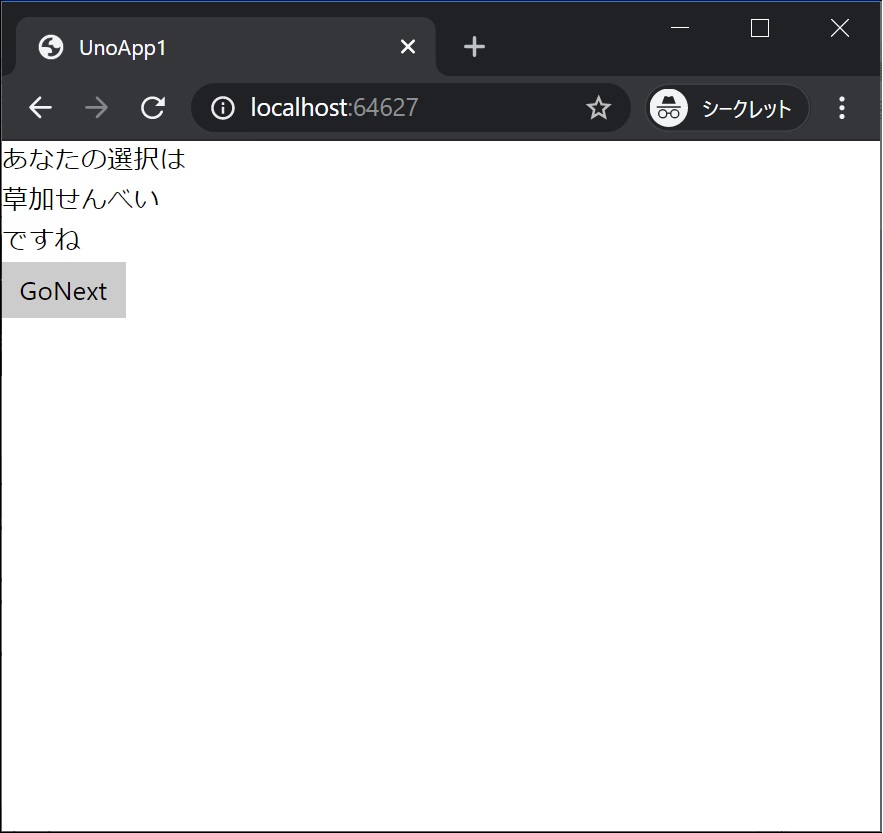
私は 草加せんべい を選択!
一覧で要素を選択すると、画面遷移し遷移先の画面に選択した値が表示されました!
■ 次回
次回は、プラットフォーム毎にコードなどを変えてみます。
