
この記事はOpenShift Advent Calendar 2019 - Qiita17日目の記事です。
こんにちは、レッドハットでストレージを中心にクラウドインフラを生業にしている宇都宮です。
前回の続きでNooBaaの紹介をしていきます。
OpenShift Container Storage(OCS) 4をデプロイする
NooBaaの前にOCSをデプロイしてストレージクラスターとして使えるようにします。
OCSのデプロイは簡単です。
まずOpenShift Web ConsoleのOperatorHubからOCS Operatorをインストールします。検索したら出てくるので、普通にインストールすればOKです。
"openshift-storage"というプロジェクトを作って、そのnamespaceを指定してインストールします。

そのためキャプチャはCustom Operator表示がされていますが、GAになったら消えるはずです。
インストールしたらOCSクラスター(Cephクラスター)を作ります。これもWeb Consoleから簡単にできます。
OCS Operatorの"Storage Cluster"から [Create OCS Cluster Service] を押して、デプロイするworker nodeを選択すればOKです。
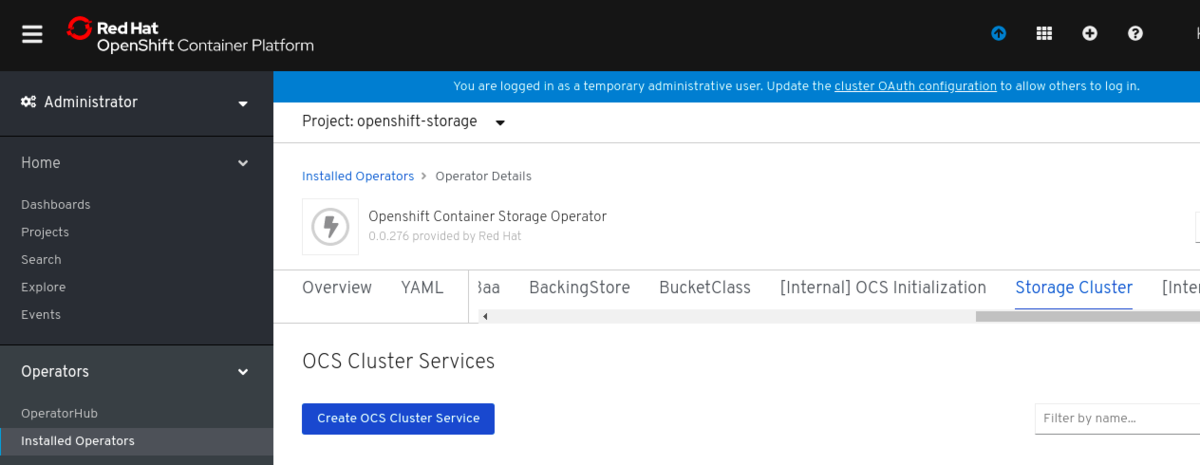
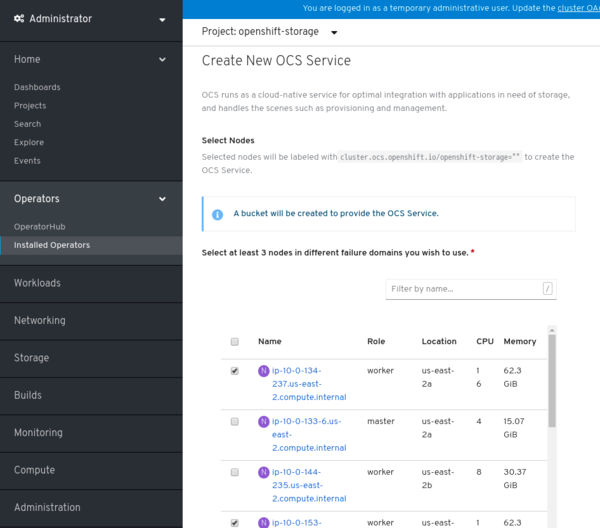
後は自動的にRook-CephとNooBaaが展開されるので、10分ほど待ちます。
[utubo@tutsunom ocp4ocs4]$ oc get pod -n openshift-storage
NAME                                                              READY   STATUS      RESTARTS   AGE
aws-s3-provisioner-68dbcc4b7f-cnx5j                               1/1     Running     0          9m52s
csi-cephfsplugin-44c2h                                            3/3     Running     0          25h
csi-cephfsplugin-4xhnp                                            3/3     Running     0          25h
csi-cephfsplugin-8j9ww                                            3/3     Running     0          25h
csi-cephfsplugin-hw9wv                                            3/3     Running     0          19h
csi-cephfsplugin-mhj6t                                            3/3     Running     0          25h
csi-cephfsplugin-n7ng6                                            3/3     Running     0          19h
csi-cephfsplugin-provisioner-597ccdb5d9-dtm9m                     4/4     Running     0          25h
csi-cephfsplugin-provisioner-597ccdb5d9-fmgjm                     4/4     Running     0          25h
csi-cephfsplugin-r6lsq                                            3/3     Running     0          19h
csi-cephfsplugin-vv9qj                                            3/3     Running     0          25h
csi-cephfsplugin-xwzjx                                            3/3     Running     0          25h
csi-rbdplugin-4cd8n                                               3/3     Running     0          25h
csi-rbdplugin-6glxr                                               3/3     Running     0          19h
csi-rbdplugin-bpt6r                                               3/3     Running     0          25h
csi-rbdplugin-dmplt                                               3/3     Running     0          25h
csi-rbdplugin-ffs9b                                               3/3     Running     0          25h
csi-rbdplugin-fm5v4                                               3/3     Running     0          19h
csi-rbdplugin-lsknn                                               3/3     Running     0          25h
csi-rbdplugin-pdsck                                               3/3     Running     0          19h
csi-rbdplugin-provisioner-78578878dc-vdq9b                        4/4     Running     0          25h
csi-rbdplugin-provisioner-78578878dc-z8tdc                        4/4     Running     0          25h
csi-rbdplugin-xvwht                                               3/3     Running     0          25h
noobaa-core-0                                                     2/2     Running     0          25h
noobaa-operator-64fcdf84-jtvjk                                    1/1     Running     0          25h
ocs-operator-85d5fb77b7-mpq8t                                     1/1     Running     0          25h
rook-ceph-drain-canary-2d7f3126cb4367449f7a2e8adce08039-7fqxh52   1/1     Running     0          19h
rook-ceph-drain-canary-50366dcfded428ad765492d169f3d3af-6d5rljm   1/1     Running     0          19h
rook-ceph-drain-canary-780ea0d523935747378b365c55449deb-84k4ngs   1/1     Running     0          19h
rook-ceph-drain-canary-85f74499308eea885b4ddbf312d7efdc-c6k2hsx   1/1     Running     0          25h
rook-ceph-drain-canary-bfabaa00d0723831d53851468776ea58-68wwggh   1/1     Running     0          25h
rook-ceph-drain-canary-ip-10-0-151-3.us-east-2.compute.intk9nr7   1/1     Running     0          25h
rook-ceph-mds-ocs-storagecluster-cephfilesystem-a-5574c6f5w5c92   1/1     Running     0          25h
rook-ceph-mds-ocs-storagecluster-cephfilesystem-b-58895bb6h5lb8   1/1     Running     0          25h
rook-ceph-mgr-a-749d74dd65-qzbpt                                  1/1     Running     0          25h
rook-ceph-mon-a-5b465dc844-bz82d                                  1/1     Running     0          25h
rook-ceph-mon-b-84d69c8447-pv4kh                                  1/1     Running     0          25h
rook-ceph-mon-c-5cbd9ffc6-2xjzw                                   1/1     Running     0          25h
rook-ceph-operator-765987c885-d9dww                               1/1     Running     0          25h
rook-ceph-osd-0-659f9595bc-6wxh4                                  1/1     Running     0          25h
rook-ceph-osd-1-6b944d75d9-ct2xp                                  1/1     Running     0          25h
rook-ceph-osd-2-7c49f64fdb-cxrl7                                  1/1     Running     0          25h
rook-ceph-osd-3-7fc7c65689-7vkbb                                  1/1     Running     0          19h
rook-ceph-osd-4-5b747b847f-ht6bd                                  1/1     Running     0          19h
rook-ceph-osd-5-5b4fd57588-fsjzs                                  1/1     Running     0          19h
rook-ceph-osd-prepare-ocs-deviceset-0-0-dgzhj-98cx6               0/1     Completed   0          25h
rook-ceph-osd-prepare-ocs-deviceset-0-1-5nd72-f2dqt               0/1     Completed   0          19h
rook-ceph-osd-prepare-ocs-deviceset-1-0-274fz-wtxs6               0/1     Completed   0          25h
rook-ceph-osd-prepare-ocs-deviceset-1-1-95tbz-n2xl9               0/1     Completed   0          19h
rook-ceph-osd-prepare-ocs-deviceset-2-0-xptqm-kgl9f               0/1     Completed   0          25h
rook-ceph-osd-prepare-ocs-deviceset-2-1-zf6d4-ksj59               0/1     Completed   0          19h
noobaa-core-0というPodがNooBaaですね。
NooBaa CLIを使う
NooBaaを直接触るにはNooBaa CLIを使うのが簡単です。NooBaa CLIはoc CLIと同じような感覚で使えます。皆さんの端末にも入れておくとなにかとべんりでしょう。次のようにインストールできます。
Mac
brew install noobaa/noobaa/noobaa
Mac without Homebrew
curl -s https://api.github.com/repos/noobaa/noobaa-operator/releases/latest | grep "mac" | cut -d : -f 2,3 | tr -d \" | wget -qi - ; mv noobaa-mac-* noobaa ; chmod +x noobaa; sudo mv noobaa /usr/local/bin/
Linux
curl -s https://api.github.com/repos/noobaa/noobaa-operator/releases/latest | grep "linux" | cut -d : -f 2,3 | tr -d \" | wget -qi - ; mv noobaa-linux-* noobaa ; chmod +x noobaa; sudo mv noobaa /usr/bin/
インストールしたらnoobaaと打ってみます。
[utubo@tutsunom ocp4ocs4]$ noobaa
._   _            ______
| \ | |           | ___ \
|  \| | ___   ___ | |_/ / __ _  __ _
| . \ |/ _ \ / _ \| ___ \/ _\ |/ _\ |
| |\  | (_) | (_) | |_/ / (_| | (_| |
\_| \_/\___/ \___/\____/ \__,_|\__,_|

(以下略)
イヤッハー!
閑話休題。noobaa status -n openshift-storageなどとnamespaceを指定することでインストールされたNooBaa MCGのステータスが見られます。
NooBaaのBackingStoreとBucketClassを設定する
NooBaaはbucketを提供しますがあくまでGatewayなので、実際にオブジェクトを保存するにはバックエンドのbucketが必要です。 本当はRook-CephのCephObjectStoreで作ったbucketを指定したいのですが、手動でCephObjectStoreを作ってもうまくいかず、断腸の思いでAWS S3のBucketをBackingに指定します。
S3で"noobaa-backend"というbucketを作って、S3FullAccessなIAMユーザーを作ってAccessKeyやSecretKeyをメモって(雑)、my-s3-bucketという名前でBackingStoreを追加します。ついでにOBC作るときに必要なBucketClassもBackingStoreに紐づけて作ります。
[utubo@tutsunom ocp4ocs4]$ noobaa backingstore create aws-s3 --access-key='ACCESS_KEY' --region='us-east-2' --secret-key='SECRET_KEY' --target-bucket='noobaa-backend' my-s3-bs -n openshift-storage
INFO[0002] ✅ Exists: NooBaa "noobaa"
INFO[0003] ✅ Created: BackingStore "my-s3-bs"
INFO[0003] ✅ Created: Secret "backing-store-aws-s3-my-s3-bs"
INFO[0003]
INFO[0003] NOTE:
INFO[0003]   - This command has finished applying changes to the cluster.
INFO[0003]   - From now on, it only loops and reads the status, to monitor the operator work.
INFO[0003]   - You may Ctrl-C at any time to stop the loop and watch it manually.
INFO[0003]
INFO[0003] BackingStore Wait Ready:
INFO[0003] ⏳ BackingStore "my-s3-bs" Phase is "Verifying": TemporaryError BackingStore Secret "backing-store-aws-s3-my-s3-bs" not found, but not rejecting the young as it might be in process
INFO[0007] ✅ BackingStore "my-s3-bs" Phase is Ready
INFO[0007]
INFO[0007]
INFO[0007] ✅ Exists: BackingStore "my-s3-bs"
INFO[0007] ✅ Exists: Secret "backing-store-aws-s3-my-s3-bs"
INFO[0007] ✅ BackingStore "my-s3-bs" Phase is Ready

# BackingStore spec:
awsS3:
  region: us-east-2
  secret:
    name: backing-store-aws-s3-my-s3-bs
    namespace: openshift-storage
  targetBucket: noobaa-backend
type: aws-s3

# Secret data:
AWS_ACCESS_KEY_ID: XXXXXXXXXXXXXX
AWS_SECRET_ACCESS_KEY: XXXXXXXXXXXXXXXXXXXXXXXXXXXX

[utubo@tutsunom ocp4ocs4]$ noobaa bucketclass create my-s3-bc --backingstores=my-s3-bs --placement="" -n openshift-storage
INFO[0002] ✅ Exists: NooBaa "noobaa"
INFO[0002] ✅ Exists: BackingStore "my-s3-bs"
INFO[0002] ✅ Created: BucketClass "my-s3-bc"
INFO[0002]
INFO[0002] NOTE:
INFO[0002]   - This command has finished applying changes to the cluster.
INFO[0002]   - From now on, it only loops and reads the status, to monitor the operator work.
INFO[0002]   - You may Ctrl-C at any time to stop the loop and watch it manually.
INFO[0002]
INFO[0002] BucketClass Wait Ready:
INFO[0002] ✅ BucketClass "my-s3-bc" Phase is Ready
INFO[0002]
INFO[0002]
INFO[0003] ✅ Exists: BucketClass "my-s3-bc"
INFO[0003] ✅ BucketClass "my-s3-bc" Phase is Ready

# BucketClass spec:
placementPolicy:
  tiers:
  - backingStores:
    - my-s3-bs
bucketを作る
はい、そしたらOBCを投げてbucketを作ります。yamlでなくてもNooBaa CLIで作れます。
[utubo@tutsunom ocp4ocs4]$ noobaa obc create test-obc --bucketclass=my-s3-bc -n openshift-storage
INFO[0002] ✅ Exists: BucketClass "my-s3-bc"
INFO[0003] ✅ Created: ObjectBucketClaim "test-obc"
INFO[0003]
INFO[0003] NOTE:
INFO[0003]   - This command has finished applying changes to the cluster.
INFO[0003]   - From now on, it only loops and reads the status, to monitor the operator work.
INFO[0003]   - You may Ctrl-C at any time to stop the loop and watch it manually.
INFO[0003]
INFO[0003] OBC Wait Ready:
INFO[0003] ⏳ OBC "test-obc" Phase is "Pending"
INFO[0006] ✅ OBC "test-obc" Phase is Bound
INFO[0006]
INFO[0006]
INFO[0007] ✅ Exists: ObjectBucketClaim "test-obc"
INFO[0007] ✅ Exists: ObjectBucket "obc-openshift-storage-test-obc"
INFO[0007] ✅ Exists: ConfigMap "test-obc"
INFO[0007] ✅ Exists: Secret "test-obc"
INFO[0008] ✅ Exists: StorageClass "openshift-storage.noobaa.io"
INFO[0008] ✅ Exists: BucketClass "my-s3-bc"
INFO[0008] ✅ Exists: NooBaa "noobaa"
INFO[0008] ✅ Exists: Service "noobaa-mgmt"
INFO[0009] ✅ Exists: Secret "noobaa-operator"
INFO[0009] ✈️  RPC: bucket.read_bucket() Request: {Name:test-obc-4ec98214-d276-42c6-b9ca-8fd6c0788717}
INFO[0010] ✅ RPC: bucket.read_bucket() Response OK: took 9.0ms

ObjectBucketClaim info:
  Phase                  : Bound
  ObjectBucketClaim      : kubectl get -n openshift-storage objectbucketclaim test-obc
  ConfigMap              : kubectl get -n openshift-storage configmap test-obc
  Secret                 : kubectl get -n openshift-storage secret test-obc
  ObjectBucket           : kubectl get objectbucket obc-openshift-storage-test-obc
  StorageClass           : kubectl get storageclass openshift-storage.noobaa.io
  BucketClass            : kubectl get -n openshift-storage bucketclass my-s3-bc

Connection info:
  BUCKET_NAME            : test-obc-4ec98214-d276-42c6-b9ca-8fd6c0788717
  BUCKET_PORT            : 30791
  BUCKET_HOST            : 10.0.172.190
  AWS_SECRET_ACCESS_KEY  : Pxwza4eoWlxy3s2Jn41+9/FNQE5yVgvtYm0uwD6J
  AWS_ACCESS_KEY_ID      : 6WfVQh3nbT1TQ06VUJN8

Shell commands:
  AWS S3 Alias           : alias s3='AWS_SECRET_ACCESS_KEY=Pxwza4eoWlxy3s2Jn41+9/FNQE5yVgvtYm0uwD6J AWS_ACCESS_KEY_ID=6WfVQh3nbT1TQ06VUJN8 aws s3 --no-verify-ssl --endpoint-url https://10.0.172.190:30791'

Bucket status:
  Name                   : test-obc-4ec98214-d276-42c6-b9ca-8fd6c0788717
  Type                   : REGULAR
  Mode                   : OPTIMAL
  ResiliencyStatus       : OPTIMAL
  QuotaStatus            : QUOTA_NOT_SET
  Num Objects            : 0
  Data Size              : 0.000 B
  Data Size Reduced      : 0.000 B
  Data Space Avail       : 1.000 PB
というように、いろいろな情報とともにできました。後はこれらをもとにOpenShiftのAppからbucketが使えますね。
ちなみに、noobaa bucket create というコマンドもあります。
これでもbucketを作ることはできますが、本当に単にbucketを作るだけでAppが使うようなアクセス情報は全く出てきませんし、BucketClassを指定することもできないですし、使えません。
まとめ
お手軽にOCSをデプロイし、NooBaaの動作をNooBaa CLIを使って簡単に紹介をしました。
CephをバックエンドにすることができずMulti-Cloud Gatewayっぷりは見せられず、すみません。別の機会でお見せします。
2つのBackingStoreのbucketでMirrorしたいときは、BucketClassを作るときにBackingStoreを2つ指定し、--placement=Mirror のオプションをつけることでできます。
では今日はここまで。
