本日はUnity勉強枠です。
先日HoloLensでXBox コントローラーを接続しました。
今回はアプリを開発するうえでまずはUnity自体とXBoxコントローラーを接続します。
〇環境
・Windows 10PC
・Unity2021.1.10f1
・Xbox Wireless Controller
〇UnityでXBoxコントローラーをつかう
①WindowsPCとXBoxコントローラーをBluetooth接続します。

②Unityでシーンを作成しデバッグ用のテキスト(TextMeshPro)を配置します。

③次のスクリプトを作成し、からのゲームオブジェクトにアタッチします。
using System.Collections;
using System.Collections.Generic;
using UnityEngine;
using TMPro;
using UnityEngine.InputSystem;
using Microsoft.MixedReality.Toolkit.Input;

public class GamePad : MonoBehaviour
{
    public TextMeshPro test;

    // Update is called once per frame
    void Update()
    {
        // ゲームパッドが接続されていないとnullになる。
        if (Gamepad.current == null) {
            test.text = "null";
        }
        if(Gamepad.current != null)
        {
            test.text = "OK";
        }
        if(Gamepad.current.buttonEast.isPressed)
        {
            test.text = "Button North Push";
        }
        if (Gamepad.current.buttonNorth.isPressed)
        {
            test.text="Button North Pushed!";
        }
        if (Gamepad.current.buttonSouth.isPressed)
        {
            test.text="Button South Rerease!";
        }
        if (Gamepad.current.buttonWest.isPressed)
        {
            test.text = "Button West Pushed";
        }
    }
}
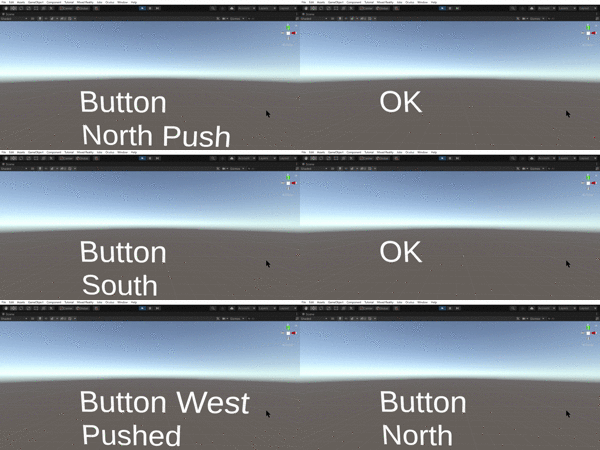
④Unityを実行しコントローラーのボタンを入力します。
ボタンの入力を検知していることが確認できました。
〇Unityでのゲームパッド
以前のUnityでは[InputManager]を使用してコントローラーごとに提供されるキーを割り当てて設定する必要がありました。
これはコントローラーごとに設定を行う必要があり、マルチプラットフォームという観点だけでなくターゲットが定まった開発でも非常に時間がかかるものでした。
ここで[InputSystem]が登場しました。

この[InputSystem]を使用することで一般的なコントローラーのボタン配置などの共通点としてキー設定ができるようになりました。
今回のコードでは[Gamepad.current.buttonEast.isPressed]のように東西南北でボタン配置を設定しています。
今回は以上です。次回はボタン以外のコントローラーの入力を取得していきます。
