本日はHoloLensのアプリの小ネタ枠です。
HoloLensのアプリランチャに関して海外の方がより使いやすくするノウハウをまとめていましたので今回日本語訳を行いながら実際に手を動かしてみます。
〇アプリランチャとは?
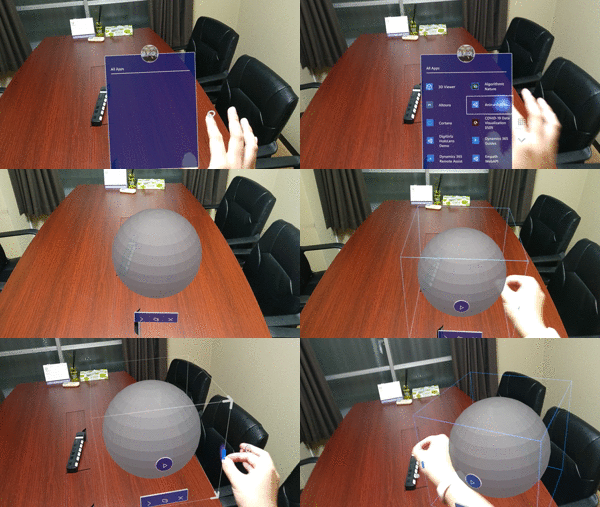
アプリランチャはHoloLensアプリで使用できる立体的なアプリのアイコンです。


デフォルトの場合PCのブラウザを模したような平たいプレーンのアプリランチャが使用されます。
HoloLens およびHoloLens 2、MixedRealityイマーシブデバイスの場合このアプリランチャをカスタマイズしてオリジナルの3Dモデルを導入することができます。
これによって一目でユーザーにアプリの内容を伝えるとともにMixedRealityHome(排他的アプリを起動していない状態)の場合3Dモデルとしてインテリアのように自由に部屋に配置することができます。
〇アプリランチャの問題
アプリランチャは非常に魅力的でHoloLens アプリらしさを引き出しますが、実装においてのいくつかの問題があります。
・Unity(or Unreal)側の設定ではない。
アプリランチャはUnityなどのアプリ開発環境からビルドしてソリューションファイルを作成してから実装することになります。
実装としてソリューションファイルのパッケージマニフェストを書き換えます。 これは別のフォルダにビルドするなどによって設定に更新がかかり再度設定しなければならないなど非常に面倒くさいです。
この問題を解消してUnityプロジェクト内でアプリランチャを設定するということに取り組んでいる記事が以下になります。
〇実装
まず、
①Unityプロジェクト内のAssets下に[3DLauncher]というフォルダを作成します。

②AppLauncher3Dという名前のスクリプトを作成します。
コード自体は上記で紹介した記事より引用しています。
using UnityEngine;

[CreateAssetMenu(fileName = "3DAppLauncher", menuName = "3D App Launcher")]
public class AppLauncher3D : ScriptableObject
{
    [Tooltip("Path to glb relative to Assets folder. Include file extension.")]
    public string Model;

    [Tooltip("Set to override center and bonding box of 3D asset.")]
    public bool OverrideBoundingBox = false;

    [Tooltip("Center used if override bounding box set.")]
    public Vector3 Center;

    [Tooltip("Bounding box extents used if override bounding box set.")]
    public Vector3 Extents = Vector3.one;

}

またこのスクリプトがコンパイルされるとUnityのプロジェクトウィンドウ内で右クリックすることで[3DAppLauncher]が表示されるようになります。

③[3DLauncher]フォルダ内に新しいフォルダを作成し『Editor』という名前を付けます。

④ ③で作成した[Editor]フォルダの中に[AppLauncher3DEditor]というスクリプトを作成します。
using System.IO;
using System.Xml;
using UnityEditor;
using UnityEditor.Callbacks;
using UnityEngine;

public class AppLauncher3DEditor
{
    [PostProcessBuild(1)]
    public static void OnPostprocessBuild(BuildTarget target, string pathToBuiltProject)
    {
        if (target == BuildTarget.WSAPlayer)
        {
            // Find App Launcher Asset, if not we don't need to do anything
            string[] applauncher3DAssets = AssetDatabase.FindAssets("t:AppLauncher3D");
            if (applauncher3DAssets.Length > 0)
            {
                // Load in asset
                string assetPath = AssetDatabase.GUIDToAssetPath(applauncher3DAssets[0]);
                AppLauncher3D appLauncher = AssetDatabase.LoadAssetAtPath<AppLauncher3D>(assetPath);

                // Add app launcher to project
                Add3DAppLauncher(pathToBuiltProject, appLauncher);
            }
        }
    }

    private static void Add3DAppLauncher(string buildPath, AppLauncher3D settings)
    {
        string pathToProjectFiles = Path.Combine(buildPath, Application.productName);

        AddToPackageManifest(pathToProjectFiles, settings);
        AddToProject(pathToProjectFiles);
        CopyModel(pathToProjectFiles, settings);
    }

    private static void CopyModel(string buildPath, AppLauncher3D settings)
    {
        string launcherFileSourcePath = Path.Combine(Application.dataPath, settings.Model);
        string launcherFileTargetPath = Path.Combine(buildPath, "Assets\\AppLauncher_3D.glb");

        FileUtil.ReplaceFile(launcherFileSourcePath, launcherFileTargetPath);
    }

    private static void AddToProject(string buildPath)
    {
        ScriptingImplementation scriptingImplementation = PlayerSettings.GetScriptingBackend(EditorUserBuildSettings.selectedBuildTargetGroup);

        // Load project file xml
        string projFilename = Path.Combine(buildPath, PlayerSettings.productName + (scriptingImplementation == ScriptingImplementation.IL2CPP ? ".vcxproj" : ".csproj"));
        XmlDocument document = new XmlDocument();
        document.Load(projFilename);

        // Check if we've already added model to the project
        if (scriptingImplementation == ScriptingImplementation.IL2CPP)
        {
            bool alreadyAdded = false;
            XmlNodeList nones = document.GetElementsByTagName("None");
            foreach (var none in nones)
            {
                XmlElement element = none as XmlElement;
                if (element.GetAttribute("Include") == "Assets\\AppLauncher_3D.glb")
                {
                    alreadyAdded = true;
                }
            }

            // If not add the content object
            if (!alreadyAdded)
            {
                XmlElement newItemGroup = document.CreateElement("ItemGroup", document.DocumentElement.NamespaceURI);
                XmlElement newNoneElement = document.CreateElement("None", document.DocumentElement.NamespaceURI);
                XmlNode deploymentContentNode = document.CreateElement("DeploymentContent", document.DocumentElement.NamespaceURI);
                newNoneElement.AppendChild(deploymentContentNode);
                deploymentContentNode.AppendChild(document.CreateTextNode("true"));
                newNoneElement.SetAttribute("Include", "Assets\\AppLauncher_3D.glb");
                newItemGroup.AppendChild(newNoneElement);
                document.DocumentElement.AppendChild(newItemGroup);
            }
        }
        else
        {
            bool alreadyAdded = false;
            XmlNodeList contents = document.GetElementsByTagName("Content");
            foreach (var content in contents)
            {
                XmlElement element = content as XmlElement;
                if (element.GetAttribute("Include") == "Assets\\AppLauncher_3D.glb")
                {
                    alreadyAdded = true;
                }
            }

            // If not add the content object
            if (!alreadyAdded)
            {
                XmlElement itemGroup = document.CreateElement("ItemGroup", document.DocumentElement.NamespaceURI);
                XmlElement content = document.CreateElement("Content", document.DocumentElement.NamespaceURI);
                content.SetAttribute("Include", "Assets\\AppLauncher_3D.glb");
                itemGroup.AppendChild(content);
                document.DocumentElement.AppendChild(itemGroup);
            }
        }

        // Save project xml file
        document.Save(projFilename);
    }

    private static void AddToPackageManifest(string buildPath, AppLauncher3D settings)
    {
        // Load package appxmanifest xml
        string packageManifestPath = Path.Combine(buildPath, "Package.appxmanifest");
        XmlDocument document = new XmlDocument();
        document.Load(packageManifestPath);

        // Find the package node
        XmlNodeList packages = document.GetElementsByTagName("Package");
        XmlElement package = packages.Item(0) as XmlElement;

        // Set the require attributes
        package.SetAttribute("xmlns:uap5", "http://schemas.microsoft.com/appx/manifest/uap/windows10/5");
        package.SetAttribute("xmlns:uap6", "http://schemas.microsoft.com/appx/manifest/uap/windows10/6");
        package.SetAttribute("IgnorableNamespaces", "uap uap2 uap5 uap6 mp");

        // Check if we've already added the mixedl reality model node
        XmlNodeList mixedRealityModels = document.GetElementsByTagName("uap5:MixedRealityModel");
        XmlElement mixedRealityModel = null;
        if (mixedRealityModels.Count == 0)
        {
            // Add mixed reality model node
            XmlNodeList defaultTiles = document.GetElementsByTagName("uap:DefaultTile");
            XmlNode defaultTile = defaultTiles.Item(0);
            mixedRealityModel = document.CreateElement("uap5", "MixedRealityModel", "http://schemas.microsoft.com/appx/manifest/uap/windows10/5");
            defaultTile.AppendChild(mixedRealityModel);
        }
        else
        {
            mixedRealityModel = mixedRealityModels.Item(0) as XmlElement;
        }

        // Set the path of the mixed reality model
        mixedRealityModel.SetAttribute("Path", "Assets\\AppLauncher_3D.glb");

        // Check if we've already got a bounding box and remove it
        XmlNodeList boundingBoxes = document.GetElementsByTagName("uap6:SpatialBoundingBox");
        if (boundingBoxes.Count == 1)
        {
            mixedRealityModel.RemoveChild(boundingBoxes.Item(0));
        }

        // Add it back in if we want to override bounding box
        if (settings.OverrideBoundingBox)
        {
            // Add mixed reality model node
            XmlElement boundingBox = document.CreateElement("uap6", "SpatialBoundingBox", "http://schemas.microsoft.com/appx/manifest/uap/windows10/6");
            string center = settings.Center.x + "," + settings.Center.y + "," + settings.Center.z;
            string extents = settings.Extents.x + "," + settings.Extents.y + "," + settings.Extents.z;
            boundingBox.SetAttribute("Center", center);
            boundingBox.SetAttribute("Extents", extents);
            mixedRealityModel.AppendChild(boundingBox);
        }

        // Save xml
        document.Save(packageManifestPath);
    }
}
このスクリプトはエディタ上で飲み動作し、ビルド時には除外されます。
 [PostProcessBuild(1)]
    public static void OnPostprocessBuild(BuildTarget target, string pathToBuiltProject)
    {
        if (target == BuildTarget.WSAPlayer)
        {
            // Find App Launcher Asset, if not we don't need to do anything
            string[] applauncher3DAssets = AssetDatabase.FindAssets("t:AppLauncher3D");
            if (applauncher3DAssets.Length > 0)
            {
                // Load in asset
                string assetPath = AssetDatabase.GUIDToAssetPath(applauncher3DAssets[0]);
                AppLauncher3D appLauncher = AssetDatabase.LoadAssetAtPath<AppLauncher3D>(assetPath);

                // Add app launcher to project
                Add3DAppLauncher(pathToBuiltProject, appLauncher);
            }
        }
    }
この部分がエントリーポイントになります。
[PostProcessBuild]の属性によってUnityのビルドが行われる際に実行されます。
③で作成できるようになったAppLauncher3Dアセットを検索して、そこから設定を読み込みglbファイルへのパスと、バウンディングボックスなどの情報をを上書きします。
⑤プロジェクトウィンドウで右クリックから[3DAppLauncher]を作成します。

3DAppLauncherのinspectorは次のようになっています。

⑥アプリランチャーに設定したいモデルをインポートして、3DAppLauncherのinspectorウィンドウのModelに追加したモデルのパスを設定します。
⑦通常通りビルドしてVisualStudioからデプロイを行います。
この際に作成されるAppフォルダのAssetsファイル直下に指定したモデルがコピーされそのままデプロイすると3Dアプリランチャが設定されます。
以上でアプリランチャがUnity側から設定できました。
〇HoloLensアドベントカレンダーとは?
冒頭でもお知らせしましたが、本日の記事はHoloLensアドベントカレンダー5日目の記事になります。
明日は私の師であるガチ本さんによるCognitive Serviceの記事が待っています
