本日はツールの調査枠です。
MicrosoftからはMixedRealityToolkit以外にも多くの開発者向けのSDKが公開されています。
その一例として[Microsoft Map-SDK for Unity(以下Map-SDK)]を調査しています。
第一回ではMap-SDKを導入しました。
第二回からExamplesを読み解いています。
〇Exampleを読み解く
Map-SDKにはExamplesとしてサンプルシーンが同梱されており、Map-SDKを用いたデモを体験できます。

各シーンごとに[Map]オブジェクト内の[Map Session]コンポーネントの[Developer Key]を入力する必要があります。
この[Developer Key]はその1の導入の記事で紹介しています。
前回の記事では[City Tour]を見ていきました。
[City Tour]では立体的なマップを使ってシアトルの各所を巡る旅を体験できます。
その2では[HubExample]を見ていきました。
[HubExample]では航空写真と地図の表示の切り替え、気象データの表示、ジェスチャーを用いての地図のスクロールを見ることができます。
その3では[MapPinExample]を調査しました。
これはcsvファイルからマップ上の座標に沿ってピン止めされます。
今回は[Map Services Example]を調査します。
〇Map Services Example

このサンプルでは地図上をAirTapすることでその場所の住所情報が表示されます。
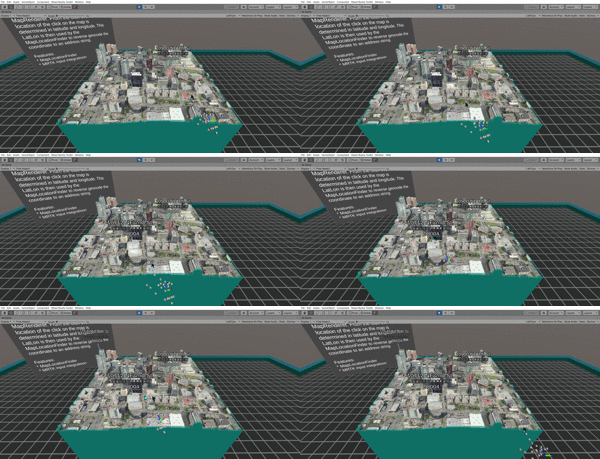
この地図上をAirTapした時のイベントを起こすコンポーネントは[pointerHandler]コンポーネントです。
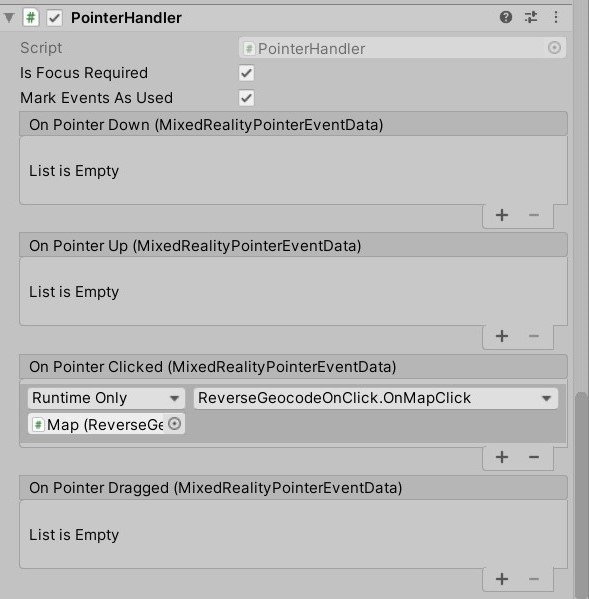
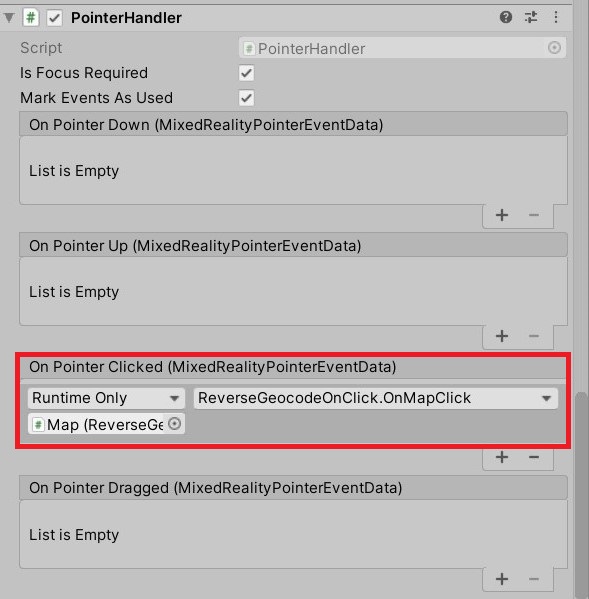
[PointerHandler]コンポーネントは[Map-SDK for Unity]で提供されているものではなくMRTKで提供されているコンポーネントです。
HandRayのカーソルに対してのイベントを発火させます。シーンではAirTapした際に発火する[On Pointer Clikced()]イベントに[Map.ReverseGeocodeOnClick.OnMapClick]が指定されています。

[ReverseGeocodeOnClick]コンポーネントは指定した場所から逆ジオコーディングされた各場所の住所をピン止めします。
逆ジオコーディングとは位置座標から住所や地名を割り出すことです。
[OnMapClick()]は次のように実装されています。
  public async void OnMapClick(MixedRealityPointerEventData mixedRealityPointerEventData)
    {
        if (ReferenceEquals(MapSession.Current, null) || string.IsNullOrEmpty(MapSession.Current.DeveloperKey))
        {
            Debug.LogError(
                "Provide a Bing Maps key to use the map services. " +
                "This key can be set on a MapSession component.");
            return;
        }

        var focusProvider = CoreServices.InputSystem.FocusProvider;
        if (focusProvider.TryGetFocusDetails(mixedRealityPointerEventData.Pointer, out var focusDetails))
        {
            var location = _mapRenderer.TransformWorldPointToLatLon(focusDetails.Point);
            var finderResult = await MapLocationFinder.FindLocationsAt(location);

            string formattedAddressString = null;
            if (finderResult.Locations.Count > 0)
            {
                formattedAddressString = finderResult.Locations[0].Address.FormattedAddress;
            }

            if (_mapPinPrefab != null)
            {
                // Create a new MapPin instance, using the location of the focus details.
                var newMapPin = Instantiate(_mapPinPrefab);
                newMapPin.Location = location;
                var textMesh = newMapPin.GetComponentInChildren<TextMeshPro>();
                textMesh.text = formattedAddressString ?? "No address found.";

                _mapPinLayer.MapPins.Add(newMapPin);
            }
        }
        else
        {
            // Unexpected.
            Debug.LogWarning("Unable to get FocusDetails from Pointer.");
        }
    }
[MixedRealityPointerEventData mixedRealityPointerEventData]にはクリックした際のポインター情報が渡されます。
前回のMapPinExample同様座標データがピンとして表示されます。
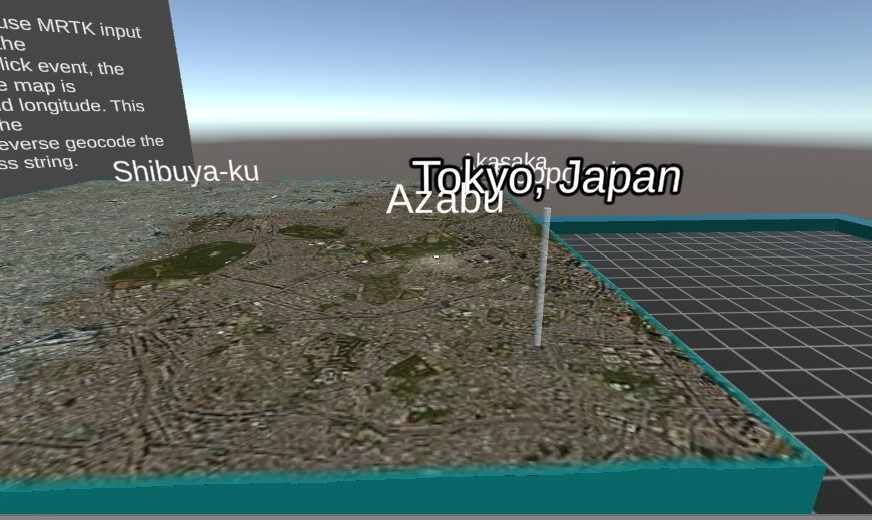
これは地図上のあらゆる点から取得でき、東京のデータも取得できます。
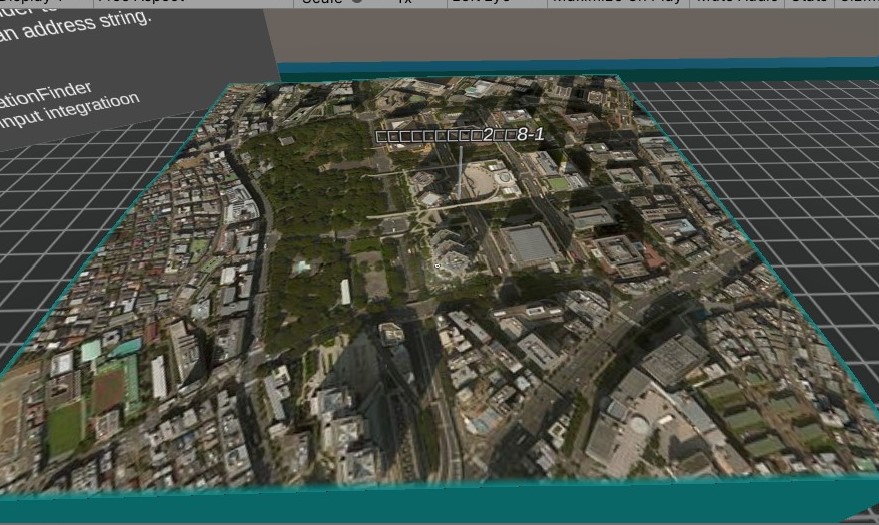
しかし文字化けしてしまっています。 これはTextMeshProのフォントが日本語に対応していないからです。
日本語に変更するか英語表記に変更するかの2種類の解決法があるのですが、今回は後者を実行します。
[MapSession]には使用言語を指定できますが、デフォルトではオートで日本語が指定されるようになっています。
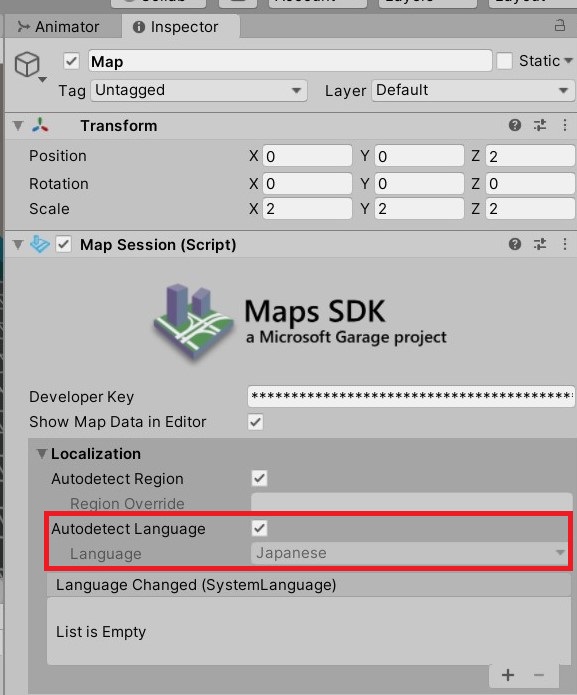
[AutoDetectLanglage]のチェックボックスからチェックを外し言語を[English]に変更します。
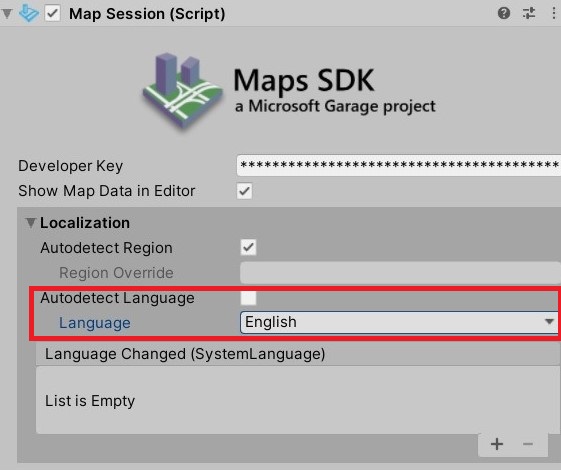
これで文字化けが解消されました。
以上がMapServices Exampleです。
