※ Xcodeは変化が早いので記事の日付に注意してください
ゴール
- 長押ししてアラートとか出るボタンを設置する
tl;dr
override func viewDidLoad() {
    super.viewDidLoad()
    let recognizer = UILongPressGestureRecognizer(target: self, action: #selector(onLongPress))
    self.button.addGestureRecognizer(recognizer)
}

@objc func onLongPress() {
    let alert = UIAlertController(title: "Long Press", message: "親父にも長押しされたことないのに!", preferredStyle: .alert)
    alert.addAction(UIAlertAction(title: "OK", style: .default, handler: nil))
    self.present(alert, animated: true, completion: nil)
}
以下読まなくていいです。
1. ボタンの設置・追加
最近のXcodeはオブジェクトの追加をするペインが無い。Cmd + Shif + Lで、かつてオブジェクト選択のペインだったものがダイアログとして出てくる。

ここで、ButtonをStoryboardにドラッグアンドドロップして、適当にテキスト変えて、終了。

2. 通常のTouchイベントの登録
Storyboardを表示した状態で、右上の「◯◯」を押すと、Storyboardに紐付いているViewControllerが反面に開かれる。

で、ButtonとViewControllerを紐付ける。

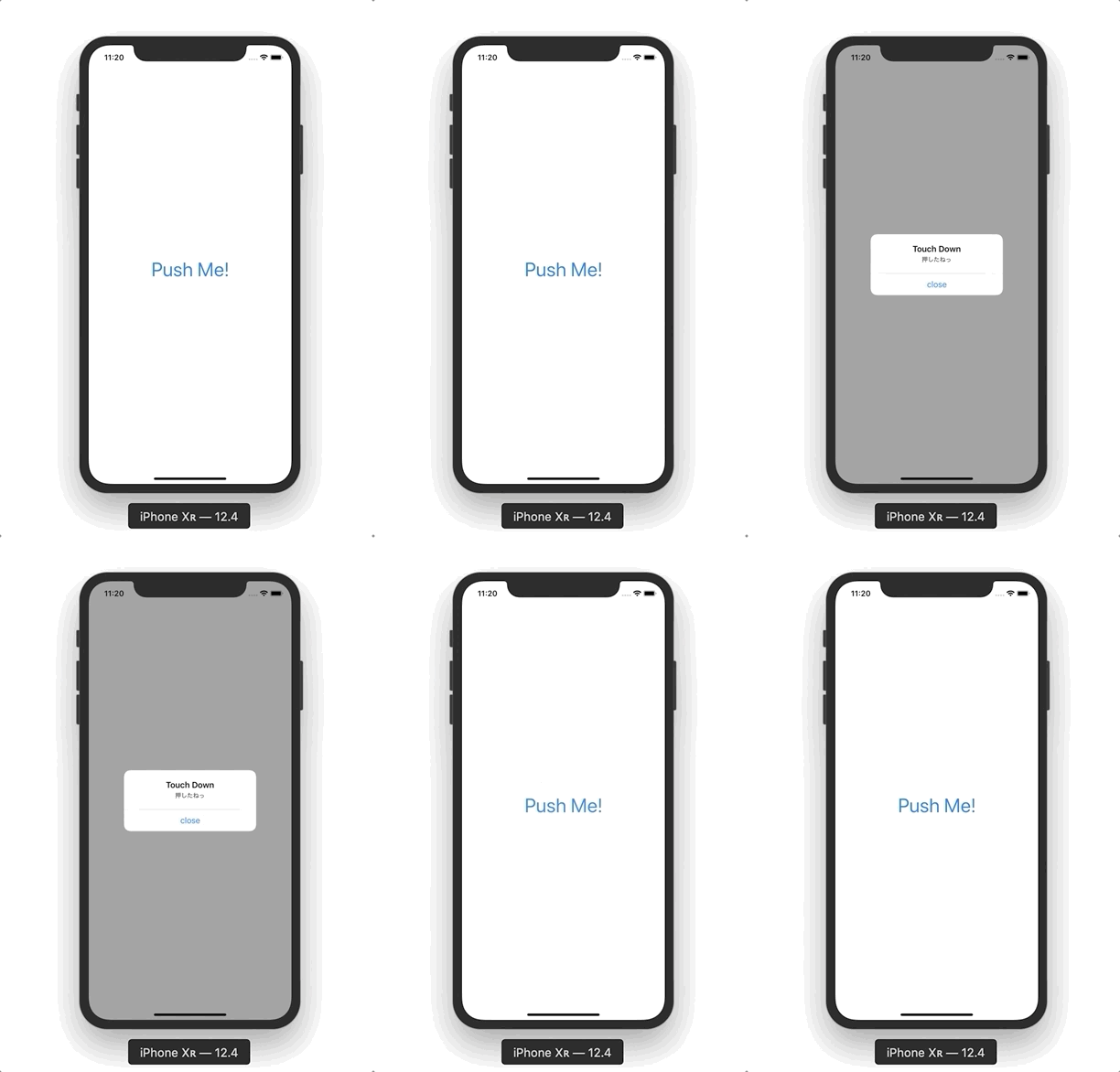
ちょっとAlert出すコード書く。
@IBAction func onTouchDownButton(_ sender: Any) {
    let alert = UIAlertController(title: "Touch Down", message: "押したねっ", preferredStyle: .alert)
    alert.addAction(UIAlertAction(title: "close", style: .default, handler: nil))
    self.present(alert, animated: true, completion: nil)
}
こうなる
3. 長押しのRecognizerを設置
とりあえずさっき作って紐付けたTouch Downイベントは消して、以下のようなコードを書く。
このとき、self.buttonは、上記のような要領で、Ctrl押しながらUIパーツをViewControllerにひっぱってきて置いたもの。
override func viewDidLoad() {
    super.viewDidLoad()
    let recognizer = UILongPressGestureRecognizer(target: self, action: #selector(onLongPress))
    self.button.addGestureRecognizer(recognizer)
}

// func onLongPress(_ sender: UILongPressGestureRecognizer) {
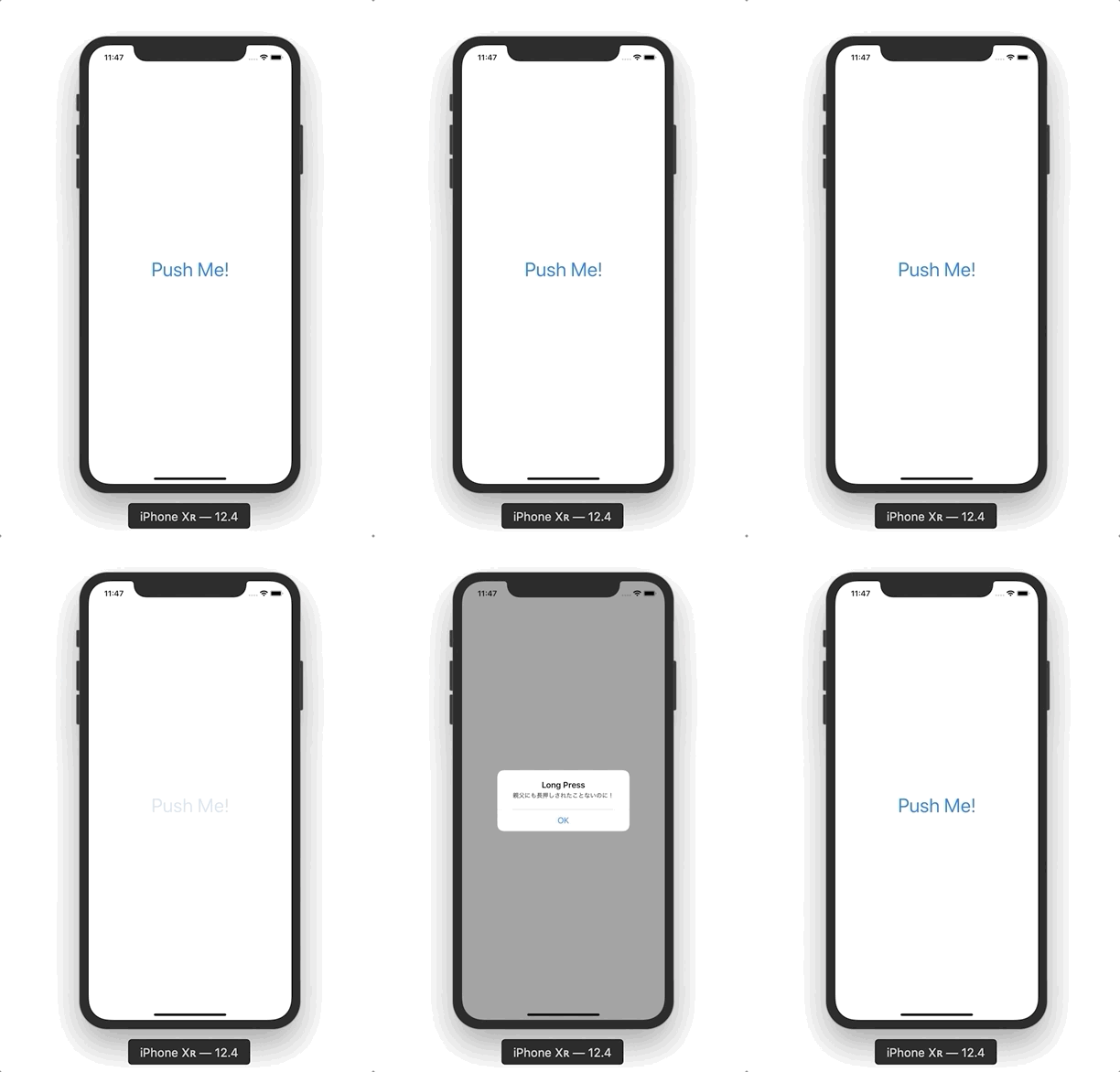
@objc func onLongPress() {
    let alert = UIAlertController(title: "Long Press", message: "親父にも長押しされたことないのに!", preferredStyle: .alert)
    alert.addAction(UIAlertAction(title: "OK", style: .default, handler: nil))
    self.present(alert, animated: true, completion: nil)
}
こうなる
雑感
DRYな備忘録として
