
Microsoft Lists のビューの書式設定で、上図のようなバーティカルメガメニューを作成してみました。
以下、バーティカルメガメニュー作成方法を記載します。
リスト定義
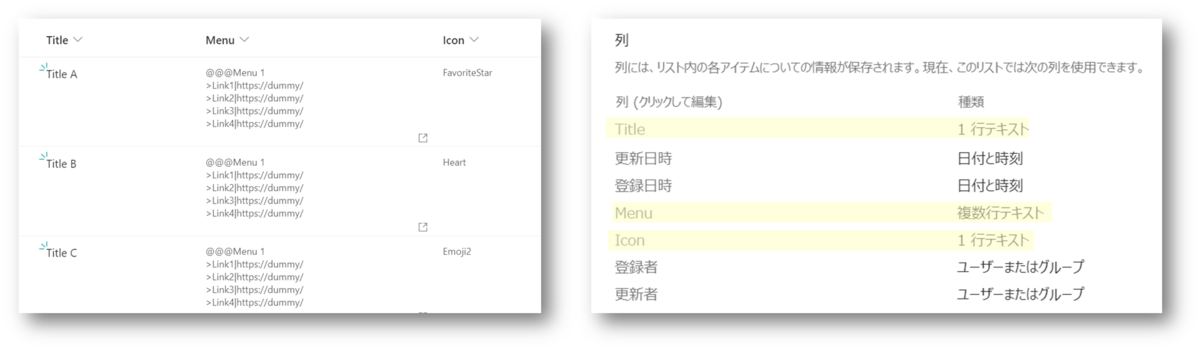
リストを作成し、次の列を定義します。
| 列の内部名 | 列の種類 | 必須/任意 |
|---|---|---|
| Title(デフォルトで定義されている列) | 1行テキスト | 必須 |
| Menu | 複数行テキスト(書式なし) | 必須 |
| Icon | 1行テキスト | 必須 |
アイテム作成
メニューの一覧を、上記で作成したリストに登録します。
Title にはメニュータイトル、Menu にはリンク一覧、Icon には Fluent UI Icons のアイコン名を入力して、アイテムを作成します。
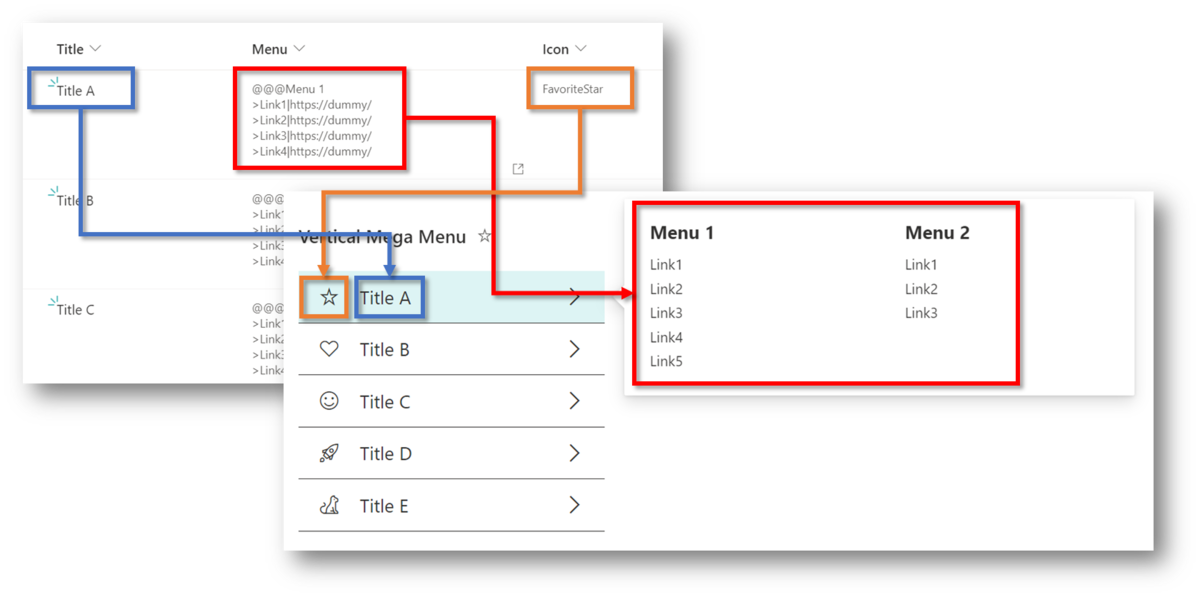
Menu には、次のような値を入力します。
※[Section Title] および [Link Title] には、区切り文字として利用している記号 > と | を設定しないでください。
@@@[Header]
>[Link Title]|[URL]
>[Link Title]|[URL]
>[Link Title]|[URL]
@@@[Header]
>[Link Title]|[URL]
>[Link Title]|[URL]
>[Link Title]|[URL]
Menu の設定例です。
@@@Samples >Power Platform Samples|https://pnp.github.io/powerplatform-samples/ >SharePoint Framework Web Parts|https://pnp.github.io/sp-dev-fx-webparts/ >SharePoint Framework Extensions|https://pnp.github.io/sp-dev-fx-extensions/ >SharePoint Framework Viva Adaptive Card Extensions|https://github.com/pnp/sp-dev-fx-aces/ >Script Samples|https://pnp.github.io/script-samples/ >Teams Apps Samples|https://pnp.github.io/teams-dev-samples/ >Office Add-ins PnP|https://github.com/OfficeDev/Office-Add-in-samples/ >Microsoft 365 Learning Pathways|https://github.com/pnp/custom-learning-office-365/ >List Formatting Samples|https://pnp.github.io/List-Formatting/ >Library Component Samples & Tutorials|https://github.com/pnp/sp-dev-fx-library-components/ @@@Solutions >SharePoint Look Book|https://lookbook.microsoft.com/ >Teams App Templates|https://learn.microsoft.com/microsoftteams/platform/samples/app-templates/ >PnP Modern Search|https://microsoft-search.github.io/pnp-modern-search/ >SharePoint Starter Kit|https://github.com/pnp/sp-starter-kit/
ビューの書式設定
ビューの書式設定に、次に掲載されている JSON を適用します。 適用が完了すると、ビューの見た目が変わり、設定完了です。

2024/12/01 追記
Microsoft Lists のアップデート等の影響でこのサンプルが動作しなくなったことを確認しました。この問題について、次の Issue で Microsoft に問い合わせています。
また、openOnEvent の値を hover から click に変更した場合、メニューが問題なく表示されることを確認しています。そのため、もしマウスホバーではなくクリックでメニューを表示しても問題ない場合は、上記の JSON の openOnEvent を hover から click に変更してください。
