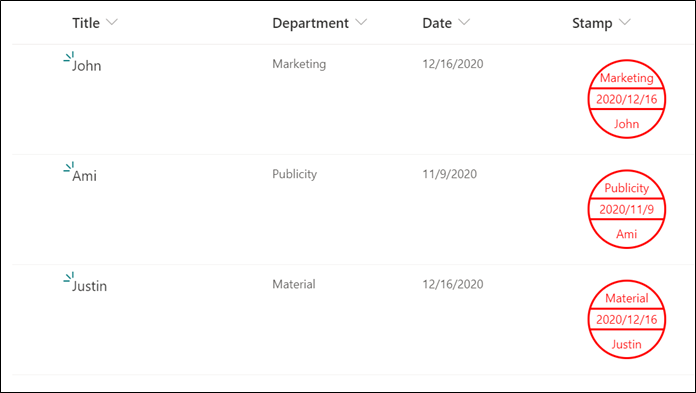
列の書式設定を利用し、上図のようなはんこをリスト上に表示してみました。
以下、はんこを表示する方法を記載します。
リスト定義
リストを作成し、次のフィールドを作成します。
| 列名(Column Name) | 列の種類(Type) |
|---|---|
| Title | 1 行テキスト(Single Line Text) |
| Departmet | 1 行テキスト(Single Line Text) |
| Date | 日付(Date) |
| Stamp | 何でもOK(Any) |
列の書式設定
Stamp 列の書式設定に、次の JSON を設定します。
設定が完了すると、 Stamp 列にはんこが表示されます。
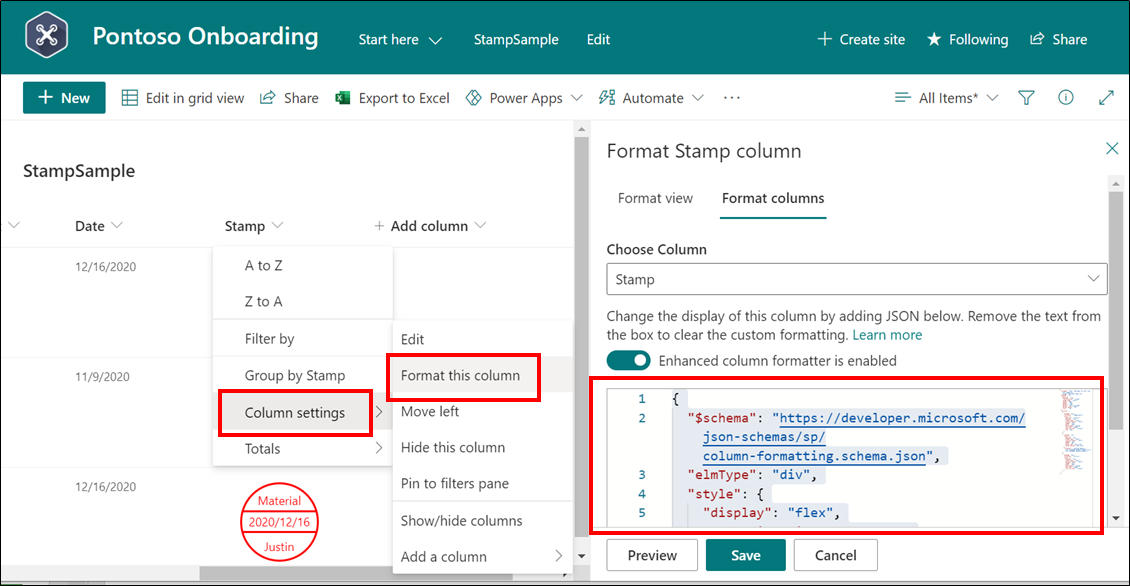
{
  "$schema": "https://developer.microsoft.com/json-schemas/sp/column-formatting.schema.json",
  "elmType": "div",
  "style": {
    "display": "flex",
    "flex-direction": "column",
    "align-items": "center",
    "width": "75px",
    "height": "75px",
    "margin": "15px",
    "border": "2px solid #f00",
    "border-radius": "50%",
    "color": "red"
  },
  "children": [
    {
      "elmType": "div",
      "txtContent": "[$Department]",
      "style": {
        "position": "relative",
        "display": "flex",
        "align-items": "center",
        "justify-content": "center",
        "height": "35%",
        "width": "55px",
        "white-space": "nowrap",
        "overflow": "hidden",
        "text-overflow": "ellipsis",
        "top": "3px"
      }
    },
    {
      "elmType": "div",
      "style": {
        "display": "flex",
        "align-items": "center",
        "justify-content": "center",
        "height": "25%",
        "width": "98%",
        "border-top": "2px solid",
        "border-bottom": "2px solid"
      },
      "txtContent": "=getYear([$Date])+'/'+toString(Number(getMonth([$Date]))+1)+'/'+toString(Number(getDate([$Date]))) "
    },
    {
      "elmType": "div",
      "txtContent": "[$Title]",
      "style": {
        "display": "flex",
        "align-items": "center",
        "justify-content": "center",
        "height": "35%",
        "width": "55px",
        "white-space": "nowrap",
        "overflow": "hidden",
        "text-overflow": "ellipsis"
      }
    }
  ]
}
以上、リストにはんこを表示する方法でした。
動画紹介
YouTube に、こちらのカスタマイズ方法の動画をアップロードしました。
設定等で不明なところがあれば、次の動画を参照ください。
