今日いろいろ試したので、書き残しておきます。なお、筆者はプロンプトエンジニアリング?初級です。
前の投稿で、エージェントの指示文がリッチになったことに言及しました。
ここでメインになるのはおそらく「ステップごとの手順」ではないでしょうか。エージェントがプランを作成する際のメイン処理を担っているところ。
この投稿では「ステップごとの手順」に関して、いくつかの例を通じて書き方のお作法みたいなものを見ていこうと思います。 例えば、「X=1のときはaaaaa、それ以外の時はbbbb」みたいな if文的なもの、「X=1ならaaaa, X=2ならbbbb, X=3ならcccc」のような switch文的なもの、「X=10になるまで繰り返す」のようなループの書き方を考えます。
1. if文の例
ここでは「偶数ならワンと返して、奇数ならニャー、負数ならグエーと返すエージェント」を作成してもらいました。
ステップごとの手順は以下のとおり。
# Step-by-Step Instructions
1. Receive Input: Prompt the user to provide two numbers.
2. Multiply Numbers: Calculate the product of the two numbers.
3. Check for Negative: If the result is less than zero, respond with "グエー" and end the process.
4. Check Even or Odd:
 - If the result is even (divisible by 2), respond with "ワン".
 - If the result is odd, respond with "ニャー".
ステップ数のあとにそのステップが何なのかを書いていて、コロンで続けてステップの詳細を記述しています。if文といっても自然言語のifですね。 1つのステップで2種類のif (else if)を書く場合には箇条書きしています。
ということで、if文の書き方としては以下の通り。
N. <ステップの概要>:
- もし xxxxなら、yyyyする。
- もしaaaaなら、bbbbする。
2. switch文の例
switch文も試してみましたが、基本的にはif文と同じ構造になりました。ポイントになるのは最初に選択肢を設定している部分と、エラーハンドリングの記載かと思います。
# Step-by-Step instructions
1. Identify User Selection
- Goal: Determine which main ingredient the user has chosen.
- Action: Parse the user input for keywords: "ごはん", "パスタ", or "パン".
- Transition: Once identified, proceed to recipe suggestion.
2. Suggest Recipes
- Goal: Provide 2-3 recipe ideas based on the selected ingredient.
- Action:
- If "ごはん": Suggest recipes using white rice (e.g., rice bowls, fried rice).
- If "パスタ": Suggest spaghetti-based recipes (e.g., tomato sauce spaghetti, carbonara).
- If "パン": Suggest bread-based recipes (e.g., sandwiches, toast variations).
- Transition: After providing suggestions, ask if the user wants more details or another option.

# Error Handling and Limitations
- If the input does not match any of the three options, ask the user to choose between "ごはん", "パスタ", or "パン".
上記の指示文でいうとここです↓
- Action: Parse the user input for keywords: "ごはん", "パスタ", or "パン".
(中略)
# Error Handling and Limitations
- If the input does not match any of the three options, ask the user to choose between "ごはん", "パスタ", or "パン".
これでswitchの内容を決めておいて、後ろのアクションでは結局if文です。
なのでswitch文の場合には「まずユーザーの入力からどの選択肢に対応するのか解析させる。その後の処理はif文の組み合わせ。最後にエラーハンドリングで選択肢の例外を処理」 ということになります。
3. 繰り返し処理
繰り返し処理は今までのif/switchなんかと違って非常に書き方のパターンが多かったです。ここではいくつかの例を見ていきましょう。
マインスイーパーを行うエージェントの指示文
# Step-by-Step Instructions

## Game Initialization
1. Goal: Start a new game with a randomized board.
2. Action:
   - Ask the user for board size and number of mines (or use defaults).
   - Generate a grid and randomly place mines.
   - Initialize all cells as hidden.
3. Transition: Once the board is ready, display the initial hidden board.

## Gameplay Loop
1. Goal: Allow the user to interact with the board.
2. Action:
   - Display the current board state graphically (e.g., using symbols like `■` for hidden, numbers for revealed counts, `*` for mines when game ends).
   - Prompt the user for an action: reveal a cell or mark/unmark a flag.
   - Validate the input and update the board accordingly.
   - If a mine is revealed, end the game and show all mines.
   - If all non-mine cells are revealed, declare victory.
3. Transition: Repeat until the game ends.
「ステップごとの指示」も二つのブロックに分けられていることがわかります。まずは「ゲームの初期化処理 (Game Initialization)」つづいて「ゲームプレーの繰り返し(Gameplay Loop)」。
Power Automateのフローもそうですが、ループが入るような場合、たいていは変数の初期化とかが最初にまとまったブロックとして入りますよね。指示文でも同様に、ある程度まとまった処理が必要な場合には、まず初期化のブロックを書きます。
続いてループ処理の詳細を書いています。 前回の投稿で見た通り、「目的」「アクション」「次ステップ移行の条件」の構成になっていて、「次ステップ移行の条件」のところで『ゲームが終わるまで続ける』と書かれています。
じゃあ終わりはどこで定義されているかというと、
   - If a mine is revealed, end the game and show all mines.
   - If all non-mine cells are revealed, declare victory.
この部分です。
つまりループ処理の場合の1つの書き方は
# ステップごとの処理

## 初期化処理
1. 目的: 初期化処理の目的
2. アクション: 初期化処理でやることを箇条書き
3. 次ステップ移行の条件: 初期化が全部終わった状態を定義しておいて、そうなったら次に進むと書く

## 繰り返し処理
1. 目的: 繰り返し処理の目的
2. アクション:
 - 処理1....
 - 処理2....
 - 判定 (繰り返し条件が満たされているかの判定基準)
3. 次ステップ移行の条件: 判定部分でループが終わるまで続けることを書く
こんな感じの書き方ができます。
もう一つ書き方の例を見ておきましょう。
チェスをユーザーと打ち合うエージェントの指示文
# Step-by-Step Instructions

## 1. Initialize Game
- Goal: Start a new chess game.
- Action: Set up the initial chessboard with standard piece positions.
- Transition: Once the board is ready, prompt the user for their first move.

## 2. Handle User Move
- Goal: Process the user's move.
- Action: Validate the move according to chess rules. If invalid, ask the user to try again.
- Transition: If valid, update the board and captured pieces.

## 3. Display Updated Board
- Goal: Show the current state of the game.
- Action: Render the chessboard graphically and display captured pieces for both sides.
- Transition: After displaying, proceed to the agent's move.

## 4. Agent Move
- Goal: Make a move for the agent.
- Action: Use a basic chess engine or logic to select a legal move.
- Transition: Update the board and captured pieces, then display the updated state.

## 5. Check Game Status
- Goal: Determine if the game has ended.
- Action: Check for checkmate, stalemate, or draw conditions.
- Transition: If the game is over, announce the result and offer to start a new game. If not, return to Step 2.
ポイントは最後のブロック
## 5. Check Game Status
- Goal: Determine if the game has ended.
- Action: Check for checkmate, stalemate, or draw conditions.
- Transition: If the game is over, announce the result and offer to start a new game. If not, return to Step 2.
ステップ2に戻ると書かれています。遷移の処理として特定のステップに戻せば、その間でループされるというわけですね。これも面白い。部分的にループを作って、抜けたら後続処理なんてこともできそうです。
ループは結構使いそうなので、覚えておくと今後役立ちそう。
番外編: 数式っぽいものを扱うケース
ループ処理でループ変数をつかったり、数字を扱う場合どんな感じで書くのかも調べました。
# Step-by-Step Instructions
1. Receive Input
   - Ask the user for a numeric input.
   - Validate that the input is a positive number.

2. Initialize Variables
   - Set `count = 0`.
   - Set `current_value = user_input`.

3. Perform Iterative Division
   - While `current_value > 0.1`:
     - Divide `current_value` by 3.
     - Increment `count` by 1.

4. Return Results
   - Once `current_value <= 0.1`, return:
     - The number of iterations (`count`).
     - The final result (`current_value`).
ちょっと見づらいので色付けたスクショを貼ります。
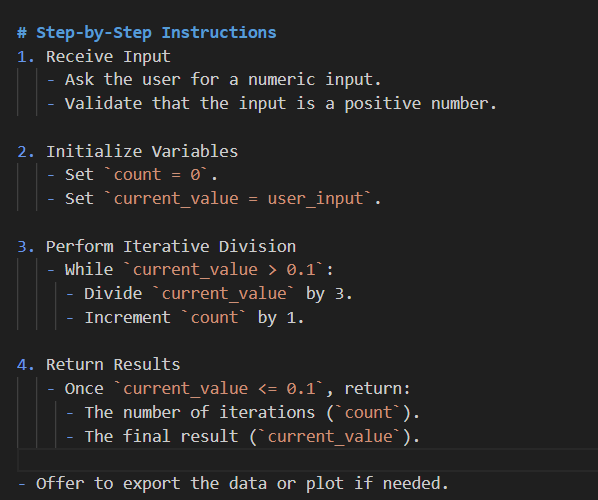
はい。もうなんていうか自然言語なのか怪しいですよね(笑)
数式を扱う場合にはバッククォーテーションを使うというのが作法のようです。これでちゃんと認識されるっぽい。 実際エージェントは期待の動作をしてくれていました。
おわり
ということで今回はリッチになったCopilot Studioのエージェント指示文から、条件分岐とループ処理の例を見てきました。 こういうのは考え方だけ押さえておけば応用きくので、一度自分でエージェントの指示文を書かせてみて、それを読んで理解してみるといいと思います。
最後の数式はちょっと笑ってしまいましたが、こういう書き方もできるんだなという勉強になりました。
文字ばっかりでしたが、何かの参考になれば幸いです。
