2020/3/15追記: kubeadm init後のmasterの状態と--upload-certsについて、id:endu-lucy 様にコメントを頂き、再度確認したところご指摘どおりでした。内容を修正しました。ご指摘ありがとうございました!
ちょっと間が開きましたが続きです。
前回、一通りのサーバをVagrantで用意したのでいよいよクラスタを作っていきます。環境おさらい。

controller-0
まずはmasterの1台目となるcontroller-0から。まずcontroller-0にsshでログインします。
$ vagrant ssh controller-0
kubeadm initでクラスタを初期化します。vagrantユーザで実行するのでsudoをお忘れなく。
$ sudo kubeadm init \
  --control-plane-endpoint="10.240.0.40:6443" \
  --apiserver-advertise-address="10.240.0.10" \
  --kubernetes-version="v1.17.3" \
  --pod-network-cidr="192.168.0.0/16" \
  --upload-certs | sudo tee -a /etc/kubernetes/kubeadm-init.result
少しだけ解説
--kubernetes-versionはstableを指定している場合がありますが、バージョンコントロールは自分であるということで厳密にバージョン指定しています。--apiserver-advertise-addressはノードのIPアドレスを指定します。Vagrantでは10.0.2.15というNATインタフェースがあるのですが、これはVMからホストを経由してインターネットに抜けるためのインタフェースであり、ノード間の通信には使えません。kubeadm initするとこのインタフェースがデフォルトでapiserverにbindされてしまうため、明示的に指定しています。--control-plane-endpointはmasterの負荷分散代表IPアドレスとなる、haproxyのIPとポートを指定します。--pod-network-cidrは、Calicoのデフォルトである192.168.0.0/16を指定しています。これがpodに払い出されるIPアドレスになります。--upload-certsで、2台め以降のmasterをjoinさせる場合に必要となる証明書をsecretに保存します。これにより、証明書の受け渡しが不要になります。- 出力結果が後で必要になるのでteeでファイルに出力しています。
ズラッとログが流れます。
W0309 15:26:39.649323   21845 validation.go:28] Cannot validate kube-proxy config - no validator is available
W0309 15:26:39.649374   21845 validation.go:28] Cannot validate kubelet config - no validator is available
[init] Using Kubernetes version: v1.17.3
[preflight] Running pre-flight checks
[preflight] Pulling images required for setting up a Kubernetes cluster
[preflight] This might take a minute or two, depending on the speed of your internet connection
[preflight] You can also perform this action in beforehand using 'kubeadm config images pull'
[kubelet-start] Writing kubelet environment file with flags to file "/var/lib/kubelet/kubeadm-flags.env"
[kubelet-start] Writing kubelet configuration to file "/var/lib/kubelet/config.yaml"
[kubelet-start] Starting the kubelet
[certs] Using certificateDir folder "/etc/kubernetes/pki"
[certs] Generating "ca" certificate and key
[certs] Generating "apiserver" certificate and key
[certs] apiserver serving cert is signed for DNS names [controller-0 kubernetes kubernetes.default kubernetes.default.svc kubernetes.default.svc.cluster.local] and IPs [10.96.0.1 10.240.0.10 10.240.0.40]
[certs] Generating "apiserver-kubelet-client" certificate and key
[certs] Generating "front-proxy-ca" certificate and key
[certs] Generating "front-proxy-client" certificate and key
[certs] Generating "etcd/ca" certificate and key
[certs] Generating "etcd/server" certificate and key
[certs] etcd/server serving cert is signed for DNS names [controller-0 localhost] and IPs [10.240.0.10 127.0.0.1 ::1]
[certs] Generating "etcd/peer" certificate and key
[certs] etcd/peer serving cert is signed for DNS names [controller-0 localhost] and IPs [10.240.0.10 127.0.0.1 ::1]
[certs] Generating "etcd/healthcheck-client" certificate and key
[certs] Generating "apiserver-etcd-client" certificate and key
[certs] Generating "sa" key and public key
[kubeconfig] Using kubeconfig folder "/etc/kubernetes"
[kubeconfig] Writing "admin.conf" kubeconfig file
[kubeconfig] Writing "kubelet.conf" kubeconfig file
[kubeconfig] Writing "controller-manager.conf" kubeconfig file
[kubeconfig] Writing "scheduler.conf" kubeconfig file
[control-plane] Using manifest folder "/etc/kubernetes/manifests"
[control-plane] Creating static Pod manifest for "kube-apiserver"
W0309 15:26:45.391175   21845 manifests.go:214] the default kube-apiserver authorization-mode is "Node,RBAC"; using "Node,RBAC"
[control-plane] Creating static Pod manifest for "kube-controller-manager"
[control-plane] Creating static Pod manifest for "kube-scheduler"
W0309 15:26:45.392823   21845 manifests.go:214] the default kube-apiserver authorization-mode is "Node,RBAC"; using "Node,RBAC"
[etcd] Creating static Pod manifest for local etcd in "/etc/kubernetes/manifests"
[wait-control-plane] Waiting for the kubelet to boot up the control plane as static Pods from directory "/etc/kubernetes/manifests". This can take up to 4m0s
[apiclient] All control plane components are healthy after 19.508153 seconds
[upload-config] Storing the configuration used in ConfigMap "kubeadm-config" in the "kube-system" Namespace
[kubelet] Creating a ConfigMap "kubelet-config-1.17" in namespace kube-system with the configuration for the kubelets in the cluster
[upload-certs] Storing the certificates in Secret "kubeadm-certs" in the "kube-system" Namespace
[upload-certs] Using certificate key:
9bad123e7d9a2f08532be35d84cd003021104421c5b5ba7a7d0239326101386a
[mark-control-plane] Marking the node controller-0 as control-plane by adding the label "node-role.kubernetes.io/master=''"
[mark-control-plane] Marking the node controller-0 as control-plane by adding the taints [node-role.kubernetes.io/master:NoSchedule]
[bootstrap-token] Using token: cytl2k.i235yw3fiitpehgh
[bootstrap-token] Configuring bootstrap tokens, cluster-info ConfigMap, RBAC Roles
[bootstrap-token] configured RBAC rules to allow Node Bootstrap tokens to post CSRs in order for nodes to get long term certificate credentials
[bootstrap-token] configured RBAC rules to allow the csrapprover controller automatically approve CSRs from a Node Bootstrap Token
[bootstrap-token] configured RBAC rules to allow certificate rotation for all node client certificates in the cluster
[bootstrap-token] Creating the "cluster-info" ConfigMap in the "kube-public" namespace
[kubelet-finalize] Updating "/etc/kubernetes/kubelet.conf" to point to a rotatable kubelet client certificate and key
[addons] Applied essential addon: CoreDNS
[addons] Applied essential addon: kube-proxy

Your Kubernetes control-plane has initialized successfully!

To start using your cluster, you need to run the following as a regular user:

  mkdir -p $HOME/.kube
  sudo cp -i /etc/kubernetes/admin.conf $HOME/.kube/config
  sudo chown $(id -u):$(id -g) $HOME/.kube/config

You should now deploy a pod network to the cluster.
Run "kubectl apply -f [podnetwork].yaml" with one of the options listed at:
  https://kubernetes.io/docs/concepts/cluster-administration/addons/

You can now join any number of the control-plane node running the following command on each as root:

  kubeadm join 10.240.0.40:6443 --token cytl2k.i235yw3fiitpehgh \
    --discovery-token-ca-cert-hash sha256:45de4e89c9f663d716dda514fda815a23e869f55fd18b68efef19afa10e6f82b \
    --control-plane --certificate-key 9bad123e7d9a2f08532be35d84cd003021104421c5b5ba7a7d0239326101386a

Please note that the certificate-key gives access to cluster sensitive data, keep it secret!
As a safeguard, uploaded-certs will be deleted in two hours; If necessary, you can use
"kubeadm init phase upload-certs --upload-certs" to reload certs afterward.

Then you can join any number of worker nodes by running the following on each as root:

kubeadm join 10.240.0.40:6443 --token cytl2k.i235yw3fiitpehgh \
    --discovery-token-ca-cert-hash sha256:45de4e89c9f663d716dda514fda815a23e869f55fd18b68efef19afa10e6f82b
Your Kubernetes control-plane has initialized successfully!と表示されていれば一旦はOKです。vagrantの場合、確認しておくべきなのはapiserverのbindアドレスです。ここが必ず10.0.2.15ではなく10.240.0.Xのアドレスになっていることを確認してください。
$ ps auxw | grep apiserver
root     10726  5.6 16.7 495072 316048 ?       Ssl  14:22   0:11 kube-apiserver --advertise-address=10.240.0.10 ・・・
では、kubeadm initの出力結果に従って設定を行っていきます。kubectlコマンドが実行できるようにKUBECONFIGの設定を行います。kubeadmi init で出力された/etc/kubernetes/admin.confをvagrantユーザの.kube/configとしてコピーします。
$ mkdir -p $HOME/.kube
$ sudo cp -i /etc/kubernetes/admin.conf $HOME/.kube/config
$ sudo chown $(id -u):$(id -g) $HOME/.kube/config
コマンドが実行できるか試してみましょう。kubectl get node でノードの状態を確認してみます。
$ kubectl get node
NAME           STATUS   ROLES    AGE     VERSION
controller-0  Not Ready    master   2m15s   v1.17.3
controller-0がmasterになっています。STATUSがNotReadyとなっていますが、CNIの設定を行っていないためですので問題ありません。では、続いてCNIの設定を行います。CNIは今回Calicoを使います。Calicoもバージョンはコントロールしたいと思うので、現在の最新版であるv3.13のmanifestをダウンロードしてきてkubectl applyします。
$ curl https://docs.projectcalico.org/v3.13/manifests/calico.yaml -o calico-v3.13.yaml
$ kubectl apply -f calico-v3.13.yaml
configmap/calico-config created
customresourcedefinition.apiextensions.k8s.io/felixconfigurations.crd.projectcalico.org created
customresourcedefinition.apiextensions.k8s.io/ipamblocks.crd.projectcalico.org created
customresourcedefinition.apiextensions.k8s.io/blockaffinities.crd.projectcalico.org created
customresourcedefinition.apiextensions.k8s.io/ipamhandles.crd.projectcalico.org created
customresourcedefinition.apiextensions.k8s.io/ipamconfigs.crd.projectcalico.org created
customresourcedefinition.apiextensions.k8s.io/bgppeers.crd.projectcalico.org created
customresourcedefinition.apiextensions.k8s.io/bgpconfigurations.crd.projectcalico.org created
customresourcedefinition.apiextensions.k8s.io/ippools.crd.projectcalico.org created
customresourcedefinition.apiextensions.k8s.io/hostendpoints.crd.projectcalico.org created
customresourcedefinition.apiextensions.k8s.io/clusterinformations.crd.projectcalico.org created
customresourcedefinition.apiextensions.k8s.io/globalnetworkpolicies.crd.projectcalico.org created
customresourcedefinition.apiextensions.k8s.io/globalnetworksets.crd.projectcalico.org created
customresourcedefinition.apiextensions.k8s.io/networkpolicies.crd.projectcalico.org created
customresourcedefinition.apiextensions.k8s.io/networksets.crd.projectcalico.org created
clusterrole.rbac.authorization.k8s.io/calico-kube-controllers created
clusterrolebinding.rbac.authorization.k8s.io/calico-kube-controllers created
clusterrole.rbac.authorization.k8s.io/calico-node created
clusterrolebinding.rbac.authorization.k8s.io/calico-node created
daemonset.apps/calico-node created
serviceaccount/calico-node created
deployment.apps/calico-kube-controllers created
serviceaccount/calico-kube-controllers created
再度kubectlでnodeの状態を見てみるとReadyになりました。もしなっていない場合は-wをつけてkubectl get nodeを実行して待ってみてください。
$ kubectl get node
NAME           STATUS   ROLES    AGE     VERSION
controller-0   Ready    master   4m34s   v1.17.3
では現時点で立ち上がっているpodを見てみましょう。
$ kubectl get pod
No resources found in default namespace.
何も出ませんね。というのも、kubernetesにはnamespaceの概念があり、namespaceごとにリソースを分けることができます。デフォルトだとdefaultというname spaceが選択されているので何も見えません。そこで--all-namespacesをつけてすべてのnamespacesをまたいでpodを見てみましょう。
$ kubectl get pod --all-namespaces
NAMESPACE     NAME                                       READY   STATUS    RESTARTS   AGE
kube-system   calico-kube-controllers-68dc4cf88f-7rvrd   1/1     Running   0          35s
kube-system   calico-node-6f84m                          1/1     Running   0          35s
kube-system   coredns-6955765f44-s7pvx                   1/1     Running   0          4m3s
kube-system   coredns-6955765f44-wm9lq                   1/1     Running   0          4m3s
kube-system   etcd-controller-0                          1/1     Running   0          4m17s
kube-system   kube-apiserver-controller-0                1/1     Running   0          4m18s
kube-system   kube-controller-manager-controller-0       1/1     Running   0          4m18s
kube-system   kube-proxy-56kmh                           1/1     Running   0          4m2s
kube-system   kube-scheduler-controller-0                1/1     Running   0          4m18s
いくつか立ち上がっていてRunningになっていますね!ちなみにkube-systemというnamespaceはデフォルトでkubernetesが使うシステム的なnamespaceのようです。calicoのpodもあがっていますね。
1台目のmasterの構築はこれで完了ですが、残り2台のmasterのための準備を行います。
/etc/kubernetesの下に作成されている以下の証明書等のファイルをtarで固めます。
- /etc/kubernetes/pki/ca.crt
- /etc/kubernetes/pki/ca.key
- /etc/kubernetes/pki/sa.key
- /etc/kubernetes/pki/sa.pub
- /etc/kubernetes/pki/front-proxy-ca.crt
- /etc/kubernetes/pki/front-proxy-ca.key
- /etc/kubernetes/pki/etcd/ca.crt
- /etc/kubernetes/pki/etcd/ca.key
- /etc/kubernetes/admin.conf
$ cd /
$ sudo tar cvfz /Vagrant/master-pki.tar.gz \
   /etc/kubernetes/pki/ca.crt \
   /etc/kubernetes/pki/ca.key \
   /etc/kubernetes/pki/sa.key \
   /etc/kubernetes/pki/sa.pub \
   /etc/kubernetes/pki/front-proxy-ca.crt \
   /etc/kubernetes/pki/front-proxy-ca.key \
   /etc/kubernetes/pki/etcd/ca.crt \
   /etc/kubernetes/pki/etcd/ca.key \
   /etc/kubernetes/admin.conf
出力先はVagrantfileで設定した共有ディレクトリにします。これで残りのmasterからも参照できるというわけですね。
では引き続き残りのmasterの構築を行います。
controller-1/controller-2
残り2台のmasterの構築手順は同じです。順次実施してください。
まずsshでログインします。
$ vagrant ssh controller-1
先程1台目のmasterで取得したtarファイルを同じ場所に展開します。
$ cd /
$ sudo tar xvfz /Vagrant/master-pki.tar.gz
準備はOKです。ではクラスタに追加します。masterの1台目でkubeadm initの出力に以下のような出力があったと思います。
  kubeadm join 10.240.0.40:6443 --token cytl2k.i235yw3fiitpehgh \
    --discovery-token-ca-cert-hash sha256:45de4e89c9f663d716dda514fda815a23e869f55fd18b68efef19afa10e6f82b \
    --control-plane --certificate-key 9bad123e7d9a2f08532be35d84cd003021104421c5b5ba7a7d0239326101386a
似たような出力があったと思いますが、--control-planeがついている方がmaster追加用のコマンドになります。このコマンドを実行するだけでmasterの追加ができちゃうのですね。では早速やっていきたいところですが、一つだけオプションを追加しましょう。
masterでkubeadm initを実行したときに以下のオプションを付けています。
--apiserver-advertise-address="10.240.0.10" \
masterのときにも説明したとおり、これはVagrantの場合のworkaroundなのですが、2台目以降のmasterを追加する場合も必要になります。これをつけないとうまくいきません。ということで、このオプションのIPアドレスをそれぞれのmasterのIPアドレスに合わせて、追加します。
$  sudo kubeadm join 10.240.0.40:6443 --token cytl2k.i235yw3fiitpehgh \
    --discovery-token-ca-cert-hash sha256:45de4e89c9f663d716dda514fda815a23e869f55fd18b68efef19afa10e6f82b \
    --control-plane --certificate-key 9bad123e7d9a2f08532be35d84cd003021104421c5b5ba7a7d0239326101386a \
    --apiserver-advertise-address="10.240.0.11"
こちらもズラッとログが出ます。
[preflight] Running pre-flight checks
[preflight] Reading configuration from the cluster...
[preflight] FYI: You can look at this config file with 'kubectl -n kube-system get cm kubeadm-config -oyaml'
[preflight] Running pre-flight checks before initializing the new control plane instance
[preflight] Pulling images required for setting up a Kubernetes cluster
[preflight] This might take a minute or two, depending on the speed of your internet connection
[preflight] You can also perform this action in beforehand using 'kubeadm config images pull'
[download-certs] Downloading the certificates in Secret "kubeadm-certs" in the "kube-system" Namespace
[certs] Using certificateDir folder "/etc/kubernetes/pki"
[certs] Generating "etcd/healthcheck-client" certificate and key
[certs] Generating "apiserver-etcd-client" certificate and key
[certs] Generating "etcd/server" certificate and key
[certs] etcd/server serving cert is signed for DNS names [controller-1 localhost] and IPs [10.240.0.11 127.0.0.1 ::1]
[certs] Generating "etcd/peer" certificate and key
[certs] etcd/peer serving cert is signed for DNS names [controller-1 localhost] and IPs [10.240.0.11 127.0.0.1 ::1]
[certs] Generating "front-proxy-client" certificate and key
[certs] Generating "apiserver" certificate and key
[certs] apiserver serving cert is signed for DNS names [controller-1 kubernetes kubernetes.default kubernetes.default.svc kubernetes.default.svc.cluster.local] and IPs [10.96.0.1 10.240.0.11 10.240.0.40]
[certs] Generating "apiserver-kubelet-client" certificate and key
[certs] Valid certificates and keys now exist in "/etc/kubernetes/pki"
[certs] Using the existing "sa" key
[kubeconfig] Generating kubeconfig files
[kubeconfig] Using kubeconfig folder "/etc/kubernetes"
[kubeconfig] Using existing kubeconfig file: "/etc/kubernetes/admin.conf"
[kubeconfig] Writing "controller-manager.conf" kubeconfig file
[kubeconfig] Writing "scheduler.conf" kubeconfig file
[control-plane] Using manifest folder "/etc/kubernetes/manifests"
[control-plane] Creating static Pod manifest for "kube-apiserver"
W0309 15:36:38.896510   10210 manifests.go:214] the default kube-apiserver authorization-mode is "Node,RBAC"; using "Node,RBAC"
[control-plane] Creating static Pod manifest for "kube-controller-manager"
W0309 15:36:38.903042   10210 manifests.go:214] the default kube-apiserver authorization-mode is "Node,RBAC"; using "Node,RBAC"
[control-plane] Creating static Pod manifest for "kube-scheduler"
W0309 15:36:38.903777   10210 manifests.go:214] the default kube-apiserver authorization-mode is "Node,RBAC"; using "Node,RBAC"
[check-etcd] Checking that the etcd cluster is healthy
[kubelet-start] Downloading configuration for the kubelet from the "kubelet-config-1.17" ConfigMap in the kube-system namespace
[kubelet-start] Writing kubelet configuration to file "/var/lib/kubelet/config.yaml"
[kubelet-start] Writing kubelet environment file with flags to file "/var/lib/kubelet/kubeadm-flags.env"
[kubelet-start] Starting the kubelet
[kubelet-start] Waiting for the kubelet to perform the TLS Bootstrap...
[etcd] Announced new etcd member joining to the existing etcd cluster
[etcd] Creating static Pod manifest for "etcd"
[etcd] Waiting for the new etcd member to join the cluster. This can take up to 40s
{"level":"warn","ts":"2020-03-09T15:37:01.654Z","caller":"clientv3/retry_interceptor.go:61","msg":"retrying of unary invoker failed","target":"passthrough:///https://10.240.0.11:2379","attempt":0,"error":"rpc error: code = DeadlineExceeded desc = context deadline exceeded"}
[upload-config] Storing the configuration used in ConfigMap "kubeadm-config" in the "kube-system" Namespace
[mark-control-plane] Marking the node controller-1 as control-plane by adding the label "node-role.kubernetes.io/master=''"
[mark-control-plane] Marking the node controller-1 as control-plane by adding the taints [node-role.kubernetes.io/master:NoSchedule]

This node has joined the cluster and a new control plane instance was created:

* Certificate signing request was sent to apiserver and approval was received.
* The Kubelet was informed of the new secure connection details.
* Control plane (master) label and taint were applied to the new node.
* The Kubernetes control plane instances scaled up.
* A new etcd member was added to the local/stacked etcd cluster.

To start administering your cluster from this node, you need to run the following as a regular user:

    mkdir -p $HOME/.kube
    sudo cp -i /etc/kubernetes/admin.conf $HOME/.kube/config
    sudo chown $(id -u):$(id -g) $HOME/.kube/config

Run 'kubectl get nodes' to see this node join the cluster.
ちょっとwarningが出ていますが、一旦気にせず行きます。
masterの1台目でノードの状態を確認します。
$ kubectl get node
NAME           STATUS   ROLES    AGE   VERSION
controller-0   Ready    master   39m   v1.17.3
controller-1   Ready    master   29m   v1.17.3
controller-1が追加されてReadyになっていますね!
1台目と同じようにkubectlを使えるようにしておきましょう。
$ mkdir -p $HOME/.kube
$ sudo cp -i /etc/kubernetes/admin.conf $HOME/.kube/config
$ sudo chown $(id -u):$(id -g) $HOME/.kube/config
これで完了です。同じようにして3台目のmasterも追加してください。
次はworkerです。
worker-0/1/2
workerはすべて同じ手順になりますので、順次実行してください。
まずsshでログインします。
$ vagrant ssh worker-0
そしてkubeadm initで出力されていた以下コマンドを実行するだけです。
kubeadm join 10.240.0.40:6443 --token cytl2k.i235yw3fiitpehgh \
    --discovery-token-ca-cert-hash sha256:45de4e89c9f663d716dda514fda815a23e869f55fd18b68efef19afa10e6f82b
こちらは特にオプションを追加する必要はありません。早速実行します。
$ sudo kubeadm join 10.240.0.40:6443 --token cytl2k.i235yw3fiitpehgh \
    --discovery-token-ca-cert-hash sha256:45de4e89c9f663d716dda514fda815a23e869f55fd18b68efef19afa10e6f82b
W0309 16:15:36.331600    9954 join.go:346] [preflight] WARNING: JoinControlPane.controlPlane settings will be ignored when control-plane flag is not set.
[preflight] Running pre-flight checks
[preflight] Reading configuration from the cluster...
[preflight] FYI: You can look at this config file with 'kubectl -n kube-system get cm kubeadm-config -oyaml'
[kubelet-start] Downloading configuration for the kubelet from the "kubelet-config-1.17" ConfigMap in the kube-system namespace
[kubelet-start] Writing kubelet configuration to file "/var/lib/kubelet/config.yaml"
[kubelet-start] Writing kubelet environment file with flags to file "/var/lib/kubelet/kubeadm-flags.env"
[kubelet-start] Starting the kubelet
[kubelet-start] Waiting for the kubelet to perform the TLS Bootstrap...

This node has joined the cluster:
* Certificate signing request was sent to apiserver and a response was received.
* The Kubelet was informed of the new secure connection details.

Run 'kubectl get nodes' on the control-plane to see this node join the cluster.
以上です。workerはかんたんですね。masterでkubectlを実行してノードの状態を見てみましょう。
$ kubectl get node
NAME           STATUS   ROLES    AGE     VERSION
controller-0   Ready    master   49m     v1.17.3
controller-1   Ready    master   39m     v1.17.3
controller-2   Ready    master   4m48s   v1.17.3
worker-0       Ready    <none>   49s     v1.17.3
worker-0がReadyになっていますね。これでOKです。
あとは残りのworkerも同様に追加してください。最終的にこうなればOKです。
$ kubectl get node
NAME           STATUS   ROLES    AGE     VERSION
controller-0   Ready    master   51m     v1.17.3
controller-1   Ready    master   41m     v1.17.3
controller-2   Ready    master   6m49s   v1.17.3
worker-0       Ready    <none>   2m50s   v1.17.3
worker-1       Ready    <none>   49s     v1.17.3
worker-2       Ready    <none>   36s     v1.17.3
podを動かしてみる
とりあえずこれでマルチmasterなkubernetesクラスタが構築できました。ではここからサンプルを少し動かしてみましょう。kuberenetesのベーシックチュートリアルにあるnode.jsウェブアプリを動かしてみたいと思います。
controller-0に入ります。
$ kubectl run kubernetes-bootcamp --image=gcr.io/google-samples/kubernetes-bootcamp:v1 --port=8080
kubectl run --generator=deployment/apps.v1 is DEPRECATED and will be removed in a future version. Use kubectl run --generator=run-pod/v1 or kubectl create instead.
deployment.apps/kubernetes-bootcamp created
ちょっとwarningが出ますが気にしないで進めます。podの状態を確認してみます。
$ kubectl get pod
NAME                                   READY   STATUS    RESTARTS   AGE
kubernetes-bootcamp-765bf4c7b4-rq5ds   1/1     Running   0          61s
なんか動いてますね!では公開してアクセスできるようにします。
$ kubectl expose deployment/kubernetes-bootcamp --type="NodePort" --port 8080
service/kubernetes-bootcamp exposed
$ kubectl get service
NAME                  TYPE        CLUSTER-IP      EXTERNAL-IP   PORT(S)          AGE
kubernetes            ClusterIP   10.96.0.1       <none>        443/TCP          75m
kubernetes-bootcamp   NodePort    10.103.19.224   <none>        8080:30771/TCP   3s
30771というのがノードに紐付けられたポート番号になります。これでworkerノードIP:ポート番号でアクセスできます。ブラウザからアクセスしてみましょう。
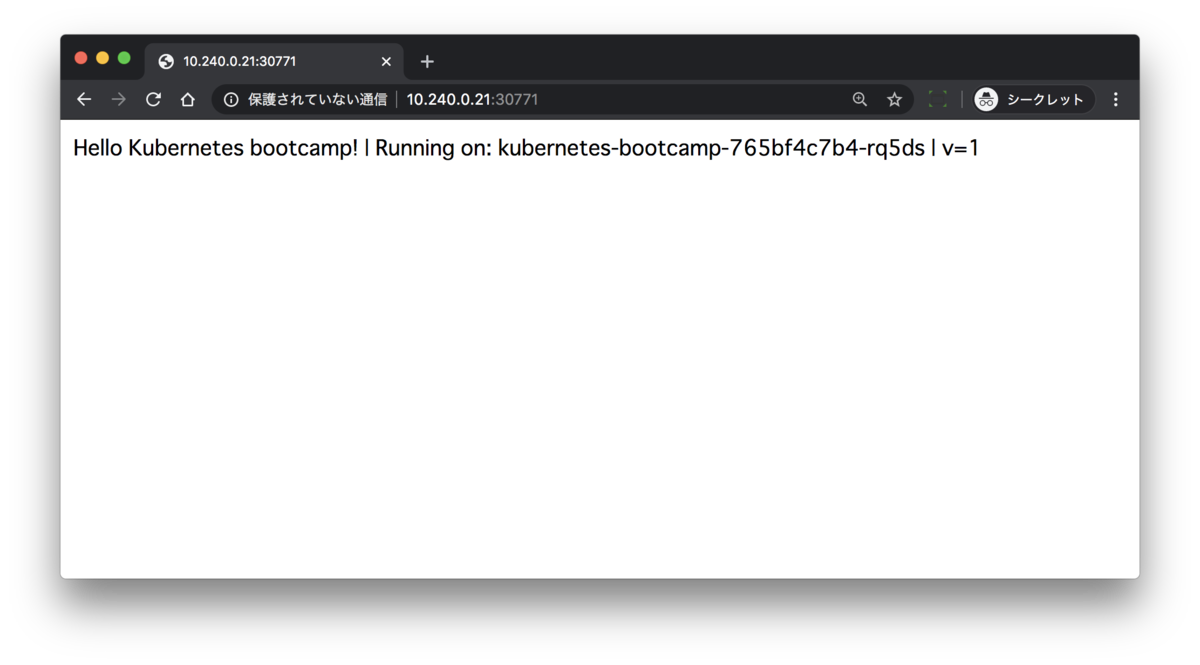
表示されていますね。workerノードのIPアドレスを変更しても表示されますので、内部的にロードバランシングされているということですね。
次にスケールアウトさせてみます。
$ kubectl get deployments
NAME                  READY   UP-TO-DATE   AVAILABLE   AGE
kubernetes-bootcamp   1/1     1            1           21m
$ kubectl get rs
NAME                             DESIRED   CURRENT   READY   AGE
kubernetes-bootcamp-765bf4c7b4   1         1         1       21m
今はpodが1台だけ起動させるようになっています。これを4台に増やしてみます。
$ kubectl scale deployments/kubernetes-bootcamp --replicas=4
deployment.apps/kubernetes-bootcamp scaled
$  kubectl get deployments
NAME                  READY   UP-TO-DATE   AVAILABLE   AGE
kubernetes-bootcamp   2/4     4            2           23m
起動対象が4台になり現在2台になってます。残りの2台は起動中ですね。ちょっとまってから、podの状態を確認してみます。
$ kubectl get pods -o wide
NAME                                   READY   STATUS    RESTARTS   AGE   IP                NODE       NOMINATED NODE   READINESS GATES
kubernetes-bootcamp-765bf4c7b4-2z8sg   1/1     Running   0          76s   192.168.226.65    worker-1   <none>           <none>
kubernetes-bootcamp-765bf4c7b4-k6nc7   1/1     Running   0          76s   192.168.43.1      worker-0   <none>           <none>
kubernetes-bootcamp-765bf4c7b4-rq5ds   1/1     Running   0          25m   192.168.133.193   worker-2   <none>           <none>
kubernetes-bootcamp-765bf4c7b4-w8q6d   1/1     Running   0          76s   192.168.133.194   worker-2   <none>           <none>
はい、4台起動していて、それぞれのworkerにうまく分散されているのがわかるでしょうか。ブラウザで開いてみても違うpodにアクセスしてるのがわかるかと思います。
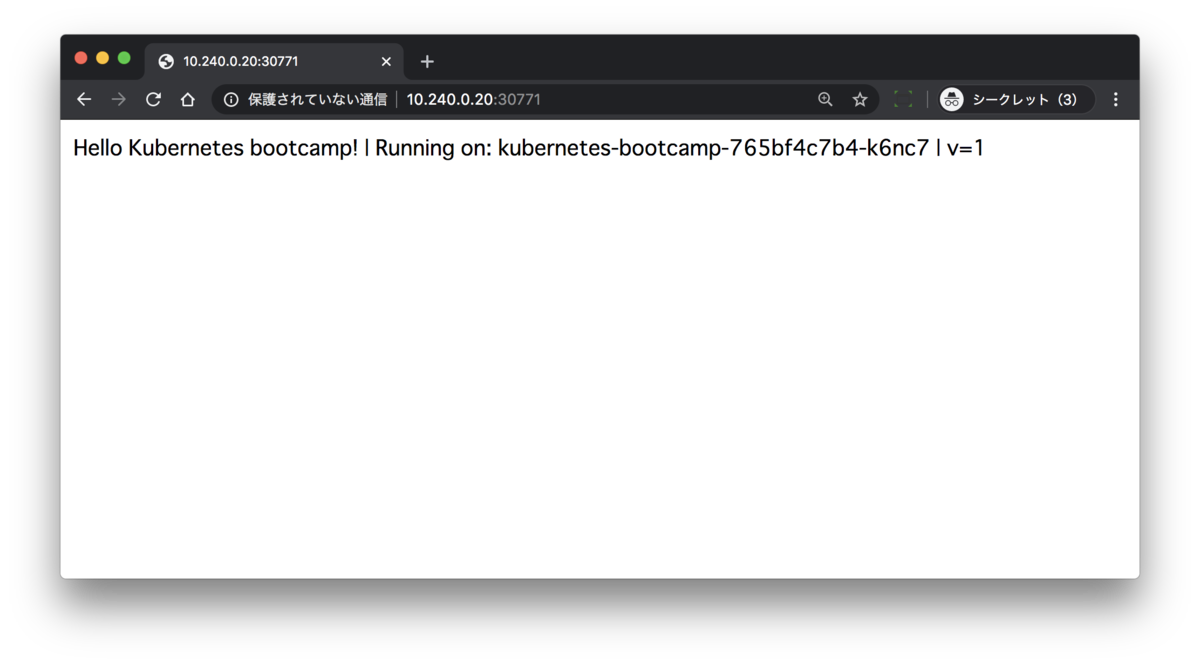
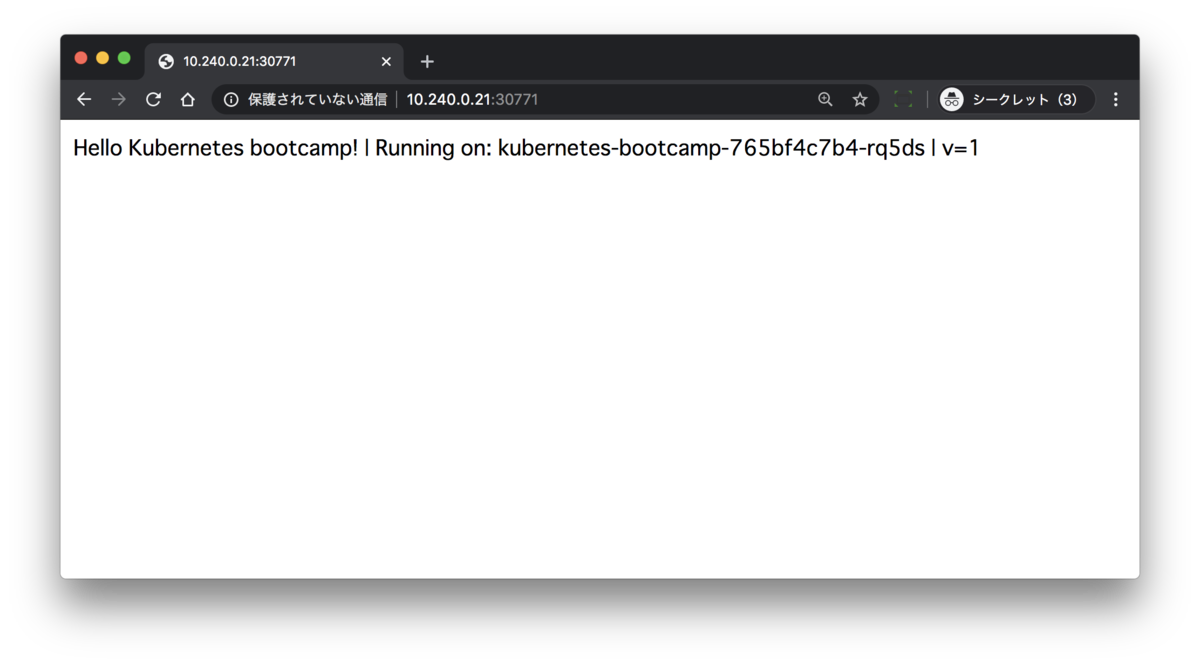
最後にpodを1台停止してみましょう。
$ kubectl get pod
NAME                                   READY   STATUS    RESTARTS   AGE
kubernetes-bootcamp-765bf4c7b4-2z8sg   1/1     Running   0          8m52s
kubernetes-bootcamp-765bf4c7b4-k6nc7   1/1     Running   0          8m52s
kubernetes-bootcamp-765bf4c7b4-rq5ds   1/1     Running   0          32m
kubernetes-bootcamp-765bf4c7b4-w8q6d   1/1     Running   0          8m52s
$ kubectl delete pod kubernetes-bootcamp-765bf4c7b4-rq5ds
pod "kubernetes-bootcamp-765bf4c7b4-rq5ds" deleted
もう一度podの状態を確認してみます。
$ kubectl get pod
NAME                                   READY   STATUS    RESTARTS   AGE
kubernetes-bootcamp-765bf4c7b4-2z8sg   1/1     Running   0          10m
kubernetes-bootcamp-765bf4c7b4-jxjcl   1/1     Running   0          37s
kubernetes-bootcamp-765bf4c7b4-k6nc7   1/1     Running   0          10m
kubernetes-bootcamp-765bf4c7b4-w8q6d   1/1     Running   0          10m
また4台になっていますね。先程スケールアップした際に4台起動するのが理想という設定にしたので、1台が死んでもちゃんと4台になるようにまた起動するんですね、これは便利ですね。スクリーンショットは割愛しますが、停止したpodにアクセスしていたブラウザはリロードするとちゃんと別のpodが表示されていました。
ということで、kubeadmを使ったkubernetesクラスタ構築でした。hard wayに比べるとやっぱり楽ですね。もう少し自動化できるようにVagrantのプロビジョニングも修正していきます。
kubernetesのクラスタができたので次回以降では色々試してみたいと思います。
