この記事はTFS Advent Calendarの12/24分です*1。
前回の担当日ではTFS Best Practices Analyzerを紹介しました。今日は同じくTFS Power Toolsに含まれるPowerShellコマンドレットを紹介します。おそらくクライアントで使うことが多いと思いますので、クライアントにインストールします。
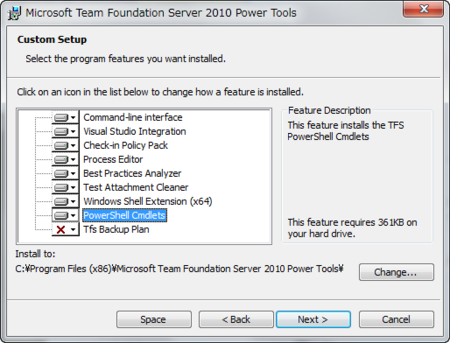
注意点として、現時点のPowerToolsではPowerShellコマンドレットはデフォルトではインストールされないようです。明示的にインストール許可を設定します。
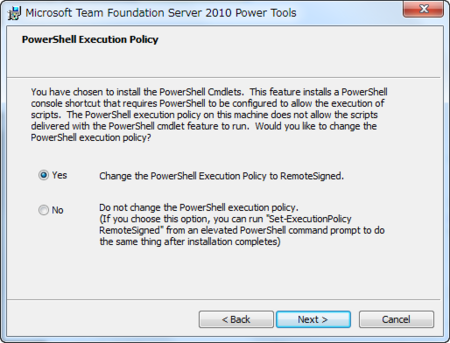
PowerShellのデフォルト状態は「電子署名されているスクリプト以外実行しない」です。TFS Power Toolsに含まれるコマンドレットは署名されていないようなので、このダイアログでYesを選択しないと使用することができません。現実問題、ほとんどの人は署名していないでしょうから、すでにやってる人ならこのダイアログはおそらく表示されないでしょう。
ちなみに「管理者として実行」したPowerShellから以下のコマンドレットを実行する必要があります。64bit OSを使用している場合、32bit版のPowerShellと64bit版のPowerShellの二つそれぞれで実行する必要があります。
PS>Set-ExecutionPolicy RemoteSigned
はっきり言って面倒な作業なので、可能であればActive Directoryのグループポリシーで一括設定したいところですね。Windows Server 2008 R2付属のサーバー管理系のコマンドレットもこれやっておかないと動かないし…。
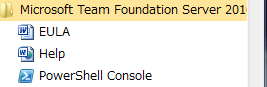
それはともかく、インストールするとメニューにPowerShell Consoleが追加されています。
起動しますと普通のコンソール。どんなコマンドレットが追加されているかは以下のコマンドレットを実行してください。
PS>get-command | Select-String -pattern "tfs"
Add-TfsPendingChange
Get-TfsChangeset
Get-TfsChildItem
Get-TfsItemHistory
Get-TfsItemProperty
Get-TfsPendingChange
Get-TfsServer
Get-TfsShelveset
Get-TfsWorkspace
New-TfsChangeset
New-TfsShelveset
Remove-TfsPendingChange
Remove-TfsShelveset
Restore-TfsShelveset
Select-TfsItem
Set-TfsChangeset
tfselect
tfserver
tfshelve
tfshelvesets
tfstatus
Update-TfsWorkspace
各コマンドレットがどんなものかは名前からなんとなくわかるかと思います。PowerShellのコマンドレットは「動詞-名詞」という規則で作ることを推奨されているので、Get-TfsWorkSpaceであれば、TFSのワークスペース取得であるだろうと想像できます。このルールにのっとっていない、たとえばtfsselectはGet-TfsServerのalias(別名)です。コマンドレットには基本的にヘルプがついているので、わからなければ「help コマンドレット名 -detailed」でヘルプが表示されます。
ヘルプの日本語化はされていませんが、PowerShellではパラメーターが割と共通なので、ほかの日本語化されているPowerShell標準のコマンドレットのヘルプを見れば参考になります。たとえばGet-TfsWorkSpaceであればこうなります…英語のヘルプもあまりないですね(^^;。
PS>Help get-tfsworkspace -detailed

名前
    Get-TfsWorkspace

概要

構文
    Get-TfsWorkspace [-Path] <String> [<CommonParameters>]

    Get-TfsWorkspace -Server <TeamFoundationServer> [-Computer <String>] [-Name
     <String>] [-Owner <String>] [<CommonParameters>]

説明


パラメーター
    -Path <String>
        The local path

    -Server <TeamFoundationServer>
        TeamFoundationServer object or server name.

    -Computer <String>
        The name of the host computer.

    -Name <String>
        The name of the workspace.

    -Owner <String>
        The username of the owner. Use * for all users. If not provided, the current user is used by default. User is an alias for this parameter.

    <CommonParameters>
        このコマンドレットは、次の共通パラメーターをサポートします: Verbose、
        Debug、ErrorAction、ErrorVariable、WarningAction、WarningVariable、
        OutBuffer、および OutVariable。詳細については、
「get-help about_commonparameters」と入力してヘルプを参照してください。説明とか概要とかあまりないですね。とりあえず実験してみましょう。ワークスペースを取得するGet-TfsWorkspaceを実行します。
PS>get-tfsworkspace -path ワークスペースのパス
Name                       Computer                   OwnerName
----                       --------                   ---------
AUGE                       AUGE                       アカウント名
こんな感じで出てきます。同様にGet-TfsChildItemを実行してみましょう。まず、カレントフォルダをワークスペースに移動します。
PS>cd 対象ワークスペース
PS>get-tfschilditem -folders -item *.* -recurse
- foldersはフォルダ表示のみ。-itemはすべてのアイテム、-recurseは再帰的に取得です。実行結果はこうなります。
Changes CheckinDat Content ServerItem
   etId          e  Length
------- ---------- ------- ----------
      5 2010/06/20   <DIR> $/原稿/AtmarkIT
      3 2010/06/20   <DIR> $/原稿/BuildProcessTemplates
     32 2010/12/19   <DIR> $/原稿/MyProject
     19 2010/10/30   <DIR> $/原稿/MyTools
     13 2010/07/25   <DIR> $/原稿/評価
      5 2010/06/20   <DIR> $/原稿/AtmarkIT/VisualStudioDebugging
     41 2011/03/06   <DIR> $/原稿/AtmarkIT/VisualStudioPerfomance
      5 2010/06/20   <DIR> $/原稿/AtmarkIT/VisualStudioDebugging/2nd
     14 2010/08/06   <DIR> $/原稿/AtmarkIT/VisualStudioDebugging/3rd
      6 2010/06/30   <DIR> $/原稿/AtmarkIT/VisualStudio.../2nd/IntellitraceS...
     10 2010/07/04   <DIR> $/原稿/AtmarkIT/VisualStudio...ing/2nd/WcfAzureSa...
      6 2010/06/30   <DIR> $/原稿/AtmarkIT/VisualStudio...ellitraceSample/sa...
      9 2010/07/03   <DIR> $/原稿/AtmarkIT/VisualStudio...ellitraceSample/Sa...
      9 2010/07/03   <DIR> $/原稿/AtmarkIT/VisualStudio...aceSample/SampleAd...
      6 2010/06/30   <DIR> $/原稿/AtmarkIT/VisualStudio...mple/sample1/Prope...
(略)
もちろん-foldersオプションを外せばファイル名も取得します。tfコマンドよりも操作と出力結果はわかりやすいと思います。パイプラインでうまくやれば特定の日付でチェックインしたファイルの一覧なんてものも簡単に表示することができます。たとえば、以下のようなコマンドを実行すれば、2010/8/1から2010/8/31までにチェックインしたファイルの一覧が簡単に表示できます。
PS> Get-TfsChildItem -item *.* -recurse | Where-Object {$_.checkindate -gt "2010/8/1" -and $_.checkindate -lt "2010/8/31"}ただ、これはサーバー上のファイル表記になっているので、すぐにローカルをとってもうまくいきません。取得したい場合は明示的にDownloadFileメソッドを呼び出す必要があるでしょう。Get-TfsChildItemで取得したオブジェクトにはこんなメンバがあります。PowerShellでオブジェクトにどんなメンバ変数やメソッドが含まれているかはGet-Memberコマンドレットで調べることができます。
たとえば、先ほどのGet-TfsChildItemの実行結果はこうなります。
PS>$tfsChildItem = Get-TfsChildItem (略)...
PS>$tfsChildItem | Get-Member

   TypeName: Microsoft.TeamFoundation.VersionControl.Client.Item

Name                         MemberType Definition
----                         ---------- ----------
DownloadFile                 Method     System.IO.Stream DownloadFile(), Sys...
Equals                       Method     bool Equals(System.Object obj)
GetHashCode                  Method     int GetHashCode()
GetType                      Method     type GetType()
ToString                     Method     string ToString()
ArtifactUri                  Property   System.Uri ArtifactUri {get;}
ArtifactUriLatestItemVersion Property   System.Uri ArtifactUriLatestItemVers...
ChangesetId                  Property   System.Int32 ChangesetId {get;}
CheckinDate                  Property   System.DateTime CheckinDate {get;}
ContentLength                Property   System.Int64 ContentLength {get;}
DeletionId                   Property   System.Int32 DeletionId {get;}
Encoding                     Property   System.Int32 Encoding {get;}
HashValue                    Property   System.Byte[] HashValue {get;}
IsBranch                     Property   System.Boolean IsBranch {get;}
IsContentDestroyed           Property   System.Boolean IsContentDestroyed {g...
ItemId                       Property   System.Int32 ItemId {get;}
ItemType                     Property   Microsoft.TeamFoundation.VersionCont...
Properties                   Property   System.Collections.ObjectModel.ReadO...
ServerItem                   Property   System.String ServerItem {get;}
VersionControlServer Property Microsoft.TeamFoundation.VersionCont...私も初めて触った&詳細な解説を見かけないので、さわりだけですが、便利だと思います。今後もう少し活用できればいいですね!今日はTFSよりもPowerShell成分多目でお届けました。
*1:PowerShell成分大目なんでPowerShell Advent Calendarかも…
