Terraformを用いてAWSのインフラ構成・構築を自動化するに当たり入門資料です。この記事では、Amazon Web Services 基礎からのネットワーク&サーバー構築 改訂版で構築する構成図をTerraformで構築していきます。
発表資料
Terraformとは
Terraformとは、HashiCorpが作っているコードからインフラリソースを作成・管理するためのツールです。
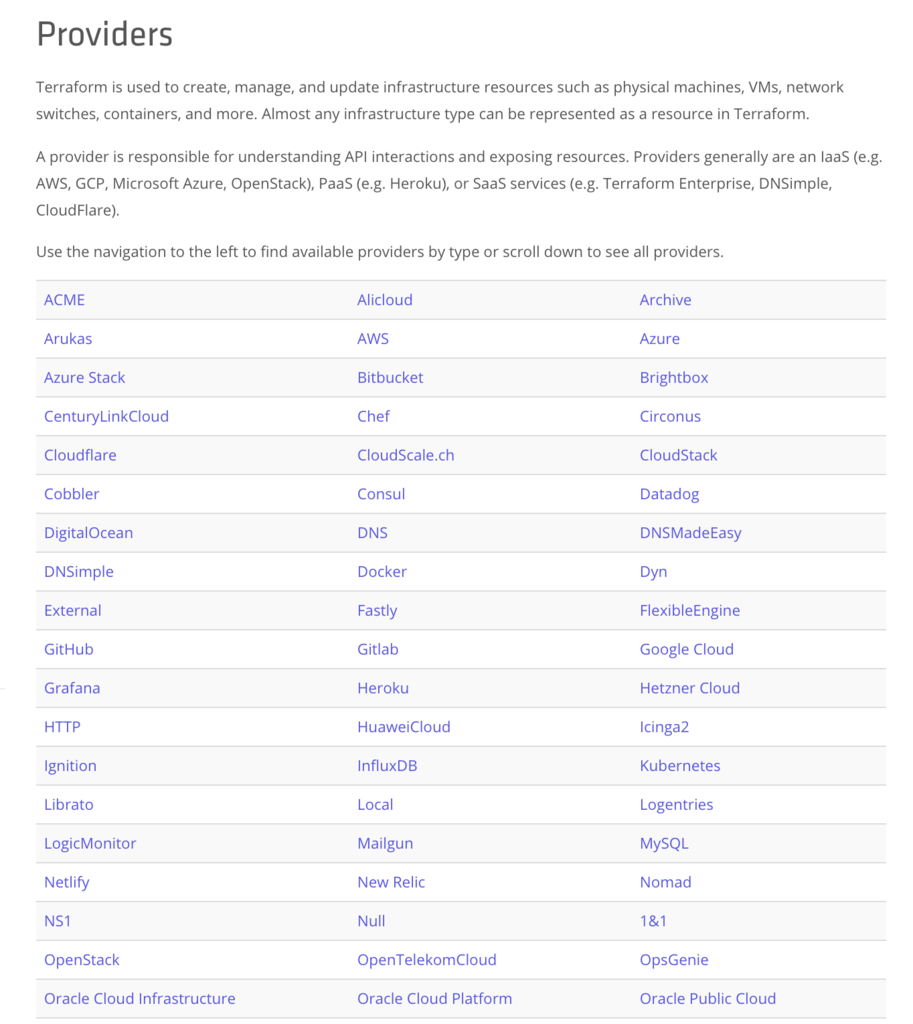
AWS, GCP, Azure, Heroku など多くのSaaSに幅広く対応しています。
今回作成するインフラ構成
Amazon Web Services 基礎からのネットワーク&サーバー構築 改訂版で構築する構成がベースになります。
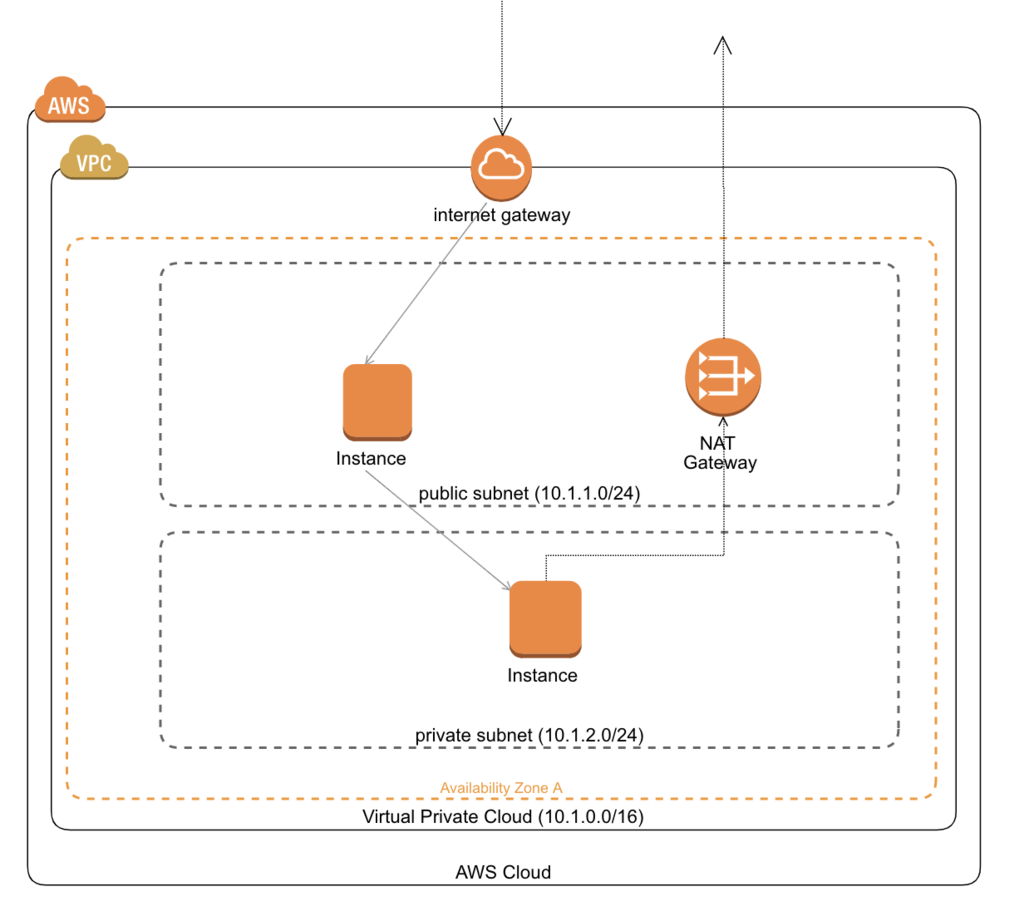
具体的には、次のような構成要素が存在します。
- VPC
- CIDR:
10.1.0.0/16 - Internet gatewayがattachされている
- CIDR:
- public subnet
- CIDR:
10.1.1.0/24 - 外部InternetからのINBOUND接続が可能なsubnet
- CIDR:
- private subnet
- CIDR:
10.1.2.0/24 - 外部InternetからのINBOUND接続が遮断されたsubnet
- OUTBOUND接続は可能とするため、NAT Gatewayに対してRoutingが設定されている
- CIDR:
- EC2 instance: "web"
- subnet: public subnet
- private IP address:
10.1.1.10 - 外部Internetからの接続を受け付けるようなWebサーバーが想定される
- EC2 instance: "db"
- subnet: private subnet
- private IP address:
10.1.2.10 - 外部Internetからの接続を受け付けないDBサーバーが想定される
構築する
今回構築する際のサンプルコードは下記レポジトリにて公開しています。
準備
本資料を進めるに当たり、Terraformがinstallされている必要があるため公式リファレンスにそってインストールしておきましょう。
手順
- Asia/PacificにVPCを作成する
- public subnetを作成する
- Internet Gatewayを作成してpublic subnetのroute tableに設定する
- public subnetにEC2 instanceを作成する
- private subnetを作成しEC2 instanceを作成する
- NAT Gatewayを作成する
1. Asia/PacificにVPCを作成する
本章のコードは、GitHub - Khigashiguchi/terraform-basic-network at 0.1 にて公開しています。
Terraformでは、*.tf拡張子のファイルでインフラ構成について定義していきます。まずは、VPCを作成するところからです。main.tfというファイルを作ります。
provider "aws" {
  access_key = "${var.aws_access_key}"
  secret_key = "${var.aws_secret_key}"
  region = "ap-northeast-1"
}
まず、最初のproviderでは、どのSaaSを利用したインフラ構成について定義していくのかを書きます。ここが、Google Cloudであればgoogleと定義することになります。
Provider: Google Cloud - Terraform by HashiCorp
今回は、AWSを利用するため、awsをproviderに指定し、AWSのAPIに利用に必要なaccess_key・secret_key、そして対象regionを指定します。
ここでは、べた書きすることも可能なのですがgit管理外にアクセスキーを置きたいため、variablesという機能を用います。
別途、variable.tfというファイルを作成して次のように定義します。
variable "aws_access_key" {}
variable "aws_secret_key" {}
上記のを指定することで、main.tf内では"${var.aws_access_key}"といった形で使うことが出来ます。ここでvariableとした場合、実際にインフラ構築時のコマンドインターフェースにて値を入力するなどと行ったgit管理外の場所から注入することが可能になります。
この手順では、VPCを作成したいため先程定義したmain.tfに対して以下追記します。
provider "aws" {
  access_key = "${var.aws_access_key}"
  secret_key = "${var.aws_secret_key}"
  region = "ap-northeast-1"
}

 // +以下追記
resource "aws_vpc" "main" {
  cidr_block = "10.1.0.0/16"

  tags {
    Name = "VPC領域:Terraform"
  }
}
実際に実行してみましょう。まず、terraform initというコマンドによって初期化します。
$ terraform init
その後、terraform applyというコマンドによって記述したインフラ構成を実際に構築することが出来ます。
$ terraform apply

var.aws_access_key / var.aws_secret_key

An execution plan has been generated and is shown below.
Resource actions are indicated with the following symbols:
  + create

Terraform will perform the following actions:

  + aws_vpc.main
      id:                               <computed>
      arn:                              <computed>
      assign_generated_ipv6_cidr_block: "false"
      cidr_block:                       "10.1.0.0/16"
      default_network_acl_id:           <computed>
      default_route_table_id:           <computed>
      default_security_group_id:        <computed>
      dhcp_options_id:                  <computed>
      enable_classiclink:               <computed>
      enable_classiclink_dns_support:   <computed>
      enable_dns_hostnames:             <computed>
      enable_dns_support:               "true"
      instance_tenancy:                 "default"
      ipv6_association_id:              <computed>
      ipv6_cidr_block:                  <computed>
      main_route_table_id:              <computed>
      tags.%:                           "1"
      tags.Name:                        "VPC領域:Terraform"


Plan: 1 to add, 0 to change, 0 to destroy.

Do you want to perform these actions?
  Terraform will perform the actions described above.
  Only 'yes' will be accepted to approve.

  Enter a value:
コマンドを実行した後、Enter a valueと聞かれて一度止まるので、ここでyesと入力することで実際に動作します。
コマンド実行終了後、現状どうなっているかを確認するためには、terraform showというコマンドを実行することで確認することが出来ます。
$ terraform show
ここでは、確認できたので一度作成したVPCを削除してみます。削除するには、terraform destroyと実行することで構築したものを削除することが出来ます。
$ terraform destroy
次に、作成したVPC内でsubnetを切っていきます。
手順1の関連資料
- Terraform公式リファレンス:Configuration: Data Source Configuration
- Terraform公式リファレンス:Configuration: Resource Configuration
- Terraform公式リファレンス:Resource: AWS Provider
- Terraform公式リファレンス:Resource: aws_vpc
2. public subnetを作成する
本章のコードは、GitHub - Khigashiguchi/terraform-basic-network at 0.2 にて公開しています。
作成したVPC内にsubnetを切ります。手順1で作成したmain.tfに次の記述を追加することでsubnetを作成することが出来ます。
provider "aws" {
  access_key = "${var.aws_access_key}"
  secret_key = "${var.aws_secret_key}"
  region = "ap-northeast-1"
}

resource "aws_vpc" "main" {
  cidr_block = "10.1.0.0/16"

  tags {
    Name = "VPC領域:Terraform"
  }
}

// + 以下追記
resource "aws_subnet" "web" {
  vpc_id = "${aws_vpc.main.id}"
  cidr_block = "10.1.1.0/24"

  tags {
    Name = "Public Subnet by Terraform"
  }
}
ここでは、CIDRが10.1.1.0/24であるsubnetをVPC内に作成しています。次に作成したsubnetに対してroute tableを作成していきます。
手順2の関連資料
3. Internet Gatewayを作成してpublic subnetのroute tableに設定する
本章のコードは、GitHub - Khigashiguchi/terraform-basic-network at 0.3 にて公開しています。
手順2で作成したsubnetのroute table・外部internetからの接続を受け付けるためのinternet gatewayを作成します。main.tfに次のように追記します。
provider "aws" {
  access_key = "${var.aws_access_key}"
  secret_key = "${var.aws_secret_key}"
  region = "ap-northeast-1"
}

resource "aws_vpc" "main" {
  cidr_block = "10.1.0.0/16"

  tags {
    Name = "VPC領域:Terraform"
  }
}

// + 追記
resource "aws_internet_gateway" "gw" {
  vpc_id = "${aws_vpc.main.id}"

  tags {
    Name = "Internet Gateway by Terraform"
  }
}

// + 追記
resource "aws_route_table" "r" {
  vpc_id = "${aws_vpc.main.id}"

  route {
    cidr_block = "0.0.0.0/0"
    gateway_id = "${aws_internet_gateway.gw.id}"
  }

  tags{
    Name = "Public route table by Terraform"
  }
}

resource "aws_subnet" "public" {
  vpc_id = "${aws_vpc.main.id}"
  cidr_block = "10.1.1.0/24"

  tags {
    Name = "Public Subnet by Terraform"
  }
}

// + 追記
resource "aws_route_table_association" "a" {
  subnet_id = "${aws_subnet.public.id}"
  route_table_id = "${aws_route_table.r.id}"
}
ここでは、3つの要素が追記されています。
まず、AWS Internet GatewayをVPC内に作成しています。そして、作成したInternet Gatewayに接続を流すroute tableを作成しています。最後に、public subnetとroute tableを関連付けています。
これにより、"public subnet"は外部Internetからの接続を受け付けられるようになりました。
手順3の関連資料
- Terraform公式リファレンス:Resource: aws_internet_gateway
- Terraform公式リファレンス:Resource: aws_route_table
- Terraform公式リファレンス:Resource: aws_route_table_association
4. public subnetにEC2 instanceを作成する
本章のコードは、GitHub - Khigashiguchi/terraform-basic-network at 0.4 にて公開しています。
手順3までで作成したsubnet内にEC2 instanceを作ります。main.tfに追記します。
provider "aws" {
  access_key = "${var.aws_access_key}"
  secret_key = "${var.aws_secret_key}"
  region = "ap-northeast-1"
}

resource "aws_vpc" "main" {
  cidr_block = "10.1.0.0/16"
  enable_dns_support = true // +追記
  enable_dns_hostnames = true // +追記

  tags {
    Name = "VPC領域:Terraform"
  }
}

resource "aws_internet_gateway" "gw" {
  vpc_id = "${aws_vpc.main.id}"

  tags {
    Name = "Internet Gateway by Terraform"
  }
}

resource "aws_route_table" "r" {
  vpc_id = "${aws_vpc.main.id}"

  route {
    cidr_block = "0.0.0.0/0"
    gateway_id = "${aws_internet_gateway.gw.id}"
  }

  tags{
    Name = "Public route table by Terraform"
  }
}

resource "aws_subnet" "public" {
  vpc_id = "${aws_vpc.main.id}"
  cidr_block = "10.1.1.0/24"

  tags {
    Name = "Public Subnet by Terraform"
  }
}

resource "aws_route_table_association" "a" {
  subnet_id = "${aws_subnet.public.id}"
  route_table_id = "${aws_route_table.r.id}"
}

// + 追記
resource "aws_security_group" "wsg" {
  name = "web-sg"
  description = "web-sg security group created by terraform"
  vpc_id = "${aws_vpc.main.id}"

  ingress{
    from_port = 22
    to_port = 22
    protocol = "tcp"
    cidr_blocks = ["0.0.0.0/0"]
  }

  ingress{
    from_port = 80
    to_port = 80
    protocol = "tcp"
    cidr_blocks = ["0.0.0.0/0"]
  }

  tags{
    Name = "web-sg"
  }
}

// + 追記
resource "aws_key_pair" "auth" {
  key_name = "${var.key_name}"
  public_key = "${file(var.public_key_path)}"
}

// + 追記
resource "aws_instance" "web" {
  ami = "ami-08847abae18baa040" // Amazon Linux 2 AMI (HVM), SSD Volume Type
  instance_type = "t2.micro"
  subnet_id = "${aws_subnet.public.id}"
  private_ip = "10.1.1.10"
  associate_public_ip_address = true
  security_groups = [
    "${aws_security_group.wsg.id}"
  ]
  key_name = "${aws_key_pair.auth.id}"

  tags {
    Name = "Web Server by Terraform"
  }
}
ここでは、3つの要素を追加しています。
まずは、Instanceに設定するSecurity Groupです。web-sgという名前で作っています。このセキュリティグループは、22・80ポートを全IPから受け付けるという設定になります。
次に、aws_key_pairという公開鍵認証でSSH接続する際の鍵です。ここでは次の実施する内容にてローカルで生成した公開鍵をkey pairに指定するという作業を進めます。
最後に、EC2 instanceを作成しています。大まかに下記のような内容のInstanceを作成します。
- 無料枠で使用できるAMI(Amazon Linux 2 AMI (HVM), SSD Volume Type_
- インタンスタイプ:t2.micro
- subnet:上で作成したpublic subnet
そして、SSH接続するためのキーを作成・設定します。まず、すでに定義したmain.tfの記述内容に合わせてvariables.tfに下記を追加します。
variable "aws_access_key" {}
variable "aws_secret_key" {}
// +追記
variable "key_name" {
  description = "the name of aws key pair"
}
// +追記
variable "public_key_path" {
  description = "path to the ssh public key"
}
そして、これまでvariableの指定をコマンドインターフェースからやっていましたが、同一ディレクトリにtfvarsという拡張子のファイルを置くことによって、ファイルに指定することが出来ます。
実際に、terraform.tfvarsというファイルを作成して下記のように定義します。
aws_access_key = "YOUR-ACCESS-KEY"
aws_secret_key = "YOUR-SECRET-KEY"

key_name = "terraform-basic-key"
public_key_path = "~/.ssh/terraform-basic-key.pub"
今まで、コマンドインターフェースで入力していた内容もこのように書くことにってファイルからの入力が可能になります。(このファイルはシークレット情報が含まれるためgit管理外に置くことが推奨されます。)
最後に、terraform-basic-keyという名前でsshキーを作成して~/.ssh以下に設置しておきましょう。
上記により、EC2 Instanceの生成が可能になりました。
手順4の関連資料
- Terraform公式リファレンス:Resource: aws_instance
- Terraform公式リファレンス:Resource: aws_security_group
- Hashicorp/terraform:issues#2164 How to give a single security group for an aws instance ?
- Terraform でキーペア登録し起動した EC2 に SSH接続
5. private subnetを作成しEC2 instanceを作成する
本章のコードは、GitHub - Khigashiguchi/terraform-basic-network at 0.6 にて公開しています。
さらに、外部Internetからの接続を受け付けないprivate subnetを作成してその中にinstanceを作ります。main.tfに追記していきます。
provider "aws" {
  access_key = "${var.aws_access_key}"
  secret_key = "${var.aws_secret_key}"
  region = "ap-northeast-1"
}

resource "aws_vpc" "main" {
  cidr_block = "10.1.0.0/16"
  enable_dns_support = true
  enable_dns_hostnames = true

  tags {
    Name = "VPC領域:Terraform"
  }
}

resource "aws_internet_gateway" "gw" {
  vpc_id = "${aws_vpc.main.id}"

  tags {
    Name = "Internet Gateway by Terraform"
  }
}

resource "aws_route_table" "r" {
  vpc_id = "${aws_vpc.main.id}"

  route {
    cidr_block = "0.0.0.0/0"
    gateway_id = "${aws_internet_gateway.gw.id}"
  }

  tags{
    Name = "Public route table by Terraform"
  }
}

resource "aws_subnet" "public" {
  vpc_id = "${aws_vpc.main.id}"
  cidr_block = "10.1.1.0/24"
  availability_zone = "ap-northeast-1d"

  tags {
    Name = "Public Subnet by Terraform"
  }
}

 // +追記
 // private subnetの作成、internet gatewayとの接続のないdefault route tableをそのまま使うことで外部Internetから遮断されている状態にする
resource "aws_subnet" "private" {
  vpc_id = "${aws_vpc.main.id}"
  cidr_block = "10.1.2.0/24"
  availability_zone = "ap-northeast-1d"

  tags {
    Name = "Private Subnet by Terraform"
  }
}

resource "aws_route_table_association" "a" {
  subnet_id = "${aws_subnet.public.id}"
  route_table_id = "${aws_route_table.r.id}"
}

resource "aws_security_group" "wsg" {
  name = "web-sg"
  description = "web-sg security group created by terraform"
  vpc_id = "${aws_vpc.main.id}"

  ingress{
    from_port = 22
    to_port = 22
    protocol = "tcp"
    cidr_blocks = ["0.0.0.0/0"]
  }

  ingress{
    from_port = 80
    to_port = 80
    protocol = "tcp"
    cidr_blocks = ["0.0.0.0/0"]
  }

  // +追記
  // pingでの疎通確認ができるように設定
  ingress{
    from_port = -1
    to_port = -1
    protocol = "icmp"
    cidr_blocks = ["0.0.0.0/0"]
  }

  tags{
    Name = "web-sg"
  }
}

 // +追記
 // 22番・3306番ポート・ICMPプロトコル通信を許可する設定(DBサーバを想定しているため)
resource "aws_security_group" "dsg" {
  name = "db-sg"
  description = "db-sg security group created by Terraform"
  vpc_id = "${aws_vpc.main.id}"

  ingress{
    from_port = 22
    to_port = 22
    protocol = "tcp"
    cidr_blocks = ["0.0.0.0/0"]
  }

  ingress{
    from_port = 3306
    to_port = 3306
    protocol = "tcp"
    cidr_blocks = ["0.0.0.0/0"]
  }

  ingress{
    from_port = -1
    to_port = -1
    protocol = "icmp"
    cidr_blocks = ["0.0.0.0/0"]
  }
}

resource "aws_key_pair" "auth" {
  key_name = "${var.key_name}"
  public_key = "${file(var.public_key_path)}"
}

resource "aws_instance" "web" {
  ami = "ami-08847abae18baa040" // Amazon Linux 2 AMI (HVM), SSD Volume Type
  instance_type = "t2.micro"
  subnet_id = "${aws_subnet.public.id}"
  private_ip = "10.1.1.10"
  associate_public_ip_address = true
  security_groups = [
    "${aws_security_group.wsg.id}"
  ]
  key_name = "${aws_key_pair.auth.id}"

  tags {
    Name = "Web Server by Terraform"
  }
}

// +追記
// private subnet内にinstanceを作成
resource "aws_instance" "db" {
  ami = "ami-08847abae18baa040" // Amazon Linux 2 AMI (HVM), SSD Volume Type
  instance_type = "t2.micro"
  subnet_id = "${aws_subnet.private.id}"
  associate_public_ip_address = false
  private_ip = "10.1.2.10"
  security_groups = [
    "${aws_security_group.dsg.id}"
  ]
  key_name = "${aws_key_pair.auth.id}"

  tags {
    Name = "DB Server by Terraform"
  }
}
行数が増えてきたので、main.tfのコメントにて詳細について記載しています。
6. NAT Gatewayを作成する
本章のコードは、GitHub - Khigashiguchi/terraform-basic-network at 0.7 にて公開しています。
private subnet内のInstanceから外部に対してのOUTBOUND通信ができるようにNAT Gatewayを設定します。main.tfに下記のように追記します。
provider "aws" {
  access_key = "${var.aws_access_key}"
  secret_key = "${var.aws_secret_key}"
  region = "ap-northeast-1"
}

resource "aws_vpc" "main" {
  cidr_block = "10.1.0.0/16"
  enable_dns_support = true
  enable_dns_hostnames = true

  tags {
    Name = "VPC領域:Terraform"
  }
}

resource "aws_internet_gateway" "gw" {
  vpc_id = "${aws_vpc.main.id}"

  tags {
    Name = "Internet Gateway by Terraform"
  }
}

resource "aws_route_table" "public" { // - 修正 from "a" -> "public"
  vpc_id = "${aws_vpc.main.id}"

  route {
    cidr_block = "0.0.0.0/0"
    gateway_id = "${aws_internet_gateway.gw.id}"
  }

  tags{
    Name = "Public route table by Terraform"
  }
}

// + 追記
// private subnetのroute tableを作成、以降で定義するNAT Gatewayを指定。
resource "aws_route_table" "private" {
  vpc_id = "${aws_vpc.main.id}"

  route {
    cidr_block = "0.0.0.0/0"
    nat_gateway_id = "${aws_nat_gateway.default.id}"
  }

  tags{
    Name = "Private route table by Terraform"
  }
}

resource "aws_subnet" "public" {
  vpc_id = "${aws_vpc.main.id}"
  cidr_block = "10.1.1.0/24"
  availability_zone = "ap-northeast-1d"

  tags {
    Name = "Public Subnet by Terraform"
  }
}

resource "aws_subnet" "private" {
  vpc_id = "${aws_vpc.main.id}"
  cidr_block = "10.1.2.0/24"
  availability_zone = "ap-northeast-1d"

  tags {
    Name = "Private Subnet by Terraform"
  }
}

// + 追記
// NAT Gateway用のEIPを作っておく
resource "aws_eip" "nat" {
  vpc = true
}

// + 追記
// NAT Gatewayを作成
resource "aws_nat_gateway" "default" {
  allocation_id = "${aws_eip.nat.id}"
  subnet_id = "${aws_subnet.public.id}"

  tags{
    Name = "default Gateway by Terraform"
  }
}

resource "aws_route_table_association" "public" { // - 修正 from "a" -> "public"
  subnet_id = "${aws_subnet.public.id}"
  route_table_id = "${aws_route_table.public.id}"
}

// + 追記
// private subnetと追加作成したroute tableを関連付ける
resource "aws_route_table_association" "private" {
  subnet_id = "${aws_subnet.private.id}"
  route_table_id = "${aws_route_table.private.id}"
}

resource "aws_security_group" "wsg" {
  name = "web-sg"
  description = "web-sg security group created by terraform"
  vpc_id = "${aws_vpc.main.id}"

  ingress{
    from_port = 22
    to_port = 22
    protocol = "tcp"
    cidr_blocks = ["0.0.0.0/0"]
  }

  ingress{
    from_port = 80
    to_port = 80
    protocol = "tcp"
    cidr_blocks = ["0.0.0.0/0"]
  }

  ingress{
    from_port = -1
    to_port = -1
    protocol = "icmp"
    cidr_blocks = ["0.0.0.0/0"]
  }

  tags{
    Name = "web-sg"
  }
}

resource "aws_security_group" "dsg" {
  name = "db-sg"
  description = "db-sg security group created by Terraform"
  vpc_id = "${aws_vpc.main.id}"

  ingress{
    from_port = 22
    to_port = 22
    protocol = "tcp"
    cidr_blocks = ["0.0.0.0/0"]
  }

  ingress{
    from_port = 3306
    to_port = 3306
    protocol = "tcp"
    cidr_blocks = ["0.0.0.0/0"]
  }

  ingress{
    from_port = -1
    to_port = -1
    protocol = "icmp"
    cidr_blocks = ["0.0.0.0/0"]
  }
}

resource "aws_key_pair" "auth" {
  key_name = "${var.key_name}"
  public_key = "${file(var.public_key_path)}"
}

resource "aws_instance" "web" {
  ami = "ami-08847abae18baa040" // Amazon Linux 2 AMI (HVM), SSD Volume Type
  instance_type = "t2.micro"
  subnet_id = "${aws_subnet.public.id}"
  private_ip = "10.1.1.10"
  associate_public_ip_address = true
  security_groups = [
    "${aws_security_group.wsg.id}"
  ]
  key_name = "${aws_key_pair.auth.id}"

  tags {
    Name = "Web Server by Terraform"
  }
}

resource "aws_instance" "db" {
  ami = "ami-08847abae18baa040" // Amazon Linux 2 AMI (HVM), SSD Volume Type
  instance_type = "t2.micro"
  subnet_id = "${aws_subnet.private.id}"
  associate_public_ip_address = false
  private_ip = "10.1.2.10"
  security_groups = [
    "${aws_security_group.dsg.id}"
  ]
  key_name = "${aws_key_pair.auth.id}"

  tags {
    Name = "DB Server by Terraform"
  }
}
手順6の関連資料
上記設定追加により、NAT Gatewayが作成されました。以上にて、目標としていたインフラ構成の実現が完了しました。
まとめ
- Terraformを用いてAWSでのインフラ構築を行いました。インフラ構成をコード化しておくと再度作成する時や不要になった際の削除などが用意になるため、業務インフラ構成や個人でのインフラ構築などにも有用になるかと思います。
