上記記事の続きとなります。
一覧ページでMapTilerのCluster Mapを使う
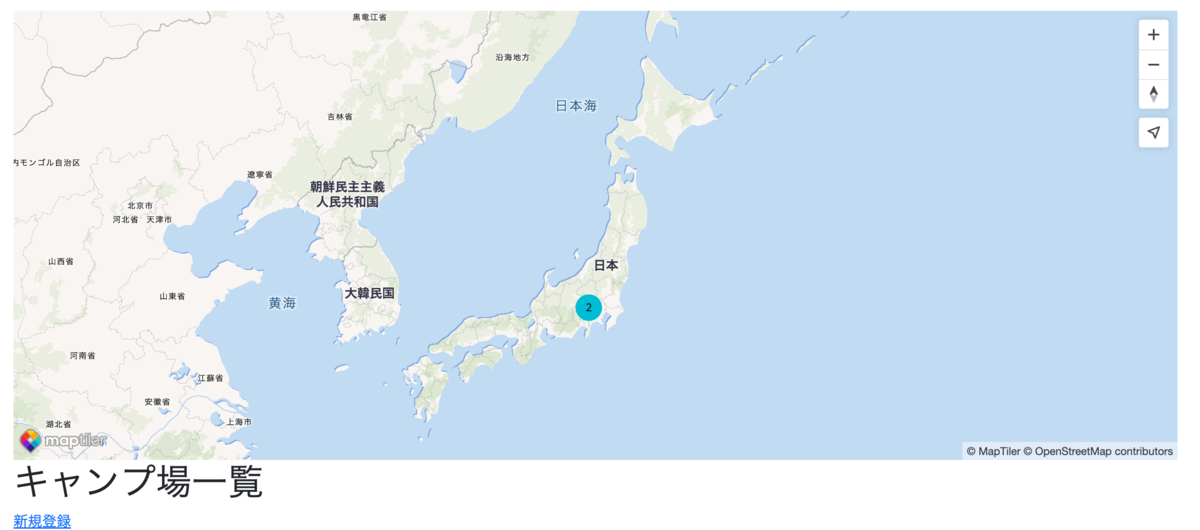
では、キャンプ場一覧画面にてすべてのキャンプ場の位置を地図上に表示する機能を追加しましょう。
参考: MapTiler Documentation - Create and style clusters
いっきに差分を全部知りたい方は以下を参照ください。
フロントエンドの実装
public/javascripts/clusterMap.js の実装
まず、 public/javascripts/clusterMap.js というファイルを新規作成しましょう。中身は以下の内容にしてください。
maptilersdk.config.apiKey = maptilerApiKey;
maptilersdk.config.primaryLanguage = maptilersdk.Language.JAPANESE;

const map = new maptilersdk.Map({
    container: 'cluster-map',
    style: maptilersdk.MapStyle.BRIGHT,
    center: [138, 39],
    zoom: 3,
});

map.on('load', function () {
  console.log('campgrounds', campgrounds)
    map.addSource('campgrounds', {
        type: 'geojson',
        data: campgrounds,
        cluster: true,
        clusterMaxZoom: 14, // Max zoom to cluster points on
        clusterRadius: 50, // Radius of each cluster when clustering points (defaults to 50)
    });

    map.addLayer({
        id: 'clusters',
        type: 'circle',
        source: 'campgrounds',
        filter: ['has', 'point_count'],
        paint: {
            // Use step expressions (https://docs.maptiler.com/gl-style-specification/expressions/#step)
            // with three steps to implement three types of circles:
            'circle-color': [
                'step',
                ['get', 'point_count'],
                '#00BCD4',
                10,
                '#2196F3',
                30,
                '#3F51B5',
            ],
            'circle-radius': [
                'step',
                ['get', 'point_count'],
                15,
                10,
                20,
                30,
                25,
            ],
        },
    });

    map.addLayer({
        id: 'cluster-count',
        type: 'symbol',
        source: 'campgrounds',
        filter: ['has', 'point_count'],
        layout: {
            'text-field': '{point_count_abbreviated}',
            'text-font': ['DIN Offc Pro Medium', 'Arial Unicode MS Bold'],
            'text-size': 12,
        },
    });

    map.addLayer({
        id: 'unclustered-point',
        type: 'circle',
        source: 'campgrounds',
        filter: ['!', ['has', 'point_count']],
        paint: {
            'circle-color': '#11b4da',
            'circle-radius': 4,
            'circle-stroke-width': 1,
            'circle-stroke-color': '#fff',
        },
    });

    // inspect a cluster on click
    map.on('click', 'clusters', async e => {
        const features = map.queryRenderedFeatures(e.point, {
            layers: ['clusters'],
        });
        const clusterId = features[0].properties.cluster_id;
        const zoom = await map
            .getSource('campgrounds')
            .getClusterExpansionZoom(clusterId);
        map.easeTo({
            center: features[0].geometry.coordinates,
            zoom,
        });
    });

    // When a click event occurs on a feature in
    // the unclustered-point layer, open a popup at
    // the location of the feature, with
    // description HTML from its properties.
    map.on('click', 'unclustered-point', function (e) {
      console.log('features', e.features[0].properties)
        const { popupMarkup } = e.features[0].properties;
        const coordinates = e.features[0].geometry.coordinates.slice();

        // Ensure that if the map is zoomed out such that
        // multiple copies of the feature are visible, the
        // popup appears over the copy being pointed to.
        while (Math.abs(e.lngLat.lng - coordinates[0]) > 180) {
            coordinates[0] += e.lngLat.lng > coordinates[0] ? 360 : -360;
        }

        new maptilersdk.Popup()
            .setLngLat(coordinates)
            .setHTML(popupMarkup)
            .addTo(map);
    });

    map.on('mouseenter', 'clusters', () => {
        map.getCanvas().style.cursor = 'pointer';
    });
    map.on('mouseleave', 'clusters', () => {
        map.getCanvas().style.cursor = '';
    });
});
views/campgrounds/index.ejs の実装
次に詳細画面のとき同様に views/campgrounds/index.ejs にて maptilerApiKey やキャンプ場の一覧の情報として campgrounds を準備します。
以下を末尾に追加しましょう。
<script>
const maptilerApiKey = "<%- process.env.MAPTILER_API_KEY %>";
const campgrounds = {
  type: "FeatureCollection",
  features: <%- JSON.stringify(
    campgrounds.map(campground => ({
      type: "Feature",
      geometry: campground.geometry,
      properties: { popupMarkup: campground?.properties?.popupMarkup }
    }))
  ) %>
};
</script>

<script src="/javascripts/clusterMap.js"></script>
前回同様、上記コードに関しても <script> の順番を変えないでください。 maptilerApiKey も campgrounds も /javascripts/clusterMap.js で使うからです。
さらに、地図を表示する場所を確保したいので、 <div id="cluster-map" style="width: 100%; height: 500px"></div> も追加しましょう。 <% layout('layouts/boilerplate') %> 直下に追加してください。
<% layout('layouts/boilerplate') %>
<!-- ↓↓↓ここを追加 -->
<div id="cluster-map" style="width: 100%; height: 500px"></div>
<!-- ↑↑↑ここを追加 -->
<h1>キャンプ場一覧</h1>
<div>
    <a href="/campgrounds/new">新規登録</a>
バックエンドの実装
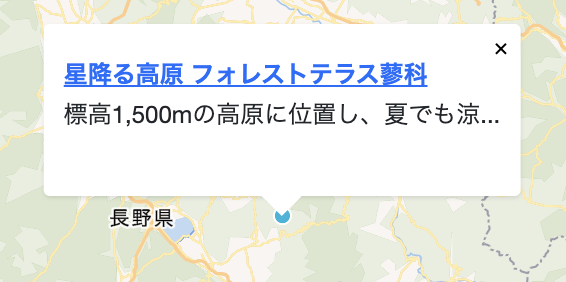
では、地図上の●をクリックしたときに表示するポップアップが出せるようにバックエンドの実装を調整しましょう。
models/campground.js の実装
// ↓↓↓ここを追加
const opts = { toJSON: { virtuals: true } };
// ↑↑↑ここを追加
const campgroundSchema = new Schema({
    title: String,
    images: [imageSchema],

    // 省略

}, opts); // ←ここのoptsを追加

// ↓↓↓ここを追加
campgroundSchema.virtual('properties.popupMarkup').get(function () {
    return `<strong><a href="/campgrounds/${this._id}">${this.title}</a></strong>
    <p>${this.description.substring(0, 20)}...</p>`
});
// ↑↑↑ここを追加
参考: Mongoose Documentation - Virtuals
うまくいけば以下のようにキャンプ場一覧にCluster Mapが表示されます!