これは、なにをしたくて書いたもの?
以前、Caddyについてエントリを書いたことがあります。
この時は0.10の頃だったのですが、今となっては2を越えているので。ちょっと確認しなおしておこうかな、と思いまして。
Caddy
Caddyは、Goで作成されたマルチプラットフォームで動作するWebサーバーです。
Caddy - The Ultimate Server with Automatic HTTPS
GitHub - caddyserver/caddy: Fast, multi-platform web server with automatic HTTPS
特徴は、このあたりにまとまっています。
以下のような用途に利用できるようです。
- Webサーバー
- リバースプロキシ
- ロードバランサー
Caddyfileと呼ばれるファイルで設定ができたり、JSONなどでも可能。HTTP 2のサポートもしていたりと、いろいろなことが
できます。
今回は、さらっと試す感じで使っていきましょう。
ドキュメントとしては、Quick-startsを眺めるのが良いと思います。
Quick-starts — Caddy Documentation
環境
今回の環境は、こちらです。
$ lsb_release -a
No LSB modules are available.
Distributor ID: Ubuntu
Description:    Ubuntu 20.04.2 LTS
Release:    20.04
Codename:   focal


$ uname -srvmpio
Linux 5.4.0-74-generic #83-Ubuntu SMP Sat May 8 02:35:39 UTC 2021 x86_64 x86_64 x86_64 GNU/Linux
Ubuntu Linux 20.04で動かします。
インストール
インストールは、ダウンロードページからプラグインを選んで組み込み&ダウンロードするか、
こちらのインストールページを参照するか、ですね。
今回は、Caddy 2.4.2を使います。
aptでインストールする
まずは、aptでインストールしてみます。
$ sudo apt install -y debian-keyring debian-archive-keyring apt-transport-https
$ curl -1sLf 'https://dl.cloudsmith.io/public/caddy/stable/gpg.key' | sudo apt-key add -
$ curl -1sLf 'https://dl.cloudsmith.io/public/caddy/stable/debian.deb.txt' | sudo tee /etc/apt/sources.list.d/caddy-stable.list
$ sudo apt update
$ sudo apt install caddy
この場合、systemdのサービスとしてインストールされます。
$  sudo systemctl status caddy
● caddy.service - Caddy
     Loaded: loaded (/lib/systemd/system/caddy.service; enabled; vendor preset: enabled)
     Active: active (running) since Mon 2021-06-14 22:51:21 JST; 7s ago
       Docs: https://caddyserver.com/docs/
   Main PID: 1855 (caddy)
      Tasks: 8 (limit: 2278)
     Memory: 7.6M
     CGroup: /system.slice/caddy.service
             └─1855 /usr/bin/caddy run --environ --config /etc/caddy/Caddyfile

 6月 14 22:51:21 ubuntu2004.localdomain caddy[1855]: JOURNAL_STREAM=9:30077
 6月 14 22:51:21 ubuntu2004.localdomain caddy[1855]: {"level":"info","ts":1623678681.6155512,"msg":"using provided configuration","config_file":"/etc/caddy/Caddyfile","config_>
 6月 14 22:51:21 ubuntu2004.localdomain caddy[1855]: {"level":"info","ts":1623678681.6184175,"logger":"admin","msg":"admin endpoint started","address":"tcp/localhost:2019","en>
 6月 14 22:51:21 ubuntu2004.localdomain caddy[1855]: {"level":"info","ts":1623678681.6185267,"logger":"http","msg":"server is listening only on the HTTP port, so no automatic >
 6月 14 22:51:21 ubuntu2004.localdomain caddy[1855]: {"level":"info","ts":1623678681.6189263,"msg":"autosaved config (load with --resume flag)","file":"/var/lib/caddy/.config/>
 6月 14 22:51:21 ubuntu2004.localdomain caddy[1855]: {"level":"info","ts":1623678681.6189659,"msg":"serving initial configuration"}
 6月 14 22:51:21 ubuntu2004.localdomain caddy[1855]: {"level":"info","ts":1623678681.6190395,"logger":"tls.cache.maintenance","msg":"started background certificate maintenance>
 6月 14 22:51:21 ubuntu2004.localdomain caddy[1855]: {"level":"info","ts":1623678681.6190596,"logger":"tls","msg":"cleaning storage unit","description":"FileStorage:/var/lib/c>
 6月 14 22:51:21 ubuntu2004.localdomain caddy[1855]: {"level":"info","ts":1623678681.6190798,"logger":"tls","msg":"finished cleaning storage units"}
 6月 14 22:51:21 ubuntu2004.localdomain systemd[1]: Started Caddy.
設定は、/etc/caddy/Caddyfileで。
/etc/caddy/Caddyfile
# The Caddyfile is an easy way to configure your Caddy web server.
#
# Unless the file starts with a global options block, the first
# uncommented line is always the address of your site.
#
# To use your own domain name (with automatic HTTPS), first make
# sure your domain's A/AAAA DNS records are properly pointed to
# this machine's public IP, then replace ":80" below with your
# domain name.

:80 {
    # Set this path to your site's directory.
    root * /usr/share/caddy

    # Enable the static file server.
    file_server

    # Another common task is to set up a reverse proxy:
    # reverse_proxy localhost:8080

    # Or serve a PHP site through php-fpm:
    # php_fastcgi localhost:9000
}

# Refer to the Caddy docs for more information:
# https://caddyserver.com/docs/caddyfile
起動・停止は、systemdを使うことになります。
# 起動
$ sudo systemctl start caddy


# 停止
$ sudo systemctl stop caddy
バイナリをダウンロードする
バイナリをダウンロードする方法もやってみましょう。
プラグインを使わないのであれば、GitHubのReleasesからダウンロードすればよいでしょう。
$ curl -OL https://github.com/caddyserver/caddy/releases/download/v2.4.2/caddy_2.4.2_linux_amd64.tar.gz
展開。
$ tar xf caddy_2.4.2_linux_amd64.tar.gz
バージョン確認。シングルバイナリですね。
$ ./caddy version
v2.4.2 h1:chB106RlsIaY4mVEyq9OQM5g/9lHYVputo/LAX2ndFg=
今回は、お手軽に使えるこちらを使っていくことにします。
コマンド
Caddyは、コマンドで操作します。コマンドのリストは、こちら。
Command Line — Caddy Documentation
ヘルプを見てもOKです。
$ ./caddy help
Caddy is an extensible server platform.

usage:
  caddy <command> [<args...>]

commands:
  adapt           Adapts a configuration to Caddy's native JSON
  build-info      Prints information about this build
  environ         Prints the environment
  file-server     Spins up a production-ready file server
  fmt             Formats a Caddyfile
  hash-password   Hashes a password and writes base64
  help            Shows help for a Caddy subcommand
  list-modules    Lists the installed Caddy modules
  reload          Changes the config of the running Caddy instance
  reverse-proxy   A quick and production-ready reverse proxy
  run             Starts the Caddy process and blocks indefinitely
  start           Starts the Caddy process in the background and then returns
  stop            Gracefully stops a started Caddy process
  trust           Installs a CA certificate into local trust stores
  untrust         Untrusts a locally-trusted CA certificate
  upgrade         Upgrade Caddy (EXPERIMENTAL)
  validate        Tests whether a configuration file is valid
  version         Prints the version

Use 'caddy help <command>' for more information about a command.

Full documentation is available at:
https://caddyserver.com/docs/command-line
各コマンドごとのオプションは、--helpで確認できます。
$ ./caddy run --help
Usage of run:
  -adapter string
        Name of config adapter to apply
  -config string
        Configuration file
  -envfile string
        Environment file to load
  -environ
        Print environment
  -pidfile string
        Path of file to which to write process ID
  -pingback string
        Echo confirmation bytes to this address on success
  -resume
        Use saved config, if any (and prefer over --config file)
  -watch
        Watch config file for changes and reload it automatically


$ ./caddy file-server --help
Usage of file-server:
  -access-log
        Enable the access log
  -browse
        Enable directory browsing
  -domain string
        Domain name at which to serve the files
  -listen string
        The address to which to bind the listener
  -root string
        The path to the root of the site
  -templates
        Enable template rendering
では、いくつか試していきましょう。
静的ファイルサーバーとして使う
まずは、静的ファイルサーバーとして使ってみましょう。
file-serverコマンドを使うと、80ポートにバインドしつつ、カレントディレクトリをドキュメントルートとして起動します。
$ ./caddy file-server
root以外で起動する場合など、80ポート以外に変えたい場合は--listenオプションを使います。
$ ./caddy file-server --listen :8080
バインドするアドレスを指定してもOKです。
$ ./caddy file-server --listen localhost:8080
ちなみに、ヘルプを見ると-listenとなっていて、ドキュメントを見ると--listenとなっているのですが、どちらでも使えます。
他のオプションについても同じです。
今回は、ドキュメントに沿って、他のオプションも含めて--指定でいくことにします。
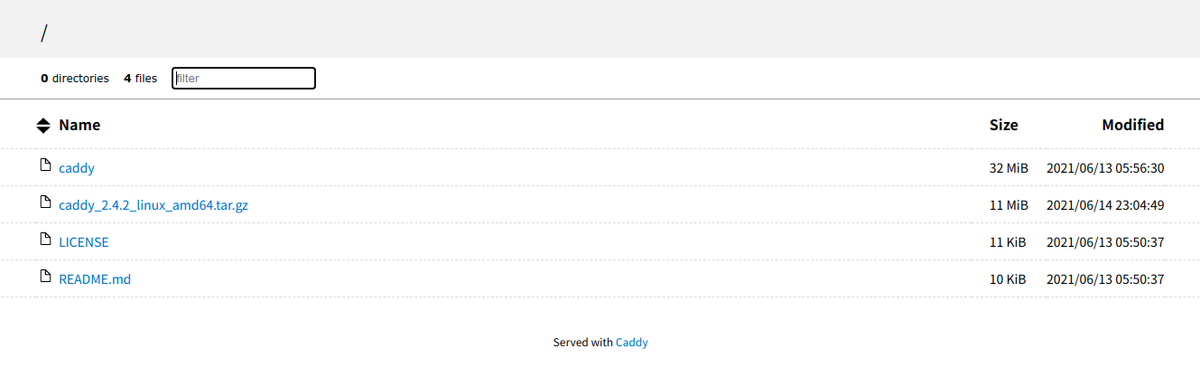
ディレクトリを参照する場合は、--browseオプションを使います。
$ ./caddy file-server --listen :8080 --browse
ディレクトリにアクセスすると、こんな感じに見えるようになります。
※ http://localhost:8080での確認例
最後にドキュメントルートを変えてみましょう。Apacheのドキュメントをダウンロード。
$ curl -OL https://downloads.apache.org//httpd/docs/httpd-docs-2.4.33.ja.zip
$ unzip httpd-docs-2.4.33.ja.zip
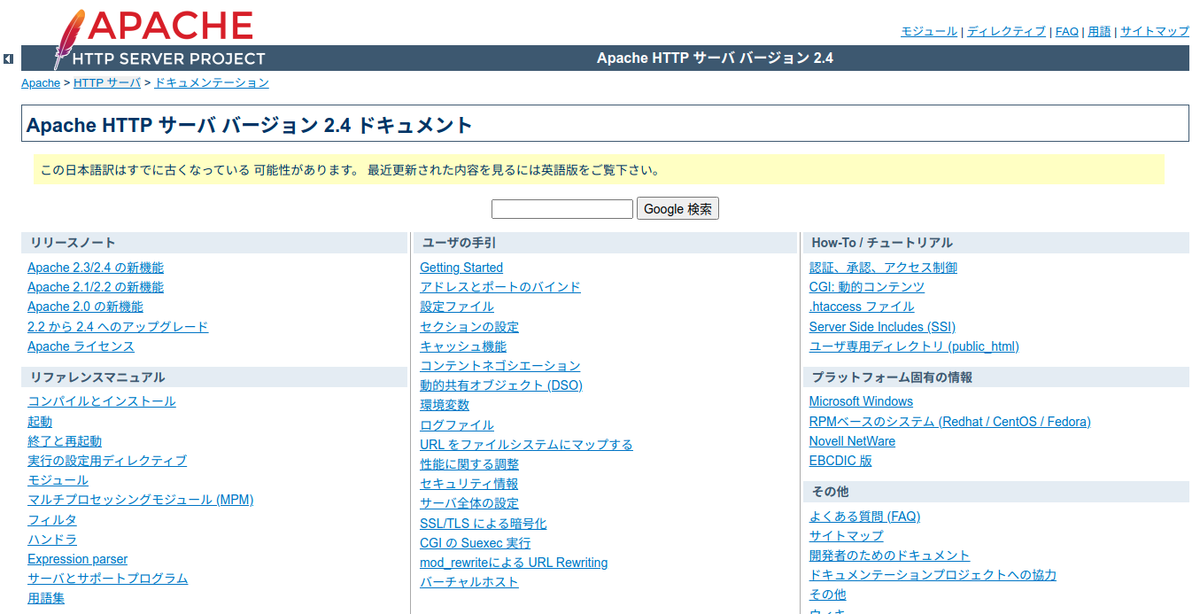
--rootで、ドキュメントルートを指定します。
$ ./caddy file-server --listen :8080 --root httpd-docs-2.4.33.ja
この状態でhttp://localhost:8080にアクセスすると、こんな感じに見えます。
アクセスログを出力するには、--access-logを使います。
$ ./caddy file-server --listen :8080 --access-log
ログはコンソールに出力されます。
リバースプロキシとして使う
リバースプロキシも簡単に作れます。
バックエンドは、nginxにしてみましょう。Dockerコンテナで準備。
$ docker container run -it --rm --name nginx nginx:1.21.0
リバースプロキシとするには、reverse-proxyコマンドを使います。転送先は、--toで指定します。
$ ./caddy reverse-proxy --to 172.17.0.2:80
この場合、Caddy自身は443ポートにバインドしようとするので、これを変更する場合は--fromオプションを使います。
$ ./caddy reverse-proxy --from :8080 --to 172.17.0.2:80
これで、リバースプロキシになりました。
$ curl -i localhost:8080
HTTP/1.1 200 OK
Accept-Ranges: bytes
Content-Length: 612
Content-Type: text/html
Date: Mon, 14 Jun 2021 14:49:14 GMT
Etag: "60aced88-264"
Last-Modified: Tue, 25 May 2021 12:28:56 GMT
Server: Caddy
Server: nginx/1.21.0

<!DOCTYPE html>
<html>
<head>
<title>Welcome to nginx!</title>
<style>
    body {
        width: 35em;
        margin: 0 auto;
        font-family: Tahoma, Verdana, Arial, sans-serif;
    }
</style>
</head>
<body>
<h1>Welcome to nginx!</h1>
<p>If you see this page, the nginx web server is successfully installed and
working. Further configuration is required.</p>

<p>For online documentation and support please refer to
<a href="http://nginx.org/">nginx.org</a>.<br/>
Commercial support is available at
<a href="http://nginx.com/">nginx.com</a>.</p>

<p><em>Thank you for using nginx.</em></p>
</body>
</html>
設定をする
ここまで、静的ファイルサーバーやリバースプロキシとして使ってきましたが、Caddyfileを使って設定もしたいと思います。
まず、単純に起動するにはrunコマンドを使います。
$ ./caddy run
runコマンドの場合、フォアグラウンドでの起動になります。
バックグラウンド実行とする場合はstartになります。停止はstopです。
# 起動
$ ./caddy start


# 停止
$ ./caddy stop
今回は、runを使うことにします。
設定ファイルは、デフォルトではカレントディレクトリにCaddyfileという名前のファイルが存在していれば読み込みます。
それ以外の場所、ファイル名の場合は--configオプションで指定します。この場合は、指定した設定ファイルは存在している
必要があります。
これらの設定ファイルに関する動きは、startコマンドでも同じです。
Caddyfileについては、こちらを見るとよいでしょう。
Caddyfile Tutorial — Caddy Documentation
The Caddyfile — Caddy Documentation
なんとなく「Caddyfile Tutorial」でも雰囲気はわかりますが、構成を把握するにはこちらのページが良いでしょう。
Caddyfile Concepts — Caddy Documentation

ブロック定義は、サイトがひとつしかない場合は
localhost

reverse_proxy /api/* localhost:9001
file_server
と以下は同義だそうですが、
localhost {
    reverse_proxy /api/* localhost:9001
   file_server
}
サイトを複数定義する場合は、特にそのサイト固有の設定は後者の形態で行うことになります。
HTTPSを無効にする
いきなりですが、HTTPSを無効にしてみましょう。デフォルトで、CaddyはHTTPSを有効にします。
Caddyfile
http://:8080
もしくは
Caddyfile
http://:8080 {
}
さらにhttp://も外して
:8080
や
:8080 {
}
とします。
ディレクティブなどを使う
あとは、ドキュメントを見ながらディレクティブやオプションを設定していきます。
Caddyfile Directives — Caddy Documentation
Global options (Caddyfile) — Caddy Documentation
Request matchersやパターン集を見るのもよいでしょう。
Request matchers (Caddyfile) — Caddy Documentation
Common Caddyfile Patterns — Caddy Documentation
ここでは、以下の設定をしてみましょう。
- HTTP、リッスンポートは
80 - ログを標準出力に記録
- カレントディレクトリをドキュメントルートにして、
file_serverに設定 - アクセスパスが
/nginx/で前方一致した場合、172.17.0.2:80へreverse_proxy- この時、
/nginxは取り除く
- この時、
使ってディレクティブは、こちら。
log (Caddyfile directive) — Caddy Documentation
file_server (Caddyfile directive) — Caddy Documentation
reverse_proxy (Caddyfile directive) — Caddy Documentation
Caddyfileは、こんな感じで設定。
Caddyfile
http://:8080 {
    log {
        output stdout
    }

    root * .
    file_server browse

    handle_path /nginx/* {
       rewrite * {path}
       reverse_proxy 172.17.0.2:80
   }
}
カレントディレクトリにCaddyfileという名前でファイルを作成したので、そのままrunコマンドで起動。
$ ./caddy run
確認。
$ curl -i -I localhost:8080/README.md
HTTP/1.1 200 OK
Accept-Ranges: bytes
Content-Length: 10607
Content-Type: text/markdown; charset=utf-8
Etag: "qulwkd86n"
Last-Modified: Sat, 12 Jun 2021 20:50:37 GMT
Server: Caddy
Date: Tue, 15 Jun 2021 14:21:09 GMT


$ curl -i -I localhost:8080/nginx/index.html
HTTP/1.1 200 OK
Accept-Ranges: bytes
Content-Length: 612
Content-Type: text/html
Date: Tue, 15 Jun 2021 14:21:33 GMT
Etag: "60aced88-264"
Last-Modified: Tue, 25 May 2021 12:28:56 GMT
Server: Caddy
Server: nginx/1.21.0
OKですね。
ちなみに、Caddyfileは以下のコマンドでフォーマットできます。
$ ./caddy fmt --overwrite
まとめ
シンプルに使えるGo製のWebサーバー、Caddyのバージョン2を試してみました。
Caddyfileの設定は、ちょっと癖がある気がするのですが、あとは使う時に慣れていくしかない気がします。
とはいえ、シングルバイナリかつ複数のプラットフォームで簡単に使えるWebサーバーとして覚えておいてもよいのでは
ないでしょうか。
