その1の続きです。 graneed.hatenablog.com
1. Ubuntuの初期セットアップ
1.1. SSHログイン、OSユーザの変更
teraterm等のSSH接続可能なツールを使い、ログインします。
IPアドレスは、AWSコンソールのインスタンス画面からIPv4 パブリック IPを確認します。
ポートは22、ユーザ名はubuntu、秘密鍵はダウンロードしたキーペアのファイルです。
Welcome to Ubuntu 16.04.4 LTS (GNU/Linux 4.4.0-1060-aws x86_64)

 * Documentation:  https://help.ubuntu.com
 * Management:     https://landscape.canonical.com
 * Support:        https://ubuntu.com/advantage

  Get cloud support with Ubuntu Advantage Cloud Guest:
    http://www.ubuntu.com/business/services/cloud

0 packages can be updated.
0 updates are security updates.


The programs included with the Ubuntu system are free software;
the exact distribution terms for each program are described in the
individual files in /usr/share/doc/*/copyright.

Ubuntu comes with ABSOLUTELY NO WARRANTY, to the extent permitted by
applicable law.

To run a command as administrator (user "root"), use "sudo <command>".
See "man sudo_root" for details.

ubuntu@ip-172-31-26-55:~$
SSHログインに成功したら、ubuntuユーザの使用をやめる準備をします。
デフォルトユーザであるubuntuユーザを狙った攻撃に対する予防策の一つです。
# 適当なユーザ名をつける。T-Potのインストーラーが使うユーザ名「t-pot」はNG。
ubuntu@ip-172-31-26-55:~$ sudo adduser honey
Adding user `honey' ...
Adding new group `honey' (1001) ...
Adding new user `honey' (1001) with group `honey' ...
Creating home directory `/home/honey' ...
Copying files from `/etc/skel' ...
Enter new UNIX password:
Retype new UNIX password:
passwd: password updated successfully
Changing the user information for honey
Enter the new value, or press ENTER for the default
        Full Name []:
        Room Number []:
        Work Phone []:
        Home Phone []:
        Other []:
Is the information correct? [Y/n] Y

# sudoができる権限を付ける。
ubuntu@ip-172-31-26-55:~$ sudo gpasswd -a honey sudo
Adding user honey to group sudo

# sshログインするための鍵をコピーする。
ubuntu@ip-172-31-26-55:~$ sudo mkdir /home/honey/.ssh
ubuntu@ip-172-31-26-55:~$ sudo cp /home/ubuntu/.ssh/authorized_keys /home/honey/.ssh/

# オーナー、パーミッションを適切に設定する。
ubuntu@ip-172-31-26-55:~$ sudo chown honey:honey /home/honey/.ssh/
ubuntu@ip-172-31-26-55:~$ sudo chown honey:honey /home/honey/.ssh/authorized_keys
ubuntu@ip-172-31-26-55:~$ sudo chmod 700 /home/honey/.ssh/
ubuntu@ip-172-31-26-55:~$ sudo chmod 600 /home/honey/.ssh/authorized_keys

# 確認
ubuntu@ip-172-31-26-55:~$ sudo ls -la /home/honey/
total 24
drwxr-xr-x 3 honey honey 4096 Jun  9 15:10 .
drwxr-xr-x 4 root  root  4096 Jun  9 15:09 ..
-rw-r--r-- 1 honey honey  220 Jun  9 15:09 .bash_logout
-rw-r--r-- 1 honey honey 3771 Jun  9 15:09 .bashrc
-rw-r--r-- 1 honey honey  655 Jun  9 15:09 .profile
drwx------ 2 honey honey 4096 Jun  9 15:10 .ssh
ubuntu@ip-172-31-26-55:~$ sudo ls -la /home/honey/.ssh/
total 12
drwx------ 2 honey honey 4096 Jun  9 15:10 .
drwxr-xr-x 3 honey honey 4096 Jun  9 15:10 ..
-rw------- 1 honey honey  396 Jun  9 15:10 authorized_keys
honeyユーザでログインし直して、ubuntuユーザのログインを塞ぎます。
Welcome to Ubuntu 16.04.4 LTS (GNU/Linux 4.4.0-1060-aws x86_64)

 * Documentation:  https://help.ubuntu.com
 * Management:     https://landscape.canonical.com
 * Support:        https://ubuntu.com/advantage

  Get cloud support with Ubuntu Advantage Cloud Guest:
    http://www.ubuntu.com/business/services/cloud

0 packages can be updated.
0 updates are security updates.


The programs included with the Ubuntu system are free software;
the exact distribution terms for each program are described in the
individual files in /usr/share/doc/*/copyright.

Ubuntu comes with ABSOLUTELY NO WARRANTY, to the extent permitted by
applicable law.

To run a command as administrator (user "root"), use "sudo <command>".
See "man sudo_root" for details.

honey@ip-172-31-26-55:~$

# ubuntuユーザをログイン不可ユーザに設定します。
honey@ip-172-31-26-55:~$ sudo usermod -s /usr/sbin/nologin ubuntu
[sudo] password for honey:
honey@ip-172-31-26-55:~$
1.2. タイムゾーンの変更
タイムゾーンを日本に変更します。
# 設定
honey@ip-172-31-26-55:~$ sudo timedatectl set-timezone Asia/Tokyo

# 設定結果を確認
honey@ip-172-31-26-55:~$ timedatectl
      Local time: Sun 2018-06-10 00:30:08 JST
  Universal time: Sat 2018-06-09 15:30:08 UTC
        RTC time: Sat 2018-06-09 15:30:07
       Time zone: Asia/Tokyo (JST, +0900)
 Network time on: yes
NTP synchronized: yes
 RTC in local TZ: no

# 設定結果を確認(その2)
honey@ip-172-31-26-55:~$ date
Sun Jun 10 00:30:22 JST 2018
1.3. パッケージ更新
パッケージを更新します。
# パッケージリストの更新
honey@ip-172-31-26-55:~$ sudo apt update
Hit:1 http://ap-northeast-1.ec2.archive.ubuntu.com/ubuntu xenial InRelease
Get:2 http://ap-northeast-1.ec2.archive.ubuntu.com/ubuntu xenial-updates InRelease [109 kB]
(snip)

# パッケージの更新
honey@ip-172-31-26-55:~$ sudo apt upgrade
Reading package lists... Done
Building dependency tree
Reading state information... Done
Calculating upgrade... Done
The following packages will be upgraded:
  apport git git-man ifupdown libelf1 libldap-2.4-2 libplymouth4 libprocps4 plymouth plymouth-theme-ubuntu-text procps
  python3-apport python3-problem-report snapd ubuntu-core-launcher vlan
16 upgraded, 0 newly installed, 0 to remove and 0 not upgraded.
Need to get 18.3 MB of archives.
After this operation, 364 kB of additional disk space will be used.
Do you want to continue? [Y/n] Y
Get:1 http://ap-northeast-1.ec2.archive.ubuntu.com/ubuntu xenial-updates/main amd64 ubuntu-core-launcher amd64 2.32.9 [1,566 B]
Get:2 http://ap-northeast-1.ec2.archive.ubuntu.com/ubuntu xenial-updates/main amd64 snapd amd64 2.32.9 [13.5 MB]
(snip)
1.4. 時刻同期設定
自動で時刻同期されるようにNTPをインストールします。
# ntpをインストール
honey@ip-172-31-26-55:~$ sudo apt install ntp
Reading package lists... Done
Building dependency tree
Reading state information... Done
The following additional packages will be installed:
  libopts25
Suggested packages:
  ntp-doc
The following NEW packages will be installed:
  libopts25 ntp
0 upgraded, 2 newly installed, 0 to remove and 0 not upgraded.
Need to get 576 kB of archives.
After this operation, 1,792 kB of additional disk space will be used.
Do you want to continue? [Y/n] Y
Get:1 http://ap-northeast-1.ec2.archive.ubuntu.com/ubuntu xenial/main amd64 libopts25 amd64 1:5.18.7-3 [57.8 kB]
Get:2 http://ap-northeast-1.ec2.archive.ubuntu.com/ubuntu xenial-updates/main amd64 ntp amd64 1:4.2.8p4+dfsg-3ubuntu5.8 [518 kB]
(snip)

# 設定ファイルをバックアップ
honey@ip-172-31-26-55:~$ sudo cp -p /etc/ntp.conf /etc/ntp.conf.org

# 設定ファイルを変更。pool設定をコメントアウトし、server設定を追加。
honey@ip-172-31-26-55:~$ sudo vi /etc/ntp.conf

# 変更内容を確認
honey@ip-172-31-26-55:~$ diff -u /etc/ntp.conf.org /etc/ntp.conf
--- /etc/ntp.conf.org   2018-02-14 23:56:48.000000000 +0900
+++ /etc/ntp.conf       2018-06-10 00:47:24.652904551 +0900
@@ -11,17 +11,20 @@
 filegen clockstats file clockstats type day enable

 # Specify one or more NTP servers.
+server ntp1.jst.mfeed.ad.jp iburst
+server ntp2.jst.mfeed.ad.jp iburst
+server ntp3.jst.mfeed.ad.jp iburst

 # Use servers from the NTP Pool Project. Approved by Ubuntu Technical Board
 # on 2011-02-08 (LP: #104525). See http://www.pool.ntp.org/join.html for
 # more information.
-pool 0.ubuntu.pool.ntp.org iburst
-pool 1.ubuntu.pool.ntp.org iburst
-pool 2.ubuntu.pool.ntp.org iburst
-pool 3.ubuntu.pool.ntp.org iburst
+#pool 0.ubuntu.pool.ntp.org iburst
+#pool 1.ubuntu.pool.ntp.org iburst
+#pool 2.ubuntu.pool.ntp.org iburst
+#pool 3.ubuntu.pool.ntp.org iburst

 # Use Ubuntu's ntp server as a fallback.
-pool ntp.ubuntu.com
+#pool ntp.ubuntu.com

 # Access control configuration; see /usr/share/doc/ntp-doc/html/accopt.html for
 # details.  The web page <http://support.ntp.org/bin/view/Support/AccessRestrictions>
----------------------------------

# ntpサービスを再起動
honey@ip-172-31-26-55:~$ sudo service ntp restart

# 確認
honey@ip-172-31-26-55:~$ sudo ntpq -p
     remote           refid      st t when poll reach   delay   offset  jitter
==============================================================================
+ntp1.jst.mfeed. 133.243.236.17   2 u    4   64    1    5.153   -0.089   1.526
*ntp2.jst.mfeed. 133.243.236.17   2 u    3   64    1    5.075    0.955   1.443
+ntp3.jst.mfeed. 133.243.236.17   2 u    1   64    1    4.103    0.633   1.252
2. T-Potのインストール
ようやくT-Potのインストールです。
以下の手順に従って実行します。簡単。
GitHub - dtag-dev-sec/t-pot-autoinstall: Autoinstall T-Pot on Ubuntu 16.04
# gitから取得
honey@ip-172-31-26-55:~$ git clone https://github.com/dtag-dev-sec/t-pot-autoinstall.git
Cloning into 't-pot-autoinstall'...
remote: Counting objects: 158, done.
remote: Compressing objects: 100% (3/3), done.
remote: Total 158 (delta 0), reused 0 (delta 0), pack-reused 155
Receiving objects: 100% (158/158), 59.25 KiB | 0 bytes/s, done.
Resolving deltas: 100% (78/78), done.
Checking connectivity... done.

# rootに切り替えてinstall.shを実行
honey@ip-172-31-26-55:~$ cd t-pot-autoinstall/
honey@ip-172-31-26-55:~/t-pot-autoinstall$ sudo su
root@ip-172-31-26-55:/home/honey/t-pot-autoinstall# ./install.sh

##########################################################
# T-Pot 17.10 install script                             #
# for Ubuntu server 16.04.0x, x64                        #
##########################################################
Make sure the key-based SSH login for your normal user is working!

Which user do you usually work with?
This script is invoked by root, but what is your normal username?
Enter username: honey ★OSユーザ名を入力

Checking prerequisites...
Generating locales (this might take a while)...
  en_US.UTF-8... done
Generation complete.
Everything looks OK...


##########################################################
#                                                        #
#     How do you want to proceed? Enter your choice.     #
#                                                        #
#     Required: 4GB RAM, 64GB disk                       #
#     Recommended: 8GB RAM, 128GB SSD                    #
#                                                        #
# 1 - T-Pot's STANDARD INSTALLATION                      #
#     Standard Honeypots, Suricata & ELK                 #
#                                                        #
# 2 - T-Pot's HONEYPOTS ONLY                             #
#     Honeypots only, w/o Suricata & ELK                 #
#                                                        #
# 3 - T-Pot's INDUSTRIAL EDITION                         #
#     Conpot, eMobility, Suricata & ELK                  #
#                                                        #
# 4 - T-Pot's FULL INSTALLATION                          #
#     Everything                                         #
#                                                        #
##########################################################

Your choice: 1 ★1を入力
You chose T-Pot's STANDARD INSTALLATION. The best default ever!
### Pulling Updates.
(snip)
### Removing NGINX default website.
### Please enter a password for your user honey for web access.
Password:
Repeat password:
Adding password for user honey

### Let's make sure SSH roaming is turned off.
UseRoaming no
### Generating a self-signed-certificate for NGINX.
### If you are unsure you can use the default values.
Generating a 8192 bit RSA private key
.....................................................................................................................................
writing new private key to '/etc/nginx/ssl/nginx.key'
-----
Collecting pip
  Downloading https://files.pythonhosted.org/packages/0f/74/ecd13431bcc456ed390b44c8a6e917c1820365cbebcb6a8974d1cd045ab4/pip-10.0.1-py                                                     2.py3-none-any.whl (1.3MB)
Installing collected packages: pip
  Found existing installation: pip 8.1.1
    Not uninstalling pip at /usr/lib/python2.7/dist-packages, outside environment /usr
Successfully installed pip-10.0.1
### Installing docker-compose.
Traceback (most recent call last):
  File "/usr/bin/pip", line 9, in <module>
    from pip import main
ImportError: cannot import name main
root@ip-172-31-26-55:/home/honey/t-pot-autoinstall#
なん…だと…2018年1月頃にやったときはうまくいったはずが...
再実行してみます。
root@ip-172-31-26-55:/home/honey/t-pot-autoinstall# ./install.sh


##########################################################
# T-Pot 17.10 install script                             #
# for Ubuntu server 16.04.0x, x64                        #
##########################################################
Make sure the key-based SSH login for your normal user is working!

Which user do you usually work with?
This script is invoked by root, but what is your normal username?
Enter username: honey

Checking prerequisites...
### Running more than once may complicate things. Erase install.log if you are really sure.
言われた通り、install.logを削除して再々実行します。
root@ip-172-31-26-55:/home/honey/t-pot-autoinstall# rm install.log
root@ip-172-31-26-55:/home/honey/t-pot-autoinstall# ./install.sh
(snip)
0 upgraded, 0 newly installed, 0 to remove and 0 not upgraded.
### Removing NGINX default website.
rm: cannot remove '/etc/nginx/sites-enabled/default': No such file or directory
初回実行時に### Removing NGINX default website.と表示されていたので、
/etc/nginx/sites-enabled/defaultが既に削除されていて、エラーになったと思われます。
ファイルを作成して再々々実行してみます。
root@ip-172-31-26-55:/home/honey/t-pot-autoinstall# rm install.log
root@ip-172-31-26-55:/home/honey/t-pot-autoinstall# touch /etc/nginx/sites-enabled/default
root@ip-172-31-26-55:/home/honey/t-pot-autoinstall# ./install.sh
(snip)
### Thanks for your patience. Now rebooting. Remember to login on SSH port 64295 next time or visit the dashboard on port 64297!
インストールに成功しました。
3. セキュリティグループの設定
いよいよT-Potが稼働しました。
しかし、AWSのセキュリティグループの設定は、
自分のIPアドレスから22番ポートへの接続しか受け付けていない状態のため、
まだ攻撃者からのアクセスはT-Potに到達しません。
また、T-Potインストーラーによって、SSHのポートを22番ポートから
64295番ポートに変更されてしまったため、そもそも自分からもSSH接続ができない状態です。
よって、セキュリティグループを変更します。
3.1. 運用向け公開設定
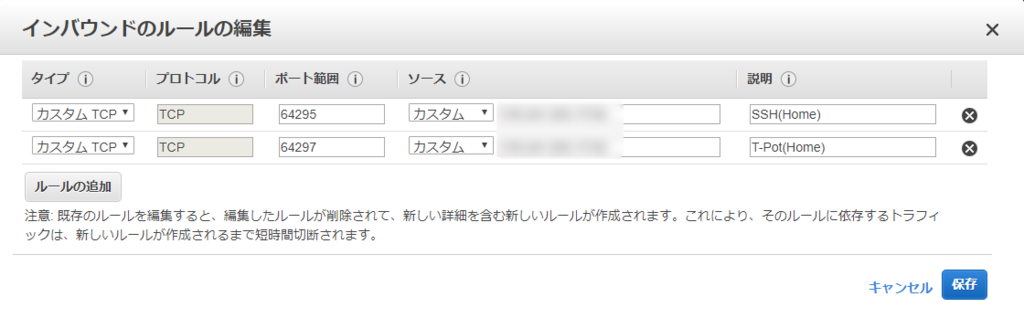
下表は運用向けに公開するポートです。
基本的にはマイIPにのみ公開することを推奨します。
| プロトコル | ポート番号 | 用途 |
|---|---|---|
| TCP | 64295 | T-Potインストール後のSSH |
| TCP | 64297 | Kibana等のT-PotのWebインターフェース |
セキュリティグループの設定は以下の通りとなります。
一旦、22番ポートの定義は削除しました。
3.2. ハニーポット用の公開設定
64295番ポートを公開したことで、SSHログインができるようになりました。
SSHログインして、各ハニーポットが何のポートを公開しているか確認します。
[honey@massshoemaker:~]$ /opt/tpot/bin/dps.sh
========| System |========
    Date:  Sun Jun 10 02:14:25 JST 2018
  Uptime:  02:14:25 up 41 min,  1 user,  load average: 0.00, 0.02, 0.06
No sensors found!
Make sure you loaded all the kernel drivers you need.
Try sensors-detect to find out which these are.
CPU temp:

NAME                STATUS                               PORTS
cowrie              Up 40 minutes                        0.0.0.0:22->2222/tcp,
                                                         0.0.0.0:23->2223/tcp
dionaea             Up 40 minutes                        0.0.0.0:20-21->20-21/tcp,
                                                         0.0.0.0:42->42/tcp,
                                                         0.0.0.0:135->135/tcp,
                                                         0.0.0.0:443->443/tcp,
                                                         0.0.0.0:445->445/tcp,
                                                         0.0.0.0:1433->1433/tcp,
                                                         0.0.0.0:1723->1723/tcp,
                                                         0.0.0.0:1883->1883/tcp,
                                                         0.0.0.0:3306->3306/tcp,
                                                         0.0.0.0:69->69/udp,
                                                         0.0.0.0:5060-5061->5060-5061/tcp,
                                                         0.0.0.0:27017->27017/tcp,
                                                         0.0.0.0:5060->5060/udp,
                                                         0.0.0.0:8081->80/tcp
elasticpot          Up 40 minutes                        0.0.0.0:9200->9200/tcp
elasticsearch       Up 40 minutes (healthy)              127.0.0.1:64298->9200/tcp
kibana              Up 40 minutes (healthy)              127.0.0.1:64296->5601/tcp
logstash            Up 40 minutes (healthy)
head                Up 40 minutes (healthy)              127.0.0.1:64302->9100/tcp
ewsposter           Up 40 minutes
glastopf            Up 40 minutes                        0.0.0.0:80->80/tcp
honeytrap           Up 40 minutes
mailoney            Up 40 minutes                        0.0.0.0:25->2525/tcp
netdata             Up 40 minutes (healthy)
rdpy                Up 40 minutes                        0.0.0.0:3389->3389/tcp
spiderfoot          Up 40 minutes (healthy)              127.0.0.1:64303->8080/tcp
ui-for-docker       Up 40 minutes                        127.0.0.1:64299->9000/tcp
suricata            Up 40 minutes
p0f                 Up 40 minutes
vnclowpot           Up 40 minutes                        0.0.0.0:5900->5900/tcp
まとめると、下表になります。
一般的な用途は、TCPやUDPにおけるポート番号の一覧 - Wikipediaから抜粋しました。
| 対応ハニーポット | プロトコル | ポート番号 | 一般的な用途 |
|---|---|---|---|
| Cowrie | TCP | 22 | Secure Shell (SSH) - セキュアログイン、セキュアなファイル転送(scpやsftpなど)、ポート転送などで用いられる。 |
| Cowrie | TCP | 23 | Telnet - 平文ベースのテキスト通信プロトコル |
| Dionaea | TCP | 20 | FTP - データ転送ポート |
| Dionaea | TCP | 21 | FTP - コントロールポート |
| Dionaea | TCP | 42 | Windows Internet Name Service |
| Dionaea | TCP | 135 | Microsoft EPMAP (End Point Mapper), also known as DCE/RPC Locator service, used to remotely manage services including DHCP server, DNS server and WINS. Also used by DCOM |
| Dionaea | TCP | 443 | Hypertext Transfer Protocol over TLS/SSL (HTTPS) |
| Dionaea | TCP | 445 | Microsoft-DS SMB file sharing |
| Dionaea | TCP | 1433 | Microsoft SQL Server database management system (MSSQL) serve |
| Dionaea | TCP | 1723 | Microsoft Point-to-Point Tunneling Protocol (PPTP) |
| Dionaea | TCP | 1883 | MQ Telemetry Transport (MQTT), formerly known as MQIsdp (MQSeries SCADA protocol) |
| Dionaea | TCP | 3306 | MySQL database system |
| Dionaea | TCP | 5060 | Session Initiation Protocol (SIP) |
| Dionaea | TCP | 5061 | Session Initiation Protocol (SIP) over TLS |
| Dionaea | TCP | 8081 | HTTP alternate, VibeStreamer, e.g. McAfee ePolicy Orchestrator (ePO) |
| Dionaea | TCP | 27017 | mongoDB server port |
| Dionaea | UDP | 69 | Trivial File Transfer Protocol (TFTP) |
| Dionaea | UDP | 5060 | Session Initiation Protocol (SIP) |
| ElasticPot | TCP | 9200 | Elasticsearch default Elasticsearch port |
| Glastopf | TCP | 80 | Hypertext Transfer Protocol (HTTP) |
| Mailoney | TCP | 25 | Simple Mail Transfer Protocol (SMTP), used for e-mail routing between mail servers |
| Rdpy | TCP | 3389 | Microsoft Terminal Server (RDP) officially registered as Windows Based Terminal (WBT) |
| Vnclowpot | TCP | 5900 | Remote Frame Buffer protocol (RFB), Virtual Network Computing (VNC) remote desktop protocol |
なお、公式のアーキテクチャ図
https://raw.githubusercontent.com/dtag-dev-sec/tpotce/master/doc/architecture.png
の資料のポート番号と一部異なりますが、
実機を優先しました。
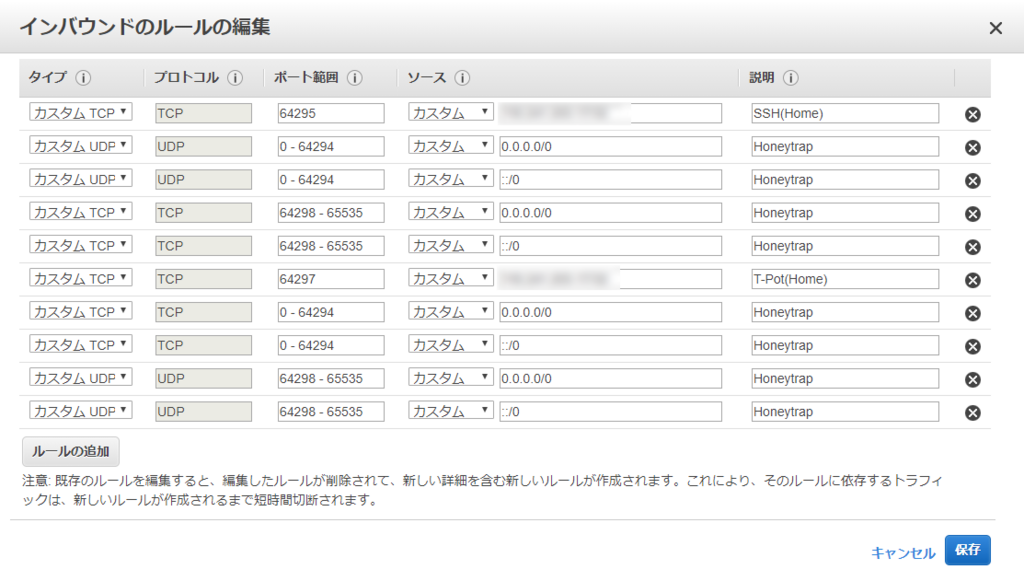
セキュリティグループに、これらポート番号を個々に設定していく必要があると思いきや、
実は、T-Potに含まれているハニーポットの一つであるHoneytrapは、
iptablesのNFQUEUEを使用して、全てのパケットを監視しているため、
可能な限りポートを開けておくと良いようです。
よって、結果としてはポート番号を個々に設定せず、
運用向けに公開するポートを除いて、全てのポートを公開する設定にします。
4. Kibanaの表示
準備が整ったので、T-PotのダッシュボードであるKibanaの画面を表示します。
Webブラウザでhttps://IPアドレス:64297/に接続します。
BASIC認証を求められるので、
OSユーザ名とT-Potインストール中に設定したパスワードを入力してログインします。
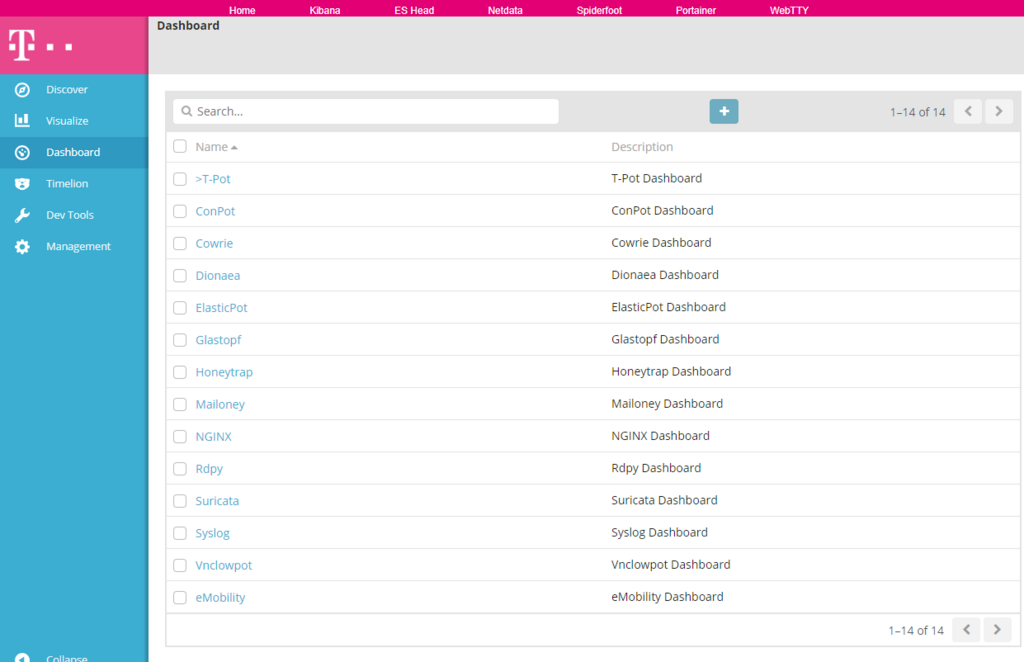
T-Potのリンクを押下して攻撃者からのアクセス状況を確認すると、
一時間も経たないうちに、攻撃を確認できると思います。
ここで一区切り。
しかし、ディスク容量が30GBしかないため、しばらくするとパンクします。
よって、次回はチューニングを行います。
続きはこちら。 graneed.hatenablog.com

