ログ等を蓄積して画面に表示する為に ObservableCollection を使用する時に、蓄積データ数に制限をかけられるクラスを ObservableCollection をベースに作りました。 データを足して行った時に、所定数を超えると古い要素が削除されます。
要素数制限付きObservableCollection
ObservableCollection
- 要素数の制限値である Limit を作成します。
- 要素数を Limit に抑えるためのメソッド Shrink を追加します。 Shrink では、要素が先頭に挿入された時には最後を、それ以外に加えられた時には先頭を削除します。
- InsertItem(int index, string item) を override します。 insert される文字列には、先頭に現在時刻を付加します。 Shrink の引数に index を渡して、Limit を超えた時の削除位置が変わるようにします。
public class SizeLimitStringCollection : ObservableCollection<string>
{
    protected bool SetProperty<T>(ref T field, T value, [CallerMemberName]string propertyName = null)
    {
        if (EqualityComparer<T>.Default.Equals(field, value)) return false;
        field = value;
        OnPropertyChanged(new PropertyChangedEventArgs(propertyName));
        return true;
    }

    protected virtual void Shrink(int index)
    {
        if (index != 0)
        {
            while (Limit < Count) RemoveAt(0);
        }
        else
        {
            while (Limit < Count) RemoveAt(Count - 1);
        }
    }

    private int limit = 100;
    public int Limit
    {
        get { return limit; }
        set
        {
            if (value < 1) value = 1;
            if (SetProperty(ref limit, value))
            {
                Shrink(Count);
            }
        }
    }

    protected override void InsertItem(int index, string item)
    {
        item = DateTime.Now.ToString("hh:MM:ss ") + item;
        base.InsertItem(index, item);
        Shrink(index);
    }
}
使い方
LogCollection を作成します。
private SizeLimitStringCollection logCollection = new SizeLimitStringCollection();
public SizeLimitStringCollection LogCollection
{
    get { return logCollection; }
    set { SetProperty(ref logCollection, value); }
}
先頭にログを追加する時には
LogCollection .inseret(0, LogString) とします。最後尾にログを追加する時には
LogCollection .add(LogString) とします。
別スレッドからのアクセス
ObservableCollectionはUIスレッドにあるので、別スレッドから操作する時にはDispatcherを使用します。 その為には以下のメソッドを作っておいて呼び出してあげます。
public void SetLog(string st)
{
    System.Windows.Application.Current.Dispatcher.BeginInvoke(
         new Action(() => LogCollection.Insert(0, st)));
}
サンプルアプリケーション
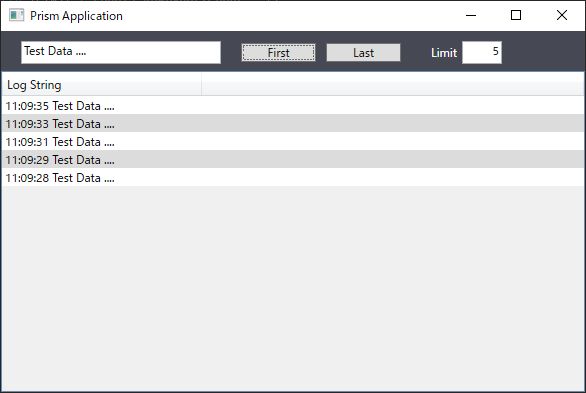
SizeLimitStringCollection を使ったサンプルアプリを作りました。
ソースコードは下記にあります。
