A quick guide on how to install Lua scripts/add-ons in Aseprite.
Introduction
Aseprite allows you to install scripts/add-ons written in Lua to add useful features.
Aseprite scripts created by the community are available for free or for purchase on the Aseprite forum and itch.io.
This article is a quick reference note on how to install Lua scripts you've obtained or created yourself into Aseprite.
Note: This article was translated from my original post.
How to Install Scripts in Aseprite
You can install Aseprite scripts by following these steps:
- Open the Scripts folder
- Place the Lua script in the Scripts folder
- Rescan the Scripts folder
1. Open the Scripts Folder
First, open the folder where you'll place your scripts.
You can open the Scripts folder from the top menu in Aseprite:
File > Scripts > Open Scripts Folder

On Mac, the Scripts folder location is ~/Library/Application Support/Aseprite/scripts.
2. Place the Lua Script in the Scripts Folder
Place the Lua script you want to install in the opened Scripts folder.

There are no special considerations here. Just place the Lua script directly in the folder.
3. Rescan the Scripts Folder
After placing the script, click:
File > Scripts > Rescan Scripts Folder
to rescan the Scripts folder.
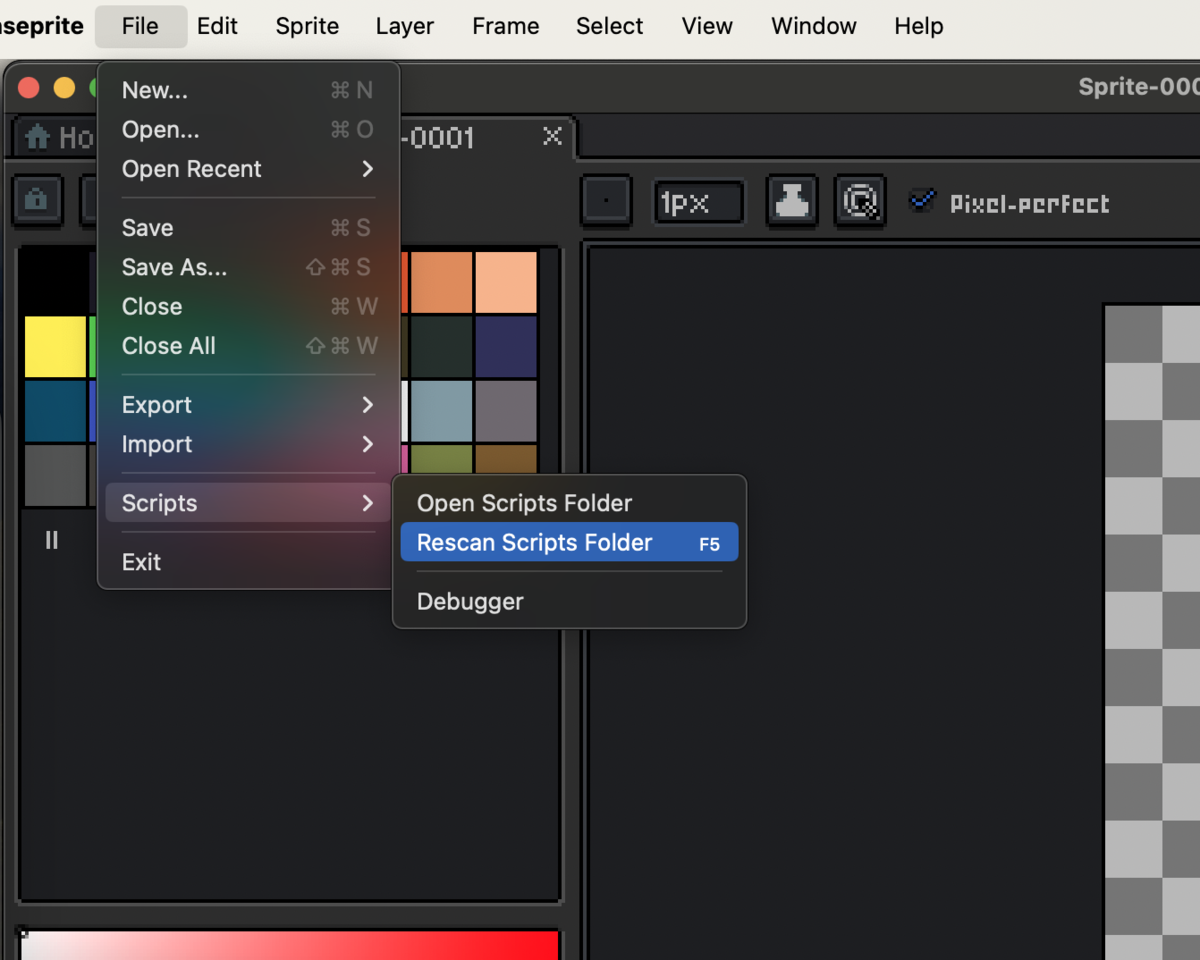
After rescanning, the scanned scripts will be added to:
File > Scripts
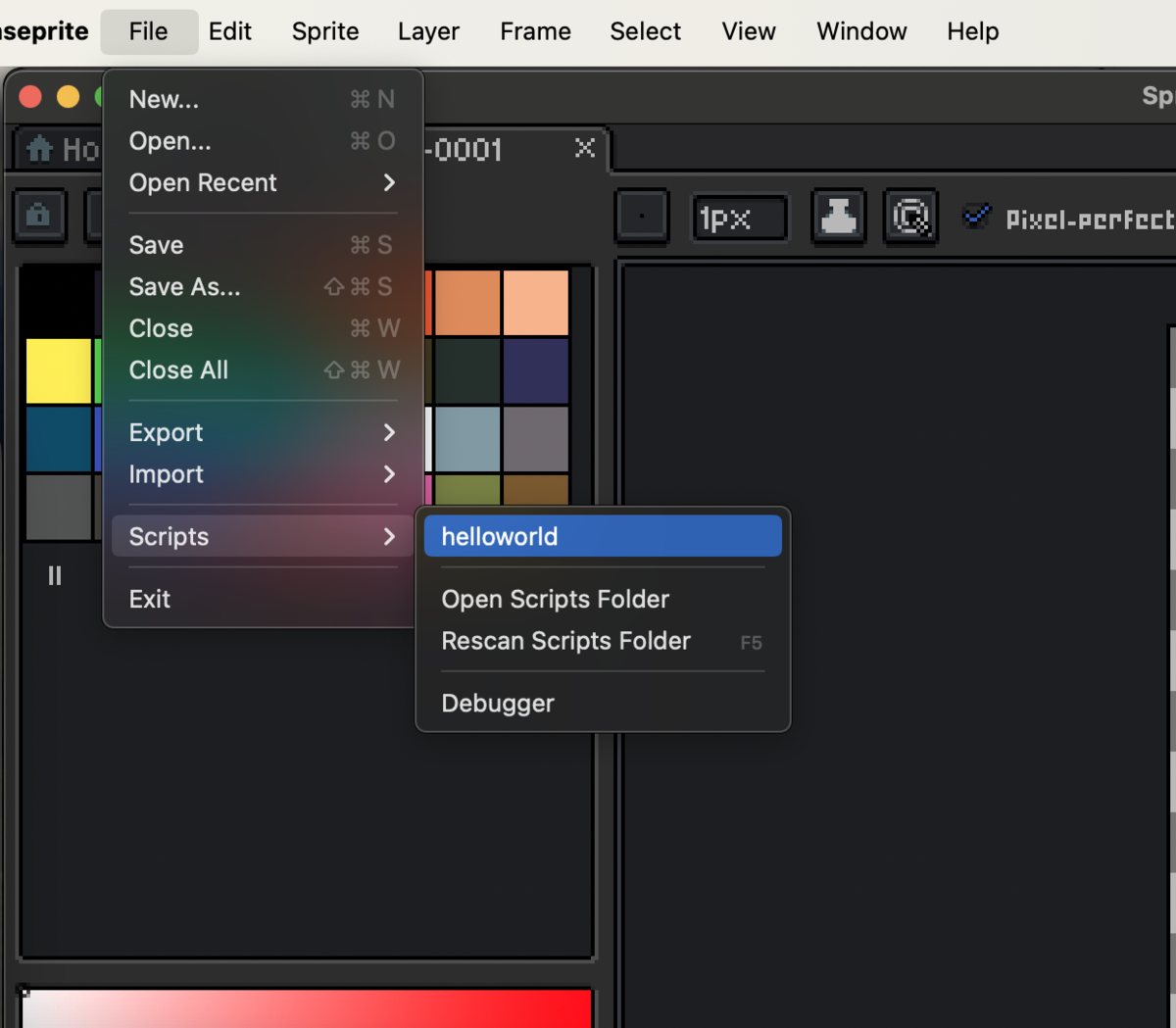
Click on any script name shown here to run that script.
Conclusion
This was a quick guide on how to install scripts in Aseprite.
I haven't worked with Lua before, but it looks like there are a lot of interesting things you can do with Aseprite scripts, so I'm currently experimenting with various possibilities.
I hope this helps someone!
[Related Articles]
