"Shift + Click + Drag"
Note that if you do not drag, the layers in between will not be selected.
Introduction
I tried to select multiple layers at once in Aseprite, but I unexpectedly got stuck, so this is a memo.
Note: This article was translated from my original post.
How to Select Multiple Layers at Once in Aseprite
The Pitfall
If you try the common approach of selecting multiple items with "Shift + Click", it does not work correctly in Aseprite.
With this method, only the layers you click (the two at the top and bottom) are selected. The layers in between that you did not click are not selected.
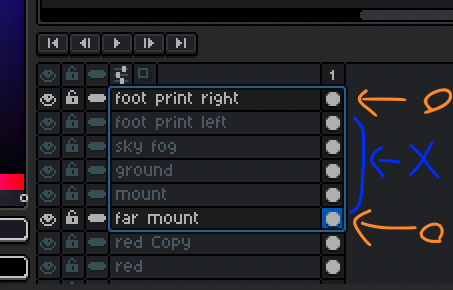
Even if they are surrounded by a blue box, layers with gray names are not selected. Be careful.
How to Select Them All at Once
You can select multiple layers at once with "Shift + Click + Drag".
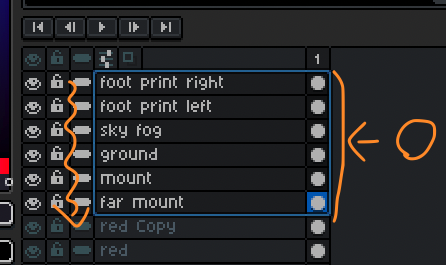
Holding Shift and clicking selects the clicked layer.
You can click each target layer one by one, but dragging lets you select them all at once.
Conclusion
This was a quick memo on how to select multiple layers at once in Aseprite.
The behavior of "Shift + Click" was different from what I expected, which confused me at first.
I hope this helps someone.
[Related Articles]
