I often forget how to do, so here's a note for future reference.
Introduction
Flipping selected areas is one of the commonly used convenient features in Aseprite. Since I often forget how to do it, I'm leaving this note.
Note: This article was translated from my original post.
Flipping a Selected Area
With an area selected, go to the top tab and choose:
- Edit > Flip Horizontal: Flip horizontally
- Edit > Flip Vertical: Flip vertically
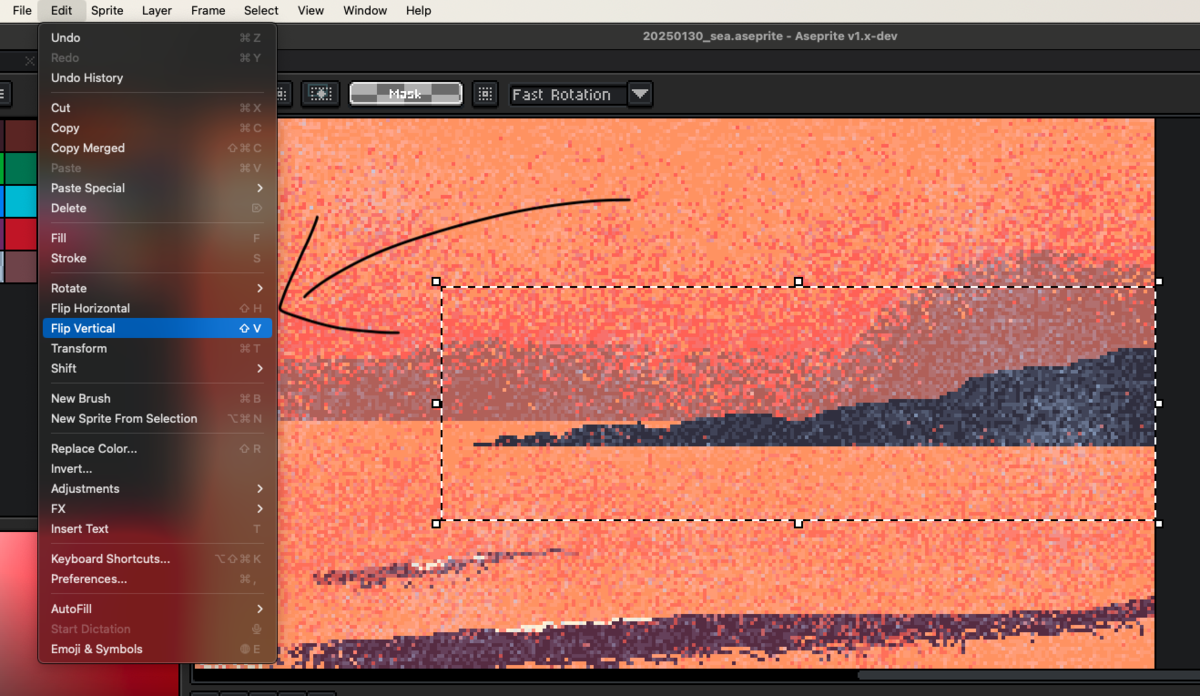
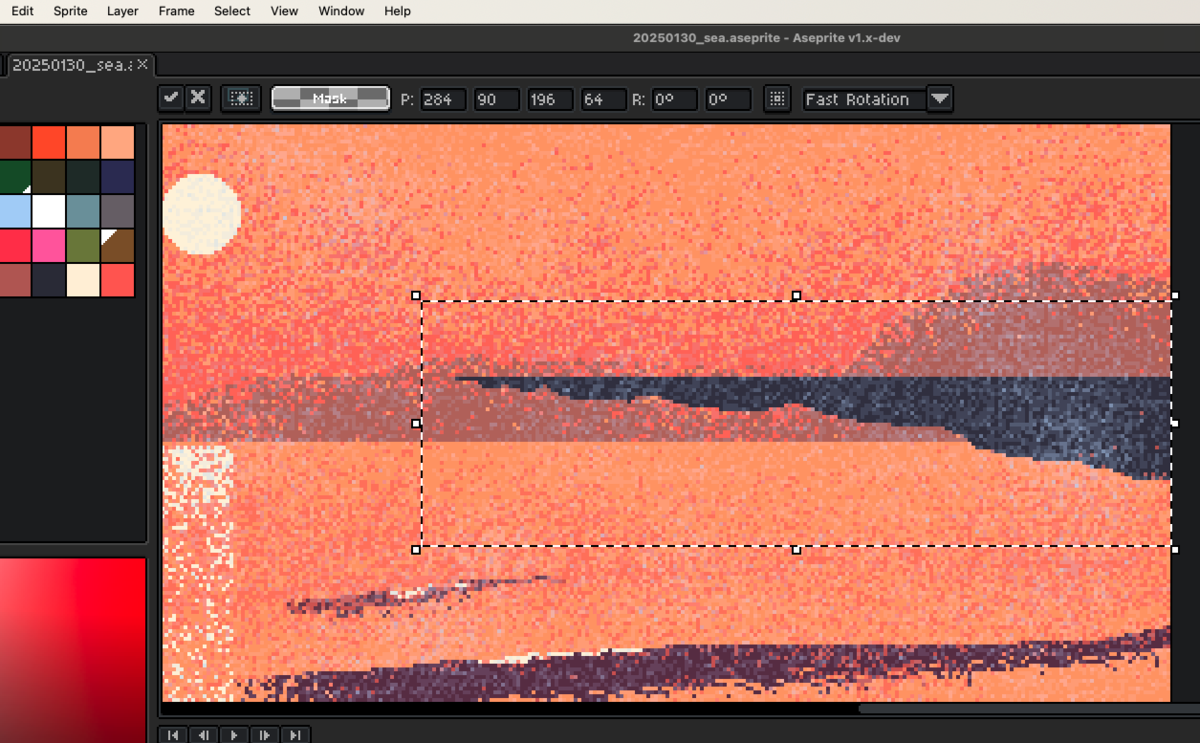
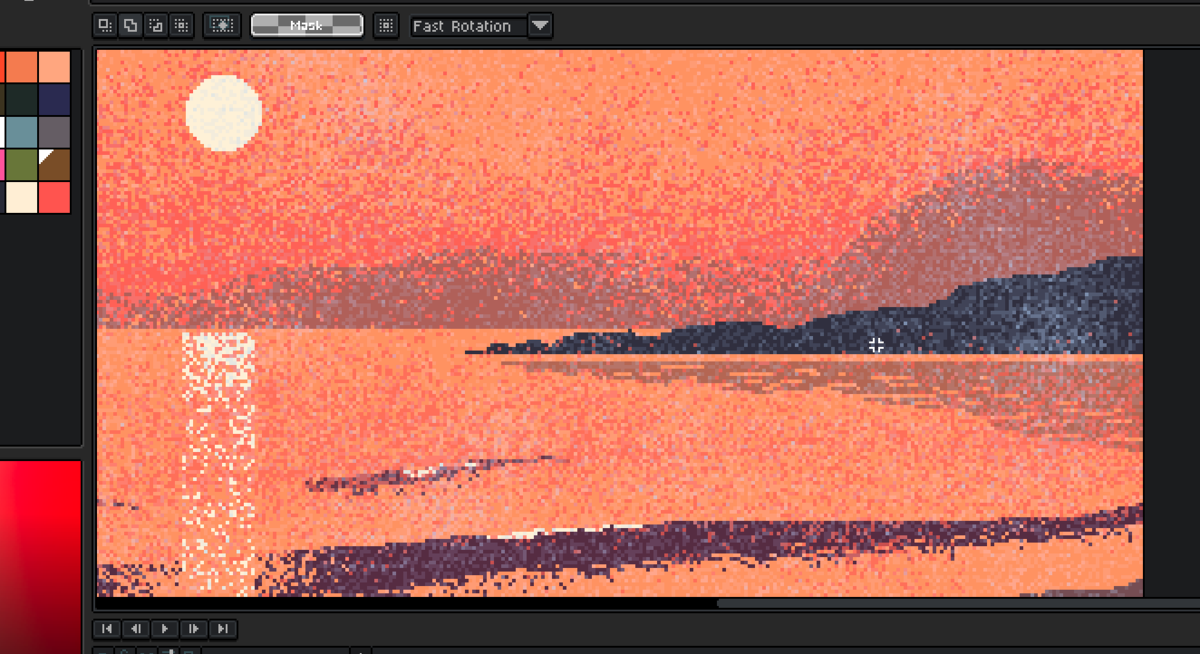
For example, flipping selected areas is useful for creating reflections in water.
Note: Flipping the Entire Canvas
This can be a bit confusing, the "Sprite" tab also has a Flip function. This one flips the entire canvas, not just the selected area.
- Sprite > Rotate Canvas > Flip Canvas Horizontal: Flip entire canvas horizontally
- Sprite > Rotate Canvas > Flip Canvas Vertical: Flip entire canvas vertically
If you want to flip only a selected area rather than the entire canvas, use the Flip option in the "Edit" tab as mentioned above.
Conclusion
I sometimes found myself searching through tabs looking for the flip selection feature, so I left this quick reminder note.
I hope this helps someone!
[Related Articles]
