These are my notes from trying out ACE-Step 1.5 locally.
Introduction
I decided to try running ACE-Step 1.5 on my local M2 MacBook — a music generation AI that's been getting a lot of attention for delivering strong performance despite being lightweight.
# Setup
MacBook Air
Chip: Apple M2
Memory: 16GB
Note: This article was translated from my original post.
Running the Music Generation AI "ACE-Step 1.5" Locally
Installing ACE-Step 1.5
I followed the official guide for installation.
First, if you don't already have the Python package manager uv installed, go ahead and install it.
# macOS / Linux
curl -LsSf https://astral.sh/uv/install.sh | sh

# Windows (PowerShell)
powershell -ExecutionPolicy ByPass -c "irm https://astral.sh/uv/install.ps1 | iex"
I wrote an article about the basics of uv before, so feel free to check that out too.
Once uv is installed, clone the ACE-Step 1.5 repository and install the dependencies.
git clone https://github.com/ACE-Step/ACE-Step-1.5.git
cd ACE-Step-1.5
uv sync
That's it for installation.
There are five ways to use it:
- Gradio Web UI
- Studio UI
- Python API
- REST API
- CLI
This time, I'll go with the Gradio Web UI.
Running ACE-Step 1.5 with the Gradio Web UI
Launch the Gradio Web UI with the following command:
uv run acestep
Once it's up and running, open http://localhost:7860/ in your browser to access the Gradio Web UI.

Next, click the "Initialize Service" button to download the model.
I left all the settings at their defaults and clicked the button.
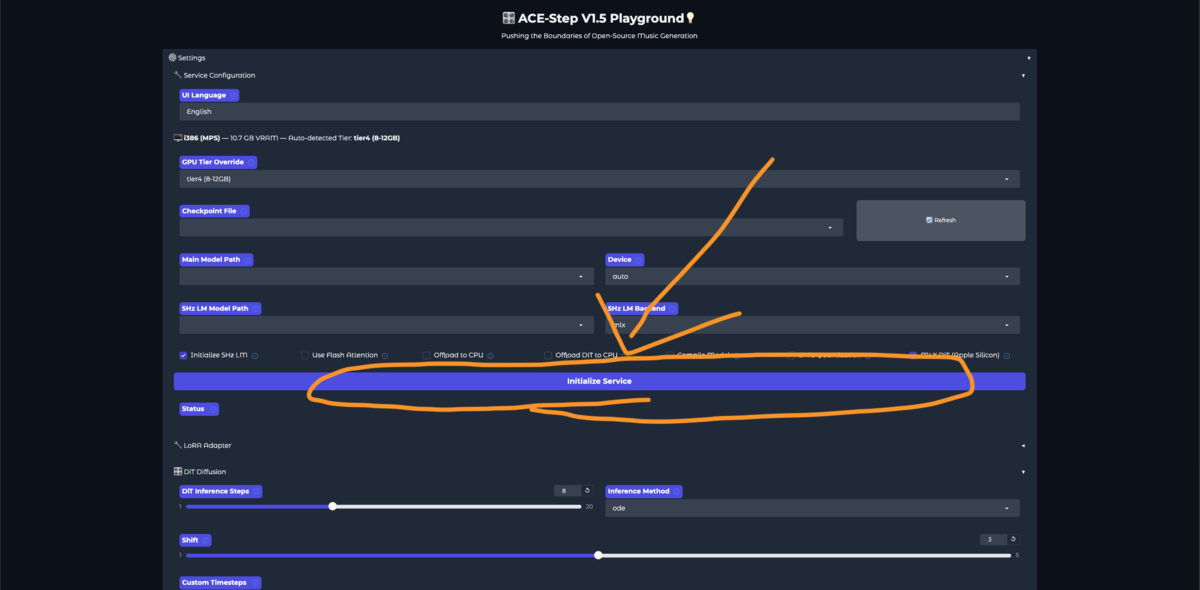
This kicks off the model download.
In my case, the download took about 40 minutes.
Once the download is complete, it's time to generate some music.
I clicked the "Click Me" button to randomly generate a prompt and lyrics, then hit "Generate Music" to create a track.

Generation took roughly 5–10 minutes.
Troubleshoot - RuntimeError: MPS backend out of memory
On my first attempt, I ran into the following error:
RuntimeError: MPS backend out of memory (MPS allocated: 11.74 GiB, other allocations: 9.95 GiB, max allowed: 18.13 GiB). Tried to allocate 10.99 MiB on private pool. Use PYTORCH_MPS_HIGH_WATERMARK_RATIO=0.0 to disable upper limit for memory allocations (may cause system failure).
This means there isn't enough GPU memory.
As the error message suggests, you can disable the memory cap by setting the environment variable PYTORCH_MPS_HIGH_WATERMARK_RATIO=0.0.
export PYTORCH_MPS_HIGH_WATERMARK_RATIO=0.0
After setting this and launching the Gradio Web UI, music generation completed without any errors.
Example Output
Here's an example of a generated track.
As mentioned, the prompt was auto-generated by the "Click Me" button:
A melancholic German singer-songwriter track with fingerpicked acoustic guitar, subtle piano, and heartfelt female vocals. The intimate production captures the pain of heartbreak and the journey toward healing.
Here's the result:
ローカルでもサクサク動く高性能な音楽生成AIと噂のACE-Step 1.5をMacBook Airで試してみた pic.twitter.com/XvftUtaWeN
— BioErrorLog (@bioerrorlog) February 14, 2026
The lyrics are in German.
For something you can casually run on a MacBook Air, the output quality is pretty impressive, wouldn't you say?
Conclusion
The pace of AI model progress shows no signs of slowing down.
It's exciting to see more lightweight yet powerful models like this continue to emerge, giving us all sorts of new things to experiment with.
That's all!
[Related Articles]
