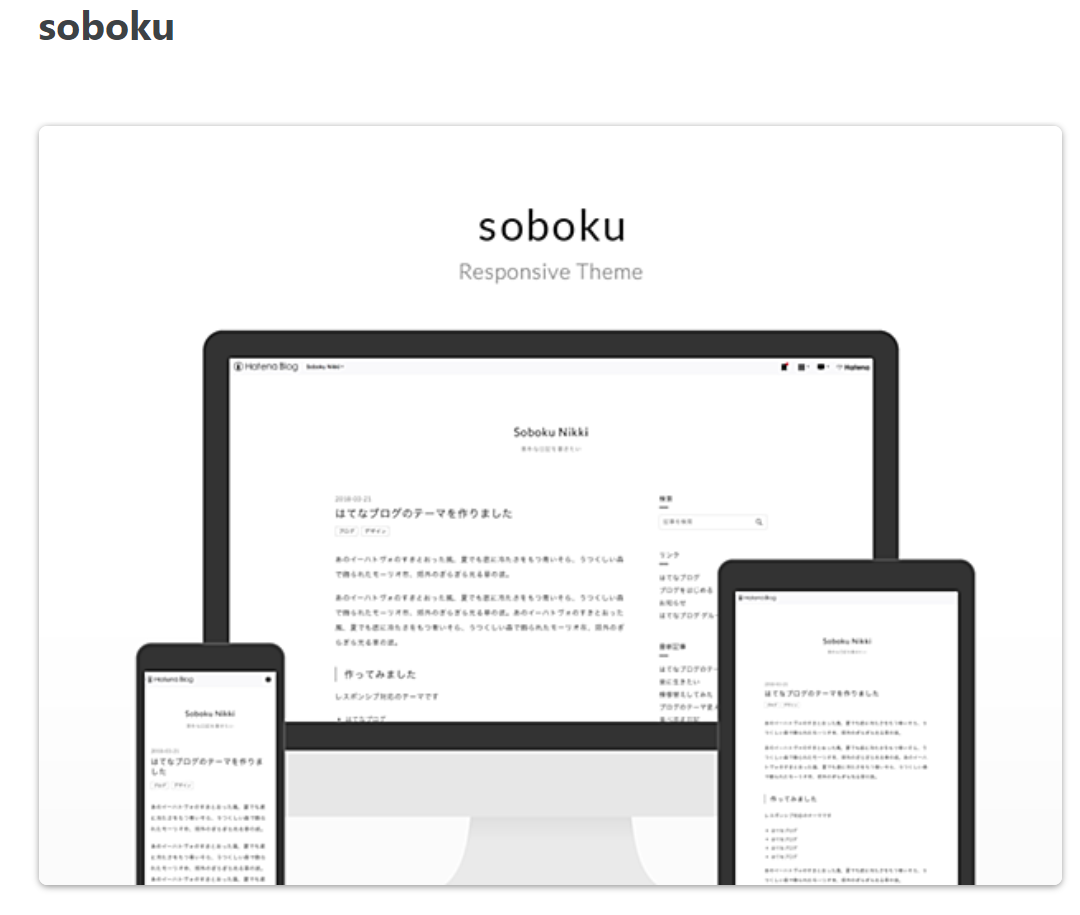
ブログ開設1周年、すっきりとしたテーマに変更しました。
備忘録です。
soboku - すっきりとしたテーマに変更しました
ブログ1周年を機に、白背景で罫線等の文字装飾が少ないテーマに変更しました。AdSense広告が多くなりゴテゴテした見た目になると、ブログ自体はシンプルな方が見やすいような気がします。
当面はこちらのデザインで更新をしていきたいと思います。
前のブログテーマで使っていて、引っ越してきたもの
目次やボトムメニューなど、テーマに備わっていないものを後から追加しています。使えるものはそのまま使いたいと思います。
目次メニュー
目次メニューは下記サイトからコピペさせていただき、文字の大きさやカラーを調整して使っています。
CSSコードを表示(折りたたみ)
/*アンダーラインで段落分け目次*/
.entry-content .table-of-contents {
    position: relative;
    margin: 0;
    padding: .5em 1.2em 1em;
    background: #fff;
    font-size: 180%; /* サイズ変更 */
    border-top: solid 40px #595857; /* カラー変更 */
    border-right: solid 2px #595857; /* カラー変更 */
    border-bottom: solid 2px #595857; /* カラー変更 */
    border-left: solid 2px #595857; /* カラー変更 */
    border-radius: 8px;
    color: #595857; /* カラー変更 */
}
.entry-content .table-of-contents::before {
    content: "目次";
    position: absolute;
    top: -33px;
    left: 38px;
    margin: 0;
    color: #fff;
    border: 0;
    font-size: 160%;/* サイズ変更 */
    font-weight: bold;
}
.entry-content .table-of-contents::after {
    content: "\f039";
    font-family: blogicon;
    position: absolute;
    top: -35px;
    left: 13px;
    color: #fff;
    font-weight: bold;
    font-size: 120%;
}
.entry-content .table-of-contents li {
    margin: .2em 0 1em 1em;
    list-style-type: decimal;
    line-height: 1.6em;
    font-weight: bold;
}
.entry-content .table-of-contents li ul {
    margin: 0 0 1em .5em;
    padding: 0;
}
.entry-content .table-of-contents li ul li {
    margin: .2em 0 0 1em;
    font-weight: normal;
    font-size: 80%;/* サイズ変更 */
}
.entry-content .table-of-contents li ul li ul li {
    font-size: 90%;
}
.entry-content .table-of-contents a {
    color: #595857; /* カラー変更 */
    display: block;
    text-decoration: none;
    border-bottom: solid 2px #595857; /* カラー変更 */
}
.entry-content .table-of-contents ul li a {
    border-bottom: dashed 1px #595857; /* カラー変更 */
}

/*アンダーラインで段落分け目次 ここまで */
手順を解説するステッパー

下記がコピペさせていただいたサイトと、導入時の拙ブログです。
ステッパーのCSSコード(クリックで展開)
/***ステップバーデザイン1***/
.step-wrap1 {
 counter-reset:count;
 margin: 2em 0;
 position: relative;
}
.step-content1 {
 padding: 0 0 1.3em 2em;
 margin: 0;
 position: relative;
}
.step-content1::before {
 content: "";
 display: block;
 width: 13px;
 height: 13px;
 background: #6ab5a5;
 border: solid 3px #ffffff;
 border-radius: 50%;
 position: absolute;
 top: 3px;
 left: 3px;
 box-shadow: 0 0 0 2px #6ab5a5;
}
.step-content1::after {
 content: "";
 display: block;
 height: calc(100% - 35px);
 border-left: dotted 5px #768888;
 position: absolute;
 top: 30px;
 left: 10px;
}
.step-title1 {
 font-weight: bold;
 font-size: 120%;
}
.step-label1 {
 color: #768888;
 font-weight: bold;
}
.step-label1::after {
 counter-increment:count;
 content:counter(count);
 position: relative;
 left: .3em;
}
.step-body1 {
 margin-top: .5em;
 padding: 0 0 1em;
 border-bottom: dotted 2px #ddd;
}
.step-wrap1 > :last-of-type::after {
 display: none;
}
/***ステップバーデザイン1***/
スマホ用ボトムメニュー
以前、下記のサイトからボトムメニューのコードを頂戴したのを、そのまま引っ越してきました。
ボトムメニューのHTML(クリックで展開)
<!-- bottom navigation デザインの「フッタ」のHTMLに貼り付ける -->

<ul class="bottom-menu">

    <li>

          <!-- ↓↓項目1. ホーム  #の部分にホームのURLを入れる -->

        <a href="https://driveon43.com/">

              <i class="blogicon-home"></i><br><span class="mini-text">ホーム</span></a>

    </li>

    <li class="menu-width-max">

              <!-- ↓↓項目2. おすすめ すぐ下の"#"はそのまま -->

        <a href="#"><i class="blogicon-list"></i><br><span class="mini-text">カテゴリ</span></a>
           <ul class="menu-second-level">
                <!-- 下の"#"の部分におすすめ"記事URL"とタイトル等を入れる -->
                <li><a href="https://driveon43.com/archive/category/%E6%97%A5%E8%A8%98">日記</a></li>
                <li><a href="https://driveon43.com/archive/category/%E6%9B%B8%E3%81%8F%E4%BD%9C%E6%A5%AD">書く作業</a></li>
                <li><a href="https://driveon43.com/archive/category/%E5%82%99%E5%BF%98%E9%8C%B2">備忘録</a></li>
                <li><a href="https://driveon43.com/archive/category/100%E8%A8%98%E4%BA%8B">100記事</a></li>
            </ul>
    </li>

    <li>
              <!-- ↓↓項目3. 読者登録 ↓↓の部分の書き換えが必要です -->
        <!--  ~hatena.ne.jp/自分のはてなID/URL(http://の部分は無し)/subscribe -->
        <a href="https://blog.hatena.ne.jp/ED105/driveon43.com/subscribe" target="_blank">
        <i class="blogicon-hatenablog"></i><br><span class="mini-text">読者登録</span></a>
    </li>

    <li>
              <!-- ↓↓項目4. 上へ戻るボタン  変更不要です-->
        <div><a href="#">
        <i class="blogicon-chevron-up"></i><br><span class="mini-text">上へ戻る</span></a></div>
    </li>

<li class="menu-width-max">
              <!-- ↓↓項目5. 目次 変更不要です※注意あり -->
    <a href="#"><i class="blogicon-list"></i><br><span class="mini-text">目次</span></a>
        <ul class="menu-second-level">
           <div id="toc"></div>
        </ul>
</ul>


<!-- 目次を作成する先 -->

<div id="toc"></div>

<script type="text/javascript">

    document.addEventListener('DOMContentLoaded', function () {

        var contentsList = document.getElementById('toc'); // 目次を追加する先(table of contents)

        var div = document.createElement('div'); // 作成する目次のコンテナ要素

        // .entry-content配下のh2、h3要素を全て取得する

        var matches = document.querySelectorAll('.entry-content h2, .entry-content h3');

        // 取得した見出しタグ要素の数だけ以下の操作を繰り返す

        matches.forEach(function (value, i) {

            // 見出しタグ要素のidを取得し空の場合は内容をidにする

            var id = value.id;
            if(id === '') {
                id = value.textContent;
                value.id = id;
            }
            // 要素がh2タグの場合

            if(value.tagName === 'H2') {
                var ul = document.createElement('ul');
                var li = document.createElement('li');
                var a = document.createElement('a');

                // 追加する<ul><li><a>タイトル</a></li></ul>を準備する

                a.innerHTML = value.textContent;
                a.href = '#' + value.id;
                li.appendChild(a)
                ul.appendChild(li);

                // コンテナ要素である<div>の中に要素を追加する
                div.appendChild(ul);
            }


            // 要素がh3タグの場合
            if(value.tagName === 'H3') {
                var ul = document.createElement('ul');
                var li = document.createElement('li');
                var a = document.createElement('a');

                // コンテナ要素である<div>の中から最後の<li>を取得する。

                var lastUl = div.lastElementChild;
                var lastLi = lastUl.lastElementChild;

                // 追加する<ul><li><a>タイトル</a></li></ul>を準備する

                a.innerHTML = value.textContent;
                a.href = '#' + value.id;
                li.appendChild(a)
                ul.appendChild(li);

                // 最後の<li>の中に要素を追加する

                lastLi.appendChild(ul);

            }

        });

        // 最後に画面にレンダリング

        contentsList.appendChild(div);

    });

</script>
ボトムメニューのCSS(クリックで展開)
/* ボトムメニュー  */

/*========================

 smartphone bottom menu

 ========================*/

.mini-text{font-size:11px;}/*文字大きさ*/

ul.bottom-menu {
    position: fixed;
    left:0;
    bottom:0;
    width: 100%;
    height:45px;/*高さ*/
    margin:0;
    padding:0;
    background-color:#616160;/*背景色*/
    z-index:30;}

ul.bottom-menu li {
    float:left;
    width:20%;
    background-color:#595857;/*背景色*/
    list-style-type:none;
    text-align:center;
    font-size:25px;/*アイコンのサイズ*/}

.bottom-menu li a {
    display: block;
    color:#ffffff;/*アイコン&文字の色*/
    padding-top:10px;
    padding-bottom:5px;
    line-height:10px;
    text-decoration:none;}

.bottom-menu li a:hover {
    color:#a9a9a9;/*マウスオーバー時の色*/
}

/* === 展開メニュー === */

ul.menu-second-level {
    visibility: hidden;
    opacity: 0;
    z-index:1;
}

ul.menu-second-level li a{
    border-top:1px dashed #a9a9a9;/*展開の枠点線*/
    font-size:15px;/*展開メニューの文字サイズ*/
    line-height:30px;/*文字の縦幅*/
}

.menu-second-level li a:hover {
    height:100%;
    background: lightgrey;/*マウスオーバーの色*/}

li.menu-width-max ul.menu-second-level {
    position: absolute;
    bottom: 47px;/*高さ*/
    left: 0;
    box-sizing: border-box;
    width: 100%;
    padding:0;
}
li.menu-width-max:hover ul.menu-second-level {
    bottom: 47px;/*高さ*/
    visibility: visible;
    opacity: 1;
}

li.menu-width-max ul.menu-second-level li {
    float: left;
    width: 100%;
    border: none;}

/*PC表示の際はボトムメニューは表示しない*/

@media(min-width: 768px){
    .bottom-menu{display:none; }
}

/*スマホの時だけ*/

@media(max-width: 767px){
/*ボトムメニュー付けたのでフッタを底上げする*/
#footer{margin-bottom:48px;}
}
/* ボトムメニューここまで */
そのうちやる事
トップナビゲーションの設置
トップナビゲーションは以前使っていたテーマContentsのコードを使用しており、今回テーマを変更するにあたって、そちらはそのまま使わずに破棄しました。
上でボトムナビゲーションの作り方を紹介したサイトにトップナビゲーションメニューの作り方も掲載されているので、そのうち搭載する予定。
ブログパーツの取捨選択
PC版のサイドバーがスマホデザインでは記事下にずらっと並ぶので、かなり長くなる。すっきりできるものならしたい。
コードなど折りたたみ展開できるdetailsタグの導入
2024年5月5日導入済み
その他、過去のブログデザインのカスタマイズ記事
PCで修正しても、スマホでは文字サイズが期待通りに表示されてなかったりします。環境によって変わるCSSは難しいですね。
まとめ
以前のブログデザインよりもすっきりしたものに変えました。いつでも戻れるようにコードを保管しておきました。
