AWS fsxを作成した後、AWSコンソールから以外ですべき設定作業があります。
それがこちら。 docs.aws.amazon.com
概要をざっとまとめるとこちらです。
Best Practices
| 項目 | 機能概要 | 関連リンク |
|---|---|---|
| Data Deduplication | データの重複を極力削減してくれる機能 | link |
| quota | データ要領の利用制限をADグループ等に対し設定できる機能 | link |
| shadow copy | メリット:ファイル/フォルダ単位でのリストアが簡単に可能 デメリット:FSXの一部の要領をshadow copy用に利用する |
link link2 |
| Encryption in Transit | クライアントから接続の際、暗号化通信を設定する | link |
上記はAWSが言うところのベストプラクティスです。 ただ、上記以外にもやっておいた方が良さげなことがあります。
おすすめ
| 項目 | 機能概要 | 関連リンク |
|---|---|---|
| DNS Alias | fsxに別のfqdnを付与できます リストアとかした時に便利です Deployment typeがSingle-AZ 1の時のみ利用可能なので注意です |
link |
| Shared Folders tool | 接続ユーザの一覧や、ファイルがロックされてしまった場合に解除できる。設定ではないが一回触っておいた方が良い | link |
| cloudwatch Alarm | 残りの容量が少ない場合通知設定をする | link |
設定してみる
では、上記を設定してみます。
まず環境変数を設定します。
全ての作業の前で、下記を実行してください。
環境変数設定
 下記を「Windows Remote PowerShell Endpoint」の部分に置き換えて実行します。
#poweshell endpointを設定する
$FSxWindowsRemotePowerShellEndpoint="amznfsxxxxxxxxxx.fsx-test.local"
Data Deduplication(データ重複削減)
機能概要
この機能が有効化されていると、
定期的にバックグラウンドで、データ重複を検知し、
ディスクの要領を削減してくれます。
設定方法
# depulicationを有効化
Invoke-Command -ComputerName $FSxWindowsRemotePowerShellEndpoint -ConfigurationName FSxRemoteAdmin -ScriptBlock { Enable-FsxDedup }
有効化するとデフォルトで良い感じにスケジュール実行してくれるそうです。
スケジュールを明確に指定する方法もあるようです。
docs.aws.amazon.com
Quota
機能概要
fsx本来要領に対しquota(制限)を設定できる機能です。
具体的には、ADの特定グループと、制限値を設定できるため、
ファイルサーバ的に利用している場合に、
特定のグループの人はxxGBまで、と要領制限を付けたい場合に利用すると良いと思います。
設定方法
## 記録のみしたい場合(Trackモード)
$QuotaLimit = 100000000
$QuotaWarningLimit = 100000
Invoke-Command -ComputerName $FSxWindowsRemotePowerShellEndpoint -ConfigurationName FSxRemoteAdmin -ScriptBlock { Enable-FSxUserQuotas -Track -DefaultLimit $Using:QuotaLimit -DefaultWarningLimit $Using:QuotaWarningLimit }
## 要領を超えた場合に、強制的に書き込みを禁止したい場合(Enforceモード)
$QuotaLimit = 100000000
$QuotaWarningLimit = 100000
Invoke-Command -ComputerName $FSxWindowsRemotePowerShellEndpoint -ConfigurationName FSxRemoteAdmin -ScriptBlock { Enable-FSxUserQuotas -Enforce -DefaultLimit $Using:QuotaLimit -DefaultWarningLimit $Using:QuotaWarningLimit }
## 現在のモードを確認する(enforceかtrackか)
Invoke-Command -ComputerName $FSxWindowsRemotePowerShellEndpoint -ConfigurationName FSxRemoteAdmin -ScriptBlock { Get-FSxUserQuotaSettings }
## 特定のADのグループに制限を紐付けたい場合(例.グループ名:fsxservice)
Invoke-Command -ComputerName $FSxWindowsRemotePowerShellEndpoint -ConfigurationName FSxRemoteAdmin -ScriptBlock { Set-FSxUserQuotas  -Domain "fsx-test.local" -Name "fsxservice" -Limit 10 -WarningLimit 5  }
shadow copy
機能概要
fsx内のデータを特定時点に復元したいとき、
バックアップからリストアが必要となります。
ただ、間違えてファイル上書きしてしまって、
特定のファイルだけ戻したいみたいなケースは良くあると思います。
そんな時、shadow copyを有効化しておくと、
特定のファイルだけ復元が可能です。
復元時の操作イメージは下記が分かりやすいと思います。
docs.aws.amazon.com
設定方法
#shadow copyを有効化
Invoke-Command -ComputerName $FSxWindowsRemotePowerShellEndpoint -ConfigurationName FSxRemoteAdmin -ScriptBlock { Set-FsxShadowStorage -Default }

#shadow copyのスケジュールを作成
$trigger1 = new-scheduledTaskTrigger -weekly -DaysOfWeek Monday,Tuesday,Wednesday,Thursday,Friday -at 06:00
$trigger2 = new-scheduledTaskTrigger -weekly -DaysOfWeek Monday,Tuesday,Wednesday,Thursday,Friday -at 18:00
invoke-command -ComputerName $FSxWindowsRemotePowerShellEndpoint -ConfigurationName FSxRemoteAdmin -scriptblock {
set-fsxshadowcopyschedule -scheduledtasktriggers $Using:trigger1,$Using:trigger2 -Confirm:$false }

# スケジュール確認
Invoke-Command -ComputerName $FSxWindowsRemotePowerShellEndpoint -ConfigurationName FSxRemoteAdmin -ScriptBlock { Get-FsxShadowCopySchedule }
Encryption in Transit
クライアントから接続の際、
通信を暗号化通信を強制します。
設定方法
#Enforcing Encryption in Transit
Invoke-Command -ComputerName $FSxWindowsRemotePowerShellEndpoint -ConfigurationName FSxRemoteAdmin -ScriptBlock { Set-FsxSmbServerConfiguration -EncryptData $True -RejectUnencryptedAccess $True -Confirm:$False}
DNS Alias
機能概要
通常、fsxが作成されるとID的に1つのFQDN(amznxxxxx.<ドメイン名>)が割り当てられます。
ただ、FQDNをリストアした場合や、 移行等の場合では、
固有のFQDNだと、設定変更が発生して面倒かと思います。
DNS Aliasを利用すると別のDNS名をつけることが可能です。
設定方法
まず、AWSコンソールで「DNS Alias」から指定したいエイリアス名を入力します。
 その後、ドメイン参加のサーバからpowershell側で設定を追加します。
ドキュメントのサンプルは何回も環境変数をsetして
面倒だったため、まとめています。
$ALIAS = "fsx.fsx-test.local"
$FileSystemDnsName = "amznfsxjlrqzujy.fsx-test.local"

Install-WindowsFeature RSAT-AD-PowerShell

## Find SPNs for original file system's AD computer object
SetSPN /Q ("HOST/" + $ALIAS)
SetSPN /Q ("HOST/" + $ALIAS.Split(".")[0])

## Delete SPNs for original file system's AD computer object
$Alias = $ALIAS
$FileSystemHost = (Resolve-DnsName ${FileSystemDnsName} | Where Type -eq 'A')[0].Name.Split(".")[0]
$FSxAdComputer = (Get-AdComputer -Identity ${FileSystemHost})

SetSPN /D ("HOST/" + ${Alias}) ${FSxAdComputer}.Name
SetSPN /D ("HOST/" + ${Alias}.Split(".")[0]) ${FSxAdComputer}.Name

## Set SPNs for FSx file system AD computer object
$FSxDnsName = $FileSystemDnsName
$FileSystemHost = (Resolve-DnsName $FSxDnsName | Where Type -eq 'A')[0].Name.Split(".")[0]
$FSxAdComputer = (Get-AdComputer -Identity $FileSystemHost)

Set-AdComputer -Identity $FSxAdComputer -Add @{"msDS-AdditionalDnsHostname"="$Alias"}
SetSpn /S ("HOST/" + $Alias.Split('.')[0]) $FSxAdComputer.Name
SetSpn /S ("HOST/" + $Alias) $FSxAdComputer.Name

## Verify SPNs on FSx file system AD computer object
$FileSystemHost = (Resolve-DnsName ${FSxDnsName} | Where Type -eq 'A')[0].Name.Split(".")[0]
$FSxAdComputer = (Get-AdComputer -Identity ${FileSystemHost})
SetSpn /L ${FSxAdComputer}.Name
続いてDNS設定です。
こちらはADが動いているサーバで実行しました。
ドキュメント内のコマンドでうまくいかない点が
あったため一部修正しています。
 Alias,FSxDnsNameを上記の部分に置き換えて実行します。
$Alias = "fsx.fsx-test.local"
$FSxDnsName = "amznfsxjlrqzujy.fsx-test.local"

Install-WindowsFeature RSAT-DNS-Server
$AliasHost=$Alias.Split('.')[0]
$ZoneName=((Get-WmiObject Win32_ComputerSystem).Domain)
$DnsServerComputerName = (Resolve-DnsName $ZoneName -Type NS | Where Type -eq 'A' | Select -ExpandProperty Name)

Add-DnsServerResourceRecordCName -Name $AliasHost -ComputerName $DnsServerComputerName -HostNameAlias $FSxDnsName -ZoneName $ZoneName
GPOを設定する
意味的にはNTLMを利用せずKerberos認証を強制するよう
グループポリシーを設することのようです。
強制したくない場合もあると思いますので、
一部の例外も併せて設定できます。
gpmc.mscを開きます
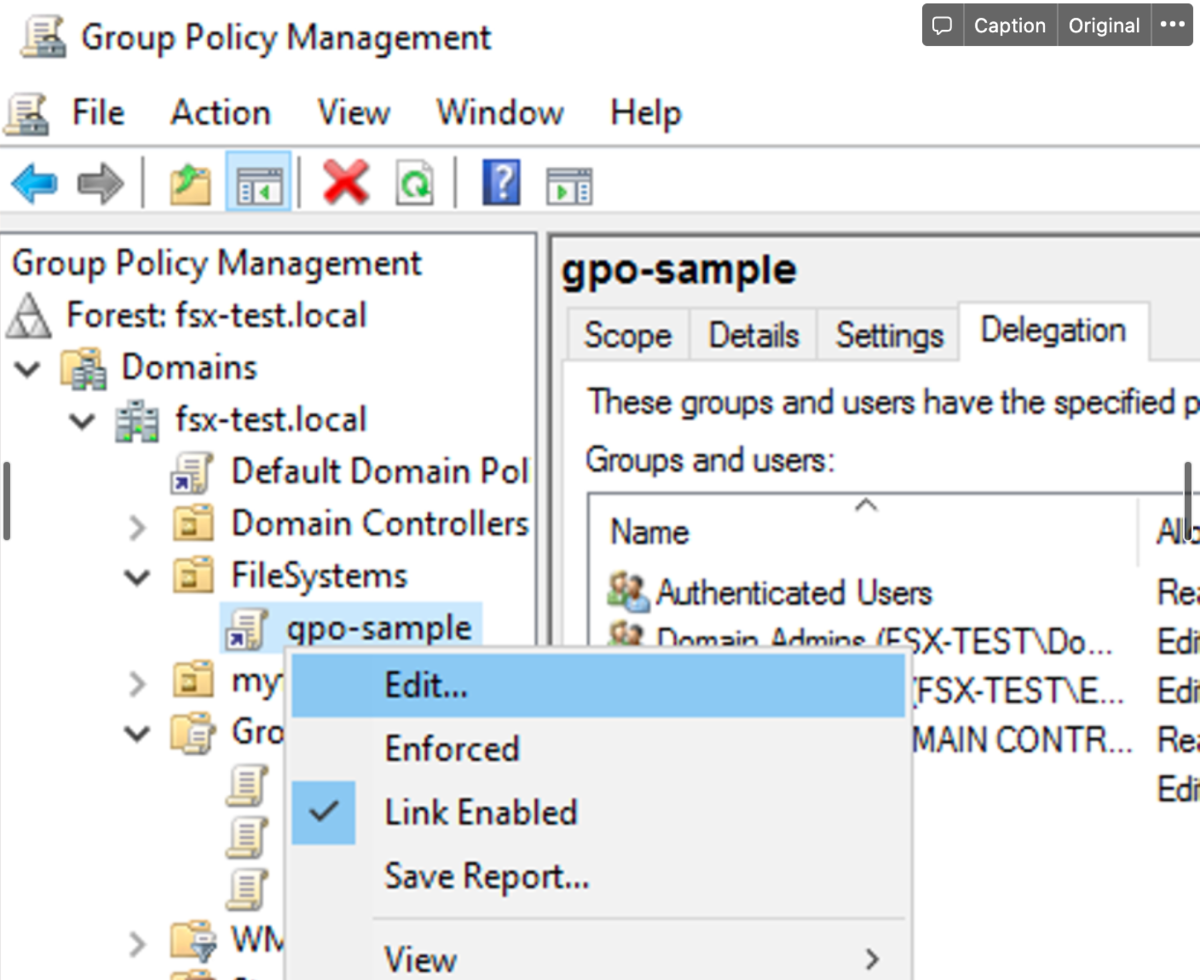 対象のOUでグループポリシーを作成しEditします。
 Localポリシー内の下記を選択します
Restrict NTLM: Outgoing NTLM traffic to remote servers
 続いてLocalポリシー内の下記を選択します
Restrict NTLM: Add remote server exceptions for NTLM authentication
例外を指定したい場合はここで入力します。
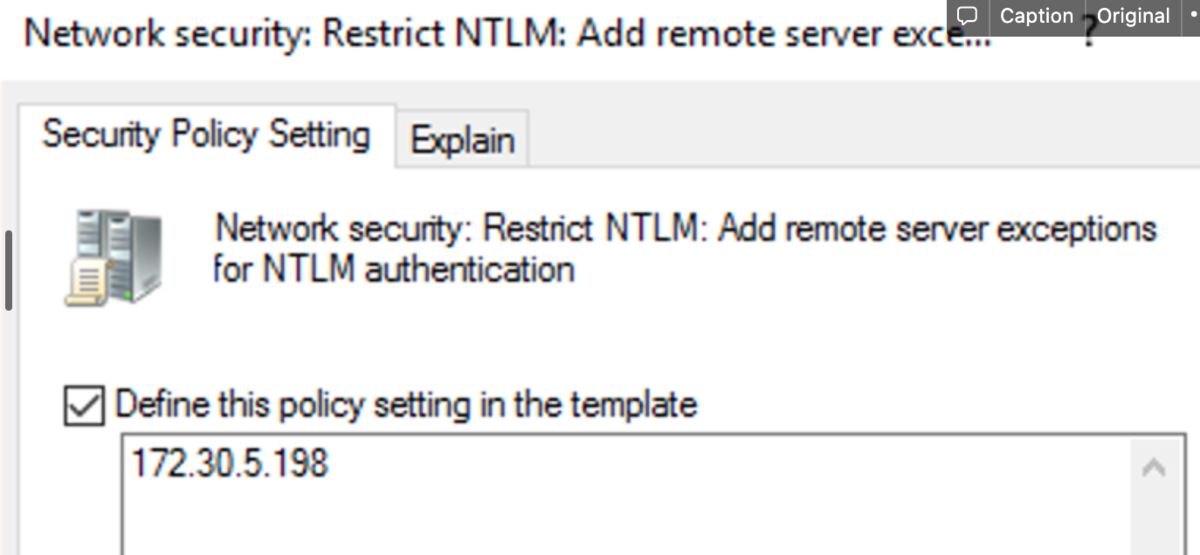
上記が完了したら、エイリアス名で正しく名前解決ができることを確認します。
PS C:\Users\Administrator> nslookup fsx.fsx-test.local
Server:  localhost
Address:  ::1

Name:    amznfsxjlrqzujy.fsx-test.local
Address:  172.30.5.102
Aliases:  fsx.fsx-test.local
その後、fsxに接続し、成功すれば完了です
net use z: \\fsx.fsx-test.local\share
Shared Folders tool
機能概要
下記のようなケースで管理者が使うツールです。
こちらは設定しておくものでなく、
管理者が利用するケースがあると思いますので、
構築したタイミングで動作を試してみると良いと思います。
- FSXへの接続セッションを強制で切る
- ファイルが競合してうまく開かない等あったら解決できる
利用方法
fsmgmt.msc
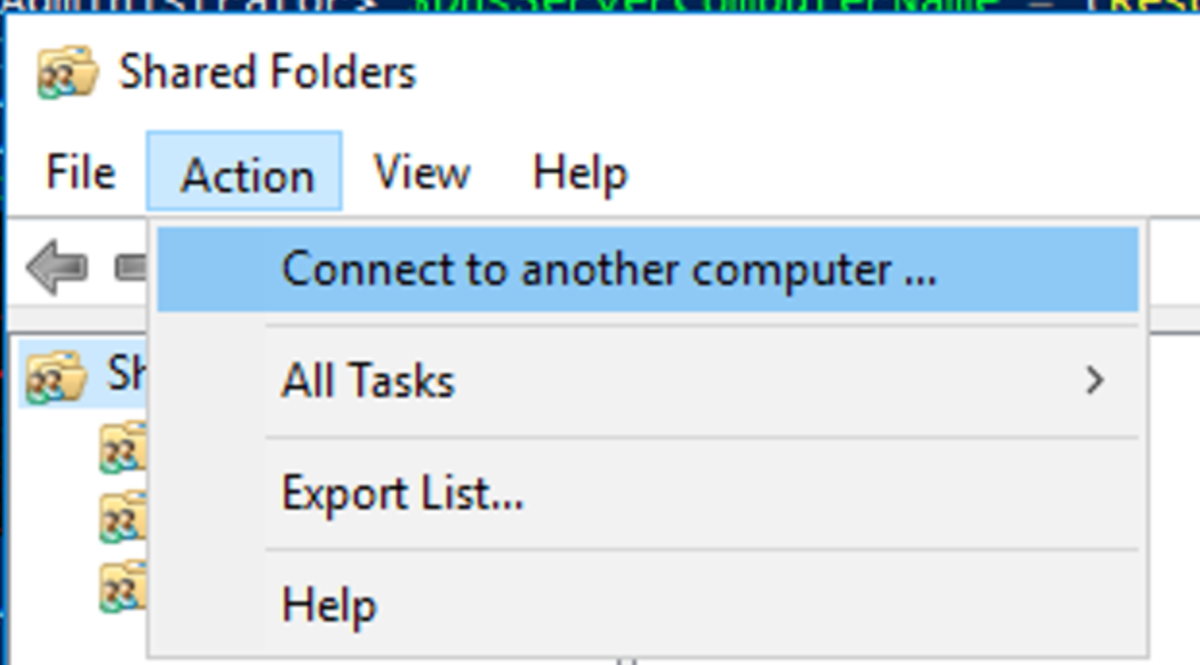
fsxのdns名を入力
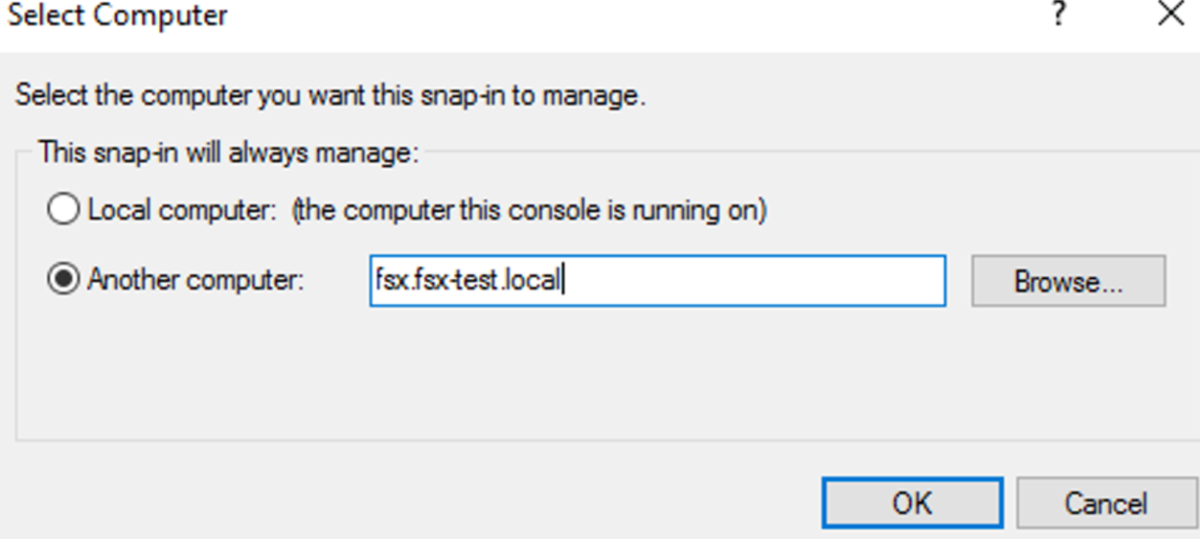
その後、セッションを終了させる、
ファイル競合を解決する操作は下記が分かりやすいです。
docs.aws.amazon.com
cloudwatch Alarm
下記参考にFreeStorageCapacity(空き容量)の通知ぐらいは
しておいた方が良いかと思いました。
docs.aws.amazon.com
下記をまとめて作成するcloudformaitonを下記ました。
自己所有のADを参照するFsx用の記述のため
MicrosoftADをご利用の場合は、その部分を書き換えが必要です。
あと、各種パラメータは読み替えてください。
- fsx
- security-group
- SNS
- cloudwatch
AWSTemplateFormatVersion: "2010-09-09"
Description: A templete for fsx for windows
Parameters:
  EnvPrefix:
    Type: String
    Default: "test"
  # KmsKeyId:
  #   Type: String
  StorageCapacity:
    Type: Number
    Default : 32
  VPCId:
    Type: AWS::EC2::VPC::Id
    Default: vpc-xxxxxxxxx
  SubnetIds:
    Type: List<AWS::EC2::Subnet::Id>
    Default: subnet-xxxxxxxxxx
  # ActiveDirectoryId:
  #   Type: String
  #   Default: d-96671b8248
  DailyAutomaticBackupStartTime:
    Type: String
    Default: "16:00"
  DeploymentType:
    Type: String
    Default: SINGLE_AZ_2
    # Default: MULTI_AZ_1
  ThroughputCapacity:
    Type: Number
    Default : 8
  WeeklyMaintenanceStartTime:
    Type: String
    Default: "6:17:00"

  OnpreDNS:
    Type: CommaDelimitedList
    Default: xxx.xxx.xxx.xxx
  OnpreDomainName:
    Type: String
    Default: fsx-test.local
  FileSystemAdministratorsGroup:
    Type: String
    Default: FSXAdmins
  UserName:
    Type: String
    Default: fsxservice
  Password:
    Type: String
    Default: xxxxxxxxxxxxxxxxxxxxxxxxxx
    NoEcho: True
  OrganizationalUnitDistinguishedName:
    Type: String
    Default: "OU=FileSystems,DC=fsx-test,DC=local"
  FSXAllowedRange:
    Type: String
    Default: 172.30.0.0/16

  ThresholdFreeStorageCapacity:
    Type: Number
    Default: 3221225472

  endpointEmail:
    Type: String
    Default: 'xxxxxxxxxxxxxx@xxxxxx.com'


Resources :
  fsx:
    Type: AWS::FSx::FileSystem
    Properties:
      # KmsKeyId: kms
      FileSystemType: WINDOWS
      SecurityGroupIds:
        - !Ref sg
      StorageCapacity: !Ref StorageCapacity
      StorageType: SSD
      # StorageType: HDD
      SubnetIds: !Ref SubnetIds
      WindowsConfiguration:
        # ActiveDirectoryId: !Ref ActiveDirectoryId
        AutomaticBackupRetentionDays: 7
        CopyTagsToBackups: true
        DailyAutomaticBackupStartTime: !Ref DailyAutomaticBackupStartTime
        DeploymentType: !Ref DeploymentType
        # PreferredSubnetId: String
        SelfManagedActiveDirectoryConfiguration:
          DnsIps: !Ref OnpreDNS
          DomainName: !Ref OnpreDomainName
          FileSystemAdministratorsGroup: !Ref FileSystemAdministratorsGroup
          OrganizationalUnitDistinguishedName: !Ref OrganizationalUnitDistinguishedName
          Password: !Ref Password
          UserName: !Ref UserName
        ThroughputCapacity: !Ref ThroughputCapacity
        WeeklyMaintenanceStartTime: !Ref WeeklyMaintenanceStartTime

  sg:
    Type: AWS::EC2::SecurityGroup
    Properties:
      GroupDescription: !Sub ${EnvPrefix}-sg
      GroupName: !Sub ${EnvPrefix}-sg
      VpcId: !Ref VPCId
      SecurityGroupIngress:
        -
          CidrIp: !Ref FSXAllowedRange
          FromPort: 445
          ToPort: 445
          IpProtocol: tcp
        -
          CidrIp: !Ref FSXAllowedRange
          FromPort: 5985
          ToPort: 5985
          IpProtocol: tcp
      Tags:
        -
          Key: Name
          Value: FSX

  CloudWatchAlarmFreeStorageCapacity:
    Type: AWS::CloudWatch::Alarm
    Properties:
      ActionsEnabled: 'true'
      ComparisonOperator: LessThanOrEqualToThreshold
      EvaluationPeriods: '1'
      MetricName: FreeStorageCapacity
      Namespace: AWS/FSx
      AlarmName: !Sub ${EnvPrefix}FreeStorageCapacity
      Period: '300'
      Statistic: Average
      Threshold: !Ref ThresholdFreeStorageCapacity
      AlarmActions:
        - !Ref SNSNotif
      Dimensions:
        -
          Name: FileSystemId
          Value: !Ref fsx

  SNSNotif:
      Type: AWS::SNS::Topic
      Properties:
        DisplayName: !Sub ${EnvPrefix}Topic
        Subscription:
          -
            Endpoint: !Ref endpointEmail
            Protocol: email
        TopicName: !Sub ${EnvPrefix}TopicTicket
