- 経緯
- Pinterest APIの申請方法
- APIの使用例
- 注意事項
- 全権限を付与する例: get_access_token.py
- Boardの情報を取得する
- curlでのピン投稿
- ピン投稿のPythonコード
- まとめ
経緯
ローカルに保存した画像をWebにも投稿したいと思い、画像や動画投稿に対応したPinterestに投稿することを考えました。
ピン投稿はPinterestアプリから実行できますが、画像が多く、titleやdescriptionも指定したかったので公式のPinterest APIを利用することにしました。
本記事では、実際にAPIを申請して動作確認をしたので、その内容をまとめた記事になります。
Pinterest APIの申請方法
2024年4月現在、Pinterest API(REST API)はAPI v5が最新です。また、Pinterest APIを利用するためには、Pinterestのビジネスアカウントを作成し、App登録(申請)を行う必要があります。 https://developers.pinterest.com/account-setup/
これはPinterest APIの仕様として、OAuth 2.0 認証フレームワークでアプリに紐付くApp idとApp Secret Keyを使用してAcccess Tokenを生成し、Bearer認証方式でエンドポイントURLに対してGET/POSTリクエストを送信することで、ボードやPinの作成/管理を行う仕組みであるためです。
詳細は下記に記載されています。 https://developers.pinterest.com/docs/getting-started/set-up-app/
また、App idとApp Secret Keyを取得するためにはappsページから指定のフォームに従い必要事項を記入してAppを登録する必要があります。
- アプリアイコン(png)
- アプリ名
- 会社名
- 会社のURL/アプリのURL
- プライバシーポリシーのURL
- アプリの利用目的
アプリ申請ページ(キャプチャ)
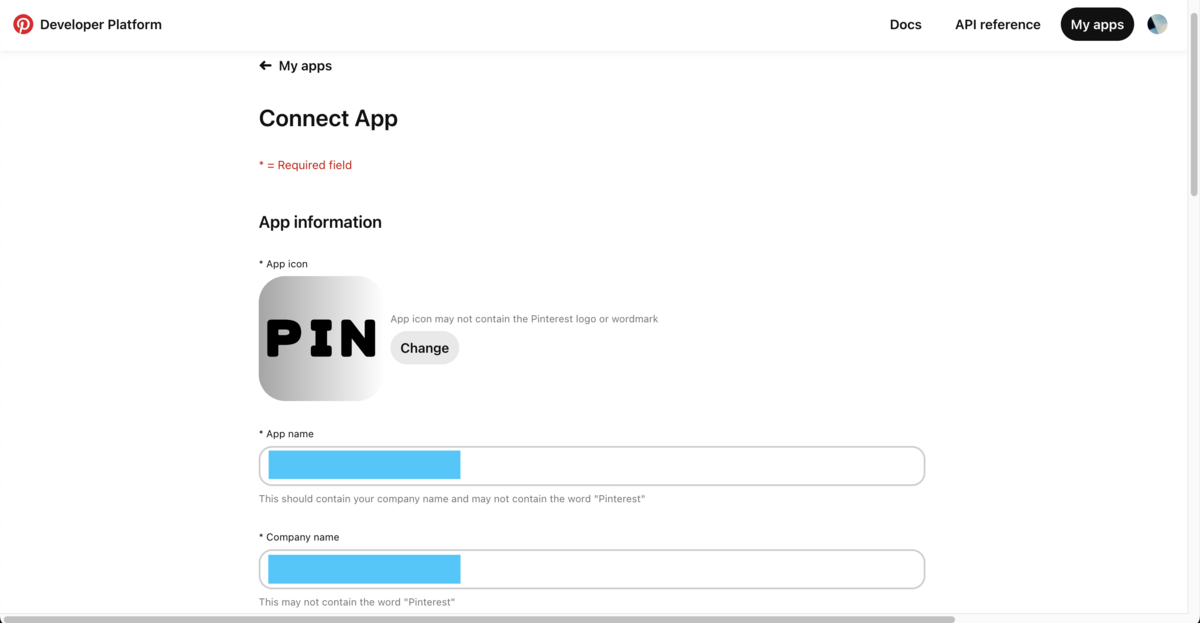

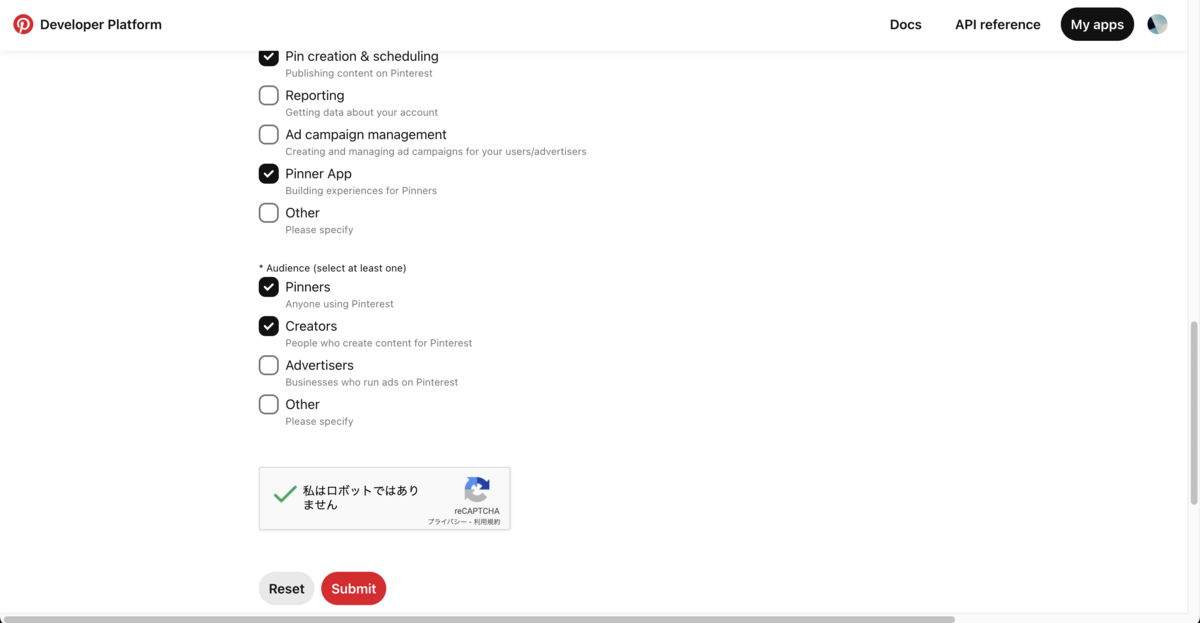
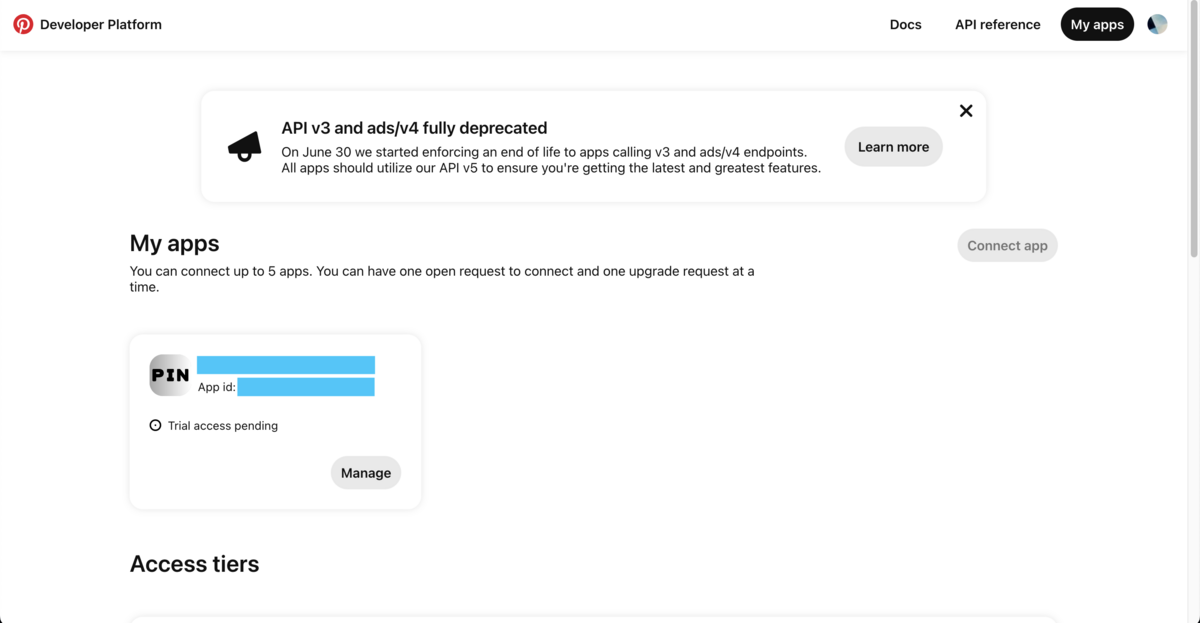
私の場合、申請ではアプリのURLを入力するために、サイトをDocusaurusで作成しました。
サイトはsocial cardをデフォルトでOGPも設定していない必要最低限の構成ですが、申請は通りました。
APIの使用例
Appを登録(申請)するとPinterestからアプリ構築リクエスト/トライアルアクセス承認のメールが届きます。
早ければ翌日には承認メールが届きます。アクセスが承認されるとApp idとApp Secret Keyが表示されます。
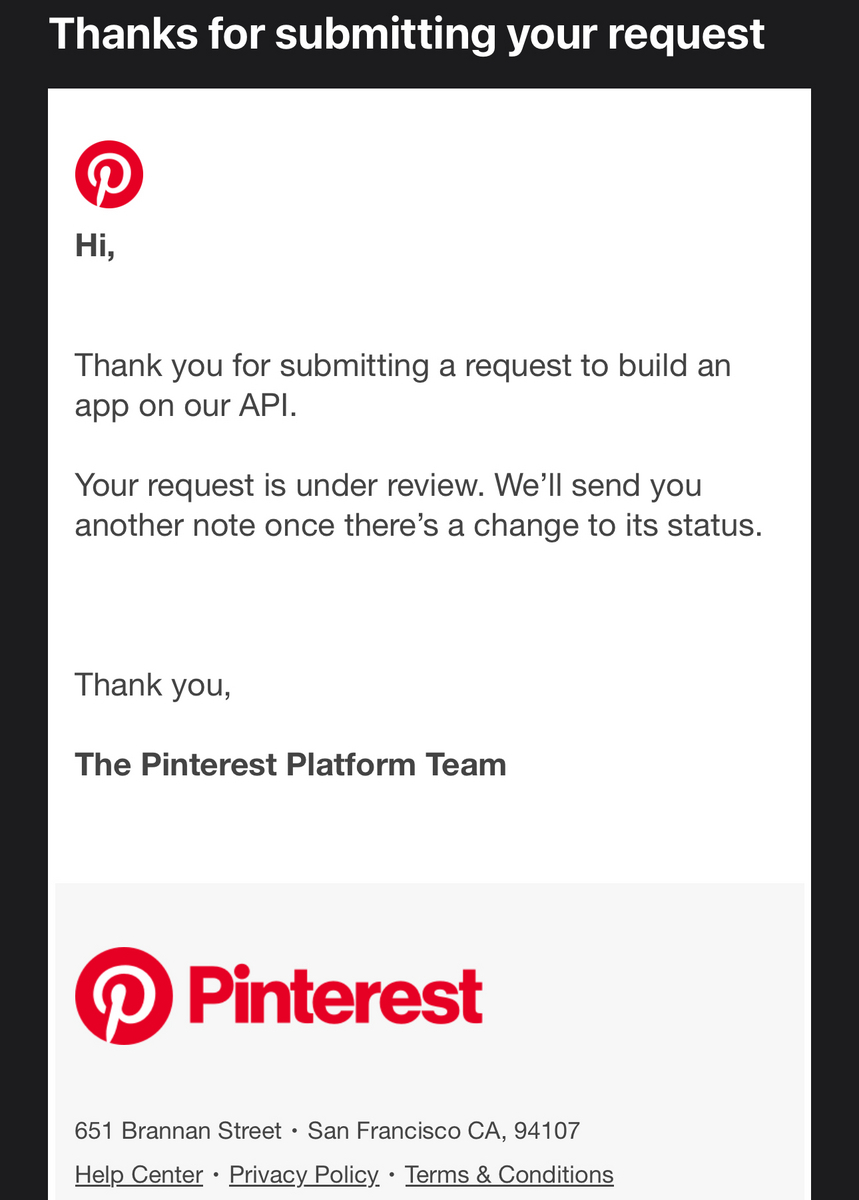

そして、APIに関する情報として以下の情報が記載されています。
アクセストークンに関する情報はドキュメント(Generating an access token)にも記載されていますが、ここではGitHub API Quickstart のget_access_token.pyを使用した例を紹介します。
access_tokenの取得方法
※本コードはコミットハッシュ(6304e40)の情報です。
アクセストークンを使用してコードを実行する場合はScope(権限)を設定する必要があります。以下では全権限を設定する例を示します。
なお、事前にapi-quickstart?の手順を実行して、環境変数(PINTEREST_APP_ID,PINTEREST_APP_SECRET)を設定する必要があります。詳細は上記リンクを確認してください。
Scopeはコマンドライン引数(-s/--scopes)で指定しますが、ScopeはEnumでapi-quickstart/python/src/oauth_scope.pyに定義されています。
scope定義: oauth_scope.py
class Scope(Enum):
    READ_ADS = "ads:read"
    WRITE_ADS = "ads:write"
    READ_BOARDS = "boards:read"
    WRITE_BOARDS = "boards:write"
    READ_CATALOGS = "catalogs:read"
    WRITE_CATALOGS = "catalogs:write"
    READ_PINS = "pins:read"
    WRITE_PINS = "pins:write"
    READ_USERS = "user_accounts:read"
    READ_SECRET_BOARDS = "boards:read_secret"
    WRITE_SECRET_BOARDS = "boards:write_secret"
    READ_SECRET_PINS = "pins:read_secret"
    WRITE_SECRET_PINS = "pins:write_secret"
    READ_ADVERTISERS = "ads:read"

# 以降省略
コマンドの使用方法は下記の通りです。
$ ./scripts/get_access_token.py --help

usage: get_access_token.py [-h] [-w] [-ct] [-s SCOPES] [-a ACCESS_TOKEN]
                           [-l LOG_LEVEL]

Get Pinterest OAuth token

options:
  -h, --help            show this help message and exit
  -w, --write           write access token to file
  -ct, --cleartext      print the token in clear text
  -s SCOPES, --scopes SCOPES
                        comma separated list of scopes or 'help'
  -a ACCESS_TOKEN, --access-token ACCESS_TOKEN
                        access token name
  -l LOG_LEVEL, --log-level LOG_LEVEL
                        level of logging verbosity
引数の説明は上記記載の通りですが、まとめると下記です。
-s:スコープ(権限)の設定-ct:アクセストークン情報を表示-w:アクセストークン情報をapi-quickstart/common/oauth_tokensに保存する-aでアクセストークン名を指定した場合は、アクセストークン名.jsonが保存される-aを指定しない場合は、access_token.jsonが保存される
注意事項
調べたところ、上記コードでスコープに書き込み権限を付与できますが、実際にAPIを実行すると書き込み処理でエラーになります。
これは推測ですが、申請後のステータスはtrialであり、機能が制限されている可能性があります。書き込み機能を使用したい場合はヘルプセンターに問い合わせして有効にしてもらう対応が必要という認識です。1
ただし、sandbox指定のエンドポイントURL指定であれば実行可能です。詳細は後述します。
全権限を付与する例: get_access_token.py
% ./scripts/get_access_token.py -w -s ads:read,ads:write,boards:read,boards:read_secret,boards:write,boards:write_secret,catalogs:read,catalogs:write,pins:read,pins:read_secret,pins:write,pins:write_secret,user_accounts:read -ct

Using application ID and secret from PINTEREST_APP_ID and PINTEREST_APP_SECRET.
getting auth_code...
// ここでリダイレクトURLが起動されるため、Give Accessを押下します。

exchanging auth_code for access_token...
POST https://api.pinterest.com/v5/oauth/token
<Response [200]>
scope: ads:read ads:write boards:read boards:read_secret boards:write boards:write_secret catalogs:read catalogs:write pins:read pins:read_secret pins:write pins:write_secret user_accounts:read
Please keep clear text tokens secure!
clear text access token: [pina_hogehoge] //ここがアクセストークン
clear text refresh token: [pinr_hogehoge]
hashed refresh token: [hogehoge]
writing access token
GET https://api.pinterest.com/v5/user_account
<Response [200]>
--- User Summary ---
Username: [user_hogehoge]
Account Type: BUSINESS
Profile Image: [hogehoge.jpg]
Website URL:
--------------------

以上でアクセストークンを取得できました。
Boardの情報を取得する
以下のコードを使用してボードの情報を取得します。
- get_user_boards.py: Board Summaryを取得
- get_board.py: 指定のボードに関する情報を取得
get_user_boards.py
オプションの指定は下記の通りです。
% ./scripts/get_user_boards.py -h
usage: get_user_boards.py [-h] [-ps PAGE_SIZE] [--include-empty] [--no-include-empty] [--include-archived] [--no-include-archived] [-a ACCESS_TOKEN] [-l LOG_LEVEL]

Get A User's Boards

options:
  -h, --help            show this help message and exit
  -ps PAGE_SIZE, --page-size PAGE_SIZE
                        Boards per page
  --include-empty       Include empty boards?
  --no-include-empty
  --include-archived    Include archived boards?
  --no-include-archived
  -a ACCESS_TOKEN, --access-token ACCESS_TOKEN
                        access token name
  -l LOG_LEVEL, --log-level LOG_LEVEL
                        level of logging verbosity
オプション指定なしで取得してみます。アカウント作成されたボードの情報を1度に25件分取得できるようです。26件以降は取得許可(yes)を入力すると取得できました。
% ./scripts/get_user_boards.py
Using application ID and secret from PINTEREST_APP_ID and PINTEREST_APP_SECRET.
reading access_token from environment failed, trying read
read access_token from $HOME/develop/pinterest_dev/api-quickstart/common/scripts/../oauth_tokens/access_token.json
GET https://api.pinterest.com/v5/user_account
<Response [200]>
GET https://api.pinterest.com/v5/boards?page_size=25
<Response [200]>
[1] --- Board Summary ---
Board ID: [BOARD_ID-1]
Name: Animals 動物
Description:
Privacy: PUBLIC
--------------------
//
--------------------
[16] --- Board Summary ---
Board ID: [BOARD_ID-16]
Name: Nature 自然
Description:
Privacy: PUBLIC
--------------------
//
[26] --- Board Summary ---
//
--------------------
get_board.py
指定のボードに関する情報を取得します。コマンドの使用方法は下記の通りです。
% ./scripts/get_board.py -h
usage: get_board.py [-h] -b BOARD_ID [--pins] [-a ACCESS_TOKEN] [-l LOG_LEVEL]

Get a Board

options:
  -h, --help            show this help message and exit
  -b BOARD_ID, --board-id BOARD_ID
                        board identifier
  --pins                Get the Pins for the Board
  -a ACCESS_TOKEN, --access-token ACCESS_TOKEN
                        access token name
  -l LOG_LEVEL, --log-level LOG_LEVEL
                        level of logging verbosity
以下のオプションで[BOARD_ID-1]指定で取得してみます。
-b: 取得したいボード(BOARD_IDで指定)--pins: ボードのピンを取得
% ./scripts/get_board.py -b [BOARD_ID-1] --pins
Using application ID and secret from PINTEREST_APP_ID and PINTEREST_APP_SECRET.
reading access_token from environment failed, trying read
read access_token from $HOME/develop/pinterest_dev/api-quickstart/common/scripts/../oauth_tokens/access_token.json
GET https://api.pinterest.com/v5/boards/[BOARD_ID-1]
<Response [200]>
--- Board Summary ---
Board ID: [BOARD_ID-1]
Name: Animals 動物
Description:
Privacy: PUBLIC
--------------------
GET https://api.pinterest.com/v5/boards/[BOARD_ID-1]/pins
<Response [200]>
--- Pin Summary ---
Pin ID: [PIN_ID-1]
Title: Register - Login
Description: Tumblr. Pure effervescent enrichment. Old internet energy. Home of the Reblogs. All the art you never knew you needed. All the fandoms you could wish for. Enough memes to knock out a moderately-sized mammal. Add to it or simply scroll through and soak it up.
Link: http://www.tumblr.com/dashboard
Section ID: None
Domain: None
--------------------
--- Pin Summary ---
Pin ID: [PIN-ID_2]
Title: 【64枚】ほのぼの動物画像の時間だコラァ! : あじゃじゃしたー
Description: 1: 以下、\(^o^)/でVIPがお送りします 2016/11/09(水) 19:58:34.044 ID:t+KJjYdV0 オラァ!
Link: http://blog.livedoor.jp/chihhylove/archives/9410795.html
Section ID: None
Domain: None
--------------------
//省略
GET https://api.pinterest.com/v5/boards/[BOARD_ID-1]/sections
<Response [200]>
参考:get_board_ids.py
get_board.pyではボードの情報が見づらいので以下のコードでGETリクエストを送信するコードも自作しました。
import requests

username = "user_hogehoge"
access_token = "pina_hogehoge"

url = f"https://api.pinterest.com/v5/boards/?owner={username}"
headers = {"Authorization": f"Bearer {access_token}"}
response = requests.get(url, headers=headers)

if response.status_code == 200:
    data = response.json()
    for board in data["items"]:
        print(f"Board ID: {board['id']}, Board Name: {board['name']}")
else:
    print("Failed to retrieve boards.")
    print(f"Status code: {response.status_code}")
    print(f"Error message: {response.text}")
実行すると以下のように取得できます。
% python scripts/get_board_id.py
Board ID: [BOARD_ID-1], Board Name: Animals 動物
//
Board ID: [BOARD_ID-2], Board Name: Nature 自然
curlでのピン投稿
ピン投稿ではpins:writeとboards:writeが必要ですが、
api-quickstartではPin投稿用のコードはありません。
一方でAPI referenceにはPython SDKのサンプルが記載されています。
以下のコードをpins:writeとboards:writeのscopeを設定したアクセストークンをget_access_token.pyで取得し、書き込み用のコードを作成して実行しましたが、invalidエラーになりました。
これは前述した通り、Appはtrial対象であり、何らかの制限が設けられている可能性があります。
# Follow this link for initial setup: https://github.com/pinterest/pinterest-python-sdk#getting-started

from pinterest.organic.pins import Pin
# Board information can be fetched from profile page or from create/list board method here:
# https://developers.pinterest.com/docs/api/v5/#operation/boards/list
BOARD_ID="<Add your board id here>"

pin_create = Pin.create(
  board_id=BOARD_ID,
  title="My Pin",
  description="Pin Description",
  media_source={
      "source_type": "image_url",
      "content_type": "image/jpeg",
      "data": "string",
      'url':'https://i.pinimg.com/564x/28/75/e9/2875e94f8055227e72d514b837adb271.jpg'
      }
  )
print("Pin Id: %s, Pin Title:%s" %(pin_create.id, pin_create.title))
他の方法がないか調べたところ、Pinterest APIではSandbox環境が提供されており、Sandboxではトライアル、スタンダード、アドバンスのすべてのアクセス階層で利用可能であることが記載されていました。 https://developers.pinterest.com/docs/dev-tools/sandbox/
そこで、API reference記載のcurl(Sandbox)のコマンドを実行してみました。
% curl --location --request POST 'https://api-sandbox.pinterest.com/v5/pins' \
  --header 'Authorization: Bearer [pina_xxxx]' \
  --header 'Content-Type: application/json' \
  --data-raw '{
    "title": "My Pin",
    "description": "Pin Description",
    "board_id": "[boad_id]",
    "media_source": {
      "source_type": "image_url",
      "url": "https://i.pinimg.com/564x/28/75/e9/2875e94f8055227e72d514b837adb271.jpg"
    }
  }'
結果、指定のボードに投稿することができました。
{"note":"","product_tags":[],"board_owner":{"username":"[username]"},"board_section_id":null,"creative_type":"REGULAR","board_id":"[board_id]","is_owner":true,"parent_pin_id":null,"pin_metrics":null,"is_standard":true,"created_at":"2024-04-10T14:20:01","has_been_promoted":false,"description":"Pin Description","dominant_color":"#ffffff","alt_text":null,"link":null,"title":"My Pin","media":{"media_type":"image","images":{"150x150":{"width":150,"height":150,"url":"https://i.pinimg.com/150x150/64/ed/fc/64edfcd9fe0bf9a47d440b8bf7ee5047.jpg"},"400x300":{"width":400,"height":300,"url":"https://i.pinimg.com/400x300/64/ed/fc/64edfcd9fe0bf9a47d440b8bf7ee5047.jpg"},"600x":{"width":564,"height":317,"url":"https://i.pinimg.com/564x/64/ed/fc/64edfcd9fe0bf9a47d440b8bf7ee5047.jpg"},"1200x":{"width":564,"height":317,"url":"https://i.pinimg.com/1200x/64/ed/fc/64edfcd9fe0bf9a47d440b8bf7ee5047.jpg"}}},"id":"[id]"}
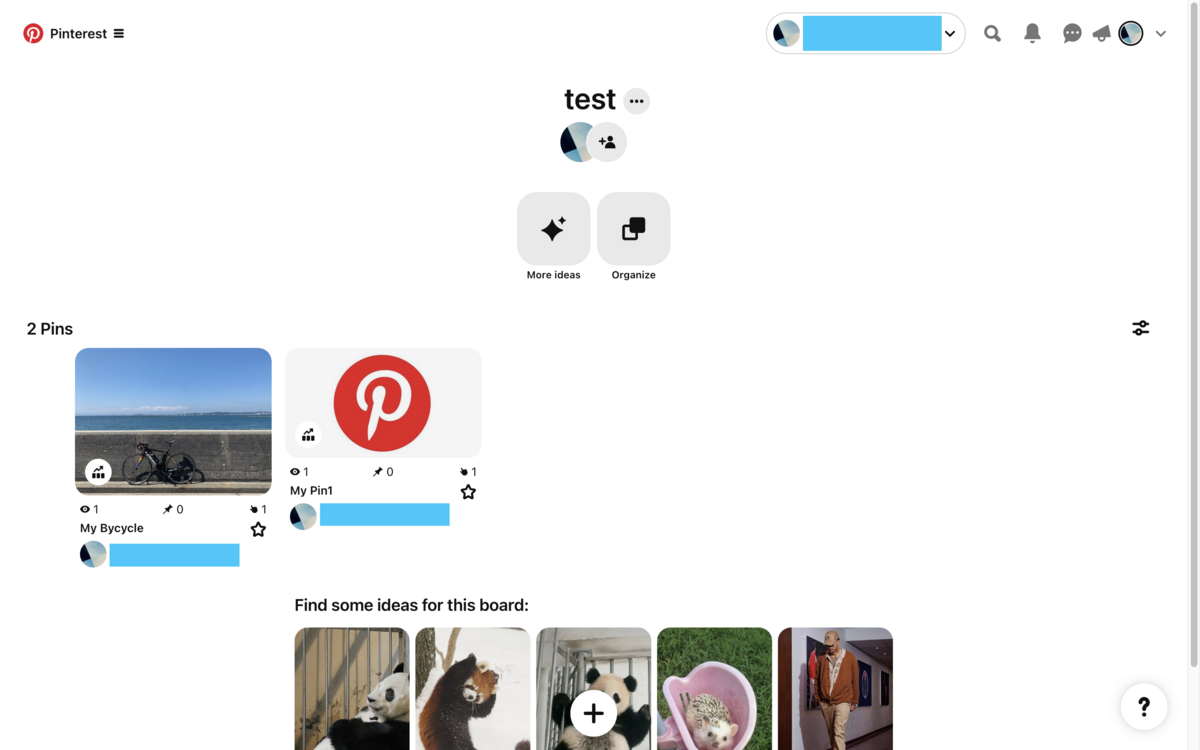
上記ではsource_typeにimage_urlを指定しましたが、image_base64も指定であるためローカル保存された画像に対しても投稿できる可能性はあります。こちらは未確認ですが、動作確認ができた場合は結果を追記します。
ピン投稿のPythonコード
ピン種別に応じてピン投稿するコードをgistに投稿しました。
- 画像のURL指定
- ローカルの画像指定(フルパス)
- ローカルの画像が格納されたフォルダ指定
- 1つのピンに複数のローカルの画像を指定
まとめ
- Pinterest APIの申請方法を紹介しました。
- 読み込みと書き込みの使用例を紹介しました。
- 最終的にはアプリに組み込むことを検討しているため進展があれば別記事で紹介します。
- 最後に、本記事が参考になりましたら、「はてなブックマーク」と「はてなスター」をお願いします。
以上です。